How many times a day do you copy-paste from Jira into your AI coding tool?
What if that number was zero?
You can now launch your AI coding agent directly from any Jira work item, context included.
|
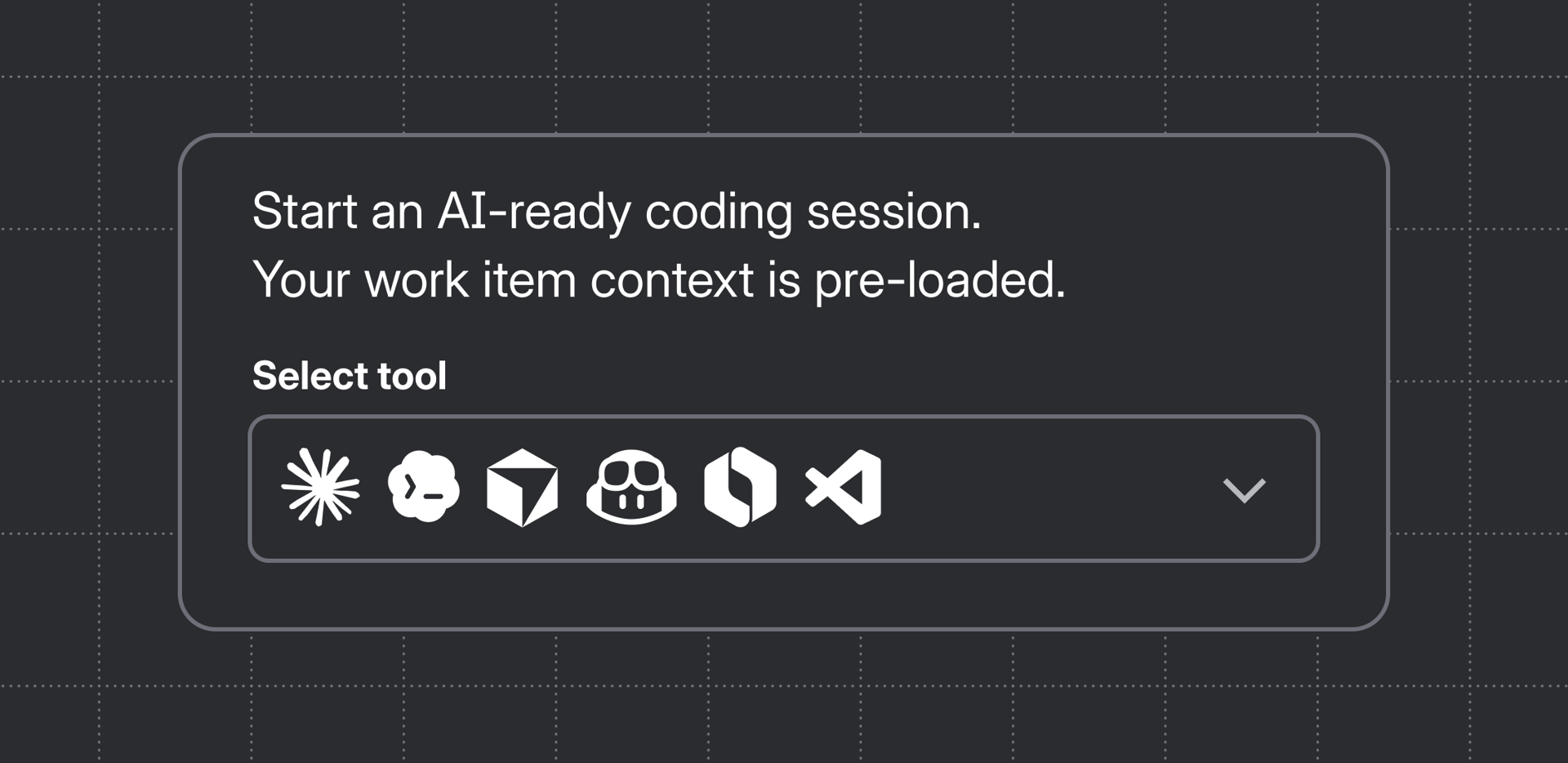
❓ How does it work? One click from the Development panel in any Jira work item. Pick your coding tool, and it opens pre-loaded with your Jira context. Zero copy-paste.
🛠️ What tools are supported? At launch, Claude Code, Cursor, GitHub Copilot, OpenAI Codex, VS Code, and Rovo CLI - with more coming soon.
🧠 How does it know what I’m working on? Atlassian MCP feeds your agent the work item summary + description automatically, and it can pull more from Jira and Confluence as it goes.
|
How to Get Started
Requirements
Before you get started, make sure you have:
-
A Jira Cloud instance (Free, Standard, Premium, or Enterprise)
-
Your preferred AI coding tool installed locally (e.g., Claude Code, Cursor, VS Code with GitHub Copilot, in terminal)
-
Atlassian MCP configured for richer context (optional but recommended)
Steps
-
Open any Jira work item and navigate to the Development panel (the same place you manage branches and PRs).
-
Click "Open in coding tool" and select your agent from the dropdown
-
For desktop apps (Cursor, GitHub Copilot, Codex): Your agent opens with the work item context pre-filled. Press enter and start building.
-
For terminal/CLI tools (Claude Code, Rovo Dev CLI): A modal appears with the full prompt ready to copy into your terminal in one action.
For more information, check out the support article.
Have questions? Drop a comment below – we'd love to hear from you.
If you’re interested in shaping the future of agents in Jira or sharing any feedback to make Jira work better for you and your team, we’d love to hear.
Book a time to chat with the team 🗓️. We’re excited to hear what you think!


