In this article I present my solution to delete all worklogs from an issue, using Jira Automation and REST API (cloud).
Requirements
Rule description
This rule delete all worklogs from an issue.
Prerequisites:
To use an API token you must encode it as Base64. To quickly generate it go to this website (or similar) and enter yourmail@address.com:YOURAPITOKEN and hit encode. This will generate your authentication as base64 which will let you use it on your http request. Copy it and save it somewhere.
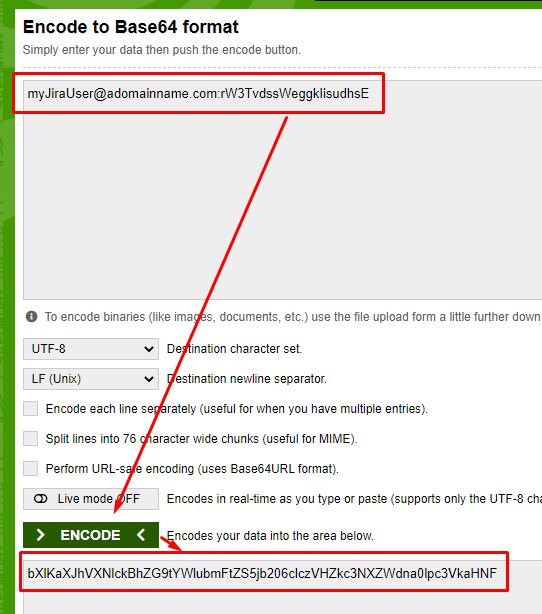
A full example of an http request can be read on this article by @Cristiano https://community.atlassian.com/t5/Jira-articles/Automation-for-Jira-Send-web-request-using-Jira-REST-API/ba-p/1443828
Rule
This rules has some pretty easy steps:
-
Manual trigger (or a trigger of your choice)
-
Send a web request to get all worklogs of the issue
-
Branch to run for every worklog using smart values
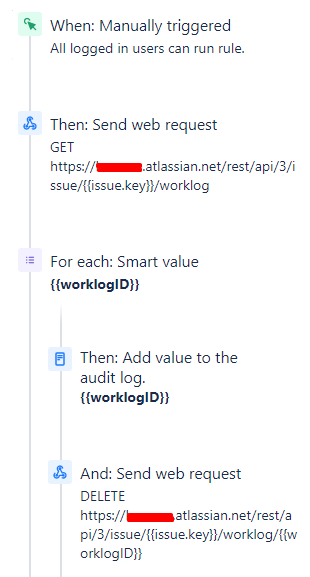
Rule Breakdown
Now let’s break down the rule:
Trigger
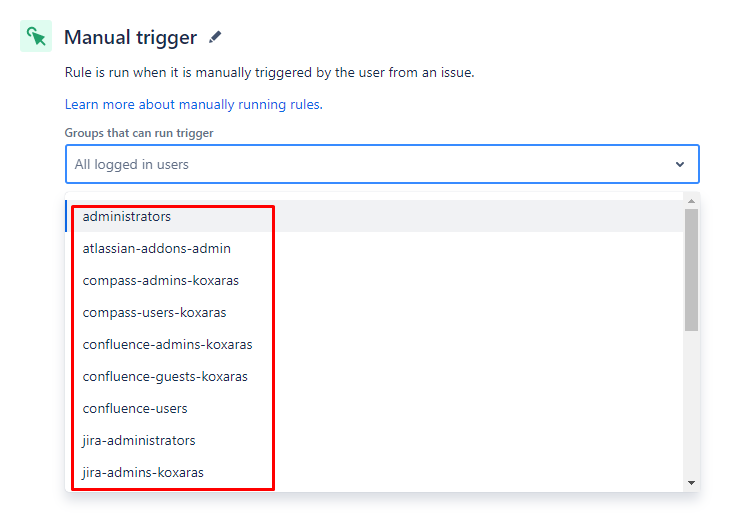
For the trigger I went with manual rule, since I wanted to have complete control of when the rule will run. Of course fill free to adjust the trigger to be run only by a selected group. Since this rule was on my test instance in which I am the sole user, I left it blank:
Get all worklogs
|
⚠️ Before diving in to this module, it’s imperative to do all the steps described in the “Prerequisites” section. If you don’t know, please follow the links on that section or my instructions.
|
The first component, after the trigger, is the “Send web request” component.
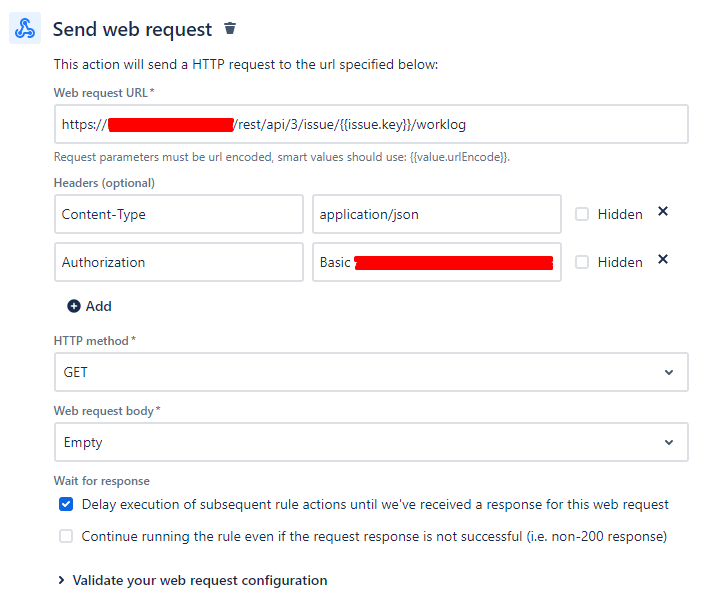
As a web request URL we enter the following URL, based on the first REST API endpoint:
https://YOURDOMAIN.atlassian.net/rest/api/3/issue/{{issue.key}}/worklog
We use the {{issue.key}} smart value so this rule can work on all issue to which we decide to run it. In addition we add as headers:
On the last bullet, we will enter as a value the word “Basic” followed by the encoded API token which we acquired from the “Prerequisites” section.
As the http method, we use “GET”, we leave the body as EMPTY and we make sure to check the “Delay execution of subsequent rule actions until we've received a response for this web request”. We can also validate the request if we click on the “Validate your web request” expand section and type an issue key.
Advanced Branching
The above GET request will return a response which we can further manipulate using the smart value {{webResponse}}. To be able to delete the worklogs, and based on the second endpoint we will use, it is imperative to know the worklogs ids. So the previous step give us the proper information about the worklog ids. However the response we get has all sort of additional information, which is of no use to us.
So we have to find a way to get only the worklog ids. To do that we will use another smart value on the Advance Branching component:
{{webResponse.body.worklogs.id.split(", ")}}
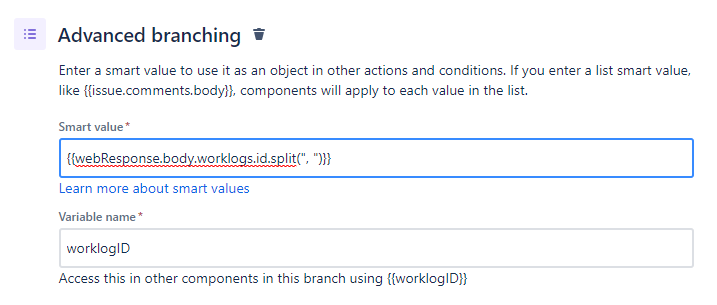
The above mentioned smart value can be breakdown as:
-
webResponse.body = we get the whole http response’s body
-
webResponse.body.worklogs = we get all the worklog information
-
webResponse.body.worklogs.ids = we get only the worklogs ids
-
webResponse.body.worklogs.ids.split (“, “) = we split the values, creating in essence a list which we will use on the next step
We save the above smart value as worklogID (or a name of your preference)
Delete each worklog
Next we add another “send web request” component.
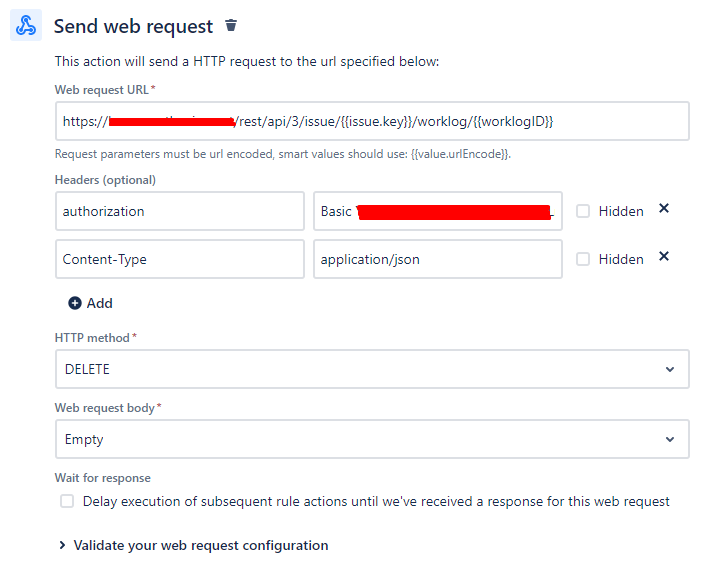
As a web request URL we enter the following URL, based on the second REST API endpoint:
https://YOURDOMAIN.atlassian.net/rest/api/3/issue/{{issue.key}}/worklog/{{worklogID}}
Again we use the {{issue.key}} smart value so this rule can work on all issue to which we decide to run it. Like before, we populate the headers accordingly:
As the http method, we use “DELETE”, we leave the body as EMPTY. You can again validate the request if you click on the “Validate your web request” expand section and type an issue key. Since we don’t want to get a response, you don’t have to check the “Delay Execution”. You can of course, but your rule will work if you leave it unchecked.
Results
The audit log upon running this rule will look something like the following:
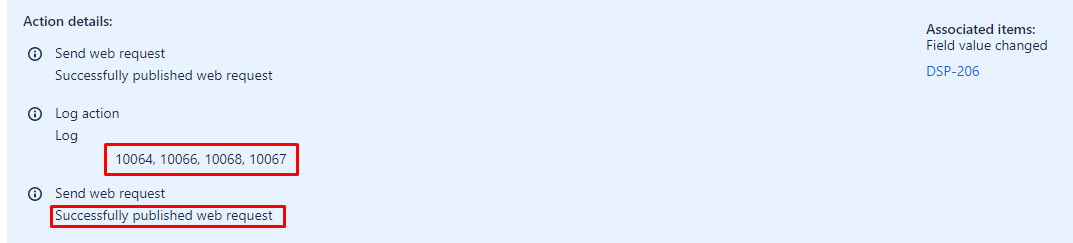
We have the log ids (which we used as a component during the testing phase which I don’t describe in this article) and then the successful web request. It’s always good to cross check that your rule works properly!
Have any thoughts? Let me know if the comment section!


