
First-time Confluence users are often caught out by what, in theory, should be a straightforward function to perform: deleting a page. There's no obvious ‘delete’ button on the navigation bar or anywhere on the page - so how do you delete a page in Confluence?
Deleting a page in Confluence Cloud
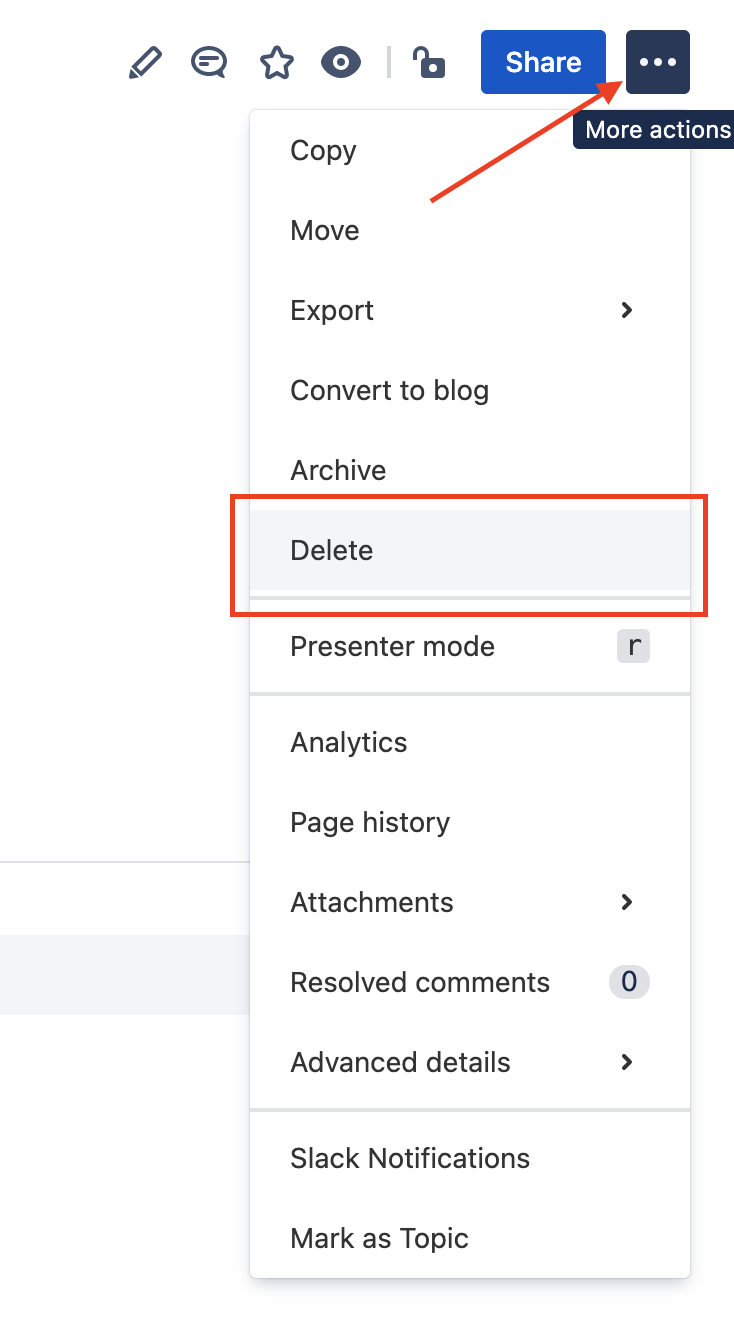
- Click the icon with the three dots at the top right of the page
- Clock ‘Delete’ from the dropdown list
- A popup will give you any relevant warnings (such as about child pages) and ask if you want to send the page to the trash. Click ‘Delete’ again
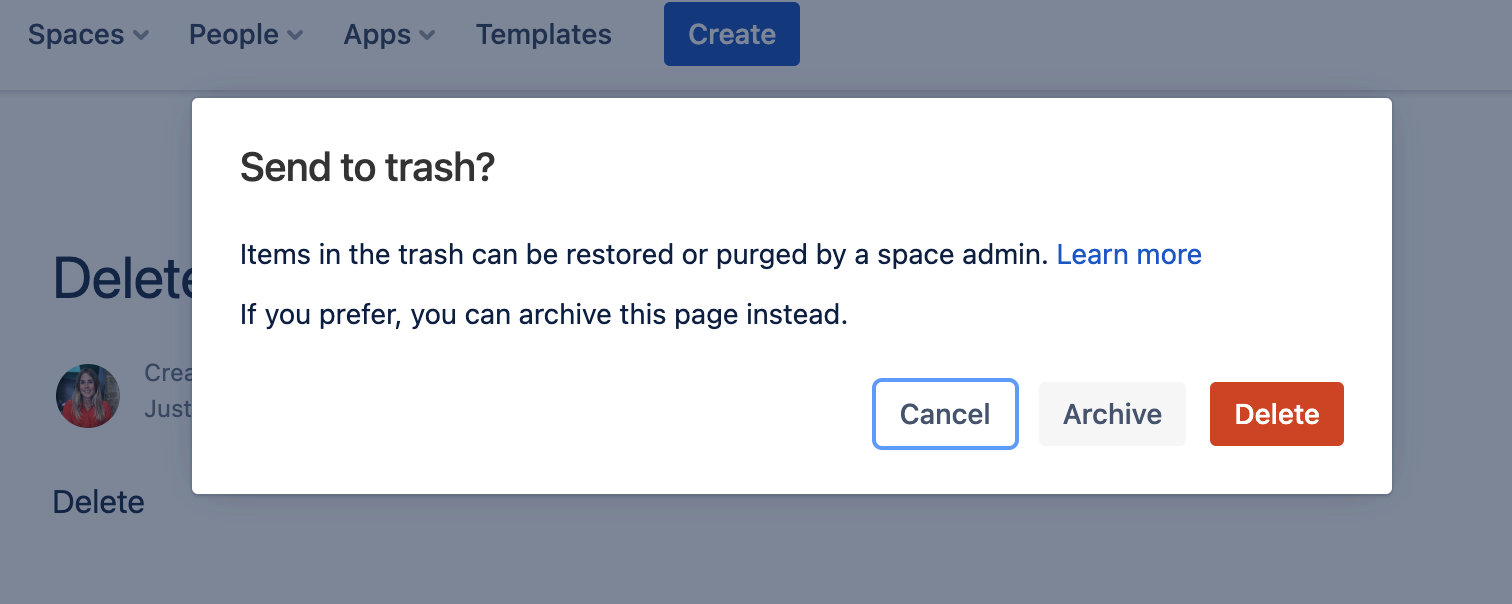
The Confluence page will then be moved to your space’s trash. This means it won’t be permanently deleted and can be restored from the space administration’s trash. Child pages of the removed page won’t be deleted - instead, they’ll move up to the nearest parent page.
Tip: Space permissions and page restrictions can prevent users from removing pages and content. If you don’t see the “delete” function for a particular page, contact your administrator to find out why.
Tip: If a Confluence page is unpublished or in draft state, deleting it will be permanent. Find out more here.
See Atlassian's guide to deleting a page in Confluence Cloud here
Deleting a page in Confluence Data Center and Server
Good news: the process for deleting pages is the same across Confluence Cloud, Data Center and Server. That means if you're migrating from Confluence Server to Cloud in the near future, you don't need to get your head around any new steps!
See Atlassian's guide to deleting a page in Confluence Data Center and Server here
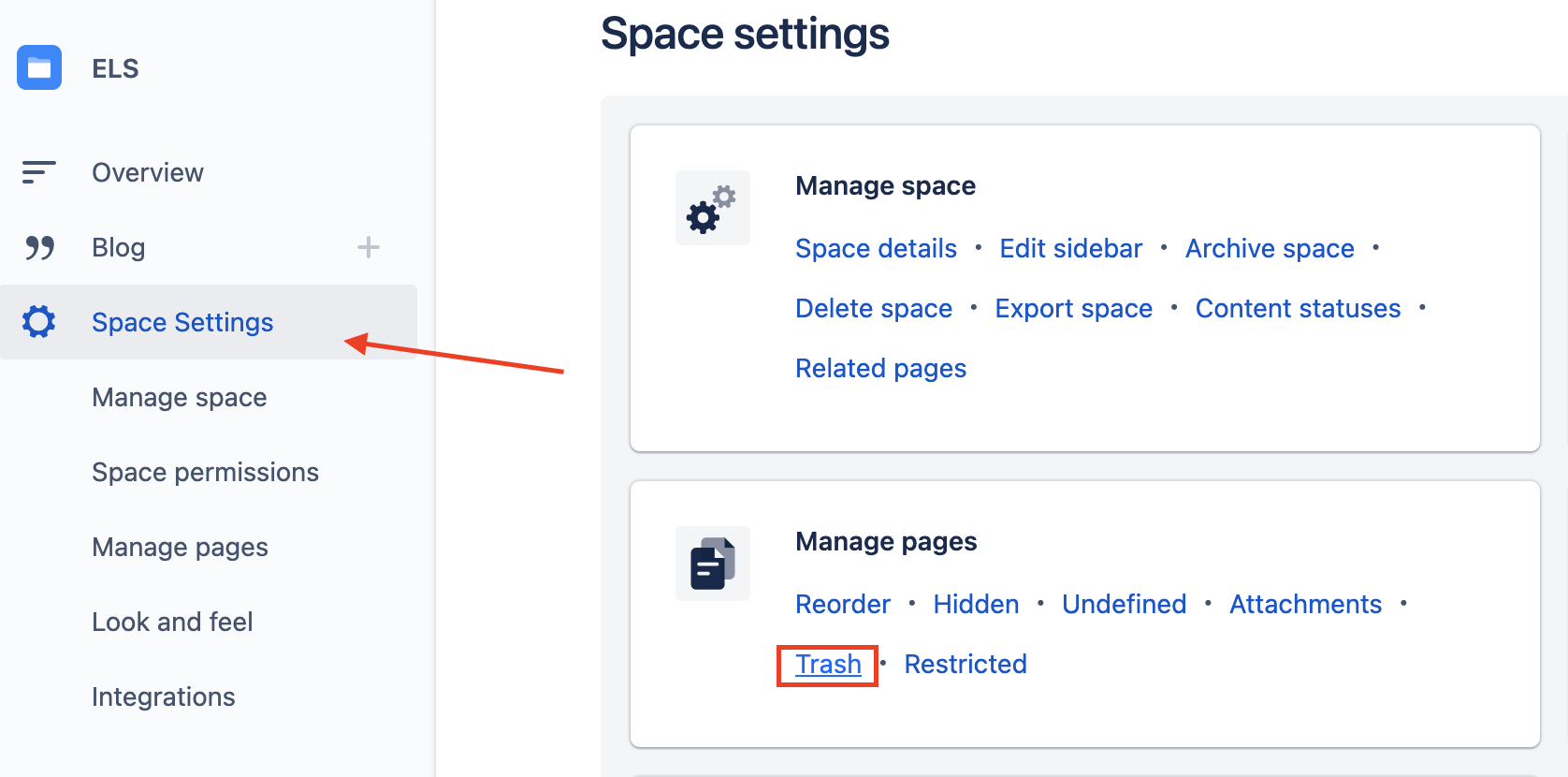
Tip: You can permanently delete pages by purging your trash. If you have permission, click ‘Space settings’ on your Confluence sidebar, then navigate to the ‘Manage pages’ card and click ‘Trash’. You can then choose to purge a specific page or purge all your deleted pages.
Recovering and restoring deleted pages and spaces
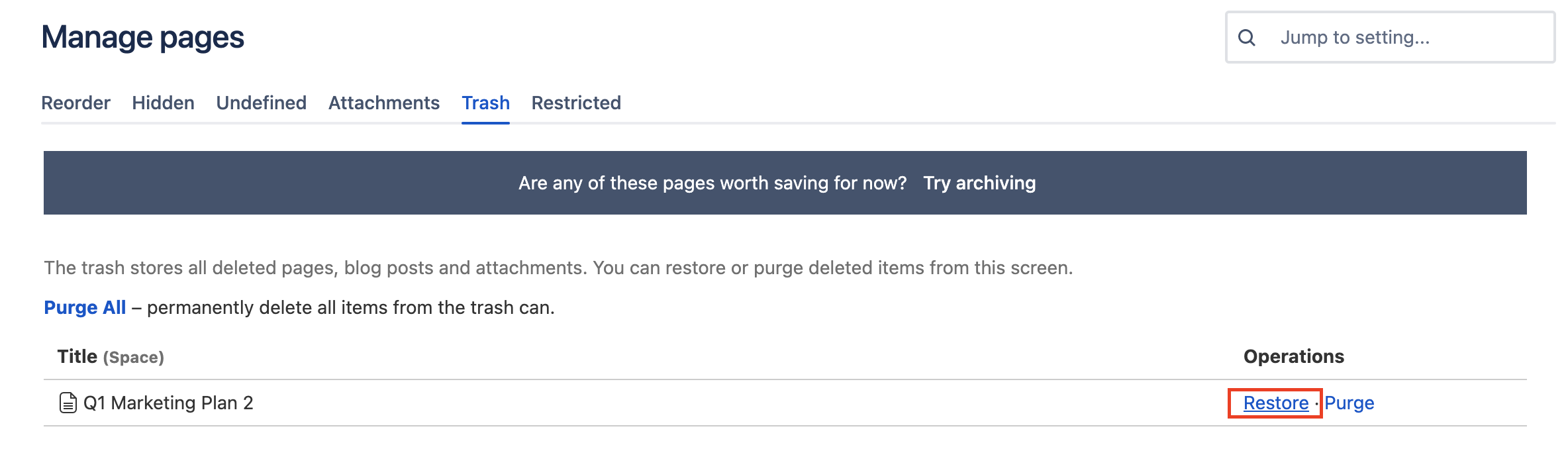
The ‘Manage cards’ page is also where you can find the ‘Restore’ option to recover pages you no longer wish to delete.
- Click ‘Space settings’ on your Confluence sidebar
- Navigate to the ‘Manage pages’ card
- Click ‘Trash’
- Click ‘Recover’
- Find the page you wish to recover, and click ‘Restore’
P.S.
If you want to create functional structured and beautiful content that no one will want to delete? Try Content Formatting Macros for Confluence 😉

