Hey there, Atlassian Community! We’ve heard a lot of feedback from you over the years around the idea of automating actions on a group of issues. Here are some of the things we heard you wanted to do:
Well, we want you to know we’ve been listening.
Based on your feedback, we’ve added a new action called Lookup issues. Long story short, it allows you to search for a bunch of issues, save it as a list, and then do stuff with it.
Sound good? Let’s dive in and take a look!
Recap - What is an automation rule?
At a basic level, Automation rules in Jira consist of 3 types of components you can configure:
-
Trigger - the event that will make your rule start
-
Conditions - requirements that have to be met, for your rule to run
-
Actions - the things your rule will do, if it gets triggered and meets all the conditions
In this article, we’re focusing on a brand new action called Lookup issues.
What is the Lookup issues action?
Once your rule is triggered, the Lookup issues action will perform a JQL search that you enter. You can edit your JQL as much as you like so it only searches for the issues you want to include.
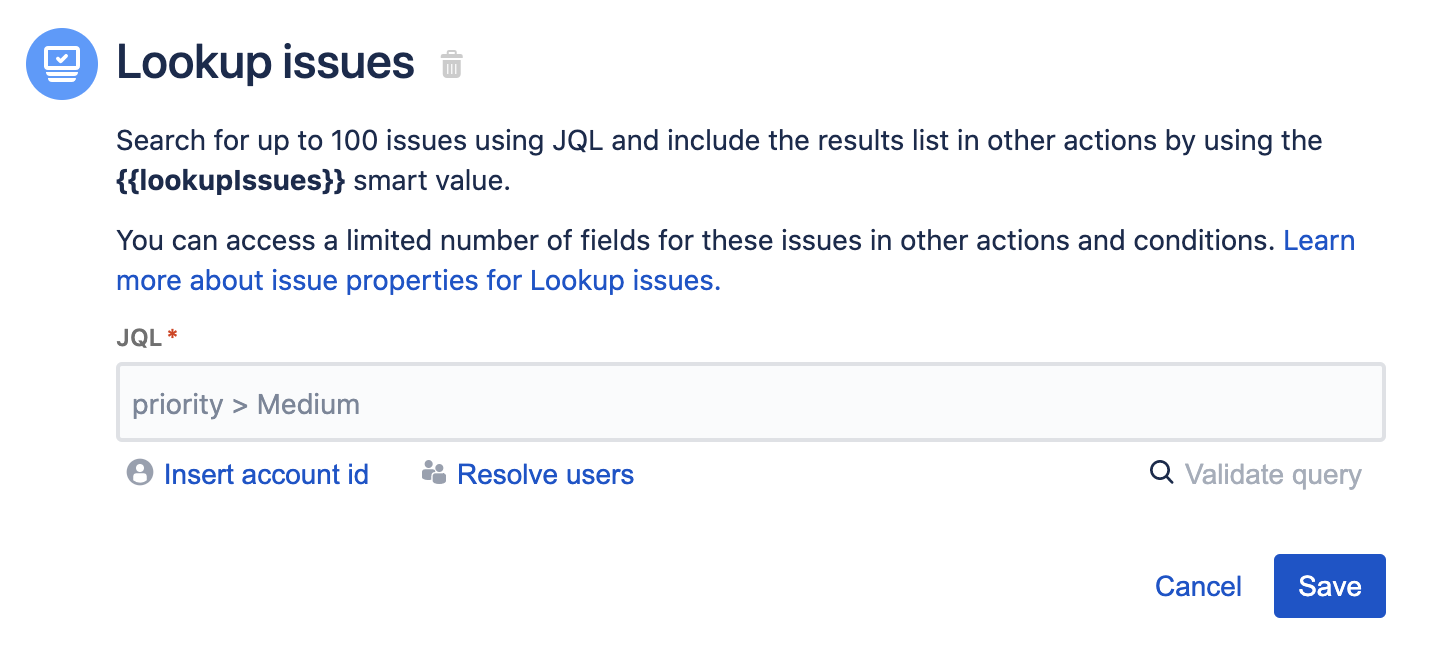
You can then access the resulting list using the {{lookupIssues}} smart value.
What could I do with this?
So in short, the Lookup issues action lets you search for issues, save it to a list, and then do stuff with that list. "Stuff" could mean sending an email, Slack, or MS Teams message. It could also mean commenting, transitioning, or updating every issue in the list. Magic!
Let’s look at an example in context.
Example: Print all the issues remaining in a sprint
Let’s say you’re a team lead, and you want to update your team every morning on how much work is remaining. Instead of doing this manually, you could set up an automation rule and let Jira automation handle it for you.
Step 1: Trigger
All rules start with a trigger; let’s set ours to trigger every day using the Scheduled trigger.
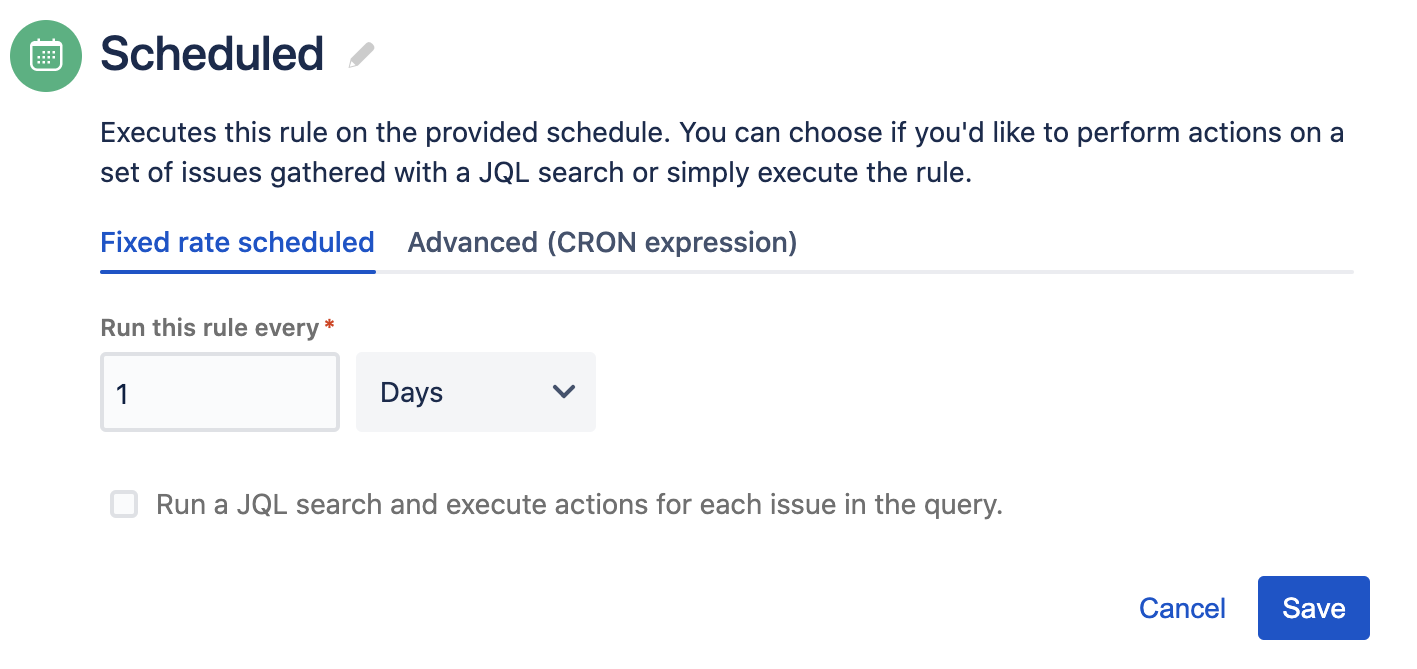
Step 2: Use the Lookup issues action
This is where our new friend, the Lookup issues action, comes in handy. We can enter a JQL query to find all the issues that are in the sprint, and not Done. This list of issues will be saved to the {{lookupIssues}} smart value.
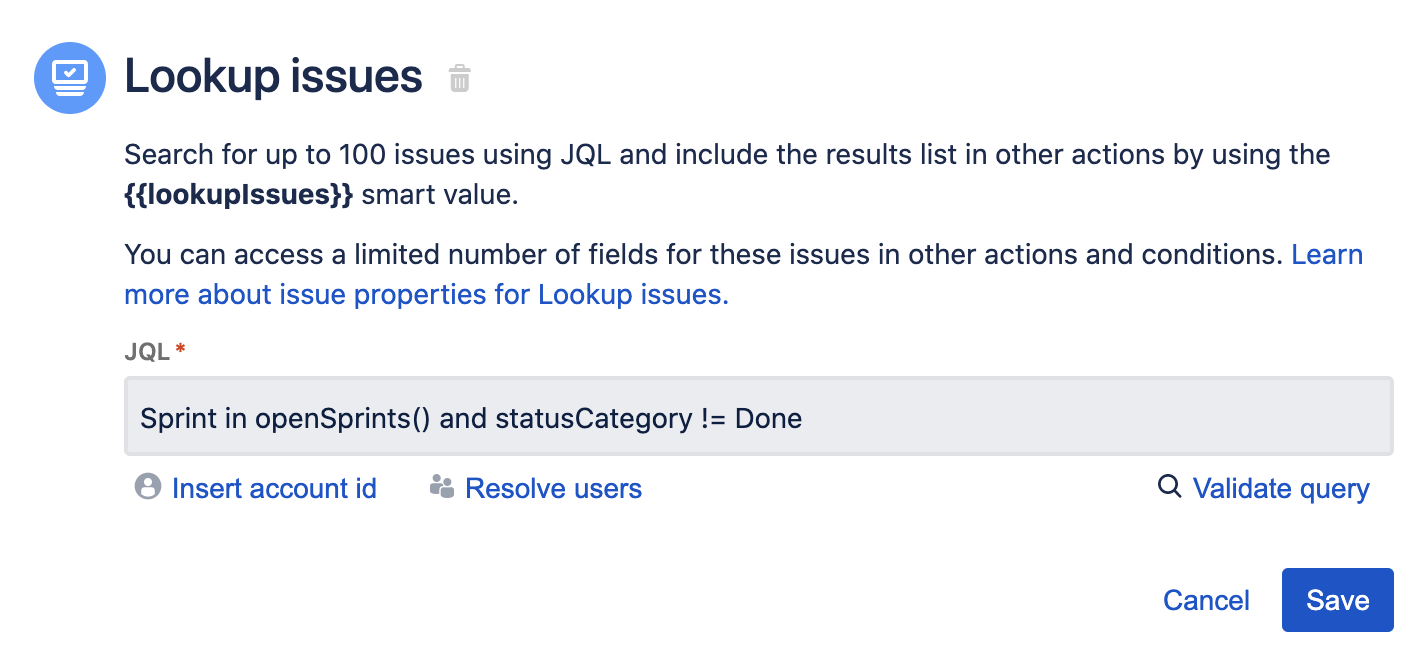
Step 3: Have Jira send a slack message containing the list of issues.
Now, we can take that JQL search we just entered, and print the list of issues somewhere using the {{lookupissues}} smart value.
We’ll go with a Slack message for this example.
Cool! What else could I do with this?
Actually, there’s a lot you could do. For example, you could use Lookup issues to:
-
Take all the issues assigned to one person, and reassign them to someone else (handy for when team members go on holiday!).
-
Look up all the issues that are in a Review status, and add a comment to each one to remind the reviewer to look at them.
-
Compile release notes by finding all the issues in a release, and publishing the summary for each issue.
Really, listing out every possibility here would make this article super long - but I’m sure you’ve already got some ideas for your team! If you’re keen to hear from other ideas, check out our most recent webinar.
Where can I learn more?
If you’re excited to jump in and start creating your own rules, head to Project settings > Automation to create project rules or Jira settings > System > Automation to create rules for your entire site
Or if you want to learn more:


