Trello has historically offered a way to connect your Confluence pages directly to your boards. As Atlassian continues to improve how our products work together, we’re making some changes behind the scenes. Because of these updates, we’ll be retiring the old Confluence Power-Up beginning early January 2026. Your Confluence links will still work in Trello, and you’ll be able to use new, built-in ways to connect your work across both tools
No action is required from your end and you will not lose any existing data or links during this process. Boards using this Power-Up will receive a notification of this change and information on how to start using the integrated Confluence features. Any existing Confluence link cards will remain intact.
✅ How to use Confluence in Trello
There are two ways to embed a Confluence page within a Trello card:
1. Copy and paste a Confluence page's URL into the title field of a new Trello card. This will create a link card and give you the option to preview, edit, and comment on the Confluence page in-line from within your Trello board. You can attach a Confluence page from the Trello mobile app as well.  2. Attach your Confluence page under the “Attachments” section of the Trello cardback. Click on any regular Trello card, select “Add” and then choose “Attachments.” You can search and paste a Confluence link from there, or scroll through recently viewed Confluence pages to attach it to your card.
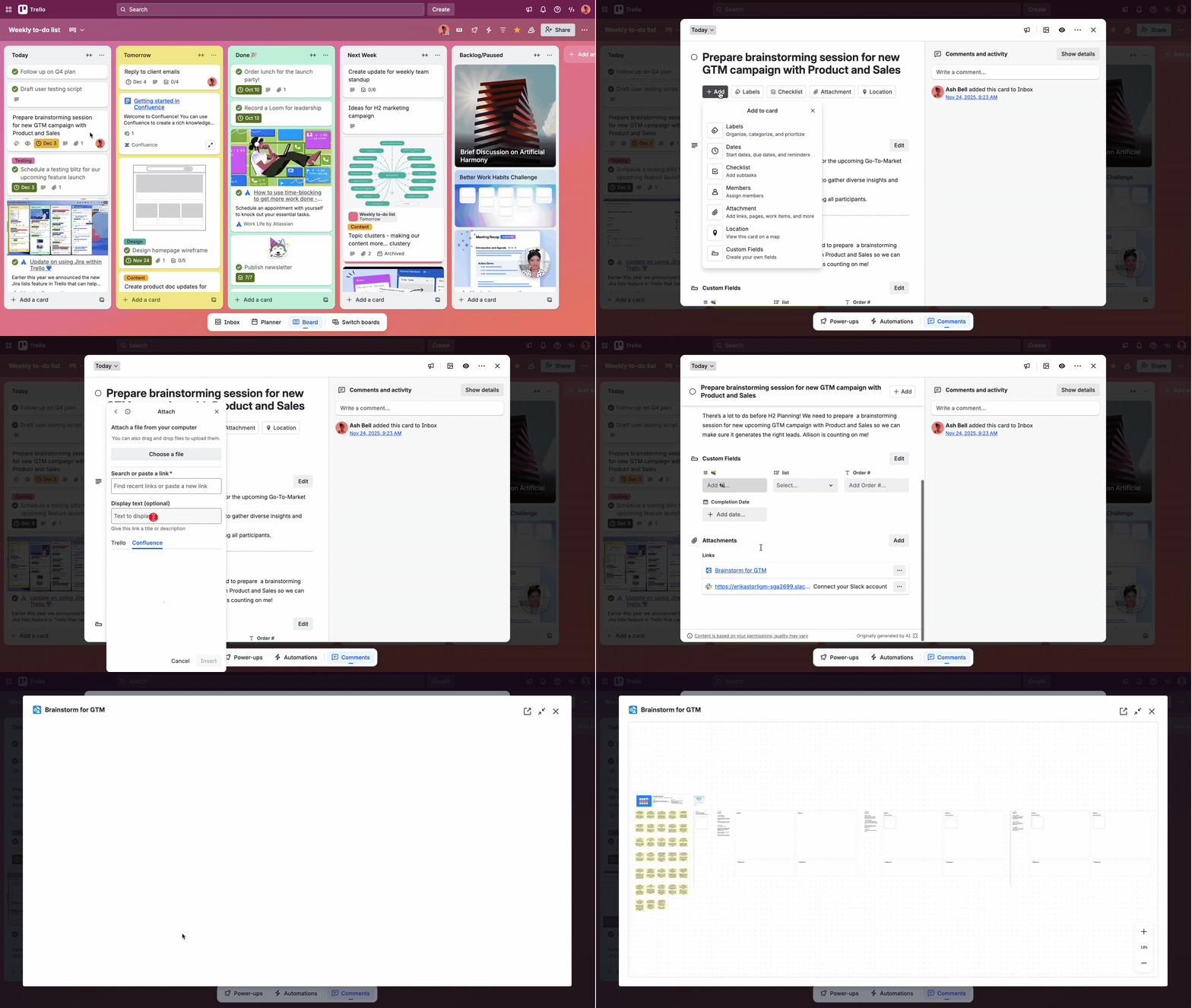
Here are a few questions-and-answers that may help with this upcoming change:
Q: Will I be able to create a new Confluence page from a Trello card without the Confluence Power-Up?
A: Not at this time, no.
Q: Why remove the Confluence Power-Up if we lose some of its functionality?
A: In January, Atlassian announced plans to end support for Connect. This has technical implications for how we host the Confluence Power-Up and it was not feasible to carry on with the status quo. While certain aspects may work differently, the new setup will ultimately be more reliable for Trello in the long run. We welcome your feedback and will continue to iterate based on what we hear. To share your thoughts, look for the megaphone icon at the top right of your Trello board. You’ll also see the same icon on the top right of every card back.
Q: Can I connect multiple Confluence pages to a single card on Trello task?
A: Yes. Use the Attachment section of the Trello cardback to do so.
Q: Why can’t I edit my card formatted as a Confluence link card?
A: If you have a card set up as a link card but want to use other aspects of the Trello cardback, look for the pencil icon in the top right corner to edit the card, then select “Convert to a regular card” and edit the title field. After you convert it to a regular card, you’ll be able to edit the card (like adding a label or description) and access the Attachments section. Alternatively, you could create a net new Trello card.

