You've got 30 minutes before the retrospective and your manager wants a progress update by EOD. You pull up the Jira sprint report—it tells you what happened, but nothing about why. Who was overloaded? Which stories blew past their estimates? Did the team miss the goal, or did unplanned work get dumped on you mid-sprint? You need answers by assignee, by time spent, and in a format you can actually export. Instead, Jira gives you a team-level burndown and a list of incomplete issues.
The native report isn't useless—it just isn't enough. This guide covers how to find, read, and export the Jira Sprint Report—and what each metric actually tells you. We'll also show where native reporting falls short, and how to get the per-user, time-tracked insights.
How to Find and Generate the Sprint Report in Jira
If you’ve never pulled up a sprint report in Jira, the good news is that it’s automatic. Jira generates sprint reports for every completed sprint in a Scrum project—no configuration required.
For access, navigate to your Scrum board and click the Reports tab in the top navigation bar.
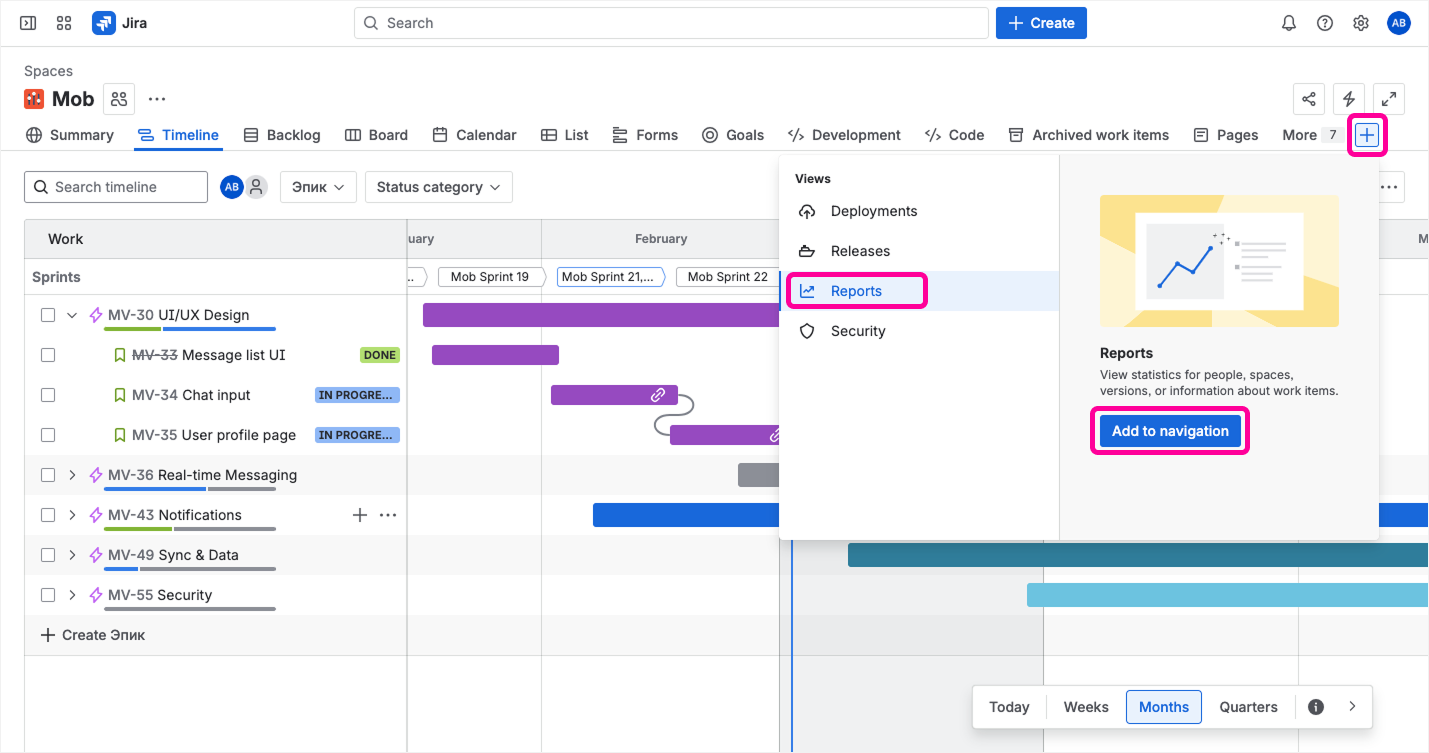
You’ll see several report types gathered on one page.
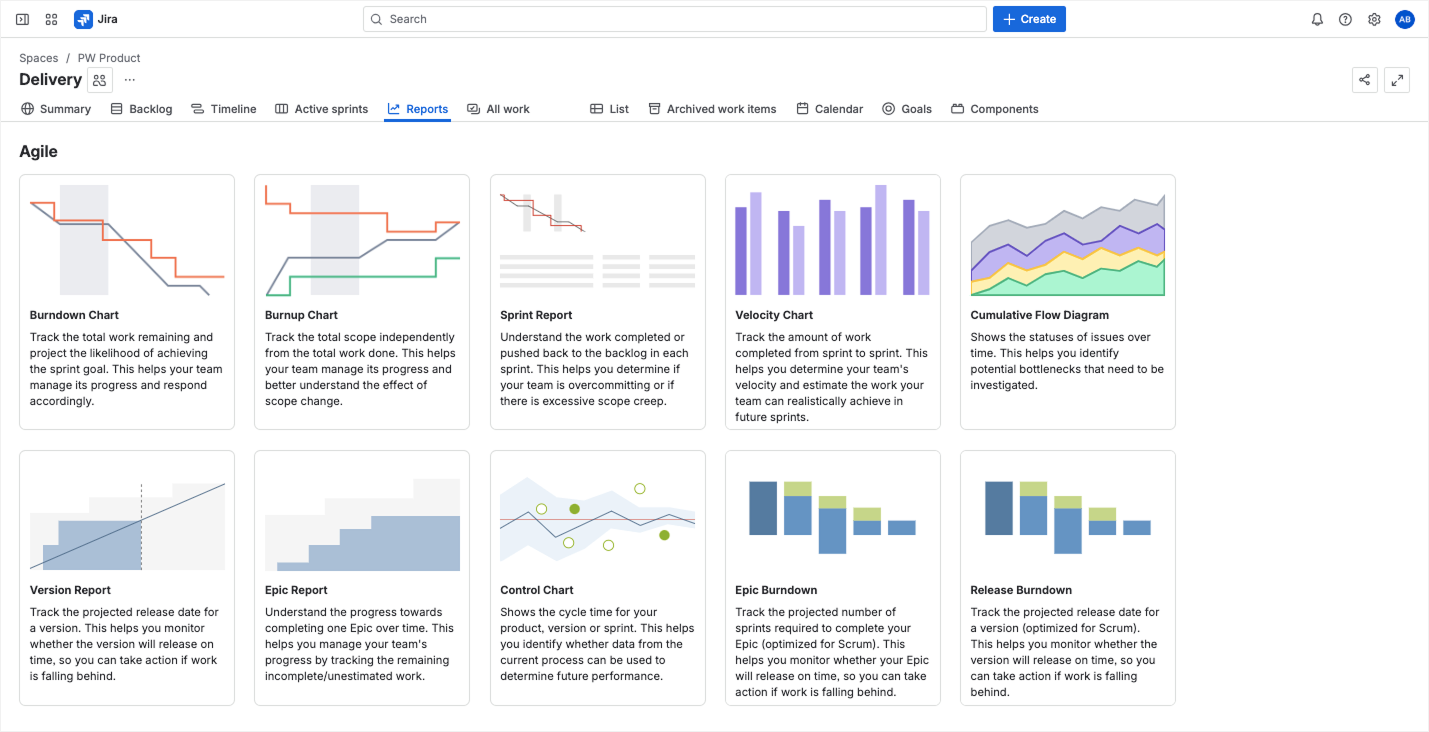
Which Report Should You Use?
If you’re staring at the Reports tab wondering which of the options to click, you’re not alone. Here are the four essential Scrum reports for sprint analysis and when to use each one.
| Report |
What It Shows |
Best For |
|---|
| Sprint Report |
Burndown chart + issue tables (completed, not completed, scope changes). The all-in-one retrospective view. |
Sprint retrospectives and mid-sprint progress checks. Start here. |
| Sprint Burndown Chart |
Remaining work trending toward zero, with a chronological event log of every scope change, completion, and re-estimate. |
Day-to-day sprint tracking. More granular than the Sprint Report. |
| Burnup Report |
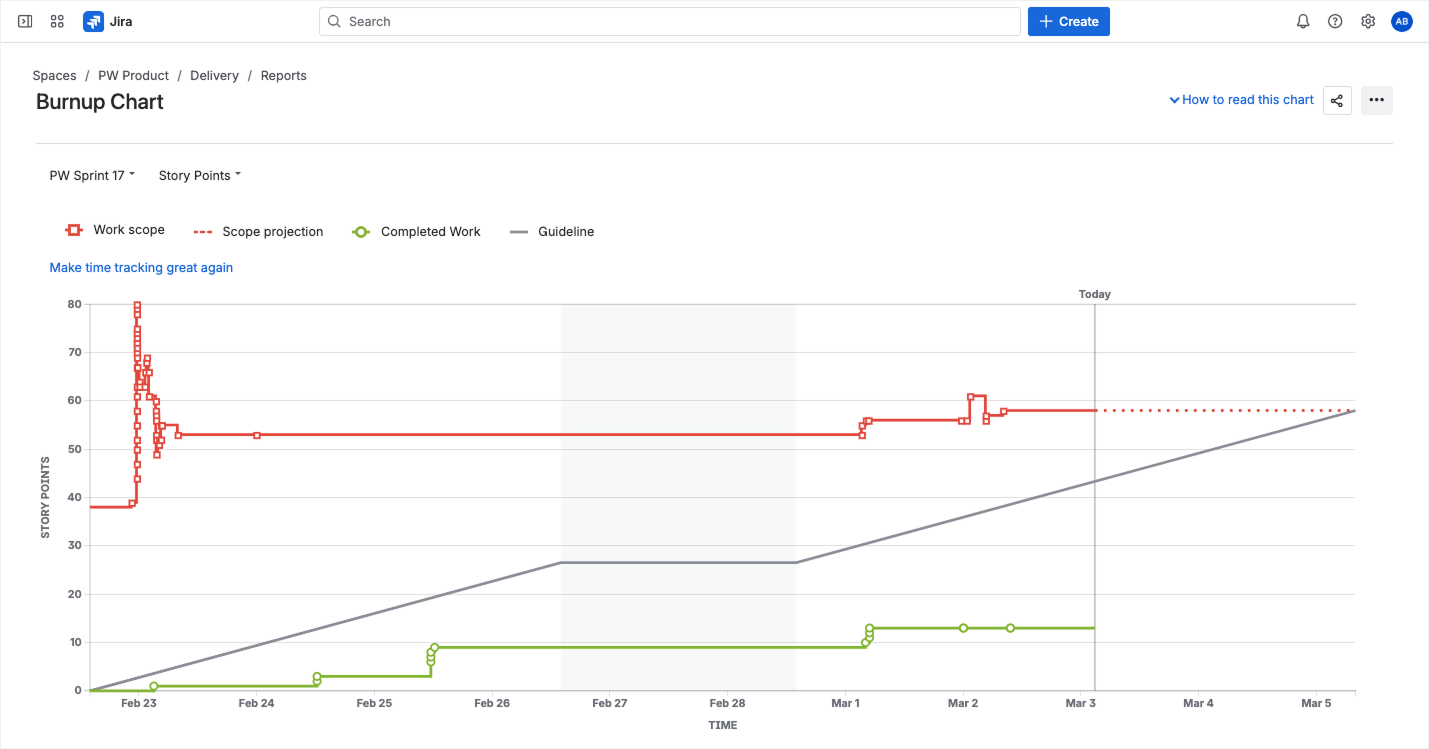
Total work scope (red) vs. completed work (green) over the sprint, plus projection and guideline overlays. Shows whether scope is growing faster than work is finishing. |
Detecting scope creep. If the red line keeps climbing, work is being added faster than it's finished. |
| Velocity Report |
Committed vs. completed story points across recent sprints. |
Sprint planning. Use the average of your last 3 sprints to set realistic commitments. |
Not sure where to start? Match your question to the right report:
"Did we hit the sprint goal?" → Sprint Report
"Are we on track day by day?" → Sprint burndown chart
"Is scope creeping into our sprint?" → Burnup report
"How many points should we commit next sprint?" → Velocity report
“Who on my team is overloaded?” → None of the above—this is where a plugin like Planyway fills the gap (see below).
This guide covers all four. We'll spend the most time on the Sprint Report (since that's what your retrospective needs), but we'll also show how the Sprint burndown chart, Burnup report, and Velocity report each answer a different planning question.
How to Read the Jira Sprint Report: The 3 Key Metrics
Learning how to read the sprint report in Jira starts with three metrics. The Jira Sprint Report packs a lot into a single page: a burndown chart at the top, and detailed issue tables below. To make sense of it, focus on three layers of information: burndown and progress, story point completion, and velocity trends.
Understanding the Burndown and Progress
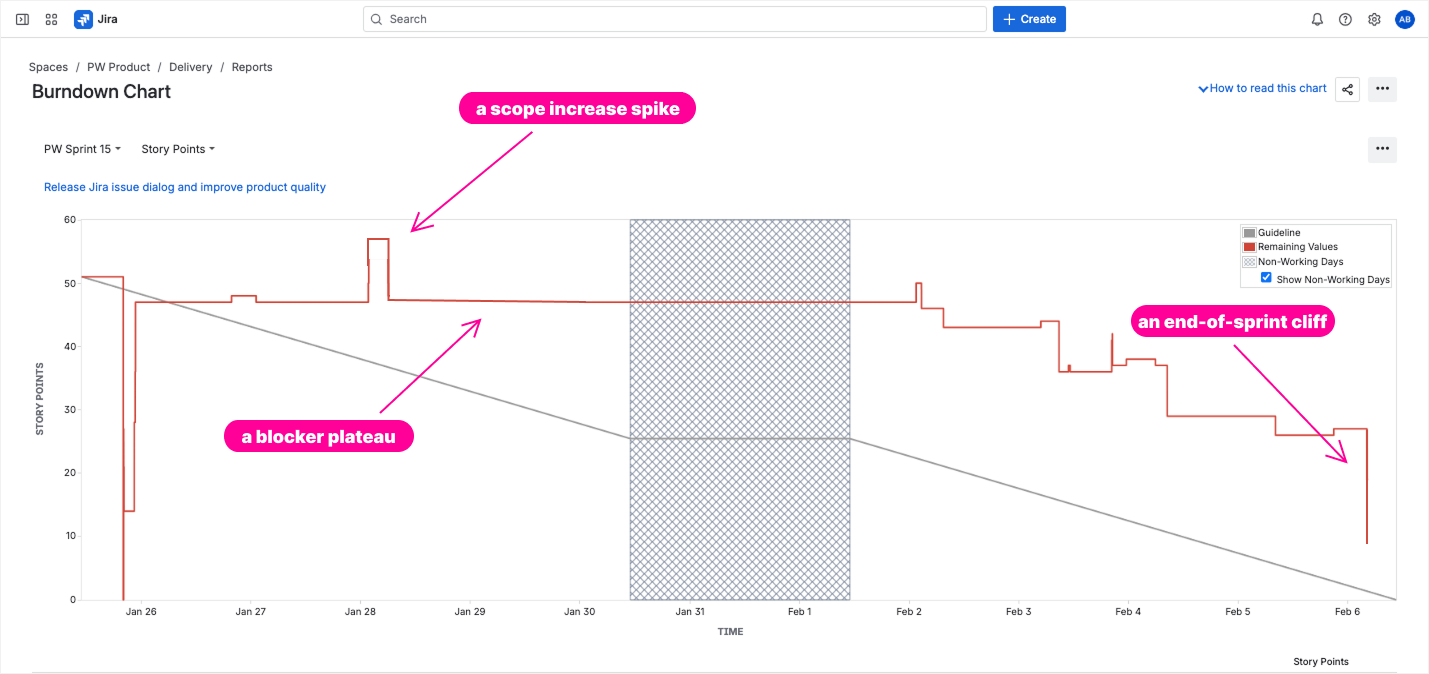
The Sprint Report opens with a Jira sprint burndown chart—a line plotting remaining work (in story points or hours) against the sprint timeline. The gray guideline represents the ideal pace. Your actual progress is the red line.
Here’s how to read the shape. A line that stays above the guideline for most of the sprint means the team took on too much or started slowly. A flat section in the middle often signals a blocker—something was stuck in code review, waiting on a dependency, or simply underestimated. A sudden cliff at the end (everything marked “Done” on the last day) suggests the team is batching work instead of delivering incrementally.
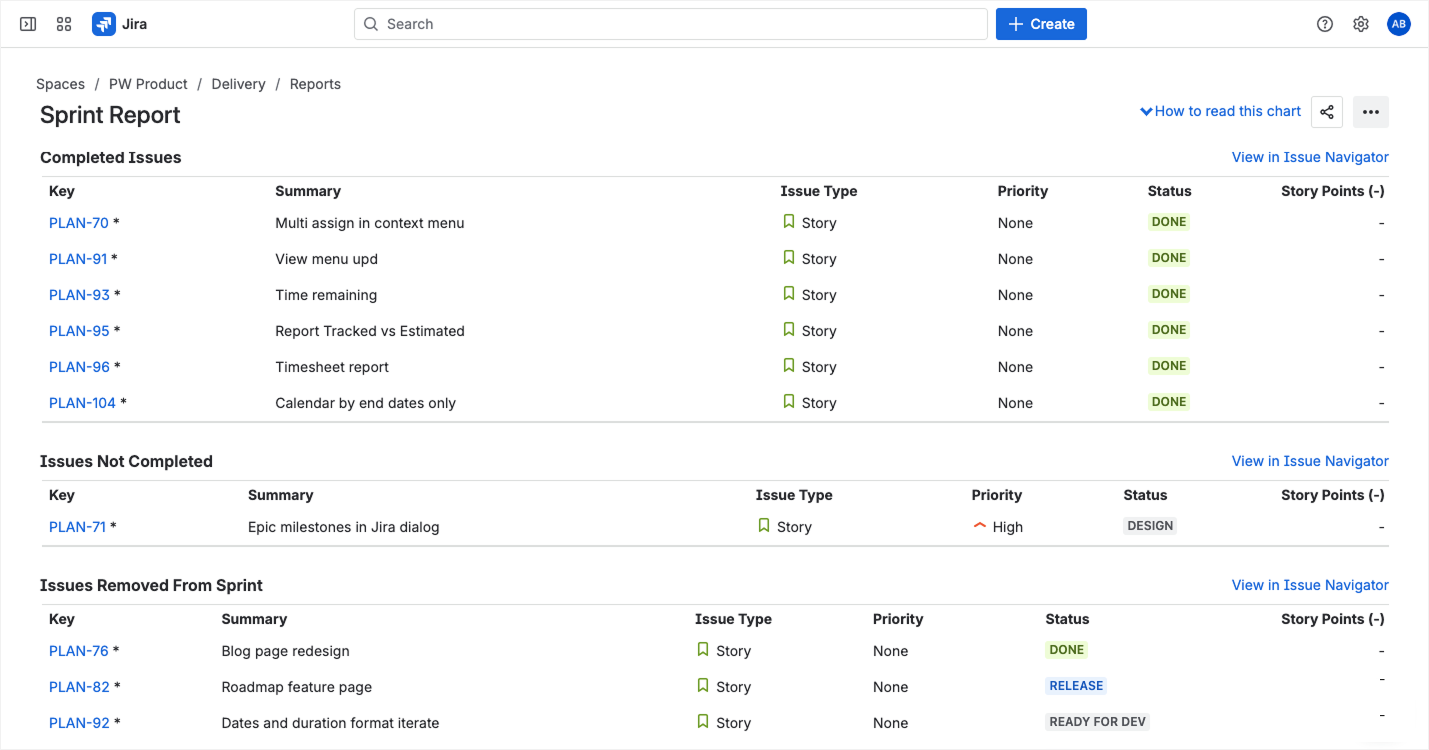
Below the Sprint Report's chart, you'll find issue tables grouped by outcome: Completed Issues, Issues Not Completed, and Issues Removed From Sprint. Issues added after sprint start are flagged with an asterisk (*). Pay special attention to those asterisks—they're your scope creep indicator. If your team keeps missing goals but three or four starred issues appear each sprint, you haven't failed at execution—you've failed at protecting scope.
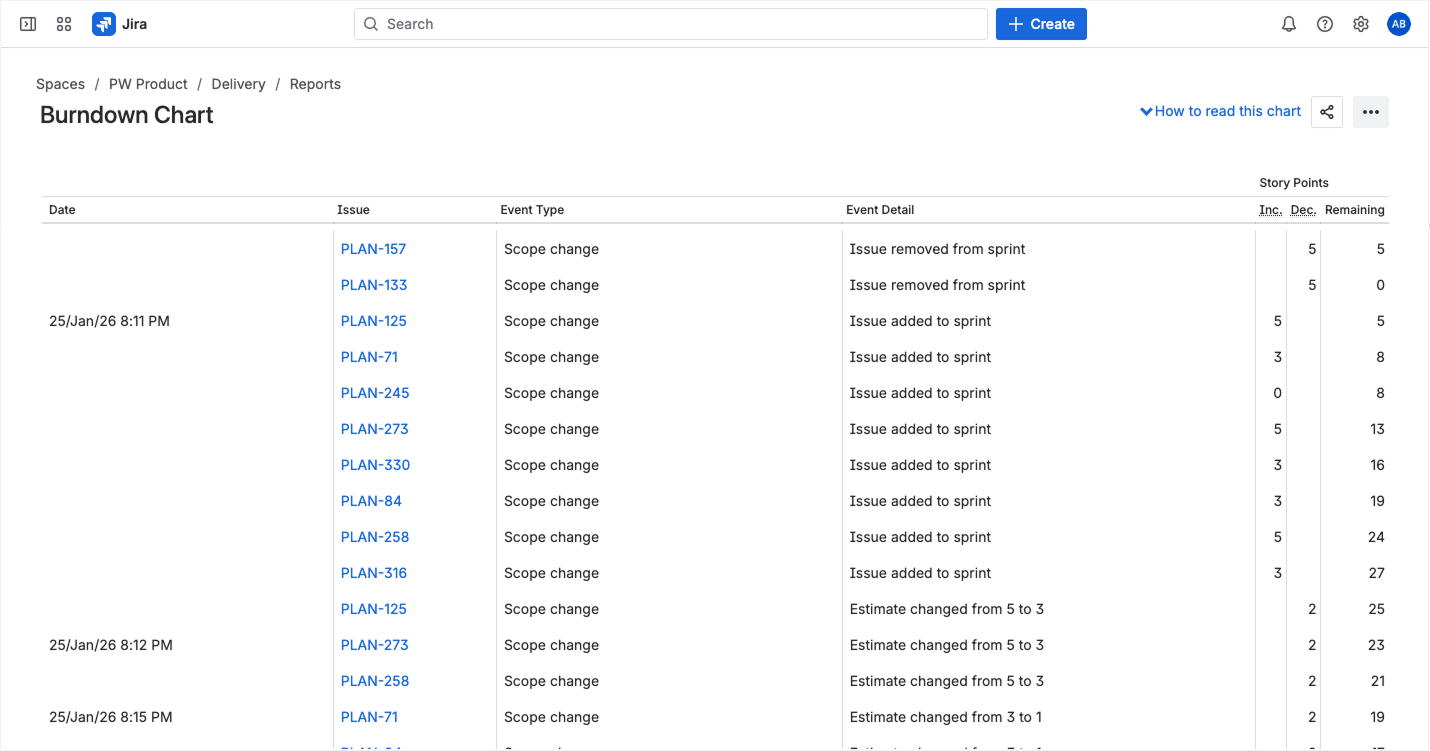
If you want more detail than the Sprint Report provides, switch to the Sprint burndown chart report. Below its chart, you'll find a chronological event log—every sprint start, scope change, and issue completion timestamped in order. Each row shows the issue key, what happened ("Issue added to sprint," "Issue removed from sprint"), and the running story point total. This is the only place in native Jira where you can trace exactly when scope changed and by how much. If your retro argument is "we didn't miss the deadline—new work was dumped on us mid-sprint," this log is your evidence.
For scope creep specifically, the Burnup report gives you the clearest picture. It tracks two key lines: total work scope (red) and completed work (green). In a healthy sprint, the red line stays flat while the green line climbs toward it. If the red line keeps stepping upward, scope is growing—work is being added faster than it's being finished. The gap between the two lines is your remaining work at a glance. Like the Sprint burndown chart, the Burnup report also includes a chronological event log below the chart.
Analyzing Story Points and Completion
The story points data in your Jira sprint report tells you one thing clearly: how much you planned versus how much you finished. The Sprint Report's issue tables—Completed, Not Completed, and Removed—make this math visible. Together, they show how many story points were committed versus completed—the closest thing Jira gives you to a Jira sprint completion report.
Pull this data across several sprints and patterns emerge fast. Here's what three consecutive sprints looked like for one team:
| Metric |
Sprint 22 |
Sprint 23 |
Sprint 24 |
|---|
| Committed |
40 SP |
42 SP |
45 SP |
| Completed |
28 SP |
30 SP |
29 SP |
| Completion % |
70% |
71% |
64% |
Three sprints of systematic over-commitment. The pattern is clear—the team isn't slow, the plan is too big.
Velocity and Future Planning
The reports above focus on a single sprint. The Jira sprint velocity report zooms out—it plots committed versus completed story points across your last seven sprints. This is the data that answers the question every stakeholder eventually asks: "When will it be done?”
This is the data that answers the question every stakeholder eventually asks: "When will it be done?”
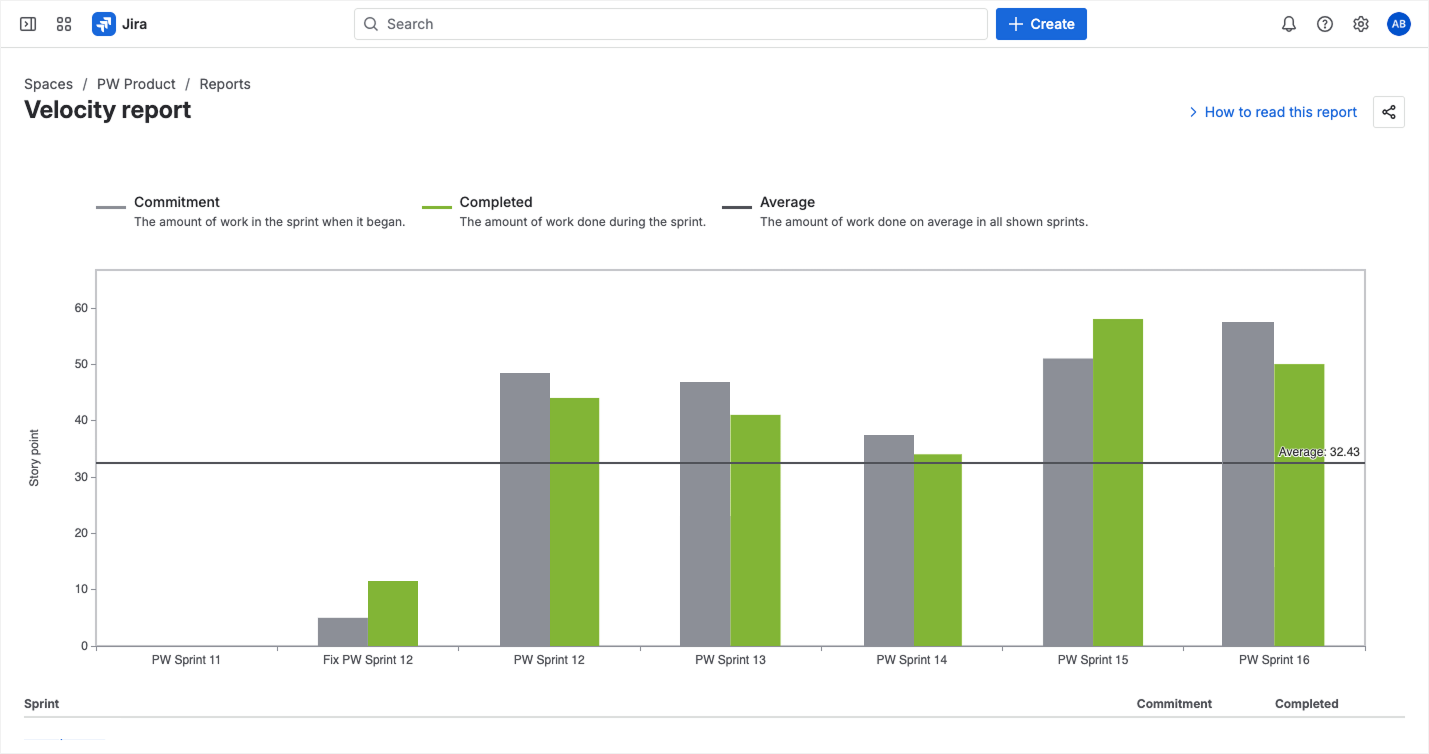
📊Pro tip: Velocity is most useful as a planning input, not a performance metric. Use the average of the last three sprints to guide your commitment for the next one. If your team averages 35 points but you’re loading 50 into the next sprint, you’re setting up for failure. The velocity chart makes this gap visible—if you’re willing to look.
Jira Sprint Reports by User and Time
So far, we’ve covered what Jira gives you out of the box. Now let’s talk about what’s missing—and this is where most project managers start reaching for spreadsheets.
Can You View a Jira Sprint Report by Assignee in Native Jira?
The short answer: not easily. The native Jira sprint report is a team-level view. It shows total points committed and completed, total issues done and not done—but it doesn’t break this down by person. You can’t glance at the report and see that Sarah completed 20 of her 22 points while Mike only finished 8 of his 25.
There are workarounds. You can apply Quick Filters on your Scrum board to isolate a single assignee, then mentally piece together their contribution. You can write JQL queries like sprint = "Sprint 24" AND assignee = "Mike" and export the results. But neither gives you the at-a-glance, per-user sprint breakdown that a retrospective actually demands.
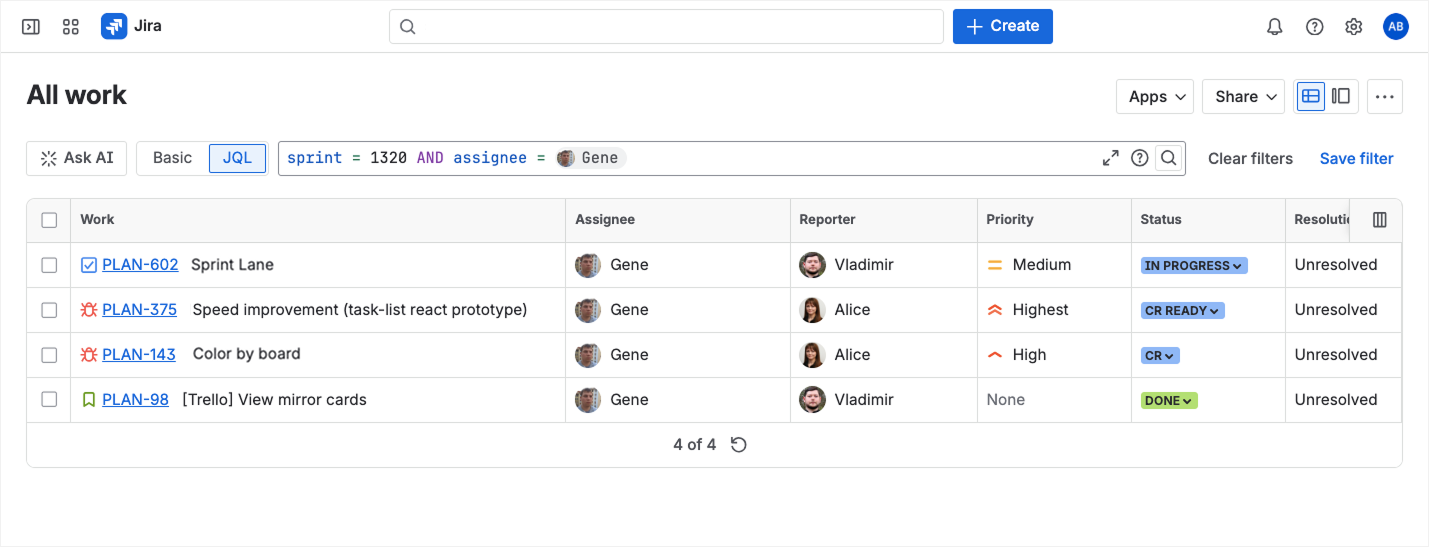
This is exactly the gap that a tool like Planyway fills. Planyway’s workload view visualizes the sprint at the team member level:
- Mike was assigned 60 hours of work in a 40-hour sprint.
- Your QA engineer had every ticket pile up in the last three days.
- The front-end developer was at 50% capacity because half their stories were blocked by a back-end dependency.
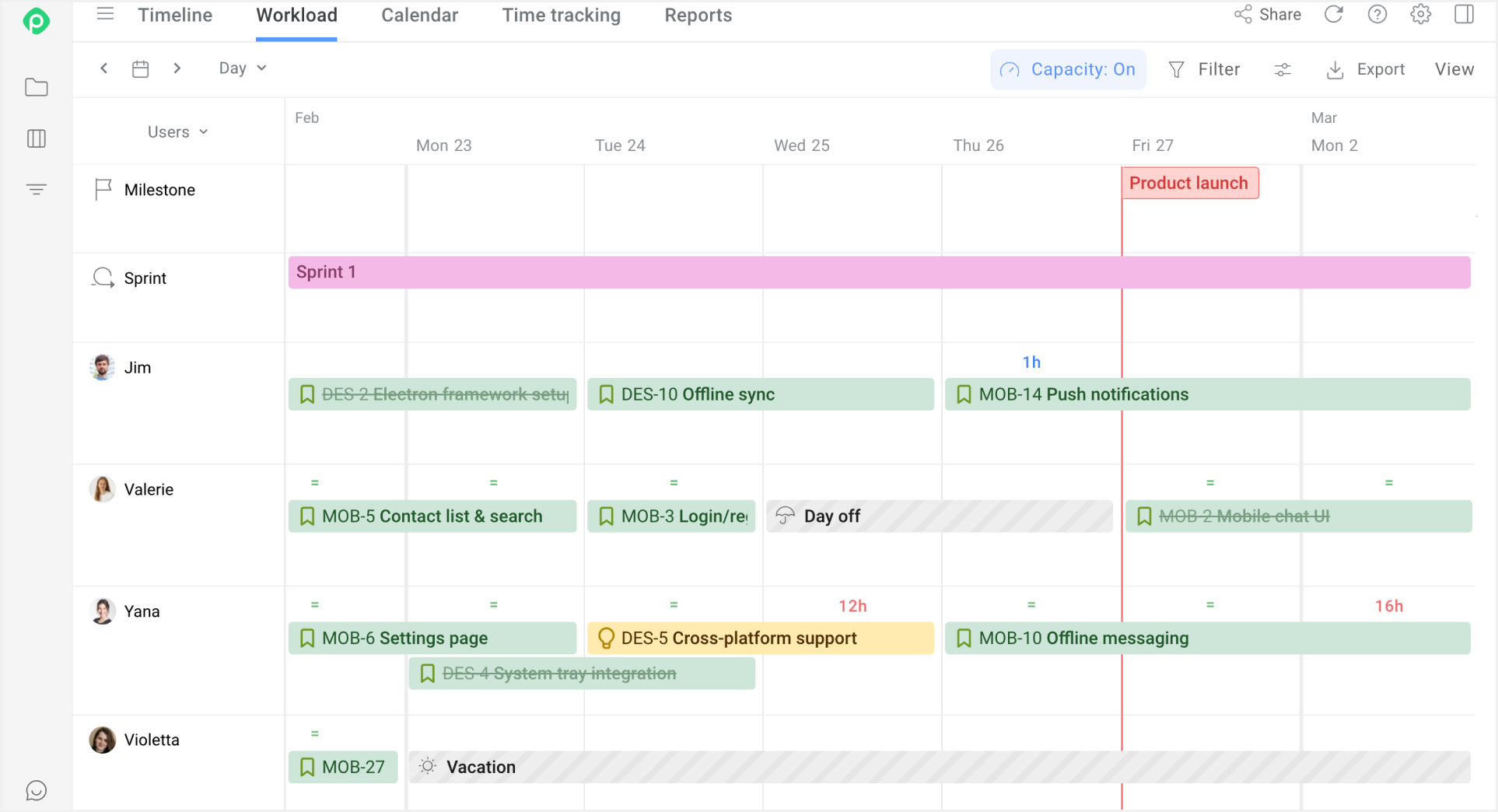
This transforms the retrospective. Instead of vague conclusions like “we need to do better at estimation,” you get evidence-based insights: “Mike was overloaded by 20 hours. Next sprint, we redistribute two stories to the front-end pair.”
This is the Jira sprint report by user that native reporting doesn't offer.
Tracking Time vs. Story Points
Many teams log hours alongside story points—especially those billing clients, working with contractors, or operating under regulatory requirements. The problem is that Jira’s native sprint report focuses almost exclusively on story points. If your team tracks time, that data exists in the issue-level time tracking fields, but it’s invisible in the report itself.
This creates a blind spot. A 5-point story might take 8 hours for one developer and 20 for another. Without cross-referencing story points against actual time logged, you can’t identify the “black hole” tasks—the ones that consumed disproportionate effort. The Jira time tracking report by sprint isn’t a native feature; you need to build it yourself with JQL exports or a third-party plugin.
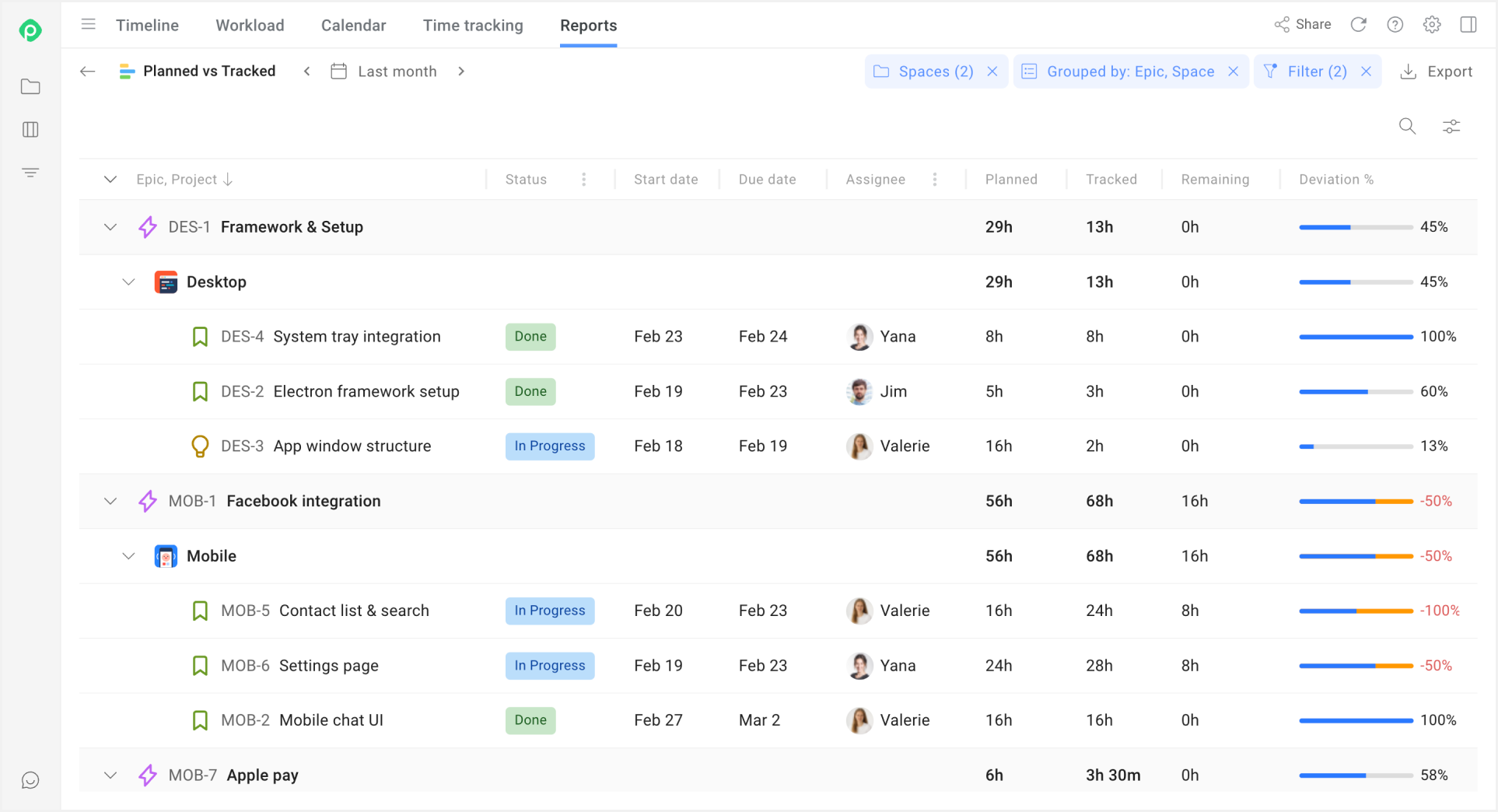
Planyway bridges this gap by displaying time estimates and logged hours directly on the timeline and workload views. You can spot the mismatch instantly: a story estimated at 4 hours that actually took 16. It’s a planning failure, not a people failure.
Over time, this data helps your team calibrate their estimates—which is the single most impactful thing you can do for velocity.
How to Export and Download Sprint Reports
At some point, every project manager needs to export sprint data—for a stakeholder deck, a quarterly review, or an executive who refuses to log into Jira. Here's the reality: there is no native Jira sprint report export button. You're left with browser screenshots (rough formatting, no interactivity) or JQL exports to CSV—flat issue lists with no burndown or velocity context. For polished, stakeholder-ready exports, a Jira sprint report plugin is usually the answer.
Planyway lets you export timeline and workload views with per-user breakdowns, time tracking data, and visual progress indicators—the kind of report you can attach to an email and feel confident about.
Supercharge Your Retrospectives with a Jira Sprint Report Plugin
Native Jira reports cover the basics—burndown, completion, velocity—but for teams of eight or more, the ceiling comes fast. The native Jira sprint metrics report tells you the what. You need a tool that tells you the why.
Planyway sits inside Jira as an Atlassian Marketplace app. It adds what native sprint reports are missing: per-assignee breakdowns, workload capacity visualization, time tracking overlays, and exportable views. Your next retrospective starts with data, not guesswork. You walk in knowing two team members were at 130% capacity while another was underutilized—and you can show stakeholders exactly where unplanned work displaced committed stories.
Conclusion
The Jira sprint report is one of the most valuable tools in your Scrum toolkit—but only if you know how to read it, and only if you recognize where it stops being useful. Learn the burndown, track your velocity trends, and pay attention to scope changes. That’s what the native report does well.
For everything else—per-user analysis, time tracking insights, root cause diagnosis, and stakeholder-ready exports—you’ll need to go beyond the defaults. Whether you build that workflow with JQL and spreadsheets or use a purpose-built plugin like Planyway, the goal is the same: turn sprint data into decisions, not just charts.
Your team deserves retrospectives that actually change something. Try Planyway free on the Atlassian Marketplace and start your next retro with the data, not guesswork.

