We're moving! The community forums are migrating to a new platform on September 22. Learn more
× Create
Turn on suggestions
Auto-suggest helps you quickly narrow down your search results by suggesting possible matches as you type.
Showing results for
Community resources
Community resources
Community resources
New Jira Field Schemes Are Coming: How to Build a Cleaner Data Model
June 17, 2026 edited
If you’re part of the Jira Cloud Admin community, you’ve probably heard that field configuration schemes are being retired. Beginning in June 2026, Field Schemes will start rolling out, offering a more modular setup. Most migrations will happen on their own. While that sounds promising, it really means Atlassian will transfer your current setup, along with any technical debt, into the new system.
This article is for admins who know the real work starts after migration. It’s for teams who added a custom field whenever someone asked, "can we track that?" and now have over 600 fields, unsure how to stop the cycle.

Part 1: What’s Actually Changing and Why Admins Are Concerned
The old Jira setup had three parts: Field Configuration, which sets rules for each field; Field Configuration Scheme, which links those rules to work item types; and the project’s link to a scheme. If this seems confusing, it’s easy to see why Atlassian wants to change it.
The new Field Schemes model links each field directly to the project or work type it belongs to. Instead of one big scheme shared by many projects with lots of exceptions, each space now gets its own simpler setup. This should make it easier to manage and govern.
📅 Timeline to Know
There will be limits: 700 fields per space and 150 work types per scheme, starting in February 2026. The full Field Schemes migration starts in June 2026. Atlassian’s migration tool will create new Field Schemes to match your current setup, but it won’t fix any existing problems.
The Migration Concerns Worth Taking Seriously
1. "Automatic" doesn't mean "clean"
Atlassian’s migration tool copies your current setup and creates matching Field Schemes. It also helps by finding unused fields in each space and removing those links. This is helpful, but it only removes unused associations, not fields you created and no longer need. Those fields stay in your instance and still count toward your total.
2. You may end up with more schemes than you started with
Because the new model is more detailed, projects that used to share a scheme may now each have their own. This gives you better isolation, but also means there are more items to manage, name, and update as your processes change.
3. Naming and ownership are your responsibility
The migration tool will use your current configuration names for new schemes. If those names are unclear, like "Default Field Configuration" or "IT Config v2," the new setup will still be confusing. This is a good time to set clear naming conventions before migration.
4. Apps and custom fields may behave differently post-migration
After migration, test any app that uses field configurations. Make sure apps that rely on field mapping, like forms tools that send data to Jira fields, still connect to the right fields after the changes.
Admin Quick Tips Before Migration
Start by auditing your fields: go to Admin → Fields and see if you can describe each one in a sentence. If not, mark it for possible deletion. Test changes in a sandbox first, as Atlassian suggests. Note which field configuration schemes are shared across projects, since these will likely create several new schemes. Let project leads know that their field configurations may look different after migration, even if field visibility stays the same.
Part 2: The Deeper Problem Migration Doesn't Solve
Here’s the reality: field scheme migration changes the structure, not your team’s habits. After migration, people will still ask for new fields. IT might want to track "Vendor Contact Name," HR might want "Employee Start Date," and Marketing might want "Campaign Tag." If you keep saying yes, you’ll end up with hundreds of fields again by the end of the year.
The actual question the migration exposes is: which data actually needs to be a Jira field?
|
Use a Jira Field When...
|
Use a Form Instead When...
|
| The data drives cross-team reporting or JQL filters | The data is intake context for a specific request type |
| Automation or SLA rules depend on it | The data collection is temporary or project-scoped |
| The field value needs to survive if the issue moves projects | You need 10+ questions but only 2 need to be queryable |
| Rovo or AI needs to query it across the instance | The data is a checklist, approval record, or audit trail |
| It's used in board filters or dashboard gadgets | You're collecting feedback, survey results, or NPS scores |
The idea sounds simple, but in reality, native Jira forms require every question to be linked to a Jira field. So, every time someone adds a question, a new field is created. If a form has 17 questions, you need 17 fields. This isn’t about governance—it’s just extra work.
This is why field sprawl happens in most Jira setups. It’s also the problem that Smart Forms for Jira, built by our team at SaaSJet, is meant to solve.
Part 3: How Smart Forms Changes the Field Equation
Map Anything to Anything — Or Nothing
The core difference between Smart Forms and native Jira forms is that in Smart Forms, field mapping is optional, not required.
When a team submits a form, Smart Forms can handle the response data in three ways:
|
Mapping Mode
|
What Happens
|
Best For
|
|
Map any field or any custom field
|
Response is written to a specific Jira custom field — queryable, filterable, automatable | Data that drives automation, SLAs, JQL, or reporting |
| Map to Description | All responses appear as structured [Label]: [Response] blocks in the issue's Description field — no new field required | Rich intake context without adding to the field count |
| No mapping (collect only) |
Response lives in Smart Forms' Responses tab — exportable to XLSX/PDF, Can be analyzed by Rovo but invisible to Jira schema
|
Surveys, feedback, or audit records where Jira tracking isn't the goal |
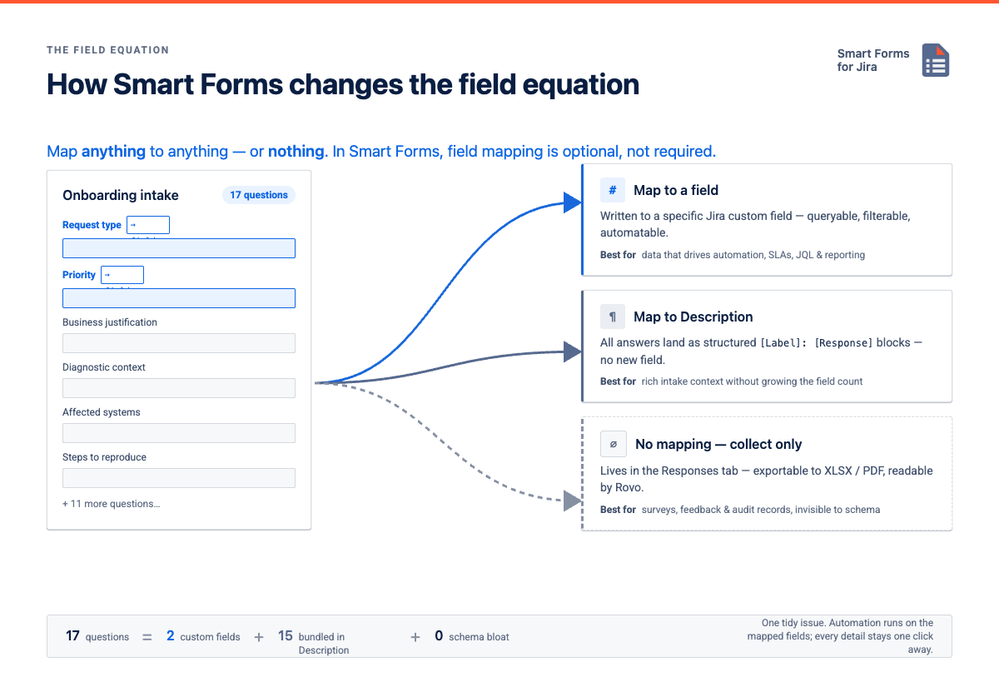
With this approach, a 17-question intake form can create a well-organized Jira issue using just 2 custom fields. The other 15 questions, like diagnostic context or business justification, are stored in the Description as a bundled fields for easy reference. Anyone can see all the details, automation runs on the mapped fields, and your field count stays low.
Pre-Fill and Hidden Values: Keep Forms Smart, Not Busy
Smart Forms can pre-fill form values from Jira fields or use default responses, so users don’t need to select information Jira already knows. For example, a request form can default Priority to Medium, pre-fill issue type options, or pull values from fields like Components, Labels, Versions, or User Pickers.
Hidden fields are useful for internal routing and reporting. A form can silently pass values like Intake Source = HR Portal, Region = EMEA, or Category = Hardware Request without showing them to the submitter.
This helps admins reduce the number of visible fields while still keeping structured data available for mapping, automation, and reporting.
Real Example: IT Hardware Request
Before Smart Forms, a hardware request form needed 12 custom fields. With Smart Forms, only 2 fields are connected to Jira (Hardware Type to Labels, Priority to Priority). The other 10 questions, like shipping address or device specs, go into the Description. No new fields are created, all context is in the ticket, and automation uses Priority and Labels.
Required Fields and Validation: Better Intake Without More Jira Fields
Not every required answer needs to become a required Jira field.
With Smart Forms, you can make form questions mandatory and add validation rules for emails, phone numbers, invoice IDs, issue keys, numeric ranges, minimum/maximum choices, or attachment formats. For example, a bug report can require a screenshot, or a finance form can validate that an invoice number follows the right format.
This keeps Jira fields focused on reporting, automation, and workflow logic, while the form handles data quality and completeness.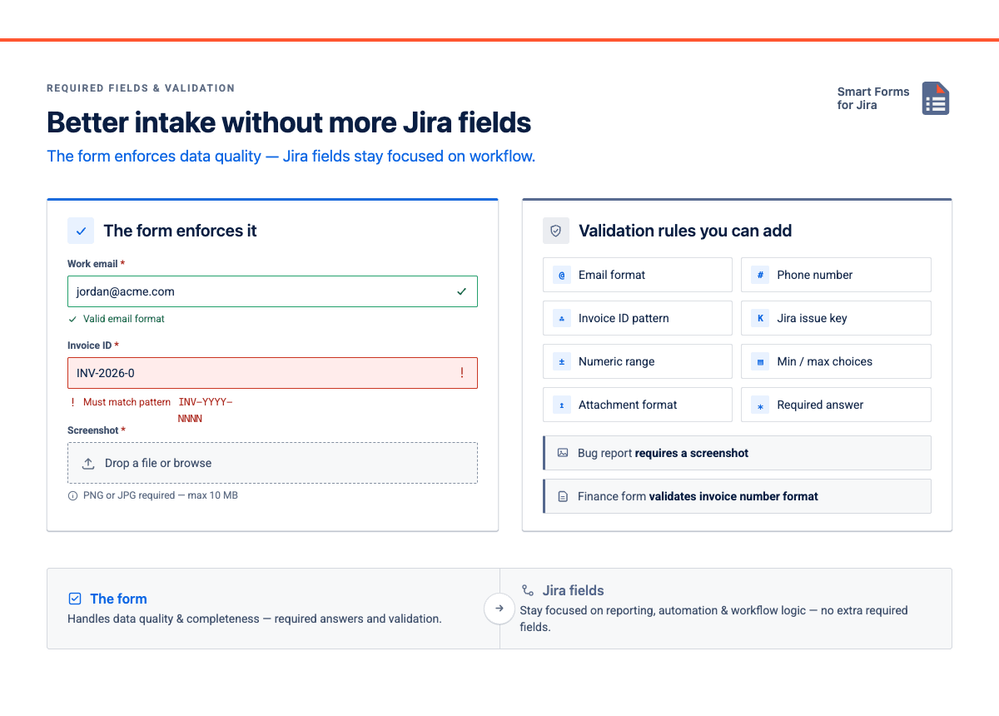
One Form. Any Project. No Rebuilding.
Field configuration schemes have always been tied to each project or shared across several, which can cause complications. Smart Forms are different—they aren’t limited to the project where they were created. You can build a form once and use it in any Jira project, like JSW, JWM, JSM, or even for JPD ideas, without having to rebuild it.
This flexibility becomes even more important after the field scheme migration. As projects get their own Field Schemes, it might seem easier to create separate field sets for each team. But with Smart Forms, you can build a form once and reuse it for any team that shares a process, while still creating issues in the right project with the right mapped fields.
|
Shared Process Type
|
Smart Forms Reuse Pattern
|
| IT hardware & software access requests |
One intake form shared across IT, Operations, and HR projects
|
| Bug reporting | One bug report form attached to every software project — same fields, same structure |
| New employee onboarding | One HR onboarding form creates issues in both the HR and IT projects from a single submission |
| Vendor & partner intake | One external-facing form shared via public URL, creating issues in whichever project owns vendor management |
| CSAT / NPS post-resolution | One feedback form reused across every support project — no per-project form setup needed |
The Automation Chain
As soon as Smart Forms data is mapped to a Jira field, it’s ready for automation. This process keeps everything running smoothly:
Form submission → Field mapping → Jira field value → Automation trigger → Next action
If you create a 15-question form but don’t map any fields, your automation rules won’t know how to respond—they’ll just see a new issue without details. The solution is to map only the responses that need to trigger routing, assignment, SLA, or status changes. Put everything else in the Description or Responses tab.
A useful approach is to use hidden fields with default values to automatically tag every issue created from a specific form with a Label, like "Q3-IT-Intake." This lets automation route issues without submitters seeing how it works.
Status Transition After Submission: Automation Without Extra Jira Rules
Smart Forms can automatically transition a Jira issue after a form is submitted, as long as the transition exists in the project workflow.
For example, submitting a checklist can move the issue to Done, or submitting an approval form can move it to Waiting for Approval. This means admins don’t always need a separate Jira Automation rule or extra helper field just to move work forward.
For simple “form submitted → status changed” flows, the form itself can become the automation trigger.
Part 4: What to Actually Do Right Now
Before the Migration Hits Your Instance
- Review your custom fields. Mark any field you can’t explain in one sentence or that isn’t used in JQL, automation, or dashboards.
- Find intake fields. If a custom field was only created to answer a form question, consider removing it after migration and use a Smart Form instead.
- Review which field configuration schemes are shared across multiple projects. These will create the most new schemes during migration, and they’re where reusable Smart Forms can make the biggest difference.
- Test any apps that rely on field mapping, including forms tools, in a sandbox before the migration goes live.
Rovo Assistant: Analyze Form Responses Without Turning Everything Into Fields
Some form data needs to become Jira fields because it drives JQL, reporting, automation, or SLAs. But not every response needs that level of structure.
With Rovo and Smart Forms, teams can keep detailed responses inside the form and still analyze them later. Rovo can help find forms, summarize responses, identify common themes, and suggest improvements.
So instead of creating custom fields for every survey answer, checklist item, or feedback comment, admins can keep Jira cleaner and still make form data useful.
After the Migration
- Set a policy for creating new fields. Follow the framework from Part 2. If you answer "no" to all four questions, use a form instead of adding a new field.
- Create your most important intake forms using Smart Forms. Begin with request types that usually lead to new field requests, like IT hardware, access management, onboarding, or support intake.
- Only map the fields that matter. For each form, pick the 1–3 fields that automation, SLA, or JQL will use. Map those, and put everything else in the Description or leave it inside the form
- Share and reuse your forms. After building a form, you can pin it to the Jira sidebar with Smart Forms’ board shortcut, embed it in Confluence, or share it outside Jira—all without changing the field configuration.
Final Thought
The field scheme migration is Atlassian's cleanup of their own data model. The field sprawl problem is ours — and it predates the migration by years. The transition is an opportunity to do something admins rarely get: a clean break with a clear reason to say "we're doing this differently now."
Smart Forms for Jira helps you put this into practice. You can build intake forms without adding new fields, collect 15 questions while mapping only 2, and reuse forms across any project. Automation works on the important fields, while the rest of the information stays as readable context in the issue.
If you’re going through the migration and want to test your field model, or if you’re interested in any of the Smart Forms techniques mentioned here—like Description mapping, hidden field labeling, or cross-project reuse—reach out or leave a question below. We’re happy to help you find the best setup for your needs.
Related reading:
• Designing Jira Fields in 2026: When to Add a Field vs Use Forms — Atlassian Community
Was this helpful?
Thanks!

Olha Yevdokymova_SaaSJet
Atlassian Partner
TAGS
Atlassian Community Events
Copyright © 2026 Atlassian
0 comments