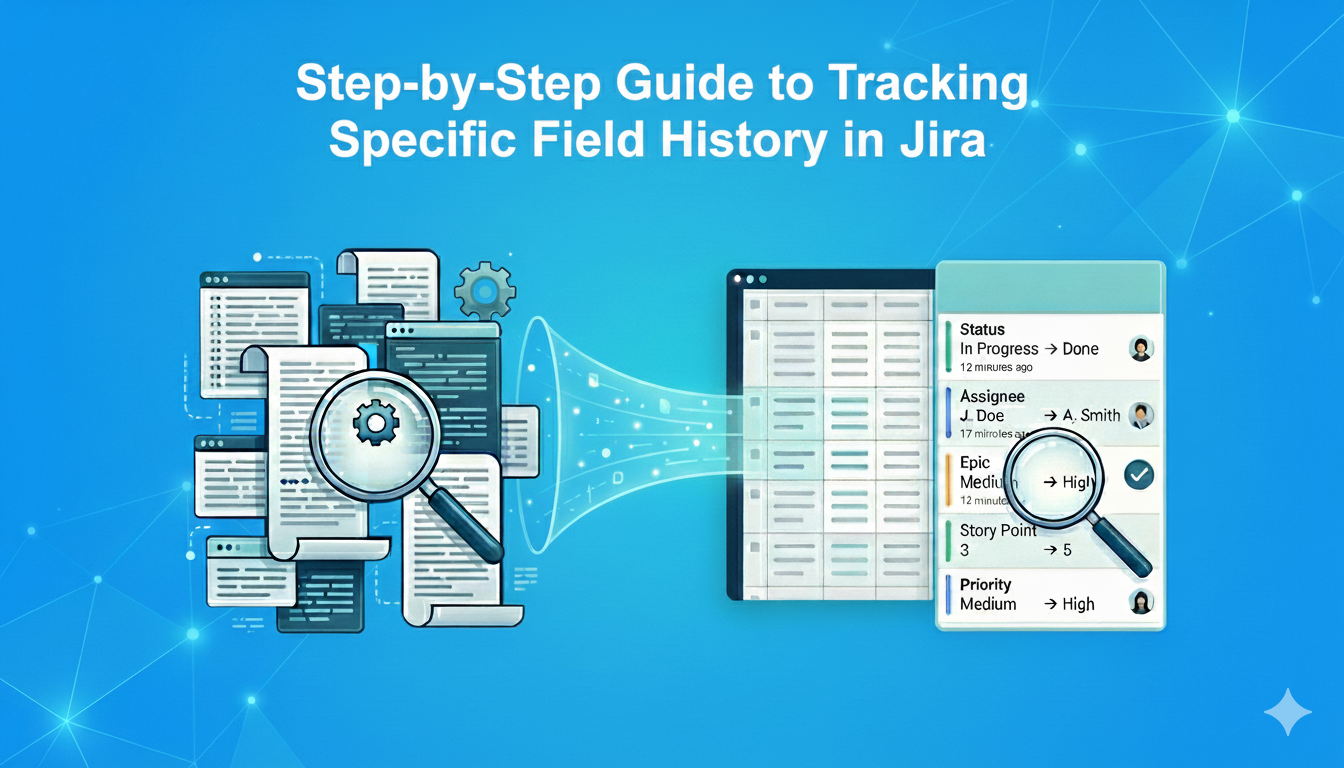
Jira’s native search is powerful for finding issues, even if it struggles to report on changes. You can use JQL to locate issues (work items) where a specific field was modified, which is a great first step for any audit.
Here are the essential operators you need to know:
Track Status Flow: status CHANGED FROM "In Review" TO "In Progress"
Audit User Activity: assignee CHANGED BY "john.doe"
Time-Based Search: status CHANGED DURING ("2025-01-01", "2025-03-31")
However, Jira’s issue history is a great logbook but not as great for reporting, especially if you need the history for multiple issues at the same time.
Why? While JQL identifies which issues changed, it doesn't show you what the change looked like in a list view. To see the actual details, you still have to open each issue individually and scroll through the Activity tab. This is where Historian - History Explorer for Jira bridges the gap.
How Historian - History Explorer for Jira Transforms Your Workflow
Jira’s native history is a "logbook," Historian is your smart search engine. It moves beyond the limitations of single-issue inspection by transforming raw change data into a structured, interactive report.
Here is a step-by-step guide to creating a history report for any system or custom field:
Step 1: Define Your Scope with JQL
First, tell Historian which issues to analyze. To do that, use the JQL bar at the top of the page to filter the result set.
Example: project = "Sample Scrum Project" AND updated > -90d
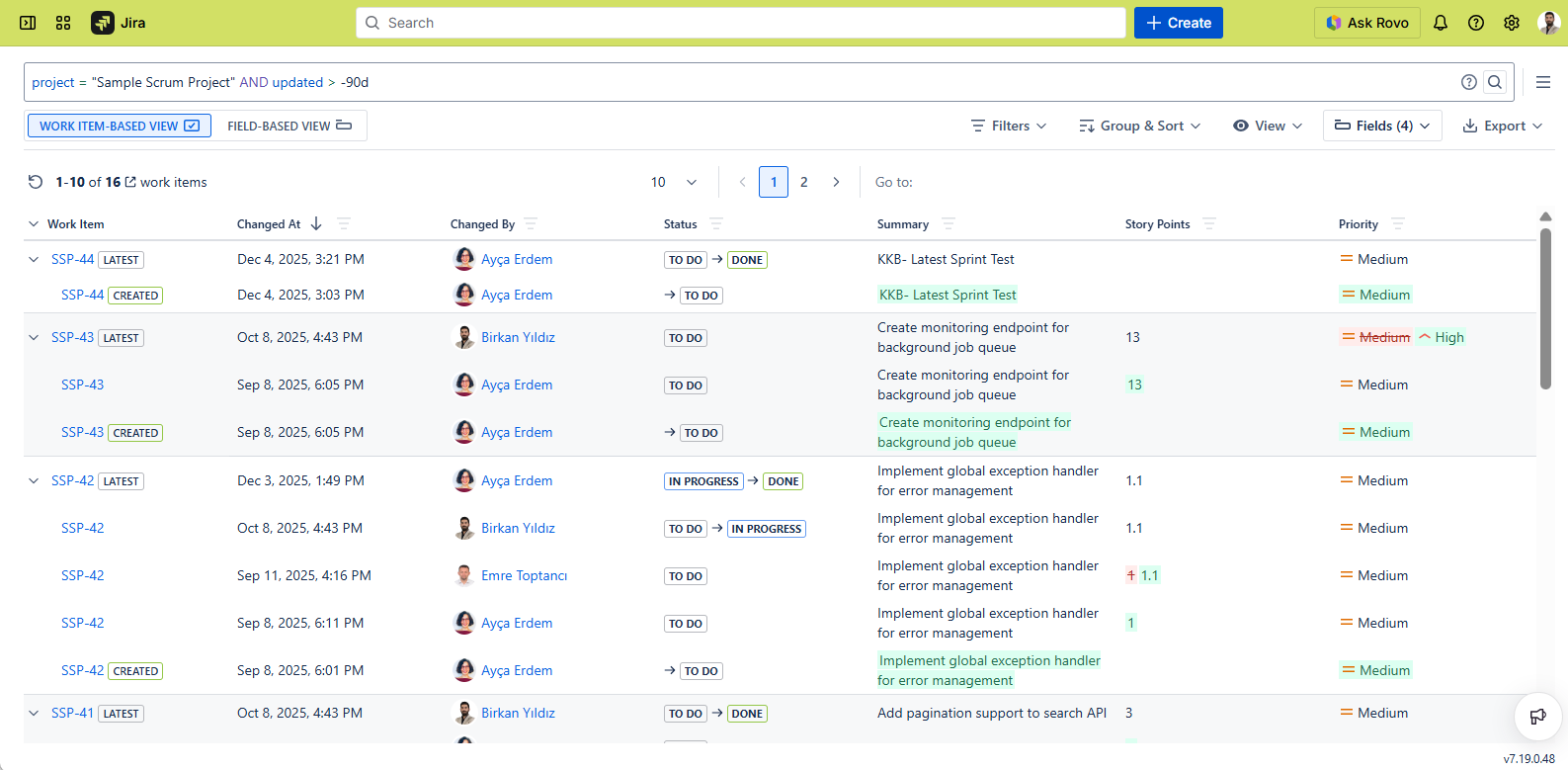
This way, you can ensure that you are only pulling history for only relevant tasks.
Step 2: Select Only the Fields You Need
To configure the report, this is the most crucial step. Use the Fields menu to select only the attributes you are investigating (e.g., "Status," "Priority," or any custom field).
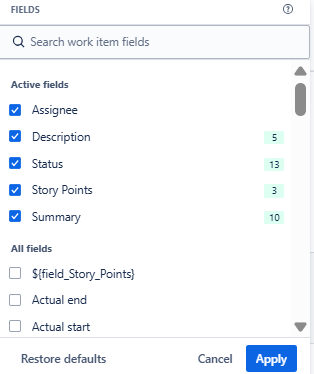
Historian will instantly filter out all other "noisy" data (like description edits or label changes), leaving you with a clean dataset.

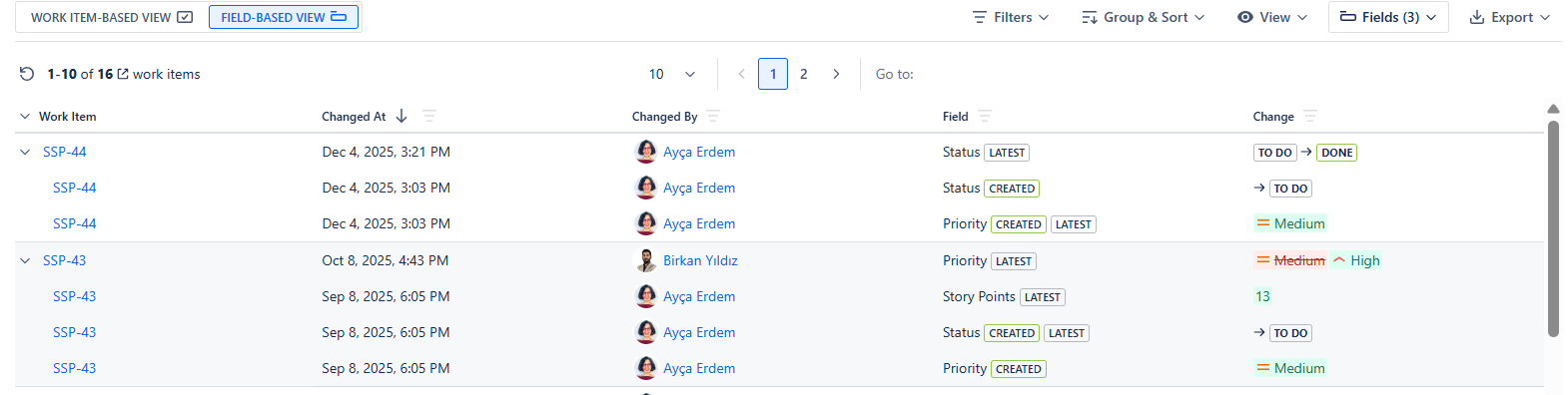
Step 3: Choose Your View Mode
Historian offers two distinct views depending on how you want to visualize the data.
Use the Work Item-Based View to see the complete history of an issue in one place.
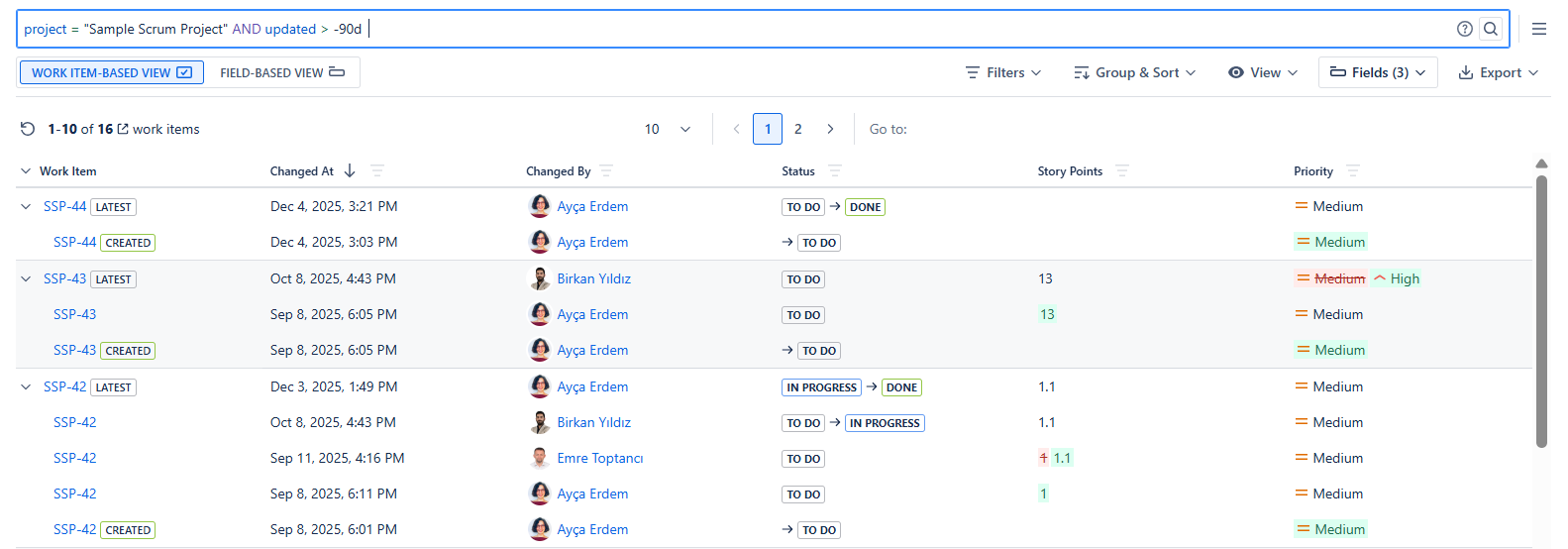
Or, switch to the Field-Based View to track changes to specific fields separately. Both views let you analyze the same data in different ways, so you can focus on the details that matter to you.
Step 4: Filter the Data
Once your report is generated, you can drill down further using column filters.
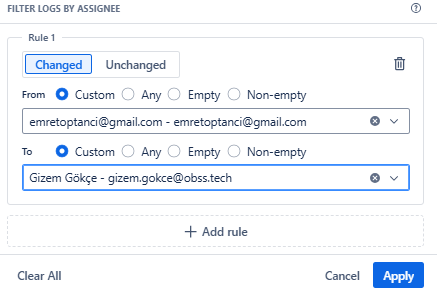
Filter by User: Use the Changed By filter to see updates made only by specific team members.
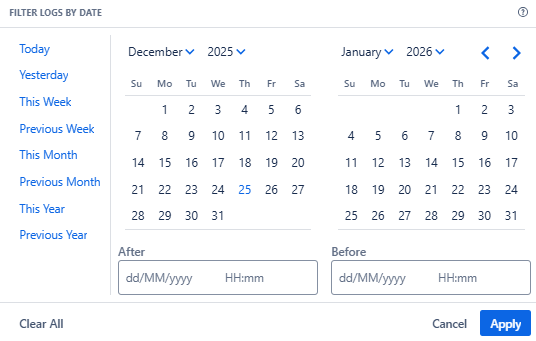
Filter by Date: Use the Changed At filter (or the Date Trimmer) to see changes from "Last Week" or a specific custom range.
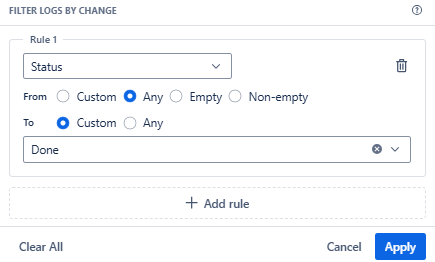
Filter by Value: In Field-Based View, you can filter specific columns. For example, you can filter the "Status" column to show only transitions that went to "Done".
Step 5: Export for Analysis
Historian has another great feature that native Jira doesn’t have: export. After all the configuration, you can take the data out of the system.
Click the Export menu at the top-right. Select XLSX or CSV to download the report.
Visit Historian - History Explorer for Jira’s Atlassian Marketplace page to learn more.
