We're moving! The community forums are migrating to a new platform on September 22. Learn more
×Community resources
Community resources
Community resources
How to create labels on Jira (+ a cool recommendation)
One of Jira's most flexible features is the use of labels. These simple text tags can make it much easier to organize, search, filter, and report on Jira issues without adding another layer of project structure.
Whether you're working in Jira Cloud or Data Center, you can use labels to tag issues by feature, team, workflow stage, customer, work type, or any other context that matters to your team. Unlike components or versions, labels are lightweight and don't require you to define a fixed structure in advance.
This blog post explains how you can leverage labels in Jira, how to create labels, how to manage labels across multiple issues, and how to avoid common label-management pitfalls.
Understanding labels in Jira
Labels in Jira are free-form text tags that you add to Jira issues to categorize them. You can add one label or multiple labels to the same work item, making it possible to describe an issue from several angles. Jira also suggests existing labels when you start typing in the Labels field, which helps teams reuse the same labels rather than creating duplicates.
For example, a software team might use labels such as:
-
frontend
-
backend
-
bug
-
customer-request
-
technical-debt
-
release-2026
You can use the same label across many Jira issues. Clicking a label can also take you to a list of work items that use that particular label.
Labels are especially useful when your Jira project needs a flexible tagging system that doesn't fit neatly into issue types, components, or versions.
Labels vs. components and custom fields
Labels are not a replacement for every Jira field.
Use components when you have stable areas of ownership or product structure, such as Payments, API, or Mobile. Use versions when you need to associate work with a release. Custom fields are more appropriate when you need a controlled set of values or structured data.
Labels are better suited to flexible, cross-cutting tags. For example, an issue could belong to the Payments component, target a specific version, and still have labels such as customer-request and high-risk.
This layered approach helps keep the structure of your Jira instance clear without forcing every new category into a formal project field.
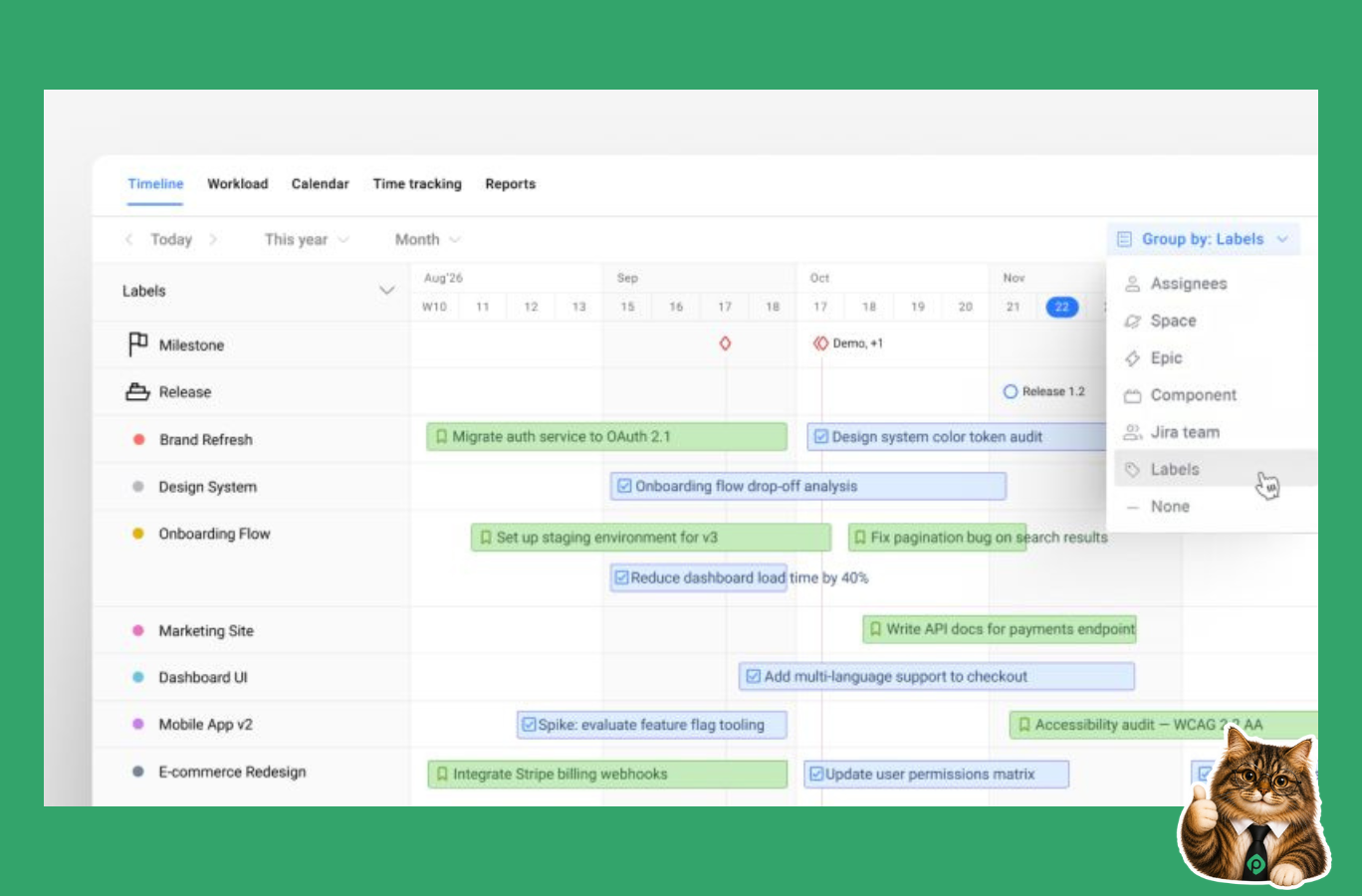
By the way, with Planyway for Jira, which is an all-in-one project planning app, you can use these Jira fields to organize your work visually. You can organize Jira issues in the Timeline by components, labels, epics, assignees, teams, or Jira spaces to get different views of the same project and see how work is distributed across different areas in one timeline. You can also filter work by labels and change labels directly from the timeline by moving cards between lanes.
How to create labels in Jira

Creating a new Jira label is pretty easy:
-
Open the Jira issue or work item you want to tag.
-
Find the Labels field in the issue details.
-
Start typing the label name (P.s. For Jira labels, spaces are not allowed. Atlassian’s current Jira Cloud documentation explicitly recommends using hyphens or underscores for multiple word labels.)
-
Select an existing label from the suggestions or enter a new one.
-
Press Enter to add the label.
-
Repeat the process when you need to add multiple labels.
Jira allows you to add several labels to the same issue, so you can tag a task with different pieces of context without creating separate fields for each category.
How to add labels to multiple issues
Adding labels one issue at a time works well for small changes. For a larger Jira project, however, you may need to update multiple issues at once.
That's where Jira's Bulk Change feature becomes useful. You can search for the relevant issues, select them in the issue navigator, and use Edit Issues to add, replace, or remove labels in bulk. Atlassian's current Jira Cloud guidance, for example, uses a JQL query such as labels = label-old to find issues and then applies a bulk label change.
This is particularly helpful when you're:
-
renaming a label across a project;
-
correcting inconsistent label usage;
-
adding a new label to a large set of issues;
-
removing an outdated tag;
-
cleaning up labels before reporting or migration.
How to search and filter by labels
One of the main reasons teams use Jira labels is to make issues easier to find.
You can use Jira's basic search or Jira Query Language (JQL) to find issues with a specific label. For example:
labels = customer-request
You can also combine label conditions with other criteria:
project = MOBILE AND labels = customer-request
Or find issues that contain any of several labels:
labels in (frontend, backend, bug)
This makes labels useful for creating focused issue lists, dashboards, and reports without changing the underlying workflow.
For larger projects, this is particularly useful in the issue navigator, where you can search and refine a list of Jira issues before applying a bulk action or reviewing the results.
Best practices for using labels in Jira
Labels are flexible, but that flexibility can quickly become a problem without some basic rules.
1. Create a consistent naming convention
Decide how your team will name labels before the number of tags starts to grow.
For example, choose one style such as:
-
customer-request
-
customer-requested
-
customer_requests
and stick with it.
Otherwise, teams can accidentally create several labels with essentially the same meaning. A consistent naming convention makes search, filtering, and reporting much more reliable.
2. Avoid creating a label for everything
The goal of label usage is not to tag every possible characteristic of an issue.
A large number of labels can make it harder to understand which tags actually matter. Before creating a new one, ask whether the information already belongs in a component, version, issue type, or another existing field.
3. Reuse the same label
When a relevant label already exists, use it instead of creating a new one.
For example, if your team already has technical-debt, don't create tech-debt or technicaldebt for similar issues. Reusing the same label makes searches and reports more accurate.
4. Use labels for filtering, not hierarchy
Labels work well as tags, but they aren't designed to replace your entire Jira project structure.
Use them alongside epics, components, versions, issue types, and other Jira features rather than trying to build a complex hierarchy out of tags.
5. Review label usage regularly
As a project evolves, some labels become obsolete. A periodic review can help identify misspelled labels, duplicates, and tags that are no longer relevant.
This simple form of label management can keep searches and dashboards clean as your Jira instance grows.
Common Jira label pitfalls
A few problems appear repeatedly when teams start using labels at scale.
-
Spelling inconsistencies are one of the biggest issues. A label that's spelled incorrectly creates a separate tag instead of correcting the original one.
-
Similar labels can cause the same problem. For example, bug, bugs, and software-bug may all exist even though the team really needs only one.
-
Another common pitfall is using labels where a more structured Jira field would be better. If a value needs strict options, reporting logic, ownership, or workflow rules, a component or custom field may be more appropriate.
-
Finally, teams sometimes create labels without deciding how they will actually use the resulting data. Before adding a new tag, think about what you want to do with it later: search, filter, report, group, or communicate about work.
Managing labels in Jira
Jira gives you several ways to change labels, but there is an important distinction between removing a label from an issue and removing the label from your Jira instance.
-
To remove a label from an individual issue, edit the Labels field and delete the tag.
-
To remove a label from many issues, use Bulk Change and choose the Change Labels operation. Jira Cloud supports adding labels to existing values or finding and removing specific labels from a set of issues.
-
A label itself isn't something you simply delete from a dedicated label-management screen. To completely remove a label from Jira, you need to remove it from all issues where it is used.
Conclusion
Jira labels are a simple way to tag issues and add context without creating a complicated project structure. When used consistently, they can make it easier to search, filter, report on, and organize work.
The key is to keep your label system intentional. Define clear naming conventions, reuse existing labels, avoid unnecessary tags, and periodically clean up outdated ones. Use JQL and Bulk Change when you need to work with labels at scale.
P.S. When you want to do more than search and filter labeled Jira issues, Planyway lets you organize them on a visual Timeline, group work by labels, components, epics, teams, or assignees, schedule tasks, and see how everything fits into your project plan.
Was this helpful?
Thanks!

Mary from Planyway
1 comment