We're moving! The community forums are migrating to a new platform on September 22. Learn more
×Community resources
Community resources
Community resources
How to Build Case Management Workflows in Jira
What Case Management Actually Means in Jira
-
At submission, the reporter only knows basic facts: what happened, date and time, location, who was involved, and immediate photos.
-
During investigation, the investigator uncovers entirely different data: witness statements, root causes, equipment involved, severity, and corrective action plans.
JSM Case Management vs. Real-World Jira Workflows
-
Engineering & IT: Critical incident post-mortems and root-cause analyses.
-
Manufacturing & Operations: Quality defect investigations and non-conformance reports
-
Security & Compliance: Vendor risk reviews and security breach triage.
-
Customer Success: Severe client escalations involving Product, Support, and Engineering.
The Anatomy of a Case Lifecycle
[1. Report]      --> Capture core facts (Short intake)
     |
[2. Triage]      --> Assign category, owner, priority & Assets
     |
[3. Investigate] --> Attach investigation forms & collect evidence
     |
[4. Act]         --> Trigger corrective work & approvals
     |
[5. Close]       --> Final outcome form & auto-transition to Resolved
-
Report: Keep the initial intake brief. Collect just enough context to route the issue properly without overwhelming the reporter.
-
Triage: The intake team categorizes the issue, assigns an owner, links affected Jira Assets, and sets initial priority.
-
Investigate: The investigator gathers interviews, root-cause details, equipment logs, and specialist assessments.
-
Act: Findings trigger follow-up actions—remediation tasks, approvals, maintenance tickets, or policy updates.
-
Close: The team verifies final outcomes, residual risks, and completion sign-offs before resolving the case.
Stop Building One Giant Intake Form
[Incident Intake Form]
       ↓
[Investigation Findings Form]
       ↓
[Equipment Assessment Form]
       ↓
[Corrective Action Form]
       ↓
[Case Closure Form]
Structuring Progressive Data Intake with Smart Forms
  Workflow Trigger               Smart Forms Action                    Data Outcome
┌──────────────────┐           ┌────────────────────┐            ┌──────────────────────┐
│ Status moves to  │ ────────> │ Auto-attach        │ ─────────> │ Responses map to     │
│ "Investigating"  │           │ Investigation Form │            │ Jira fields/Assets   │
└──────────────────┘           └────────────────────┘            └──────────────────────┘
1. Stage-Specific Forms
2. Dual-Layer Field Mapping

3. Jira Assets Integration

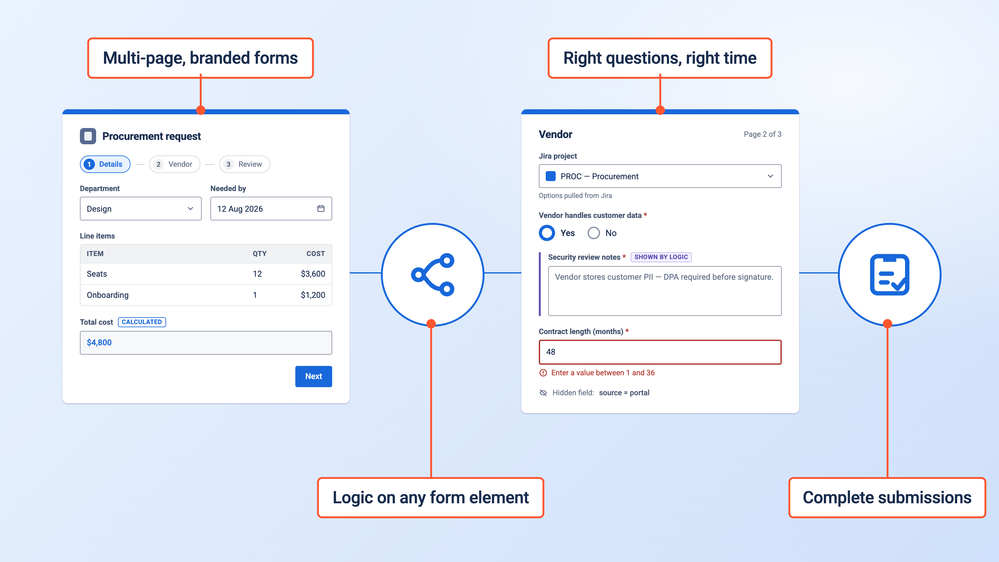
4. Dynamic Form Logic & Validation
Separating Reporter Data from Internal Investigation Data
| User Role | Required Access | Primary Form Types |
| Reporter (Employee, Customer, Vendor) | Simple interface; no internal field visibility; no Jira license needed. | Short Incident Intake, Feedback, Initial Claims. |
| Investigator (HR, Legal, Security, QA) | Full internal access; structured checklists; Assets mapping. | Witness Statements, Root Cause Analysis, Severity Matrix. |
| Approver (Manager, Department Lead) | One-click access; pre-filled context; clear decision fields. | Remediation Sign-off, Financial Approval, Closure Verification. |
Let several people contribute to the same case form
Some cases are not completed by a single investigator. HR may provide employee details, a manager may add findings, and Legal or Compliance may review the outcome later. With Smart Forms, the same form can work as a shared, evolving record rather than requiring a separate submission from every participant. By giving the appropriate Jira users access to edit all responses, several people can contribute to and update the same submitted form as the case progresses. This works well for investigations where responsibility moves between teams: one person can start the assessment, another can add evidence or conclusions, and a final reviewer can complete the outcome while keeping the information together in one structured form. Access can still be controlled through roles and permissions, so teams can define who is allowed to view or edit the shared response.
Automating Handoffs Across Workflow Stages
-
Auto-Attach Forms: Configure rules to attach stage-specific forms whenever an issue transitions status or matches specific criteria.
-
Auto-Share Links via Jira Automation: When an investigation requires external sign-off, Jira Automation can automatically email a unique, pre-filled form URL using Smart Values:
{{#issue.properties."saasjet.forms.formsSharedUrls"}} {{#if(equals(formName, "Manager Sign-Off"))}}{{url}}{{/}} {{/}} -
Auto-Transition Status on Submission: Set forms to automatically transition the Jira issue status (e.g., moving from Pending Review to Resolved the moment a Closure Form is submitted).
-
Portability Across Clones: When cloning or moving a case work item between projects (e.g., escalating from Support to Engineering), attached Smart Forms and submitted values carry over intact—unlike native JSM forms
When to Use Fields, Forms, or Notes
| Information Type | Best Tool | Why |
| Workflow Drivers (Priority, Category, Assignee, SLA) |
Jira Fields
|
Required for JQL queries, board filtering, SLA clocks, and automation triggers.
|
| Narrative Context (Investigator observations, meeting notes) | Issue Notes / Description |
Ideal for free-text storytelling that doesn't need strict structural formatting.
|
| Structured Assessments (Safety checklists, witness statements) | Smart Forms | Enforces required inputs, regex formatting, conditional branching, and clean PDF/XLSX exports |
Practical Blueprint: Workplace Safety Investigation
-
Intake: An employee scans a QR code on the warehouse floor and fills out a mobile-friendly Incident Report Form. Submission auto-creates a Jira work item in the Safety project.
-
Triage: The safety coordinator links the issue to
Forklift-FL-047in Jira Assets and sets Priority to High. -
Investigation: Moving the status to Under Investigation automatically attaches the Investigation Findings Form. The investigator logs witness statements and marks Equipment Failure = Yes.
-
Action: Selecting Equipment Failure triggers a conditional Equipment Assessment Form. Marking the forklift as Unsafe triggers Jira Automation to generate a child maintenance task for Facilities.
-
Closure: Once Facilities completes repairs, the safety lead fills out the Closure Sign-Off Form. Submission automatically transitions the case to Resolved and logs a full audit trail.
Building Better Case Records
Was this helpful?
Thanks!

Olha Yevdokymova_SaaSJet
0 comments