Atlassian have made two major changes that affect Jira labels.
-
A gradual rollout of colored labels (where colors are assigned randomly)
-
A UI refresh that alters how all labels look (native and Marketplace app labels)
Let’s unpack these developments, how they affect users, and how you can circumvent the UI changes.
From gray-only labels to colored labels
For years, out-of-the-box Jira labels were gray-only. It’s why there are loads of dedicated colored labels apps on the Atlassian Marketplace.
Sometime in 2025, that started to change. Atlassian began a rollout of colored labels.
At the time of writing, this rollout is still incomplete. There are some instances with colored labels, others still stuck with gray ones.
Atlassian users have been asking for built-in Jira label colors since labels were introduced. Because the color gray is boring; it doesn’t grab your eye or instill any emotion, which is what labels are meant to do.
So you’d think that this update would be a good thing.
Unfortunately, the update comes without color customization. Jira assigns a color at random each time you create a label; you don’t get to choose.
This means you can’t choose colors to communicate specific things about your Jira work items. Color is a powerful communication tool because different colors convey information through cultural and emotional associations, e.g. green = good and red = bad. But if you can’t choose colors that make sense for your users, then having colored labels is meaningless.
Basically, without color customization, the new colored labels are no better than the gray ones—well, apart from the fact that they make your tickets a bit prettier!
The UI update and the new ‘empty’ labels
Also in 2025, Atlassian rolled out a UI refresh that brought significant visual changes to Jira. And labels were affected.
The old gray labels had gray backgrounds behind the label text. Now labels have blank backgrounds with an outline. Depending on whether your instance has colored labels, that outline is either colored or gray.
Basically, if all your labels are now outlined in gray with a blank background, they’re even more invisible than they were. And if they’re outlined in whatever random color Jira chooses for you, they still don’t stand out.
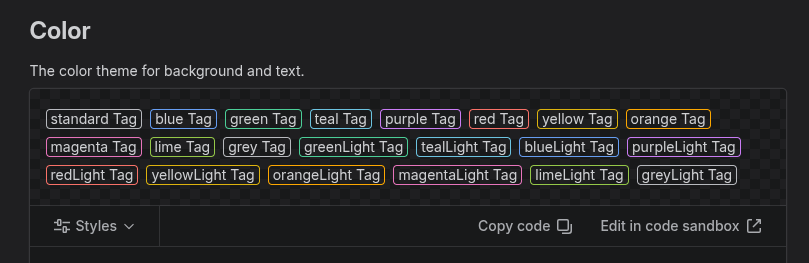
Jira’s new colored labels, post-UI refresh
What’s even more unfortunate is that the UI refresh affected Marketplace app labels as well. So if you were using colored labels generated with a Marketplace app, suddenly those labels weren’t as vibrant or noticeable.
The team at Awesome Custom Fields, which offers a colored labels field for Jira, decided to fix that. They created a whole new color customization feature in the process: three new display styles.
How to customize the color and look of your Jira labels
The best way to control and customize the look and color of your labels in Jira is with a Marketplace app.
Although there are a number of dedicated colored labels tools, you’re better off with an app that offers more than just label customization.
Awesome Custom Fields adds a range of new custom field types to your Jira or Jira Service Management instance, including colored labels.
The color labels field offers two main advantages over built-in labels:
-
You can customize the color of each new label you create
-
You can choose how that color displays with three new styles: filled, light, and outline.
As mentioned above, the three display styles came about to circumvent the UI change that left all labels, including ours, looking subdued and empty.
With this new feature, you can choose how your labels look and create a visual hierarchy that reflects the importance of each label.
-
Filled — bold, high-contrast labels with a solid background. This offers maximum visual impact, ideal where you want instant attention and action.
-
Light — a softer tinted background with colored text. This reduces visual dominance while keeping labels distinguishable.
-
Outline — a transparent background with a colored border and colored text. Although similar to the native labels, the native labels are smaller and have black text only. Ours provide context while remaining visually lightweight.
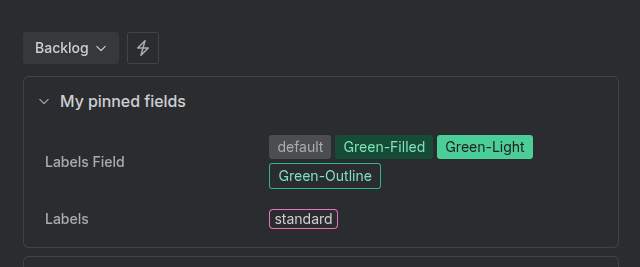
You might want an attention-grabbing filled red style for a “blocker” label. For a “compliance” label you could choose a light style; it’s important but not necessarily more than other signals on the ticket. And for a “billing” label, you might opt for an outline style because the label is primarily for organization and filtering rather than driving immediate action.
Other advantages of the color labels field in Awesome Custom Fields
Color labels in Awesome Custom Fields offer several additional advantages over standard Jira labels:
-
Label control: unlike native labels, which users can create ad hoc in a ticket, Awesome Custom Fields' color labels have to be configured centrally. This prevents your instance from getting cluttered.
-
Icons: you can add icons from Atlassian’s standard icon set to make your labels stand out even more, e.g. a flag, lightbulb, or star.
-
Set the order: you can choose the order in which your labels appear in the dropdown, e.g. alphabetical or by color.
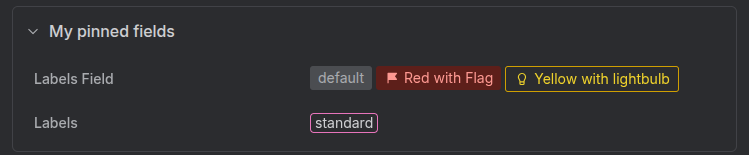
More than just colored labels
The principal benefit of Awesome Custom Fields is that, unlike dedicated colored labels apps, you get a range of other fields as well. For example:
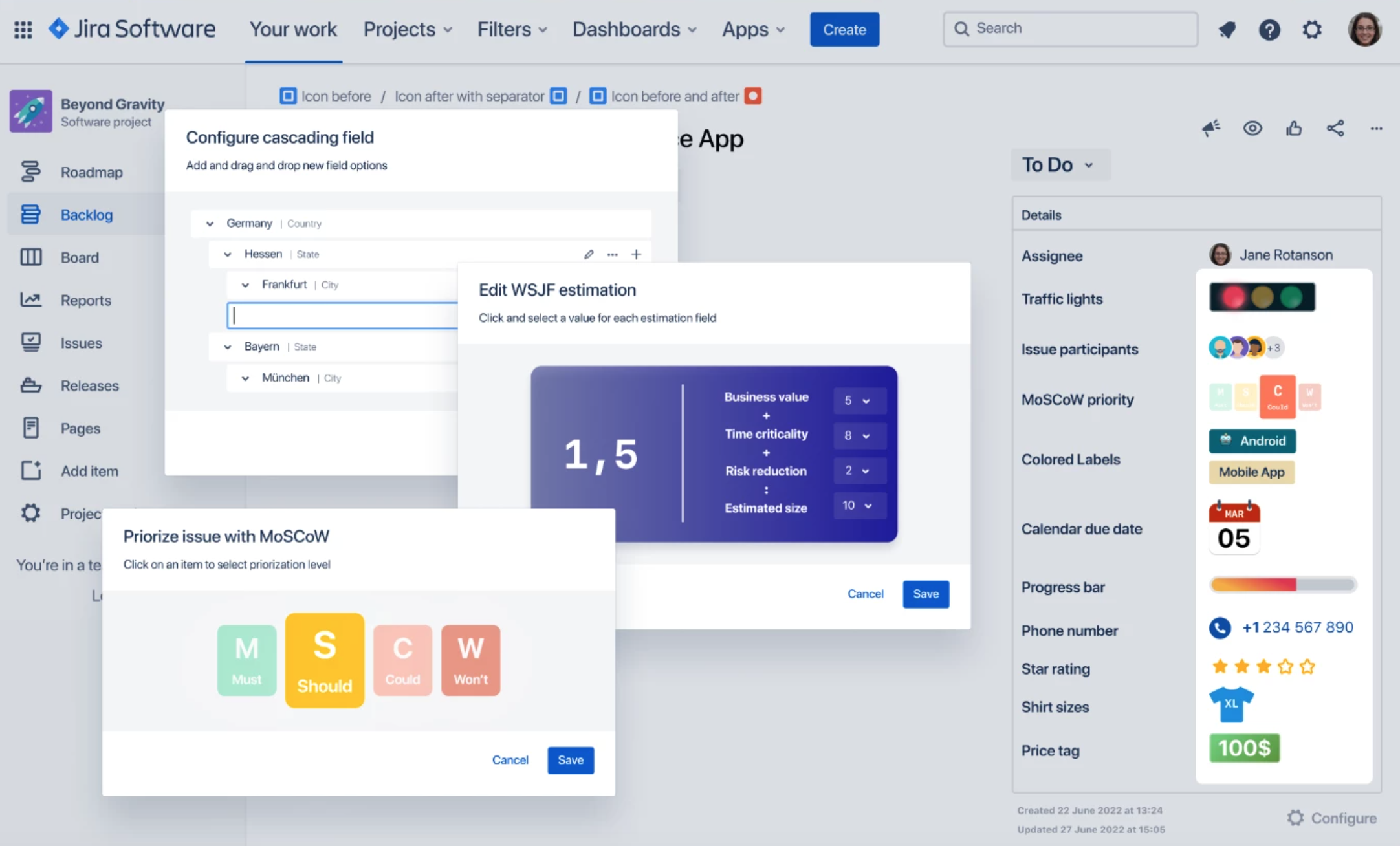
So if you want a way to customize Jira label colors, and circumvent the UI change that left all labels looking flat, check out Awesome Custom Fields for Jira and Jira Service Management.
Have questions about setting up color labels, or want to share how your team uses visual systems in Jira? Drop a comment below.
![Photo of Paul Pasler [Seibert]](https://avatar-management--avatars.us-west-2.prod.public.atl-paas.net/557058:16d1f9bb-612b-43a6-ac1b-8857c60c5182/e35f4b50-5f2f-4df0-87f3-7d1be5a76df6/128)
