The Atlassian Community Forums are currently in read-only mode. We will be relaunching on a new platform on September 22 (read more here). We apologize for the extended downtime. For concerns or questions, please email communitymanagers@atlassian.com. See you on the other side, on the new Atlassian Community Forums! :)
× Create
Turn on suggestions
Auto-suggest helps you quickly narrow down your search results by suggesting possible matches as you type.
Showing results for
Community resources
Community resources
Community resources
Bring Asset Request Forms into a Jira Software Workflow
August 31, 2026 edited
Your organization may already manage laptops, applications, cloud environments, vendors, and office locations inside Jira Assets. However, the operational teams executing the work - engineering, IT, security, and facilities - frequently work inside Jira Software projects.

When request forms rely on open free-text fields, requesters type variations like "MacBook," "Mac Book," "John's Mac," "MBP 16," or "Laptop 104." To a human agent, those might all mean the same device. But to Jira, free text is just an unstructured string. It cannot be reliably searched with JQL, mapped across workflows, or used to trigger automated subtasks.
Converting "MacBook Pro" text into an actual Jira Assets object—like
[LAP-104] MacBook Pro 16—is where intake workflows transition from chaotic to structured.| Request Intake Method | Free-Text Field Input | Smart Forms + Jira Assets |
| Data Format | Unstructured text ("Mac Book", "MBP 16") | Linked Jira Assets Object ([LAP-104]) |
| Search & Traceability | Requires manual cleanup, unreliable JQL | Fully queryable across Jira & Assets |
| Workflow Automation | Fails or requires complex regex parsing | Triggers instant subtasks, routing & approvals |
| CMDB Maintenance | Requires static, duplicate form lists | Syncs dynamically with live Assets schemas |
By bringing Assets directly into your intake layer, you connect the entire process in one continuous loop: Jira Assets → Smart Form → Jira Software Work Item → Jira Automation.
Phase 1: Build Forms Directly from Your Live Jira Assets
Instead of manually maintaining duplicate lists of laptops, monitors, or software licenses inside individual form settings, pull live configuration items directly from your CMDB.
To set this up in Smart Forms:
-
Add an Assets-supported selection element to your form, such as a Dropdown, Multi-choice, Checkbox, or Radio button.
-
Open Pre-fill form option from work item field in the field settings and select the corresponding Jira Assets custom field.
-
Choose your required Object schema (e.g., Corporate Assets).
-
Open Assets filter scope settings to control which choices surface to the requester.
-
Limit the element to a specific Object type (e.g., select Laptops so requesters see only laptop objects).
Restricting choices to a specific object type ensures requesters see relevant choices—like
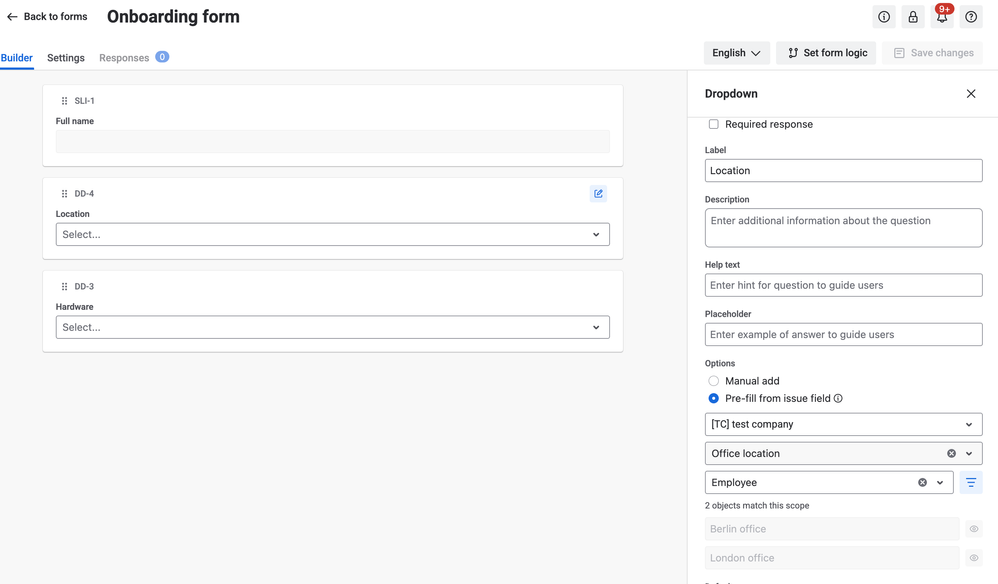
[LAP-104] MacBook Pro 16, [LAP-205] Dell Latitude 7450, or [LAP-318] Lenovo ThinkPad X1—without exposing your entire CMDB schema.Phase 2: Map Asset Selections into Jira Software Work Items
Once the form captures structured objects, the next step is converting the submission into actionable Jira Software work.
In the Smart Forms builder, navigate to the Create new work item settings.
Select your target Jira Software project, the required work item type (such as Task or Request), and set a default assignee if needed.
From there, map each form response directly to its corresponding system or custom field:
Select your target Jira Software project, the required work item type (such as Task or Request), and set a default assignee if needed.
From there, map each form response directly to its corresponding system or custom field:
-
Employee Name → Summary / Employee custom field
-
Start Date → Start date field
-
Requested Laptop → Laptop Assets field
-
Additional Equipment → Equipment Assets field (e.g.,
[MON-208] Dell UltraSharp Monitor,[ACC-019] USB-C Dock) -
Applications → Applications Assets field (e.g.,
[APP-042] Figma,[APP-065] Miro) -
Business Justification → Description field
Upon submission, Smart Forms creates a structured work item (such as
IT-482 — Equipment setup). Because the selected objects populate native Jira asset custom fields rather than staying trapped as static text, they can be filtered, reported on, and referenced across downstream workflows.If your form is attached directly to an existing ticket rather than generating a new one, select Update existing work item fields to achieve the same direct field mapping.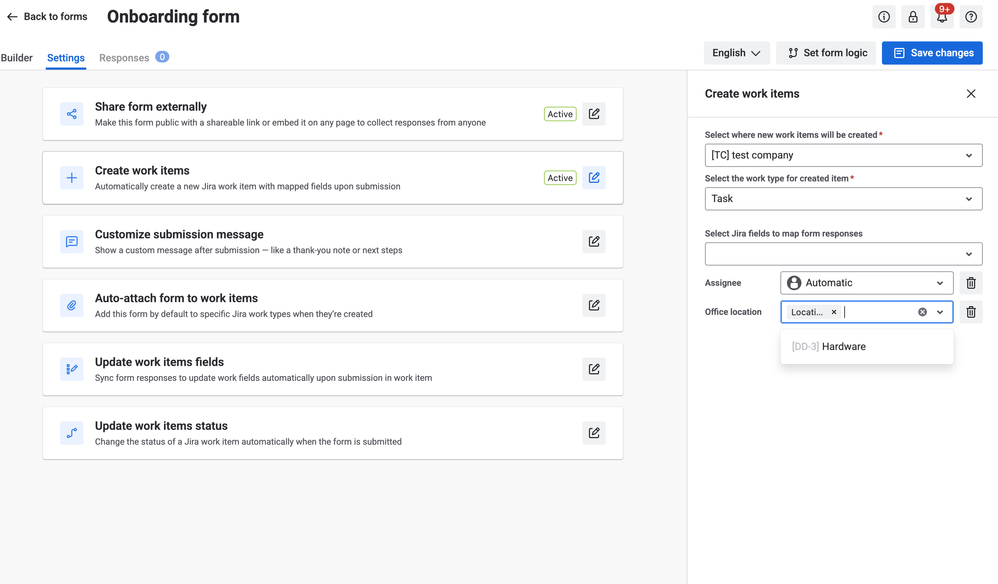
Phase 3: Guide Requesters with Dynamic Filtering and Object Context
Large Assets schemas can easily overwhelm submitters if every dropdown displays hundreds of unorganized items. Smart Forms provides two ways to build a guided selection experience.
1. Cascading Dependent Filtering Without Manual AQL
You can make one Assets dropdown dynamically update based on an earlier selection. In your field's Assets filter scope, set the Source element to a previous Assets field and choose the Related through attribute connection.
-
Location Dependency: Selecting Office location (
[LOC-03] Berlin Office) automatically restricts the subsequent Device field to display only hardware located in Berlin. -
Application Dependency: Selecting Application (
Salesforce) narrows the Environment field to environments connected to Salesforce. -
Employee Dependency: Selecting Employee (
Anna Petrova) filters Assigned equipment to objects associated with Anna.
This cascading logic leverages existing relationships defined in your Assets schema without requiring form builders to write manual AQL queries.

Phase 4: Let Jira Automation Drive Execution
With true Assets object keys stored inside native Jira fields, standard Jira Automation rules can execute downstream work automatically:
-
Intelligent Request Routing: IF Requested Application belongs to a security-sensitive category, THEN reassign the work item to the Security team.
-
Multi-Team Subtask Generation: IF a request includes a laptop, software, and office gear, THEN generate separate subtasks for Hardware Provisioning, Software Access, and Facilities.
-
Workflow Transitions: IF all required Assets information is present, THEN transition the issue to Ready for Fulfilment.
-
Automated Follow-Up Forms: Using Jira Automation and smart values (
{{#issue.properties."saasjet.forms.formsSharedUrls"}}), you can automatically email or post a follow-up Smart Form link after status transitions for equipment handover sign-offs, access approvals, or asset returns.
Walkthrough: An End-to-End Equipment Request
-
Requester Opens Form: Selects Office location (
[LOC-03] Berlin Office). -
Equipment Options Narrow: The Laptop field dynamically updates to show devices in Berlin; the requester picks
[LAP-104] MacBook Pro 16. -
Applications Selected: The requester picks
[APP-042] Figmaand[APP-065] Miro. -
Work Item Created: Smart Forms generates the Jira Software issue with linked object keys mapped to native fields.
-
Automation Executes: Hardware tasks route to IT, application access routes to system owners, and a security approval task is generated automatically.
Why Bring This Workflow into Jira Software?
Jira Assets is commonly associated with Jira Service Management (JSM), but operational work involving assets doesn't always belong in a service desk.
-
Engineering Teams: Request development environments, cloud resources, test devices, or API keys.
-
Security Teams: Manage system access changes, application permissions, and infrastructure audits.
-
Operations & Facilities: Handle equipment procurement, office resources, and physical asset distribution.
Smart Forms brings Assets-aware intake directly into Jira Software projects. This allows operational teams to remain on their existing project boards while relying on Jira Assets as the structured single source of truth behind every request.
Other Workflows Built with This Pattern
-
Incident Reporting: Select Service → narrow to Affected Component → auto-create an Incident work item with linked Assets objects pre-populated.
-
Employee Onboarding: Select Office → narrow to Available Equipment → select Applications Required → trigger automated subtasks for IT, Security, and Facilities.
-
Software Access Intake: Select an Application from Assets → trigger conditional form fields → map the application to the work item and route to the system owner.
-
Facilities Requests: Cascading selection of Building → Room → Equipment to deliver exact location context to Facilities tasks.
-
Infrastructure Provisioning: Select Service → Environment → Configuration Item so engineering receives exact context on the work item.
Connecting Jira Assets directly to Jira Software forms bridges the gap between unstructured requests and automated execution. By guiding submitters through contextual selections and mapping object keys straight to native Jira fields, you keep your CMDB accurate, eliminate manual ticket cleanup, and keep operational teams focused on completing work.
Was this helpful?
Thanks!

Olha Yevdokymova_SaaSJet
Atlassian Partner
TAGS
Atlassian Community Events
Copyright © 2026 Atlassian
0 comments