
In Jira, acceptance criteria describe the conditions a user story (or other issue types) must meet to be considered complete. Clear, testable criteria align the product owner, development team, testers, and stakeholders around the same expected functionality and user experience. They also help you validate outcomes alongside your team’s Definition of Done (DoD).
Most agile teams start simple and capture acceptance criteria in the description field of a Jira issue because it’s fast and visible. Teams that need better progress tracking during the development process often prefer a checklist, since each criterion becomes an actionable item that QA can verify during acceptance testing.
This guide explains:
- what acceptance criteria are in Jira and why they reduce rework
- how acceptance criteria differ from the Definition of Done
- where to put acceptance criteria in Jira (description, custom field, or checklist)
- practical formats like Given–When–Then and checklist-style criteria
- how teams manage validation in Jira workflows using tools like Smart Checklist and automation rules
What is the acceptance criteria in Jira?

Acceptance criteria are specific, verifiable conditions that a Jira work item (issue) must satisfy before it can be accepted as “done.” Think of them as the shared agreement on outcomes: what the user should be able to do, what should happen in the UI, and what results the team expects.
A user story explains a user's needs. Acceptance criteria explain how you validate that the user can meet that goal.
Example
User story: As a user, I want to sign up for a marketing newsletter to receive emails about the latest offers.
Acceptance criteria:
- The user can sign up from three places: the homepage footer, a slide-in pop-up, and a modal on the product page.
- The user can only sign up with a valid email address.
- The slide-in pop-up and the modal include an Email input field.
- After the user submits their email, they receive a confirmation email.
In practice, the story can’t be accepted if a user can’t enter a valid email in the expected places or if the confirmation email never arrives. That’s the point of “testable” criteria: pass or fail, based on observed behavior.
Everything you need to know about writing acceptance criteria

In day-to-day Jira work, many agile teams start by writing acceptance criteria in the description field. It’s quick, visible to every team member, and easy to update during collaboration.
That approach works, but it has a limitation: the description is static text. You don’t see progress while the development team implements the story, and QA validation gets buried in comments.
A checklist format is more practical when you want acceptance criteria to stay actionable throughout the development process. Each criterion becomes a visible item that can be validated, discussed, and marked as complete during acceptance testing. This is also helpful for stakeholders and product managers who want clarity without scanning long descriptions.
If you use a checklist, each acceptance criterion can have its own status to reflect the work stage. For example:
- A developer might mark a criterion as implemented (“Developed”) once the functionality is done.
- QA can then verify the expected outcome and mark it as “QA passed” or “QA failed.”
That simple structure keeps acceptance criteria tied to real progress inside the Jira issue, instead of being a forgotten text block.
When should you write acceptance criteria?
Backlog refinement sessions sound like the perfect time to write acceptance criteria, but teams usually get better results when the first draft is prepared before refinement.
This way, the refinement session is about improving and validating acceptance criteria, not writing them from scratch. The team can clarify edge cases, align on the user perspective, and estimate work based on clear expectations.
Why it helps:
- You come in with up-to-date context instead of improvising.
- The team can make better decisions about scope and prioritization.
- Everyone can spot unclear criteria early, before sprint planning.
- Estimates become more reliable because requirements are already testable.
How should you write acceptance criteria?
Two formats cover most Jira use cases:
1) Given–When–Then (GWT)
This format fits scrum teams, testers, and anyone who wants behavior-focused scenarios from the user perspective. It also supports future automation in software development testing.
2) Checklist items
This format works best when you want day-to-day tracking: developers and QA can coordinate validation, and the product owner can quickly confirm what’s done and what’s still in progress.
The goal is the same either way: write effective acceptance criteria that reduce rework, set a baseline for testing, and make “done” mean the same thing for the whole team, alongside the Definition of Done.
There’s no single “right” format. Pick the one your team will actually read, validate, and maintain. Many teams combine both: GWT for key scenarios, plus checklist items for supporting requirements and validations.
Do and don’t
|
Do write
|
Don’t write
|
|
When the team is ready to work on the story
|
Too early or too late in the sprint
|
|
In a way that’s clear for everyone (PO, devs, QA)
|
Criteria that tell developers how to implement
|
|
Binary: met or not met
|
Vague or ambiguous statements
|
|
Specific constraints and limitations
|
Criteria that don’t reflect user needs
|
|
Testable and verifiable
|
Outcomes that can’t be validated
|
|
Focused on the outcome
|
Process steps disguised as requirements
|
Acceptance Criteria vs. Definition of Done
Acceptance criteria describe what a specific Jira user story (or other issue types) must do for the end user. They are written per work item and focus on expected functionality and user experience. Clear acceptance criteria help the product owner, development team, testers, and stakeholders align on the desired outcome before work starts.
Definition of Done (DoD) is your shared quality standard for the whole team. It applies across the product backlog to most Jira issues, not just one story. DoD often includes quality and process checks like code review, tests passing, documentation updates (often in Confluence), and approval. Acceptance criteria can be met, but the work still isn’t “done” if it doesn’t satisfy DoD.
If you want a deeper explanation (with examples), check out Exploring the Definition of Done and Definition of Done in Jira with Examples. They’re a useful companion read when your team is aligning on what “done” means in practice.
Many teams keep both close:
- Acceptance criteria define “what success looks like” for this story.
- DoD defines “what quality looks like” for every story.
Key differences at a glance
Scope
- Acceptance criteria: apply to one Jira work item (user story, bug, task).
- Definition of Done: applies to all work items in the sprint or project.
Purpose
- Acceptance criteria: validate the expected outcome and behavior.
- DoD: validate release readiness and overall quality.
Format
- Acceptance criteria: often Given–When–Then or a short checklist.
- DoD: usually a stable checklist used in reviews and acceptance testing.
Where to keep them in Jira
- Acceptance criteria: commonly in the description field, a custom field, or a checklist.
- DoD: often documented once (description, Confluence page, or a shared checklist). Some teams turn DoD into subtasks, but an actionable checklist is usually cleaner because it stays visible without adding Jira noise.
Examples of Acceptance Criteria for Common Jira Issue Types
Examples make acceptance criteria easier to write, review, and validate. Below are two formats agile teams commonly use in Jira:
- Given–When–Then (GWT) to describe expected behavior from the user perspective (great for testers and future automation).
- Checklist items when you want each criterion to be actionable and easy to verify during the development process.
Feature (Login)
Given–When–Then
- Given a registered user on the Sign-in page
- When they submit a valid email and password
- Then they land on the dashboard and see a “Welcome back” toast
Checklist
- Invalid credentials return an inline error without page reload
- “Forgot password” link sends a reset email
- Session remains active after page refresh
- Audit event logged for sign-in
Feature (Wishlist)
Given–When–Then
- Given a logged-in user on a Product page
- When they click “Add to wishlist”
- Then the item appears in the wishlist and a success message is shown
Checklist
- “Add to wishlist” button visible to logged-in users only
- Item appears in wishlist list view
- Analytics event recorded for add-to-wishlist
- Unit and UI tests updated
Task (Tech)
Given–When–Then
- Given the new version of the app is deployed to staging
- When we roll out version 2.4
- Then all health checks pass
Checklist
- Config updated and committed
- Health checks green for 24h
- Documentation updated in Confluence
If your team writes acceptance criteria in the description field, these examples still work. If you need progress visibility and clean validation during sprint planning and QA, the checklist format tends to be easier to manage, because each acceptance criterion becomes a trackable item.
Where to add acceptance criteria in Jira
You have two practical options for where to keep acceptance criteria in Jira. Both work. The right choice depends on how much visibility, validation, and progress tracking your agile team needs during sprint planning and delivery.
Option 1: Add acceptance criteria in the Jira issue description field
This is the most common starting point for a user story in Jira.
Write your acceptance criteria directly in the description field using:
- a short checklist-style list, or
- Given–When–Then scenarios
This approach works well when:
- the story is small and the functionality is straightforward
- the product owner and development team just need a shared reference
- you don’t need granular tracking during the development process
The tradeoff is that the description is static. You can’t easily see which acceptance criteria are already validated without reading comments, test notes, or relying on verbal updates. That can create gaps when testers join late or when stakeholders want a quick status check.
Option 2: Use a checklist for acceptance criteria (more actionable)
When acceptance criteria need to be tracked like real work items, a checklist becomes the more practical format.
A checklist turns each acceptance criterion into an actionable item that the development team and testers can update during the workflow. That makes it easier to:
- validate outcomes during acceptance testing
- keep the product backlog clean (less “where are we on this?” in comments)
- align QA and dev work on the same criteria without rewriting requirements
If you use Smart Checklist for Jira, each criterion becomes visible and trackable in the Jira issue view. Teams often pair this with automation later (for example, notifying people when criteria are ready for QA, or moving the Jira issue forward when validation is complete).
How to add acceptance criteria in Jira
Jira gives agile teams a few ways to add acceptance criteria to a user story (or other issue types). The simplest approach is the description field, but many teams want something more structured, searchable, and easier to validate during sprint planning and acceptance testing.
If you have admin permissions (or your Jira admin can help), you can go beyond a plain text field and set up a dedicated acceptance criteria field or make the criteria actionable through a checklist.
Option A: Add an Acceptance Criteria custom field in Jira
A custom field is useful when you want acceptance criteria to live in a consistent place across Jira issues and templates, especially if stakeholders review stories inside Jira and expect a standard format.
- Open Project settings (or Jira settings, depending on your permissions).
- Go to Work items.
- Open Custom fields in the left-side menu.
- Click Create custom field.
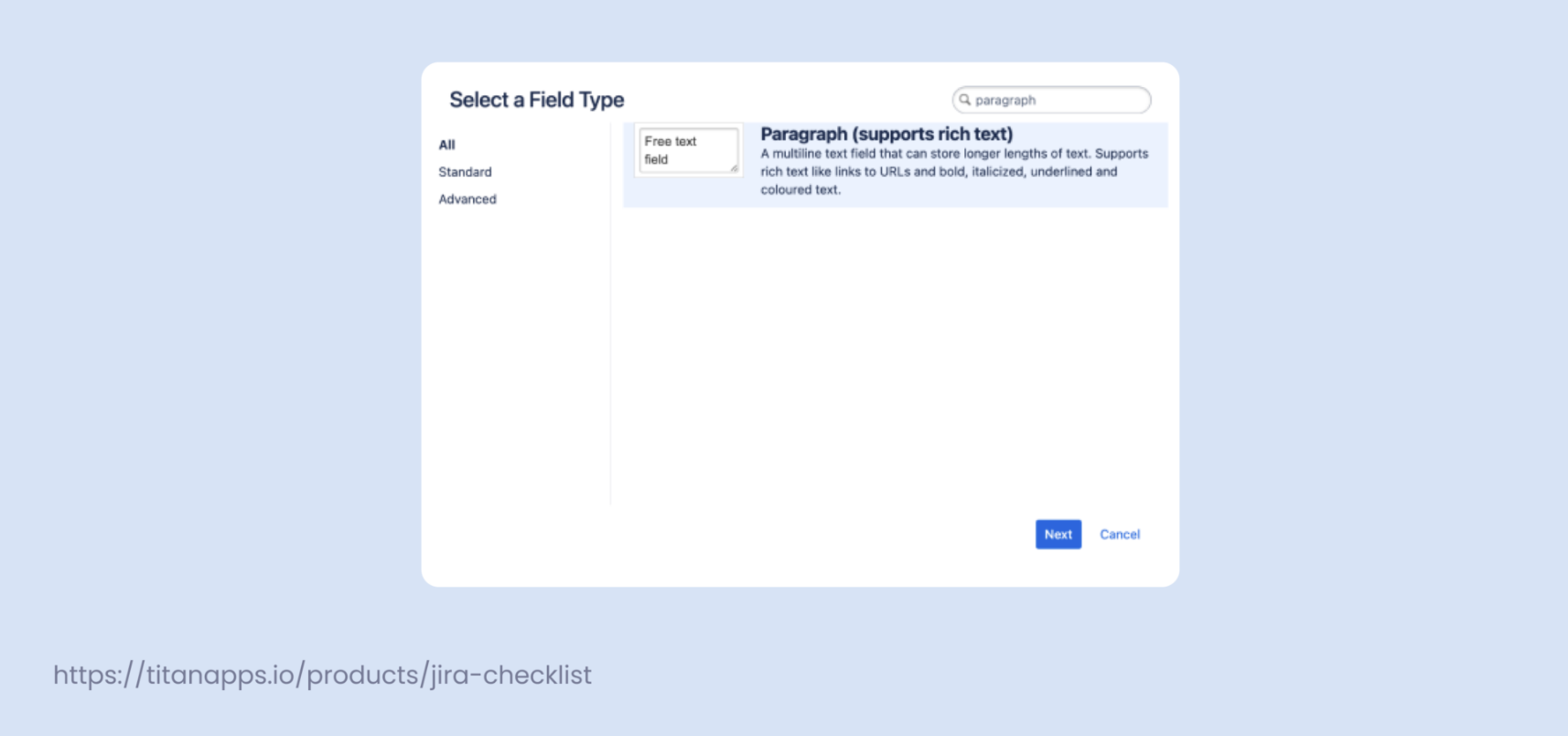
5. Choose Paragraph (supports rich text) so teams can write testable criteria in a readable format.
6. Name the field “Acceptance Criteria” (or similar).
7. Choose which screens it should appear on (for example, your Scrum default work item screen for user stories).
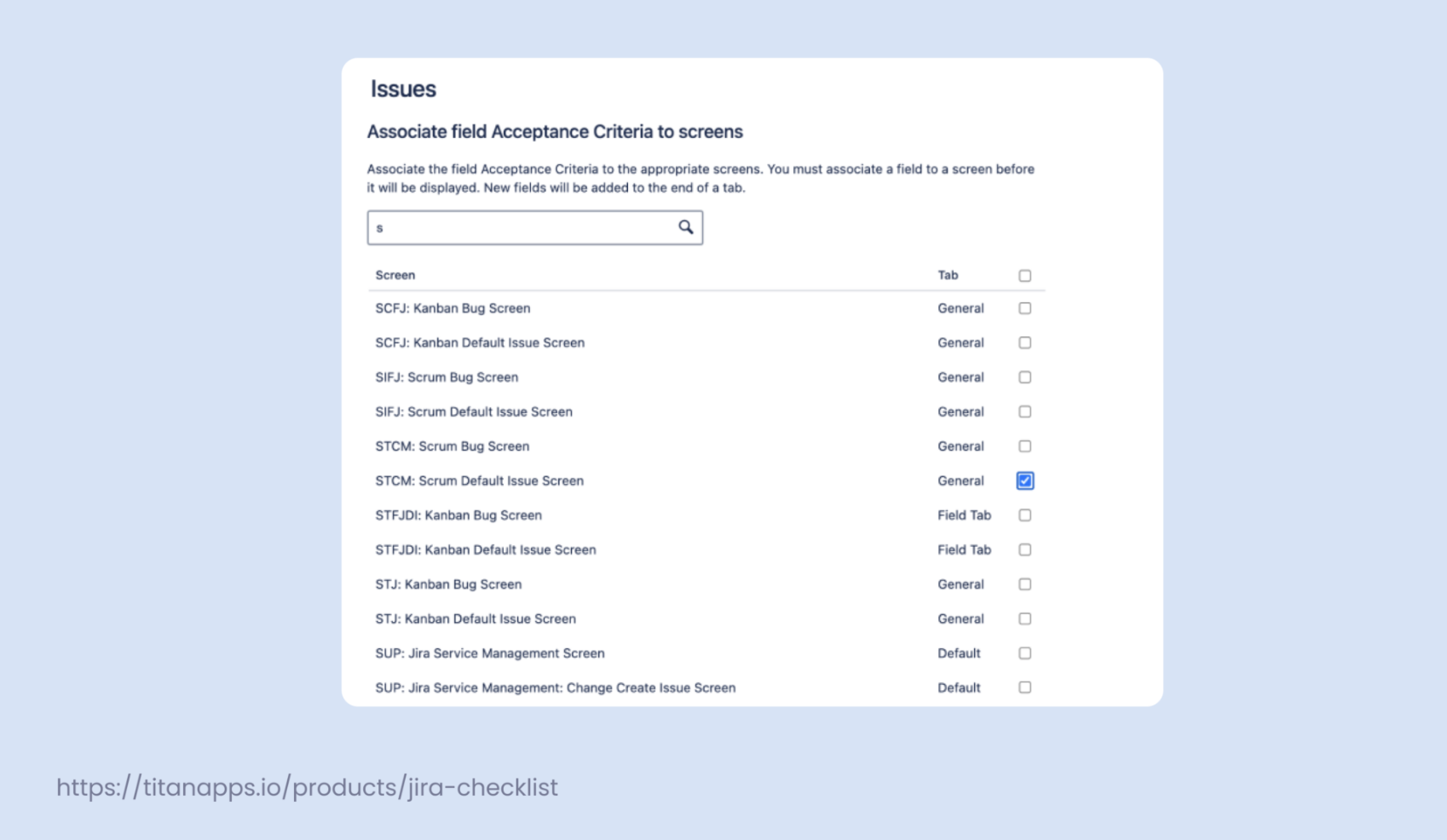
After that, new Jira work items will have a dedicated place to write acceptance criteria, separate from the description field.
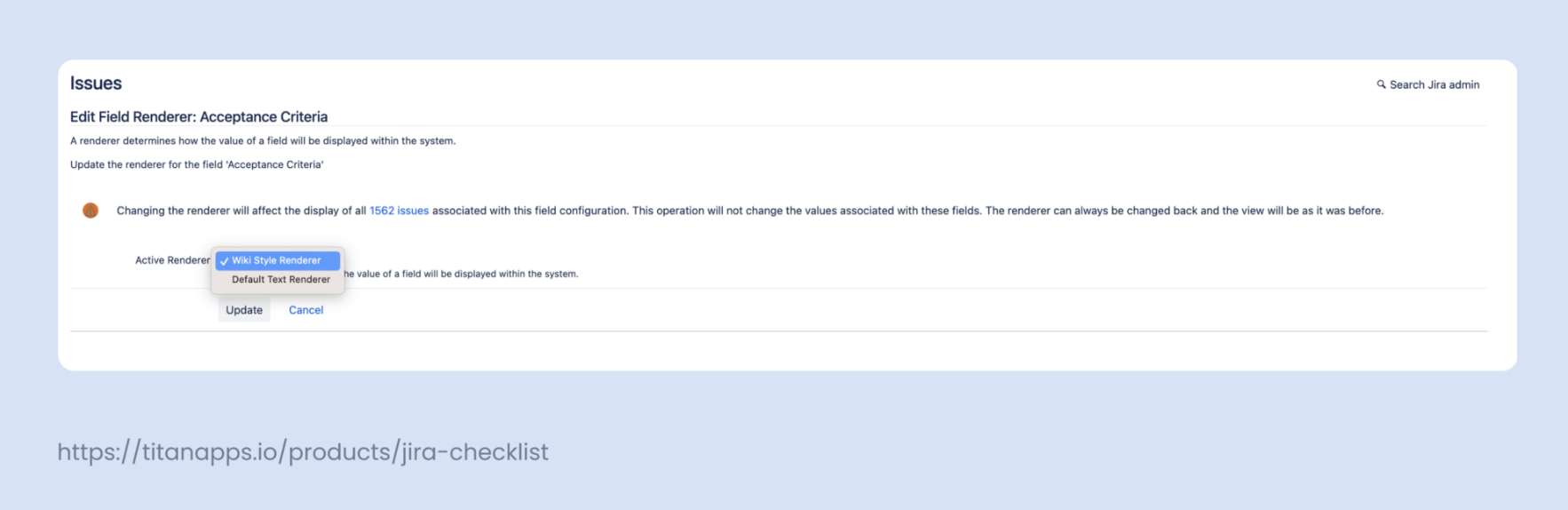
Formatting tip: if the field feels too limiting, open Field configurations, find the Acceptance Criteria field, and adjust the renderer to Wiki style. This makes it easier to write Given–When–Then scenarios, link to Confluence context, and keep criteria readable.
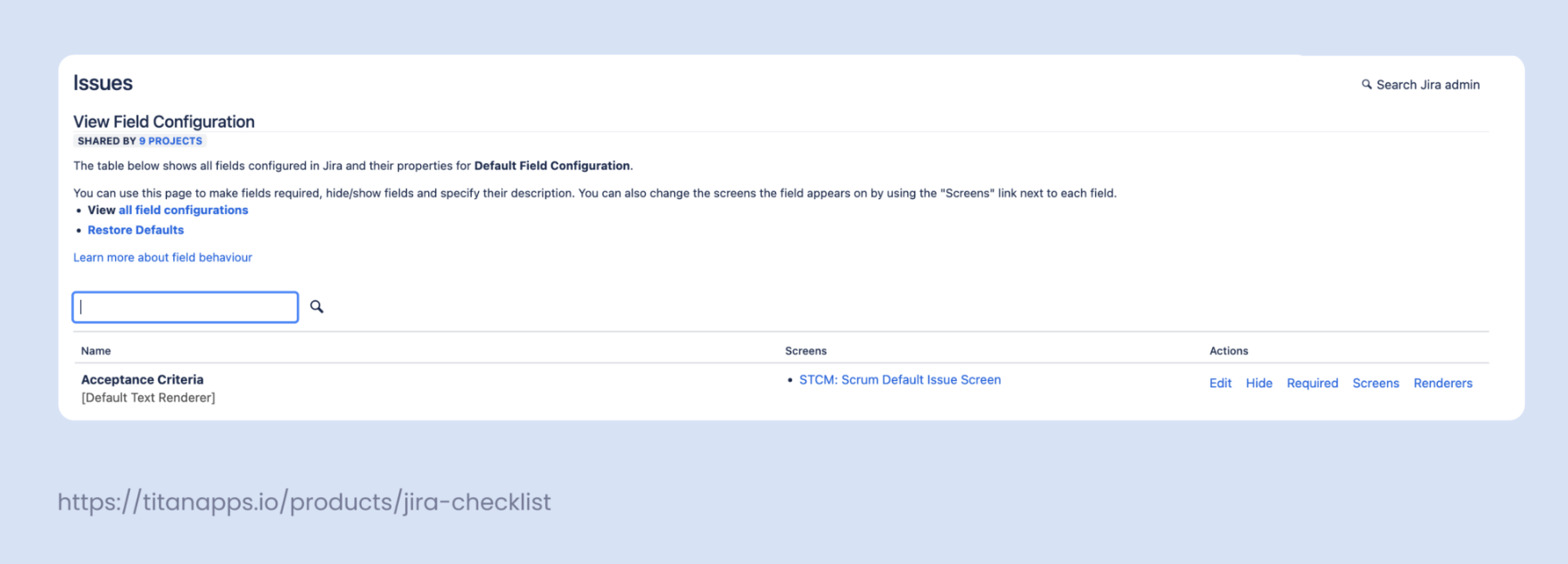
Note: a custom field improves structure, but it still stays “static.” The development team and testers don’t get built-in progress tracking or validation signals per criterion. The field can also get buried among other fields, depending on your Jira issue layout.
Option B: Add acceptance criteria as an actionable checklist (best for validation)
A checklist is a better fit when acceptance criteria must stay visible during the development process and be validated step by step.
A checklist app like Smart Checklist for Jira lets you:
- write acceptance criteria as checklist items (clear, binary, testable)
- track progress during implementation and QA
- reuse templates so every user story starts with effective acceptance criteria
- enforce validation through workflow rules (for example, block a transition until required items are complete)
Teams often pair this approach with workflow validators (for example, via JMWE) and automation rules so a Jira issue can’t move forward in the workflow until acceptance criteria are met.
How to manage acceptance criteria with Smart Checklist
Smart Checklist for Jira | Getting Started
Smart Checklist for Jira turns acceptance criteria into a visible, actionable list inside the Jira issue. Instead of keeping AC as static text in the description field or a custom field, your development team and testers can work through each criterion during the sprint and use it as the shared validation baseline.
After you install Smart Checklist, you’ll see it on the right side of your Jira issue view.
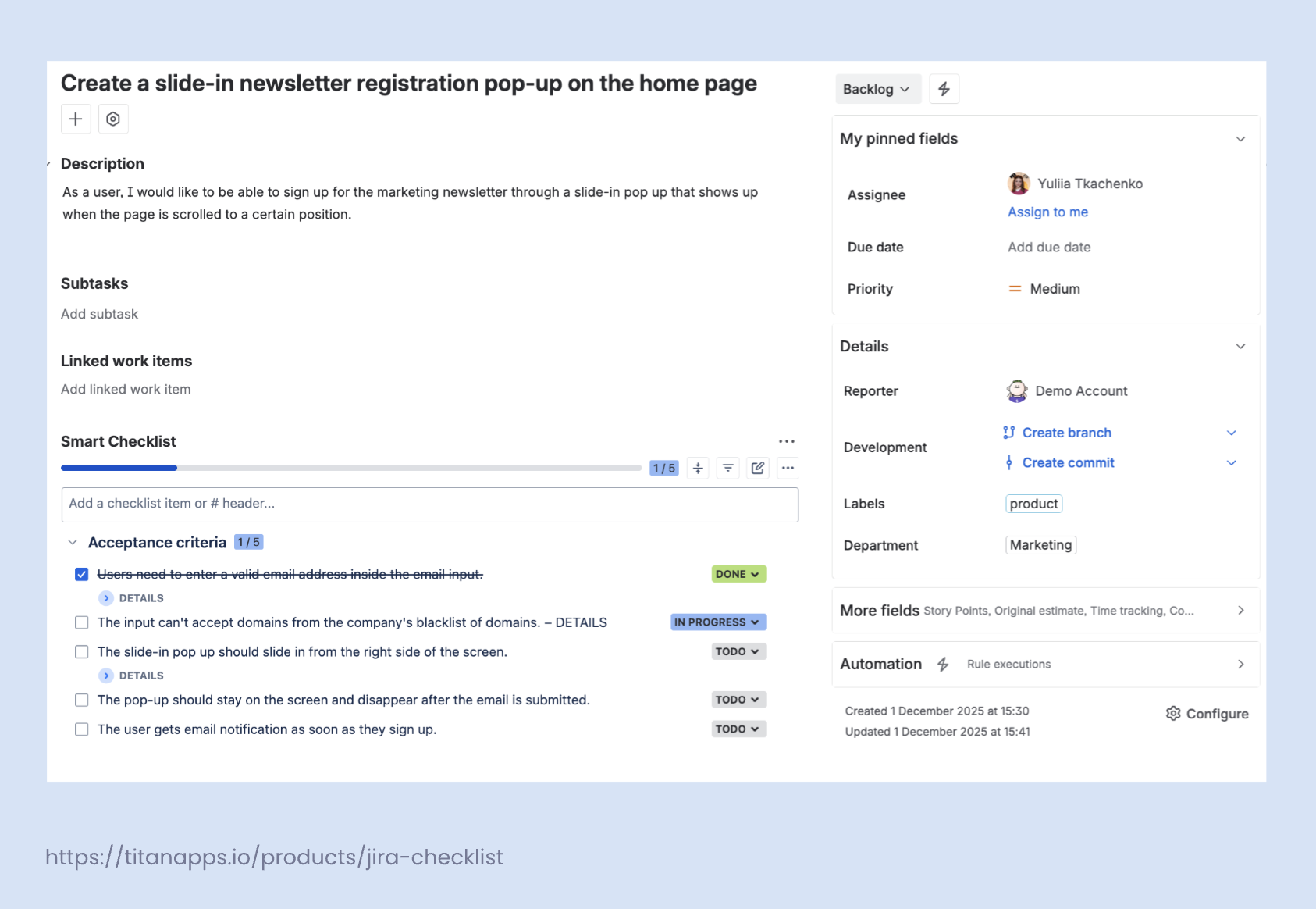
From there, you can add acceptance criteria in two ways:
- Add items one by one, which works well for short user stories.
- Use the Full-screen editor (pen icon) to paste or edit the full list at once, which is faster for larger stories or when you write Given–When–Then scenarios first and convert them into checklist items.
Use custom statuses to reflect dev + QA progress
Many agile teams want acceptance criteria to be more than a “checked/unchecked” list. Smart Checklist lets you use custom statuses so each criterion can move through your validation workflow.
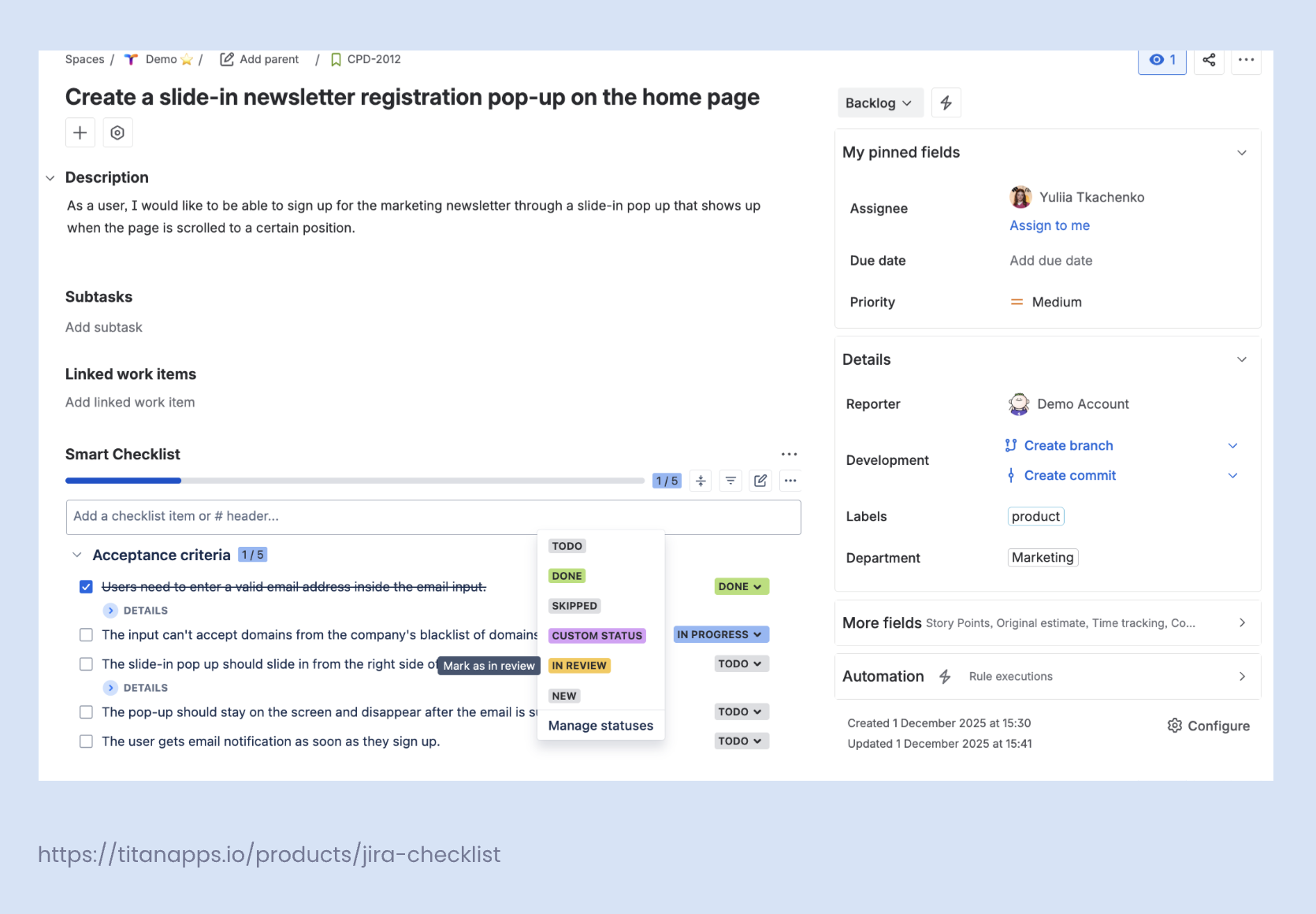
A practical pattern looks like this:
- Developed: the developer confirms the functionality is implemented, but QA has not validated it yet.
- QA passed / QA failed: testers verify behavior against the criteria and mark the outcome.
- Done: used only when the criterion is truly verified.
This keeps one set of acceptance criteria for everyone: developers see what’s implemented, testers see what’s ready to validate, and product owners can review progress without scrolling through comments.
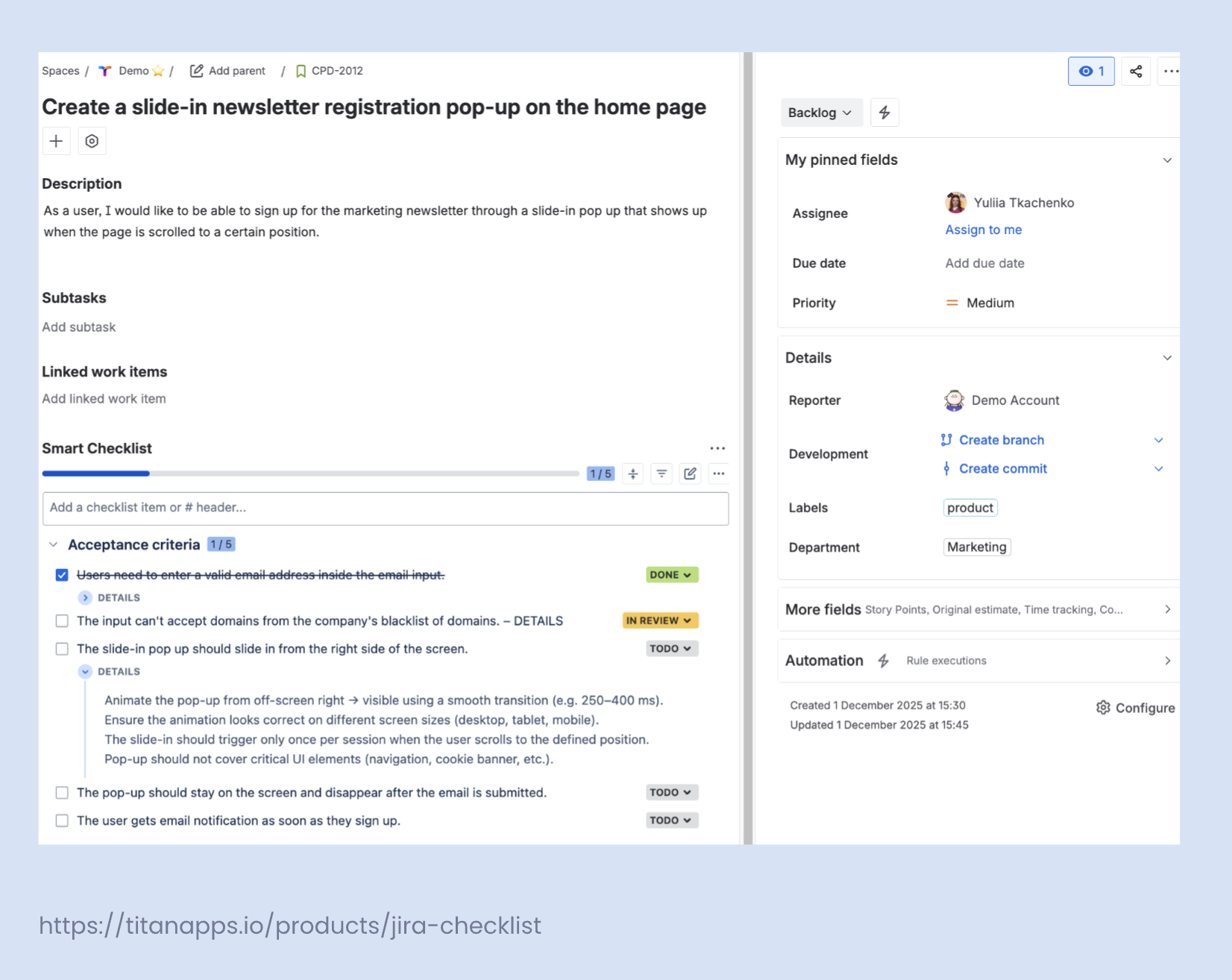
Mark mandatory acceptance criteria and connect automation
Some acceptance criteria are non-negotiable (security checks, audit events, edge cases, accessibility). Mark those criteria as mandatory, then connect them to your Jira automation rules.
A common workflow:
- Rule trigger: status transition or “when checklist updated”
- Condition: all mandatory checklist items are verified (for example, QA passed / checked)
- Action: automatically transition the Jira issue to Ready for release (or notify the assignee / Slack / Microsoft Teams channel)
Result: fewer last-minute surprises in sprint review, cleaner acceptance testing, and clearer ownership. If something is still “Developed” but not validated, the Jira issue stays in progress and everyone can see why.
Recommended setup for agile teams (quick, practical)
Where to store acceptance criteria (AC)
Most teams start with the description field because it’s fast and visible. If you want AC to be actionable and easy to validate, store them as a checklist inside the Jira issue (for example, Smart Checklist). This gives you progress tracking, clear ownership for team members, and a clean QA sign-off flow without extra comments.
When to write AC
Write the first draft before backlog refinement. Refinement then becomes the place to challenge assumptions, add edge cases, and agree on what “done” means for that user story. You’ll also get better estimates because the development team and testers estimate against clear, testable criteria.
How to keep AC aligned with Definition of Done (DoD)
Treat AC and DoD as two layers:
- Acceptance criteria = story-specific outcomes and expected functionality (what the user story must do).
- Definition of Done = team-wide quality standard for every work item (tests, review, docs, etc.).
A simple way to align them in Jira: keep AC in the story (description/custom field/checklist), and keep DoD visible as a stable reference your team checks during review. During sprint review or acceptance testing, validate both: the story meets its AC, and it meets the DoD quality bar.
Option 2: Track acceptance criteria as a checklist (actionable + QA-friendly)
A checklist turns acceptance criteria into work items inside the Jira issue, which makes validation visible during the development process. Each checklist item stays tied to the user story, so the product owner, development team, and testers can review progress in real time.
This approach also fits Scrum and Kanban workflows where the same story passes through multiple hands. Developers can implement criteria one by one, and QA can validate each item during acceptance testing without rewriting the same notes in comments.
A simple setup that works well for agile teams:
- Keep each acceptance criterion as one checklist item (binary: met or not met).
- Add lightweight statuses for handoffs, for example: Developed → QA passed / QA failed.
- Mark critical criteria as mandatory so the team treats them as release blockers.
If you want tighter workflow control, connect checklist completion to Jira automation rules. For example: when all mandatory acceptance criteria are checked, Automation for Jira can transition the Jira issue to a status like Ready for release, auto-assign the next reviewer, and send notifications to Slack or Confluence-linked stakeholders. This keeps acceptance criteria aligned to the workflow without extra manual follow-ups.
Key takeaways
Acceptance criteria define the testable outcomes a Jira user story (or other issue types) must meet to be considered complete. They help product owners, the development team, testers, and stakeholders align on expected functionality and user experience, before work starts.
Teams usually store acceptance criteria in the description field because it’s quick and visible. When you also need progress tracking and validation during the development process, a checklist is a better fit because each criterion becomes an actionable item that can be verified and marked complete.
To keep your agile workflow predictable, write acceptance criteria before backlog refinement, review them together, and keep them aligned with your Definition of Done. That way, “done” in Jira means the same thing to everyone.
For more details check out Smart Checklist for Jira.
Frequently Asked Questions about Acceptance Criteria in Jira
What are the acceptance criteria in Jira?
Acceptance criteria are the specific, testable conditions a Jira issue (most often a user story) must meet to be accepted. They clarify what “done” means for that one work item and provide a baseline for QA and acceptance testing.
What are examples of good acceptance criteria?
Good acceptance criteria are clear, specific, and verifiable. Common formats:
- Given–When–Then (behavior scenarios from the user perspective)
- A short checklist of observable outcomes (great for tracking progress in real-time)
Example checklist items:
- Invalid input shows an inline error
- Confirmation email is sent
- Event is recorded in analytics
When should agile teams write acceptance criteria?
Write acceptance criteria before backlog refinement. This gives scrum teams enough context to discuss scope, clarify edge cases, and estimate work more accurately during refinement and sprint planning.
Where should I add acceptance criteria in Jira?
You have three common options:
- Description field (fast, visible, but static)
- Custom field (structured, but still not actionable)
- Checklist app (actionable acceptance criteria with validation and progress tracking)
If your team wants to “run tests” against each item and track test results clearly, checklists usually work best.
What’s the difference between acceptance criteria and the Definition of Done?
- Acceptance criteria apply to one Jira issue and describe the expected functionality and desired outcome.
- Definition of Done (DoD) applies across the workflow and defines the team’s quality baseline (tests, review, documentation, etc.).
Can acceptance criteria change during a sprint?
Yes, but treat changes as scope changes. If acceptance criteria evolve, keep the update visible in the Jira issue and confirm alignment with the product owner so the team doesn’t validate against outdated expectations.
What’s the best format for acceptance criteria: Given–When–Then or a checklist?
Both work. Pick what your development teams and testers will actually use:
- Use Given–When–Then when you want behavior clarity and future automation potential.
- Use a checklist when you want actionable criteria, clear status during QA, and less rework.
Many agile teams combine both: a short scenario + checklist items for verification.
Can I automate Jira workflows based on acceptance criteria?
Yes. If you track acceptance criteria as checklist items, you can set automation rules like:
- When all mandatory criteria are verified, transition the Jira issue to a “Ready for release” or “Done” status
- Auto-assign work, send notifications, or alert QA in Slack/other tools when criteria change state
How does Smart Checklist help manage acceptance criteria?
Smart Checklist turns acceptance criteria into actionable checklist items inside Jira issues. Teams can:
- Track validation in real time
- Use custom statuses for dev + QA steps (e.g., Developed → QA passed/failed)
- Mark key criteria as mandatory
- Reduce rework by making validation visible during the workflow
If you’re managing acceptance criteria in Jira today: where do you keep them right now (description, custom field, checklist), and what breaks most often in your current setup?
