Update as of Nov 30, 2022:
The ability to edit Confluence pages natively via Smart Links has been rolled out to all customers!
Update as of Aug 29, 2022:
In addition to inserting Confluence pages and viewing them as embeds within Smart Links, you can now edit Confluence pages natively via Smart Links! Simply click on the 'pencil' icon on the top right to switch to the edit mode. When you are done with your edits, click on 'Publish'.
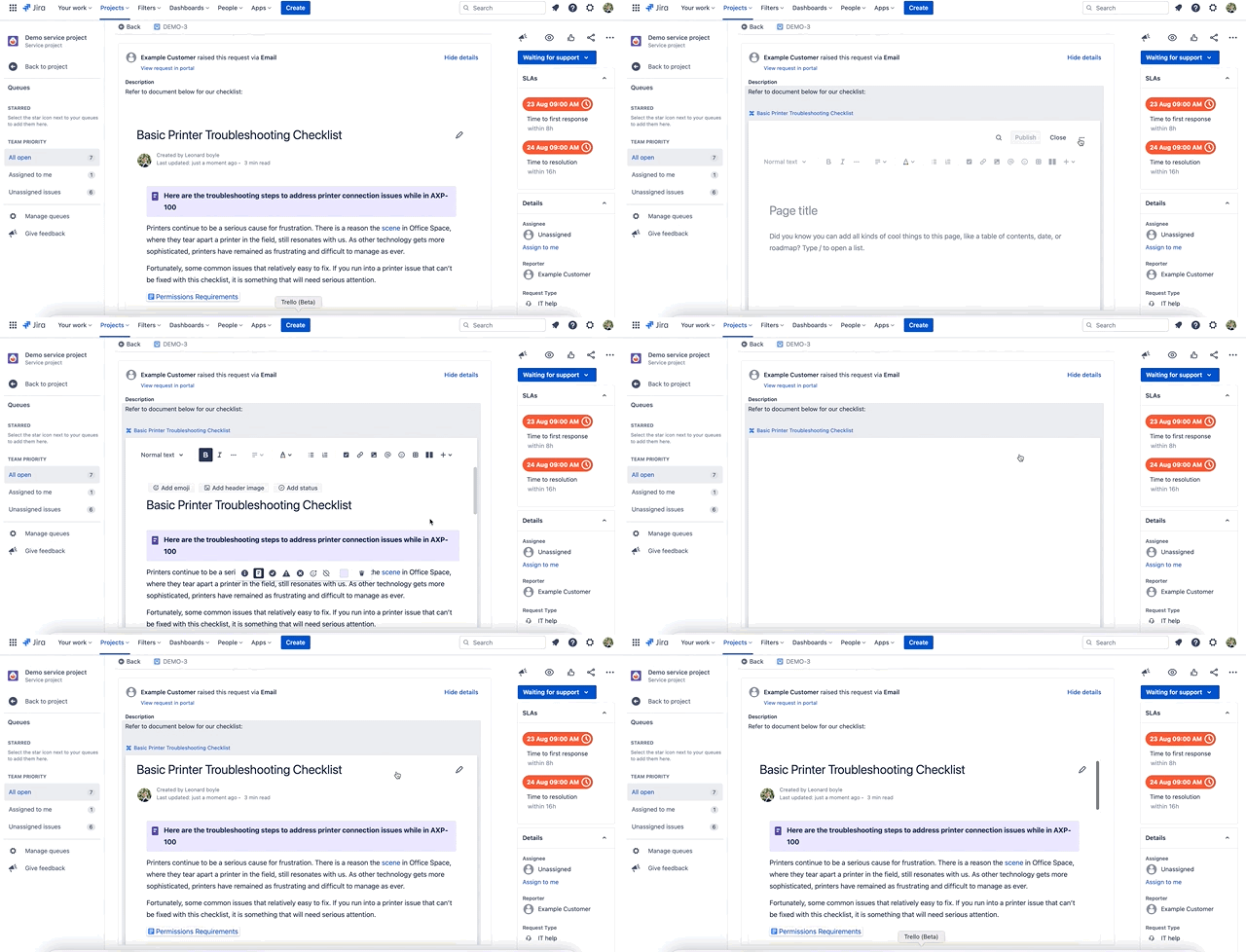
This new capability allows you to view and edit Confluence pages without switching context and streamline your workflow. All customers can expect to see this new capability within the next few weeks.
-------
Hi everyone, I’m Lennon Liao, a Product Manager focused on building integrated Confluence Cloud experiences across Atlassian’s products to help you work better together.
I’m happy to announce that you can now embed full  Confluence pages using
  Smart Links! If you’ve ever added a URL into a Confluence page or Jira issue, you’ve likely seen Smart Links before. Hyperlinks are automatically converted to Smart Links, adding a visual “pop” to the page.
Until now, Smart Links have had three options for displaying content: 1) as a URL, 2) as an inline link, and 3) as a card. With our new update, there is a fourth option: inserting a full, rich Confluence page—we call this a Confluence Smart Link embed.
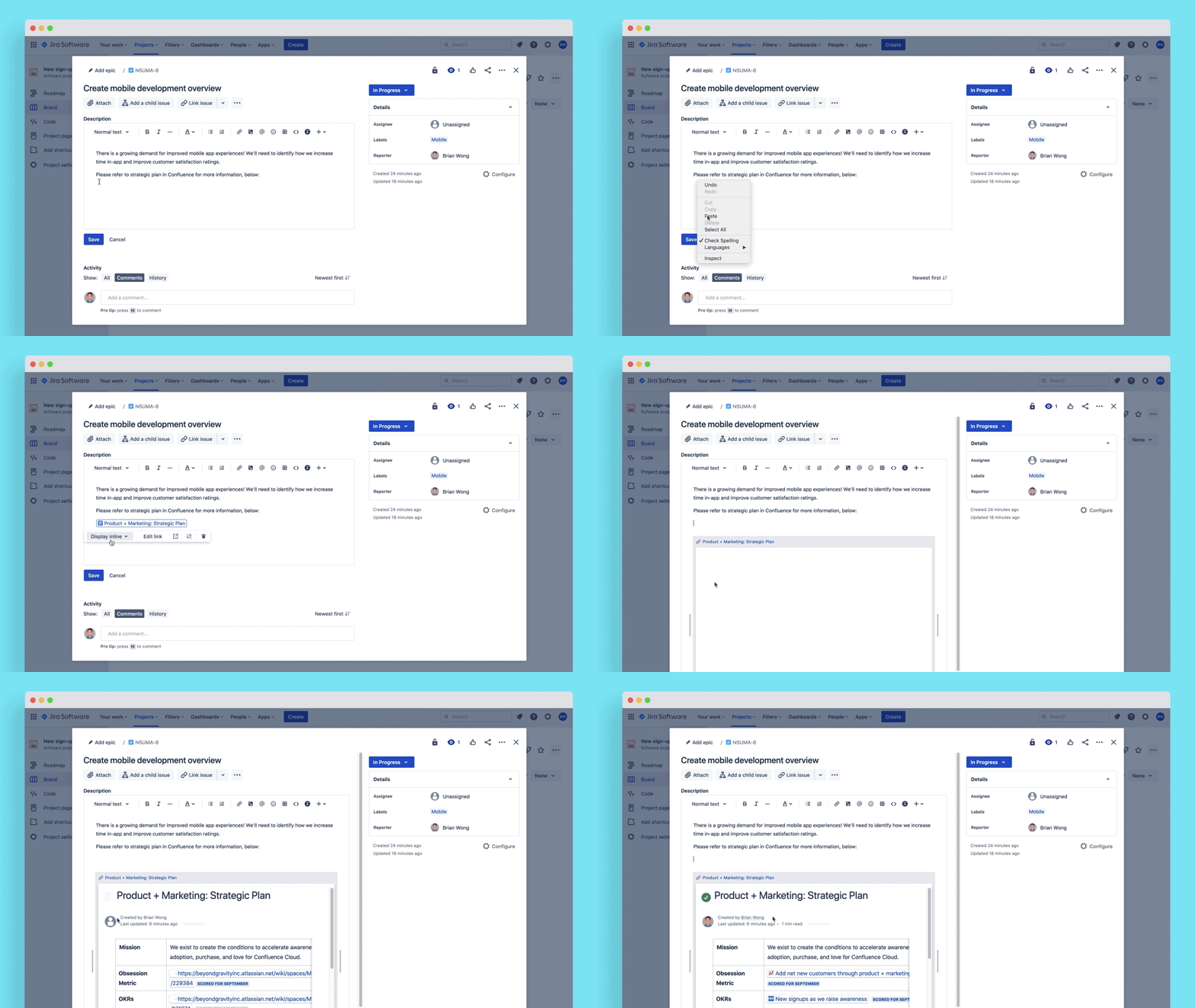
📄 How to add a Confluence page as an embed through Smart Links:
-
Paste your Confluence URL. By default, it will be converted to an inline link.
-
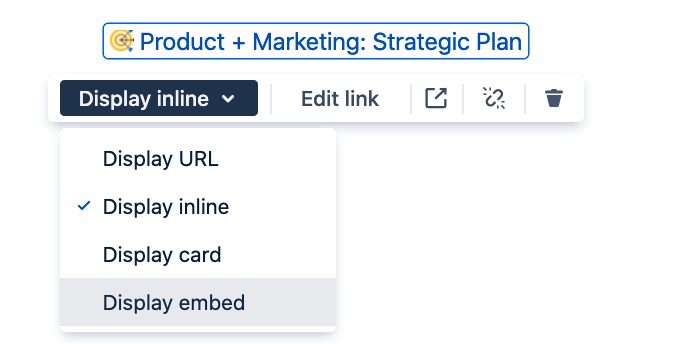
Click the inline link that you just created. You will have an option to select your preferred format.
-
Click “Display embed,” and your link will be displayed as an embedded Confluence page!
Note: Trello works similarly. To add an embed into Trello, copy your Confluence URL, and paste it directly into a card. It will automatically convert, and you can view the embed by clicking the preview button 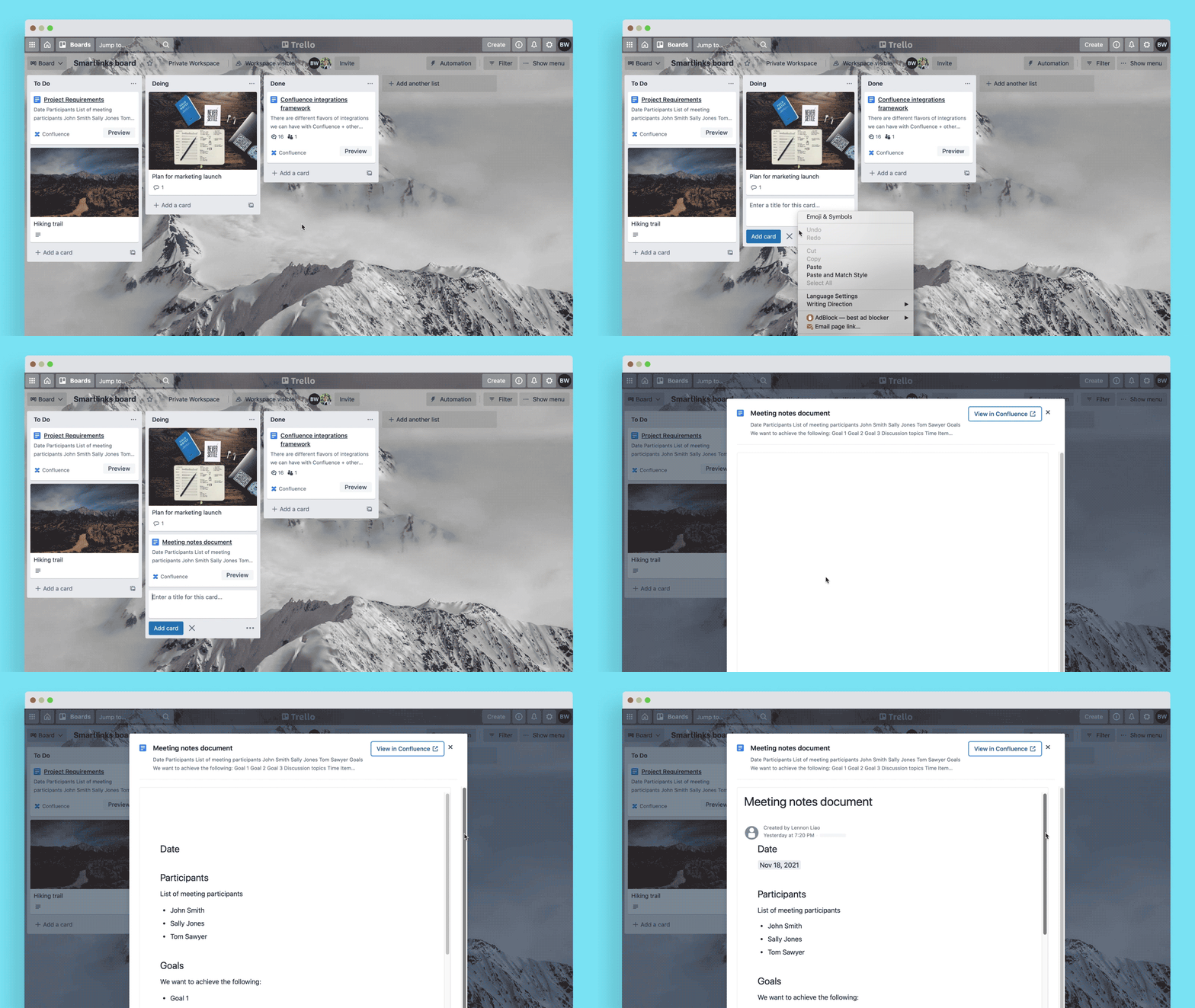
 How Smart Link embeds help you:
-
Content creators can reference relevant and rich content from Confluence to provide more context.
-
Content consumers can deeply engage with context, without having to leave the page the Embed is presented on. Embeds essentially act as a substitute for having to click through to the link itself, bringing the link’s content and experience within the Atlassian product the link is shared in.
💡 Creative ways to use embeds:
-
Jira: Bring project execution and documentation closer together—review project tasks and the requirements document all in one place. The value is wide-reaching and applicable for Jira Software, Jira Work Management, Jira Service Management, and Jira Align.
-
Trello - Quickly preview Confluence pages from your Trello board without having to click into individual card details.
-
Team Central - Easily add more project context/documentation into your Team Central project or goal briefs.
This works across many Atlassian products that use the editor:
- Confluence - In the page body or page comments
- Jira - Issue descriptions
- Jira Software - In addition to Smart Link embeds, Jira Software has an even more powerful embedded page experience available. Learn more
- Jira Work Management
- Jira Service Management
- Jira Align
- Trello - Create a Link Card by pasting a Confluence page URL into the title of your card. Click the preview button from your board view to open the embedded Confluence page
- Team Central - Status updates
We’re currently rolling out Confluence Smart Link embeds, so if you don’t see it on your Confluence Cloud instance today, it should be coming very soon. We hope this helps you build bridges across products and add extra context to your projects! We’re working hard on more features to make Atlassian tools more interconnected. If you have any feedback, feel free to leave a comment!


