Last week Atlassian announced a strategic partnership with Slack, a leading software for instant communication and team collaboration. As teams continue to become more agile and move at the speed of light, instant and efficient communication is an ever expanding need. (Not to mention that the team that memes together, wins together.)

This partnership is the next best step to continue providing best of breed collaboration and communication software for Atlassian’s customers. For the companies using Hipchat or Stride, it will be time to say goodbye on February 15, 2019 so now is a good time to start thinking about data migration. Need help migrating or have questions about how this will impact your team’s tools? As trusted Atlassian Platinum Solution Partners, we got you, so hit us up for a friendly chat.
We at cPrime will definitely miss those snazzy little emoticons but we are ready to embrace the Slack giphy integration with open arms!

Keeping the customer at the center of their business, Atlasssian promises deeper existing integrations between Slack and Jira Cloud, Bitbucket Cloud, and Trello, and create new integrations with other products to continue to improve the way that teams interact and collaborate.
Why wait? There's no better time to integrate Jira and Slack than today, and of course, Power Scripts can help you configure this in a few easy steps. Starting with version 4.0.13 of the Power Scripts, we've added the ability to use SIL scripts in order to send a message to Stride or Slack. To get it ex-slack-ly right (it was a stretch but we got there), just follow the instructions below:
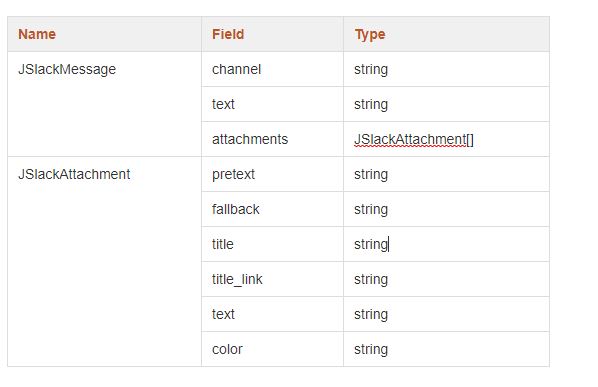
Predefined structures for a Slack message
Configuring an integration
To do this, you must have Administrator permissions.
General setup
To configure an integration, perform the following actions:
- In your Jira, go to Manage add-ons > cPrime Plugin Configuration > Integration Configurations, and click Add Integration.
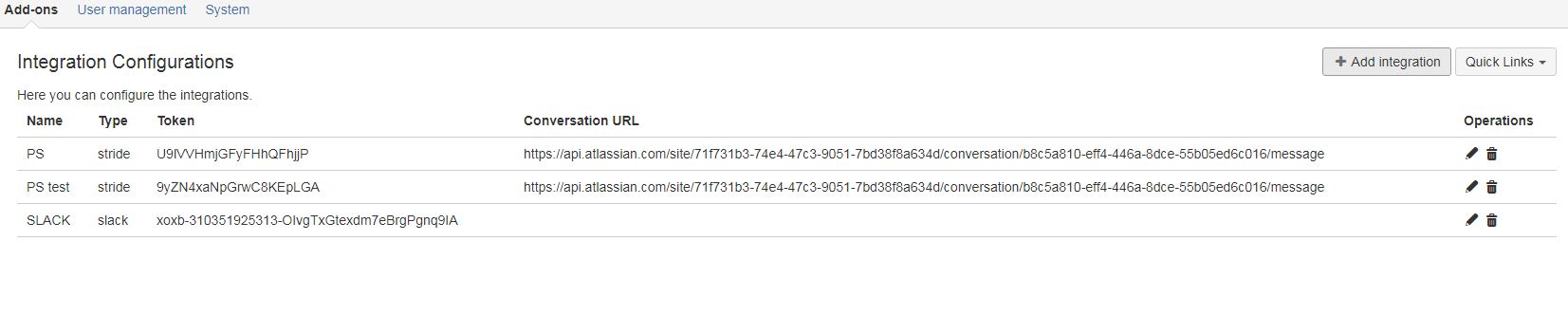
- Fill in the necessary fields:
- Name - the name of the integration, it should be unique from other integrations
- Type - the integration type
- Access token
- Conversation URL - you need to specify this for Stride integration only
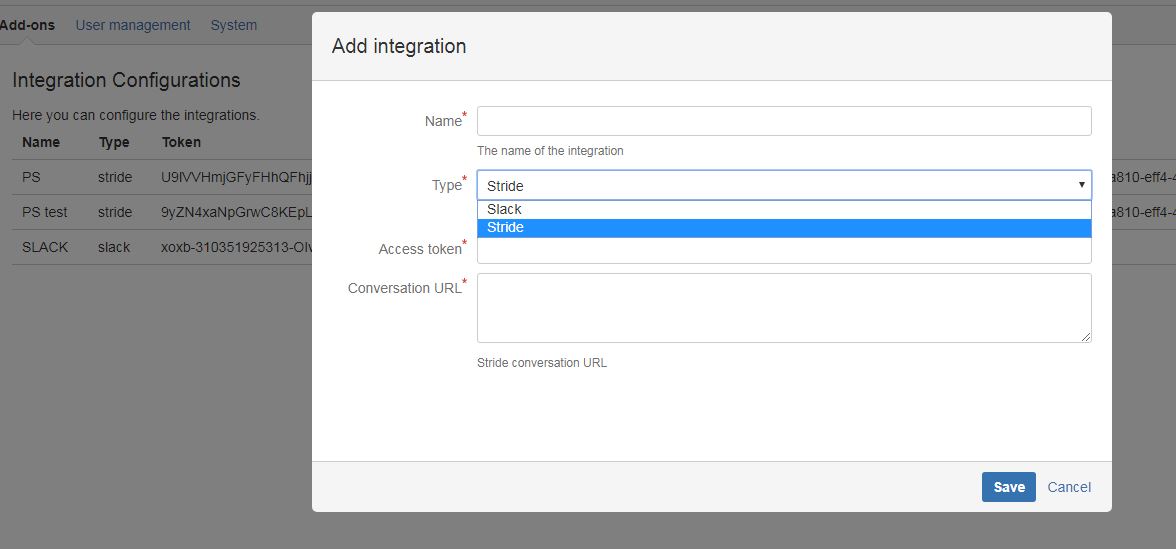
- Save the integration. After saving the added integration, a new entry is added to the table on the Integration Configurations page.
To edit or remove a configuration, click Edit/Delete.
Configuring notifications to go from Jira to Slack
In order to send a message to a Slack room, add an integration configuration on the Integration Configurations page. The access token can be a bot, a workspace, or a user token. If you want to create a bot for your workspace, perform the following steps:
- Navigate to the Bots page in the Slack App Directory.
- Click Add Configuration.
- Choose a username for your bot and add the bot integration.
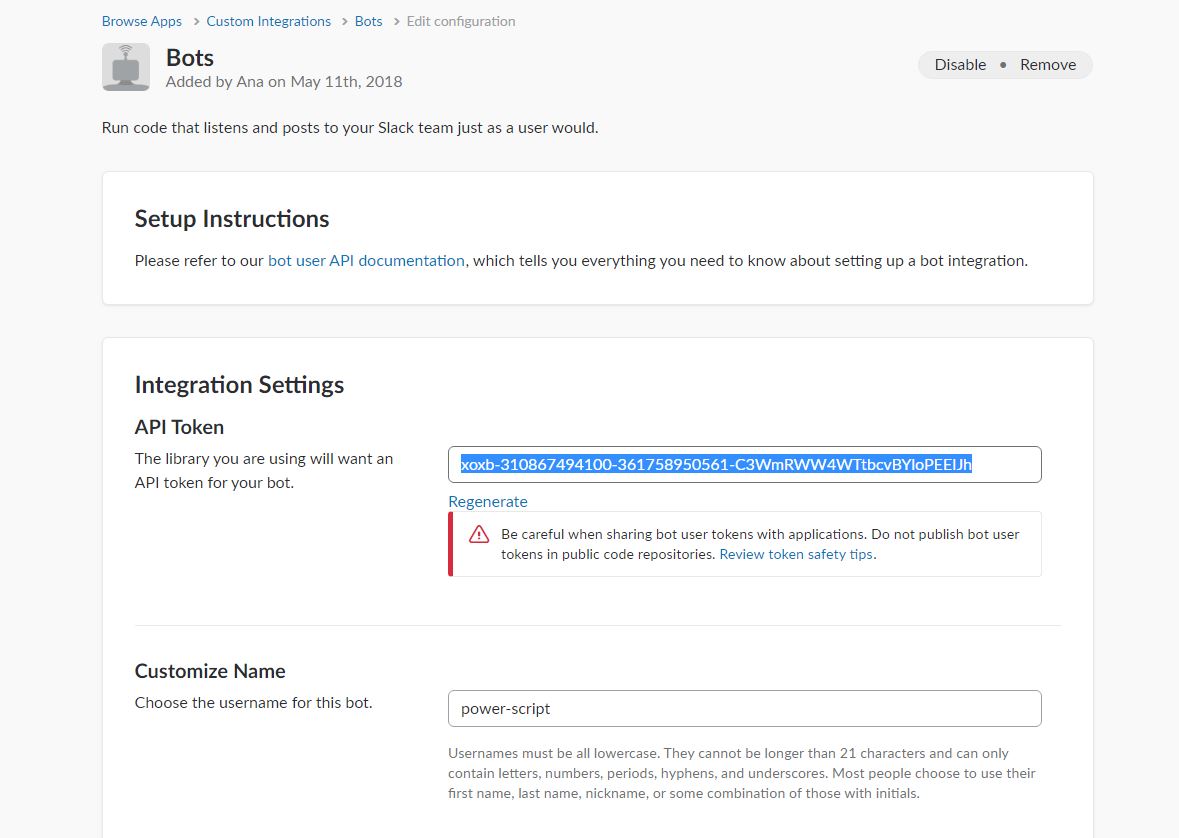
- Copy the access token to the Integration Configurations page and Save.
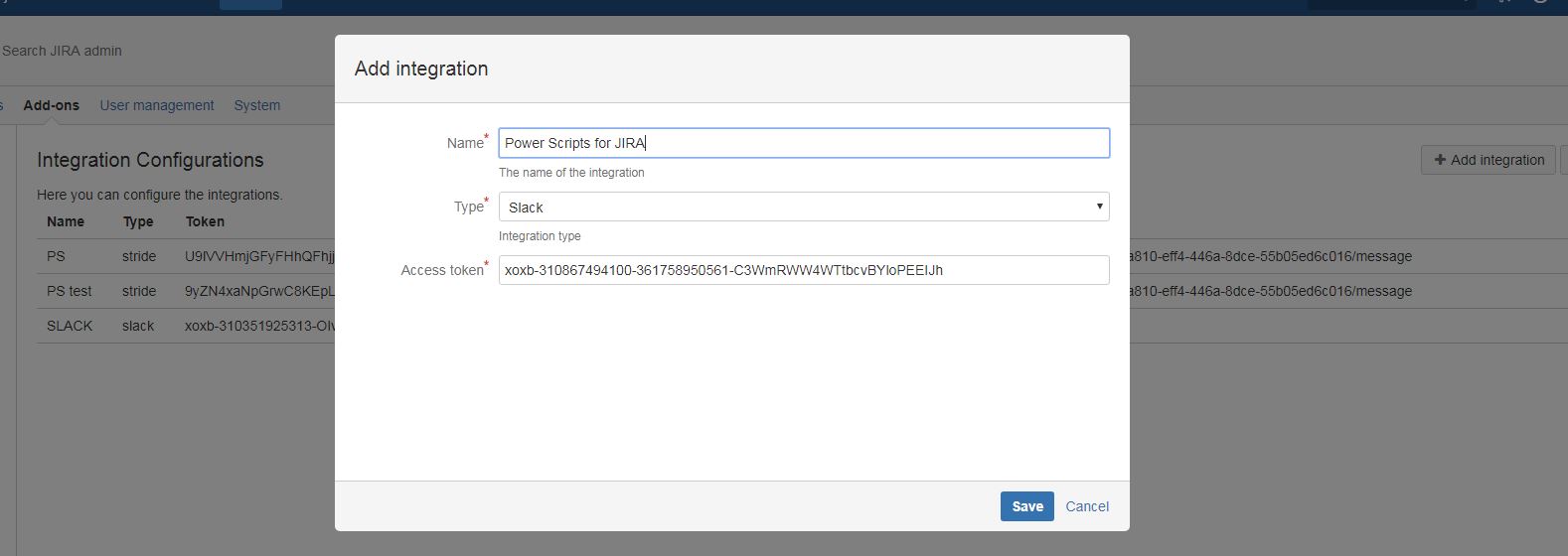
Now your configuration is ready to be used in a script.
You can read more about how to create/regenerate tokens for Slack here.
Examples
Send a message to Slack when a ticket is created
To send a message to Slack when an issue is created, add a post-function on the create transition in Jira with the following code:
JSlackAttachment issue;
issue.pretext = key.reporter + " created:";
issue.title = key;
issue.title_link =getIssueURL(key);
issue.text = key.summary;
JSlackMessage message;
message.channel = "C94S1U658"; // Channel, private group, or IM channel to send message to. Can be an encoded ID, or a name
message.attachments = {issue};
return sendIntegrationMessage("SLACK", message);
|
Here's an example of how this notification would look like in Slack.

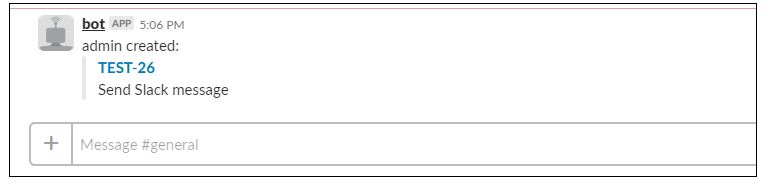
Not ready to break your Stride? We also integrate with Stride, follow the instructions here! But make sure you plan your migration soon, as Atlassian will only continue to support Stride, Hipchat Cloud, Hipchat Server, and Hipchat Data Center until the following dates:
• Stride and Hipchat Cloud until Feb 15, 2019
• Hipchat Server and Hipchat Data Center until:
◦ Hipchat Data Center (v3.0): 22 Jun 2019
◦ Hipchat Data Center (v3.1): 26 Sep 2019
◦ Hipchat Server (v2.1): 8 Dec 2018
◦ Hipchat Server(v2.2): 30 May 2019
◦ Hipchat Server (v2.4): 30 Jun 2020
![Photo of Michele Lim [cPrime]](https://us.v-cdn.net/6038660/uploads/avatars/a6/4a/na64a813f62569674c45da7a1f2a9b0b8.png)

