✨ Let's enhance our Confluence content with Carousels for better readability and navigation.
Break up long, text-heavy Confluence pages for improved user experience and information retention. Carousels are an effective tool for achieving this.
📖 In this guide, we’ll talk through:
- What is Carousel?
- How to add the Carousel macro in Confluence
- How to customize and configure your Carousel
What is Carousel?
The Carousel macro allows you to create a visually appealing and interactive image slider on your Confluence pages.
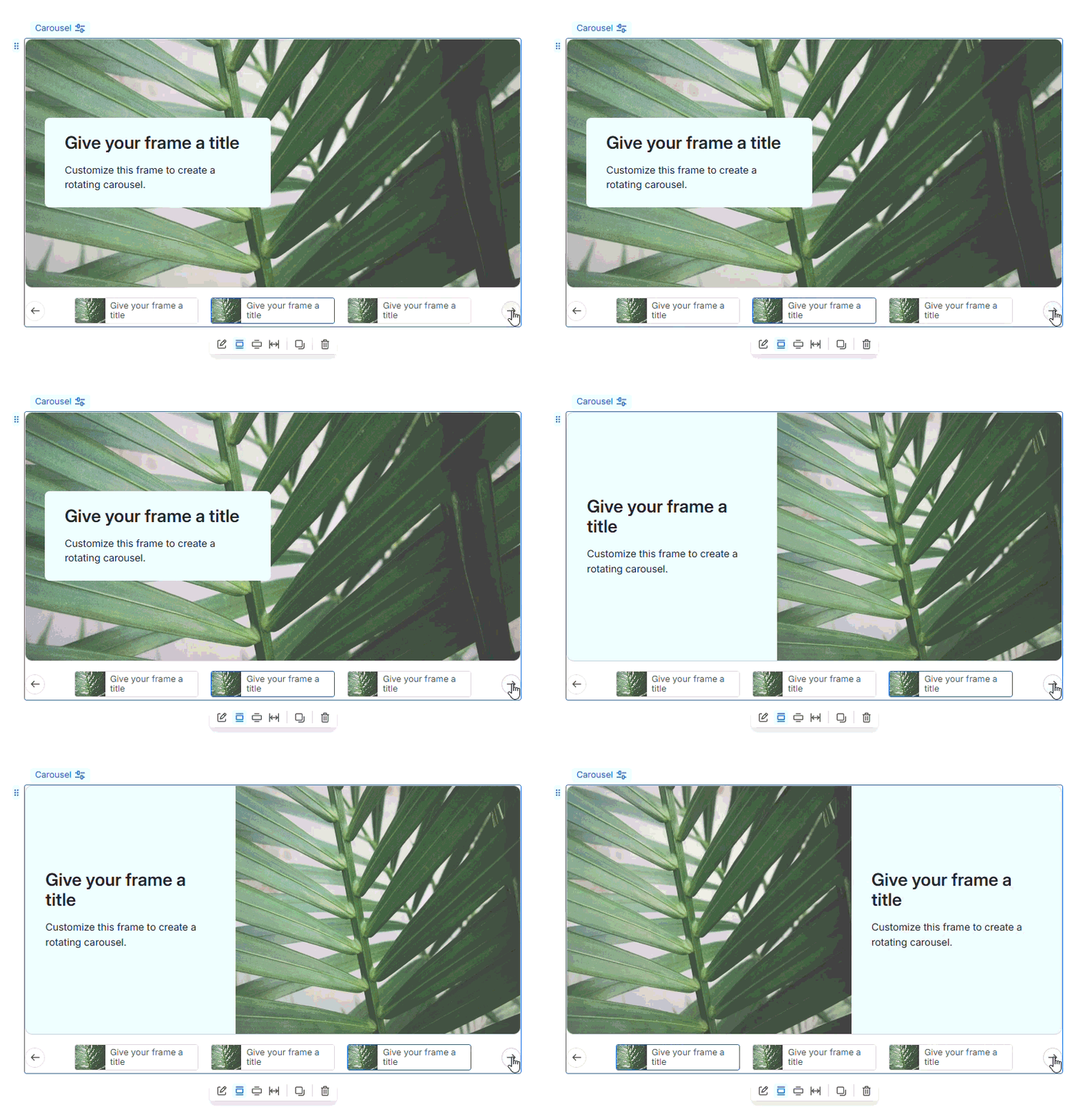
📜Add Carousel macro in Confluence
- Click the Edit icon (the pencil) on your Confluence page.
- Start typing /carousel on your page, then click Carousel [Updated] in the dropdown.
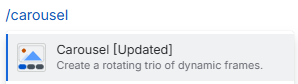
- Upon selection, a carousel of three empty frames will appear on your page or doc.
📝Customize and configure Carousel
- When you click on the Carousel macro, a sidebar will appear to let you customize each frame by : Style and Content
- The Carousel editor shows you an interactive preview on the left and has additional options on the right. You can set :
- Layout
- Link/Button
- Title
- Description
- Image
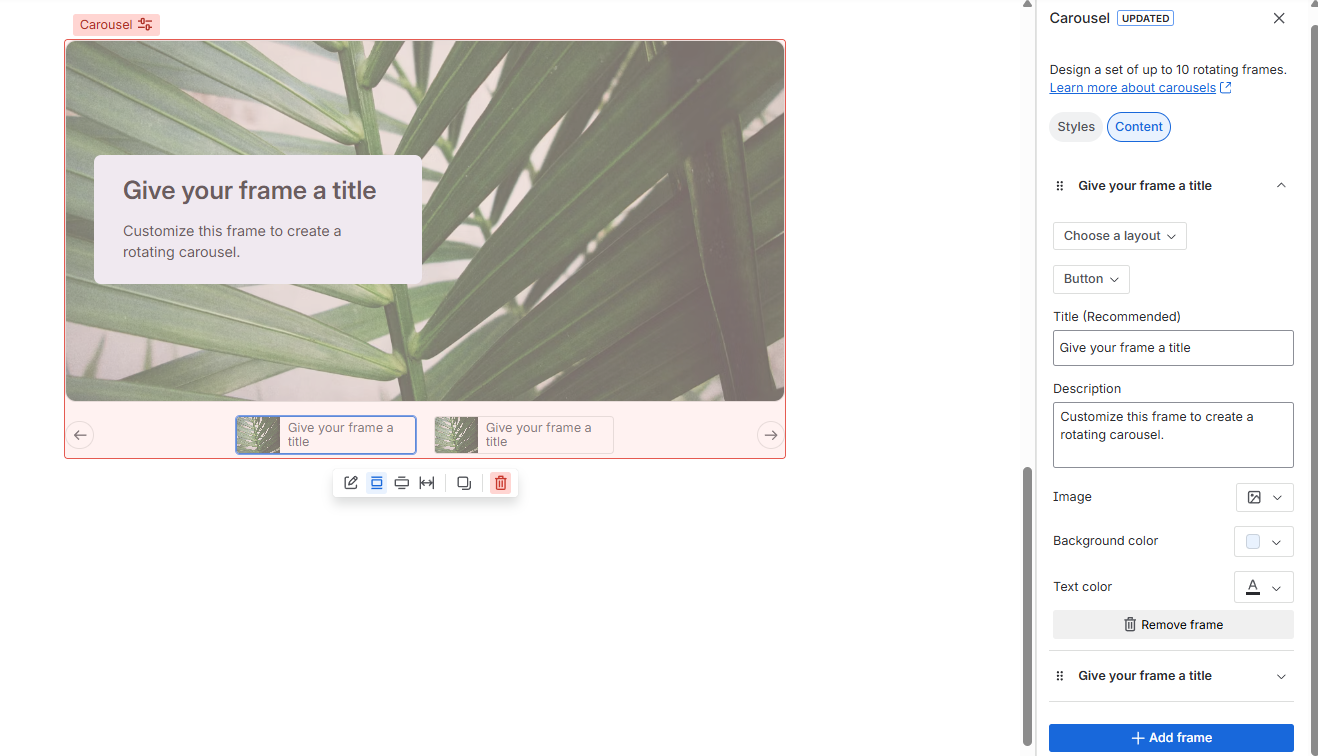
3. Your selections will appear instantly.
4. Upon publishing your page, anyone with permission to view it will now be able to see your carousel, manually rotate through its frames, and navigate to any links provided.

Have your tried Carousel macro yet? What are your other favorite ways to make your Confluence pages more engaging? Let me know in the comments below! 👇


