EDIT: The link type specified in the Branch has been modified based on article comments and retesting of the rule.
EDIT (18 MAY 26): A new caveat has been added that for the date fields used there must be only one field by that name in the system, or you must reference the field by its custom field id.
A question that has been asked by multiple community members recently is:
"When I change the end date of a task, how can I have that change automatically update the start and end date of dependent tasks, while also maintaining the original duration of the dependent task?"
Jira Cloud does not do this inherently, but it can be done with limitations using Automation for Jira.
Disclaimers and Caveats:
- This solution does not leverage functionality that is available in the Plans feature that is part of Jira Premium and Enterprise subscription plans.
- This solution does not rely on third party apps.
- This solution does rely on the use of the native Issue Linking feature of Jira where the link type used has different values for Outward Description and Inward Description.
- The chain of dependent tasks can be no more than 10 tasks. This is a service limit imposed on Automation Rules that they cannot recursively call themselves or other rules in quick succession more than 10 times.
- If you set up dependencies between tasks that are in different projects you will need to create a Multiple Project Scoped or Global Scoped rule to be able to edit the issues in all the relevant projects. For more information on rule Scope refer to What are Rule Details? (Scope)
- There are monthly Usage Limits for Rule Executions. Consider how adding this rule to your environment will impact your usage. For information on those limits and how usage is calculated refer to How is my usage calculated?
- This implementation assume that for the date fields you choose to use only one custom field exists in the system that uses that field name. If multiple custom fields exist using the same name, which Jira does allow, then the field must be referenced by its custom field ID rather than by its name in the smart values described in this article. A Jira Application Administrator can check in Settings > Work Items > Fields to see if there are multiple fields with the same name for the date fields you want to use, and get the custom field ID for the fields actually used in your tasks.
For this solution I have used the out-of-the-box Issue Link Type named “Blocks”, defined as follows:
- Name: Blocks
- Outward Description: blocks
- Inward Description: is blocked by.
You can use a different link type, as long as the Outward Description and Inward Description are different from each other.
This solution relies on consistent usage of the Blocks issue link type. If A-2 depends on issue A-1 being completed before work on A-2 can start, then this rule assumes that the two issues are linked as follows:
A-1 blocks A-2
Conversely:
A-2 is blocked by A-1
If you have multiple tasks that depend one upon another upon another in a chain, they must be linked in a consistent manner:
A-1 blocks A-2
A-2 blocks A-3
A-3 blocks A-4
A-4 blocks A-5
Also for this solution I have used the following Date Picker fields:
Due date: the date the task is expected to finish
Start date: the date the task is expected to begin
Where I use "Start date" and "Due date" you need to substitute in the names of the fields that you actually use to indicate the starting date and ending date of your tasks.
** Confirm that for the date fields you elect to use there is only one field in your system using that name. If there are multiple fields using that same name, then in the smart values below you will need to use the custom field ID for the field(s) that are actually used within your tasks.
Here is a summary of the rule:
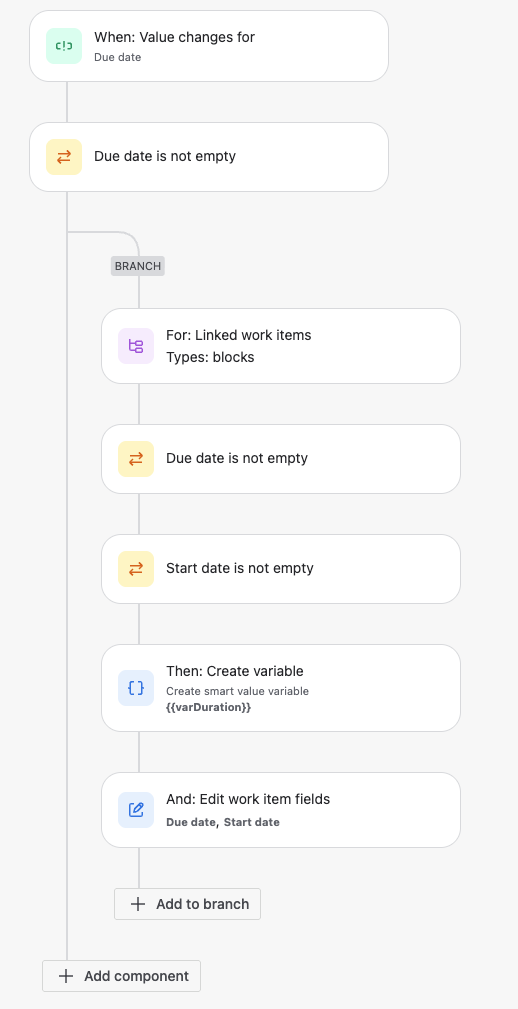
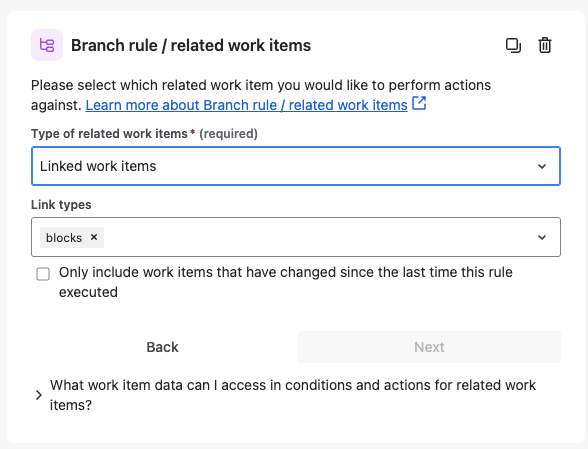
Note that in the Branch component you will want to uncheck this box:
The rule components that need more explanation are the last two; Create Variable and Edit Issue Fields
To get the original duration of the dependent task we get the difference in days between the original Start date and original Due date using smart value function diff() described in Automation smart values - date and time . We store this in a variable for use in the next step of the rule - Create Variable.
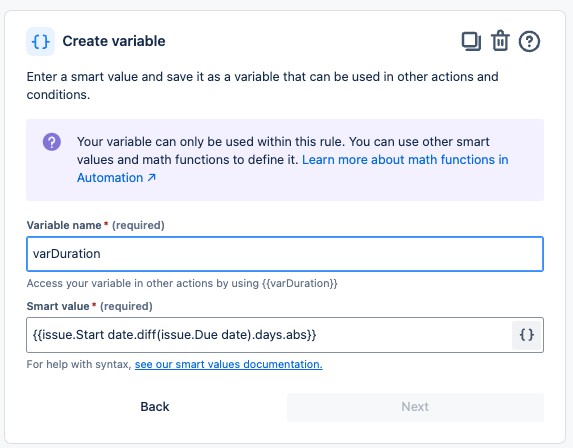
Note: You can alternately get the duration in business days by using businessDays instead of days.
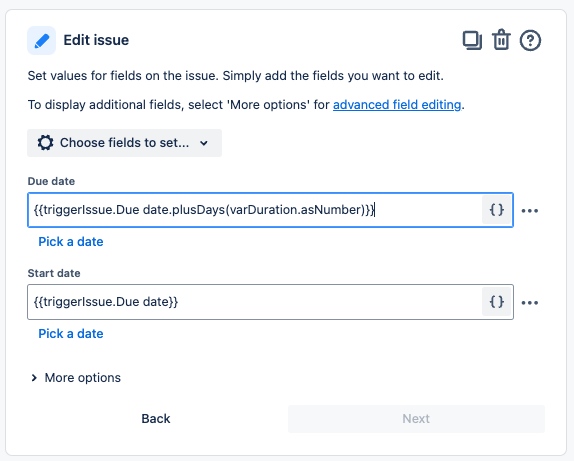
In the Edit Issue action we use smart values to set the Start date and Due date to new values for the dependent task.
The dependent task’s new Due date is its new Start date plus the number of days calculated as its duration. We stored the duration in a variable we created earlier. We can use the plusDays() function to add that variable value to the new Start date to get the new Due date.
We are changing the Start date in this same Edit Issue action. To avoid any collisions in changing data we will reference the trigger issue’s Due date in setting both the new Start date and Due date for this dependent task.
Start date: {{triggerIssue.Due date}}
Due date: {{triggerIssue.Due date.plusDays(varDuration.asNumber)}}
Variables are stored as strings, so we use asNumber to convert that to a number for this calculation.
When the rule execution completes it will have updated the Start date and Due date of the dependent task. Because it updates an issue Due date, that will cause this rule to be triggered again, with the task just updated becoming the triggering issue for the next execution.
For the rule to be able to operate in this recursive manner you must make sure that you check this box on the Rule Details page:

To learn more about Automation for Jira consider taking FREE self-paced courses from Atlassian University such as:
Automating Jira
Reduce administrative work with Jira Automation
Reducing manual steps for a developer team with Jira Automatio


