Hi Community!
I’m Rory, a Product Manager on the Atlassian Editor team 
I'm pleased to announce the arrival of Custom Table Widths - the freedom to resize tables to any width within the Confluence editor!
We are excited to bring this highly requested feature to life, empowering you as content creators to now match your table widths with the needs of your content.
With the rollout of this feature, we are also introducing the ability to resize tables within full-width pages - opening the door to more appropriately-sized tables in these pages and driving consistency in the editing experience.
How does it work?
Resize using the new handle
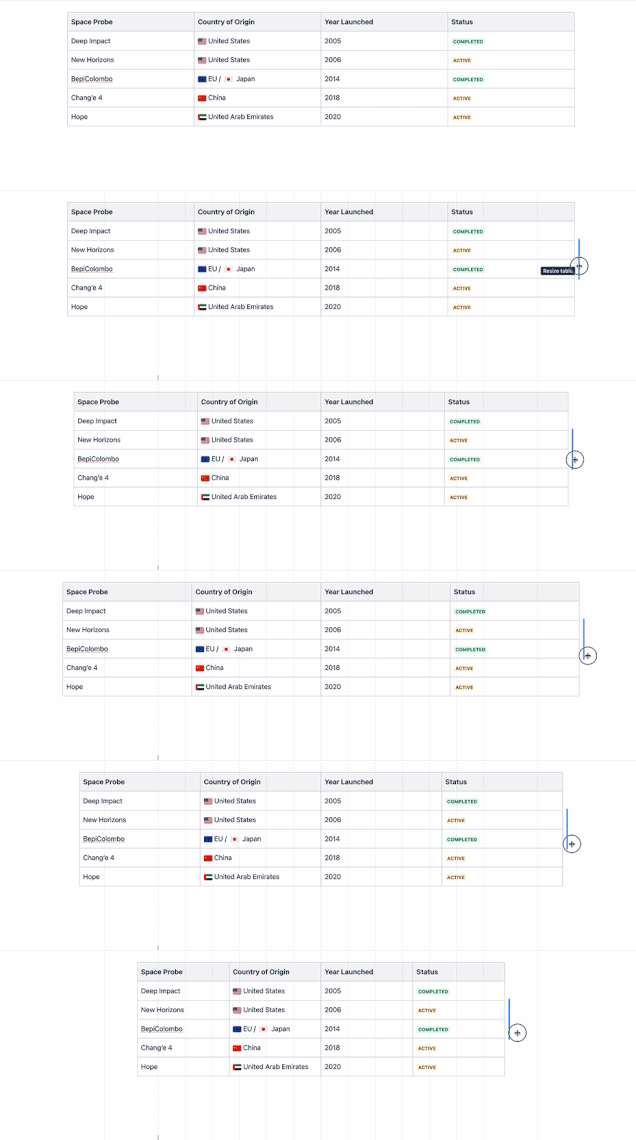
Resize your tables using the resize handle located on the right side of the table. Your columns will proportionally grow or shrink based on the table size that you set.
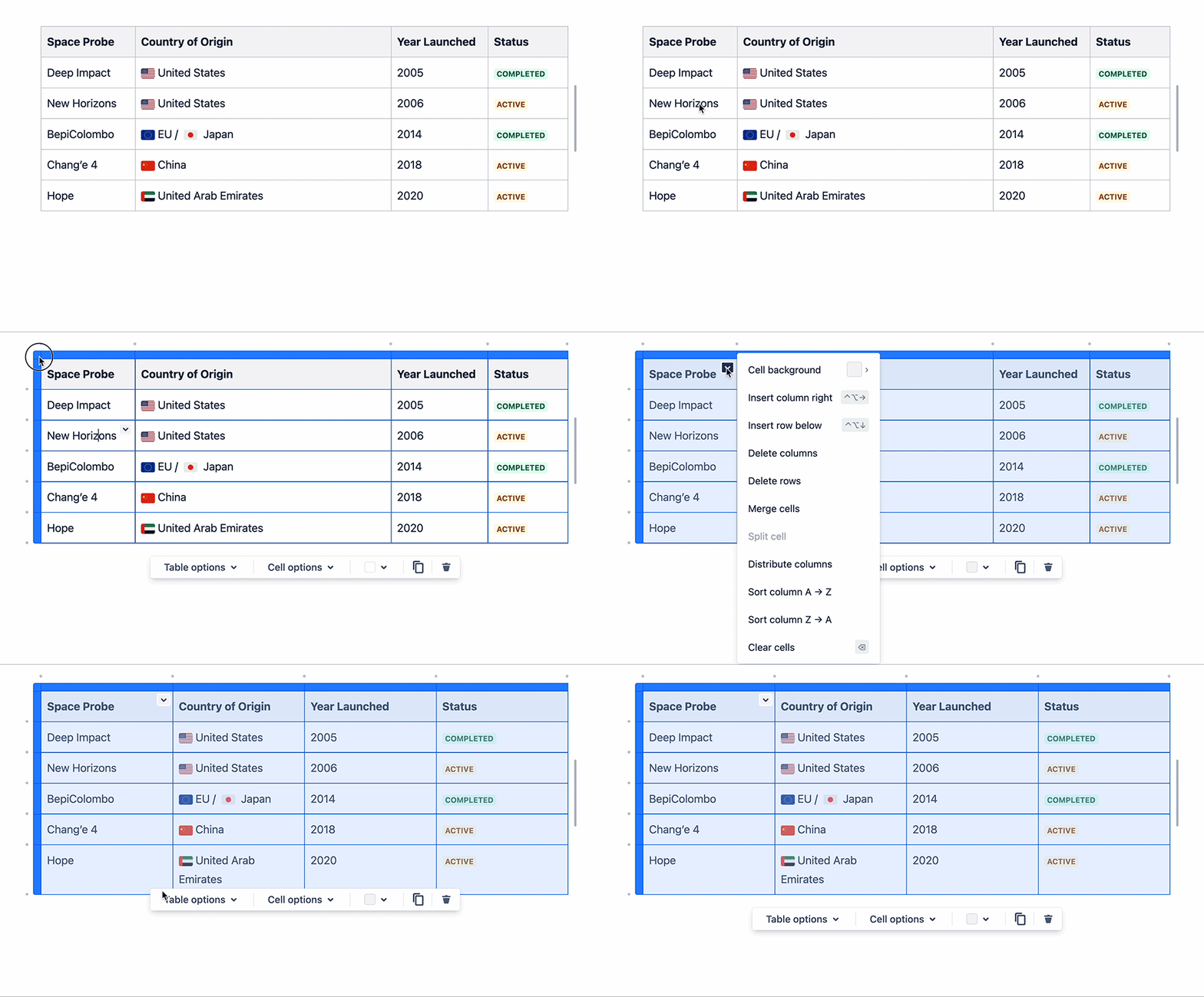
Pro tip: Use Distribute columns to quickly resize selected columns to the same width.
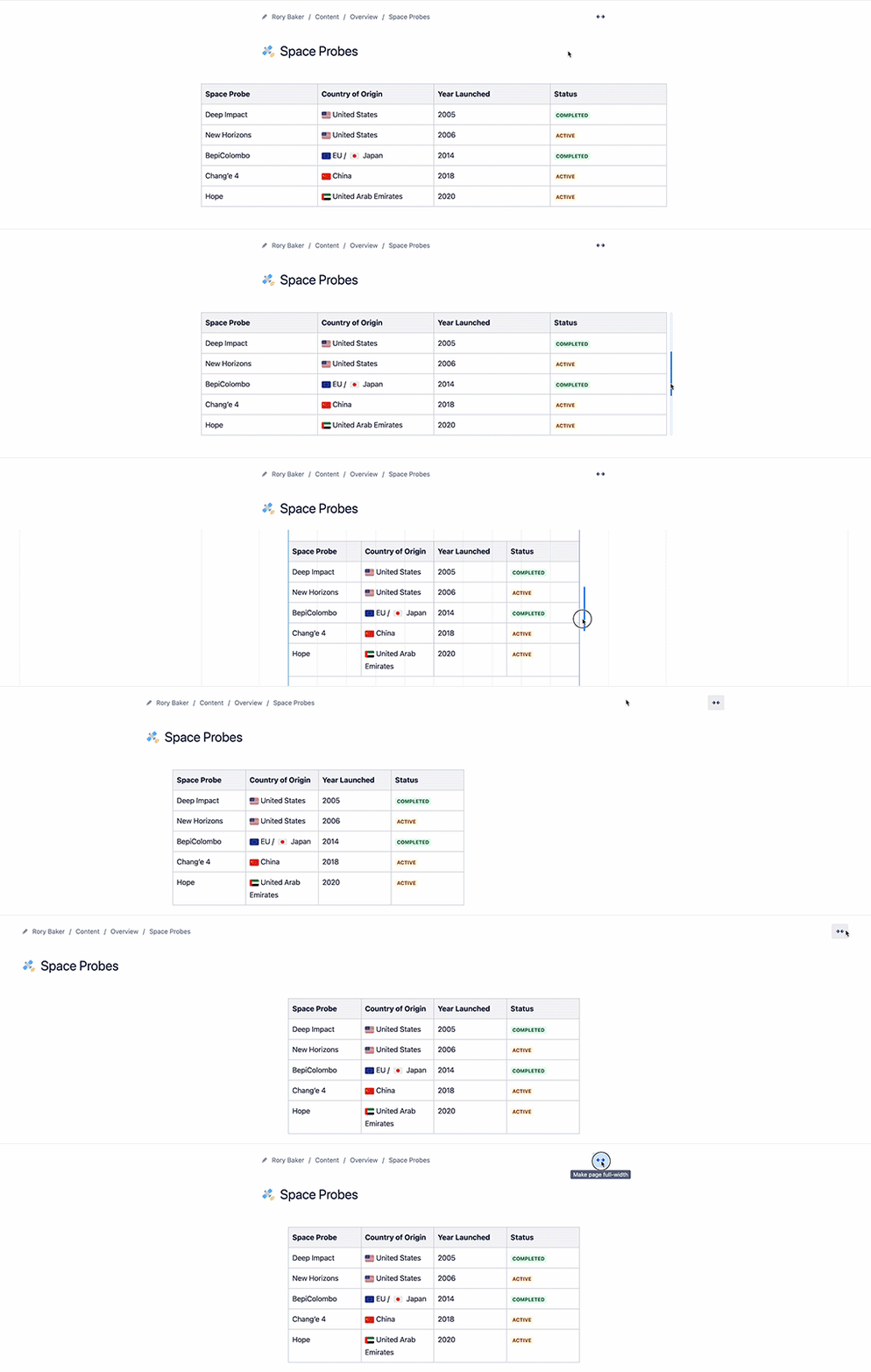
Resize in both fixed-width and full-width pages
Resize your tables to any width, whether you’re working on a fixed-width or full-width page. Your table width will be preserved as you toggle between page types.
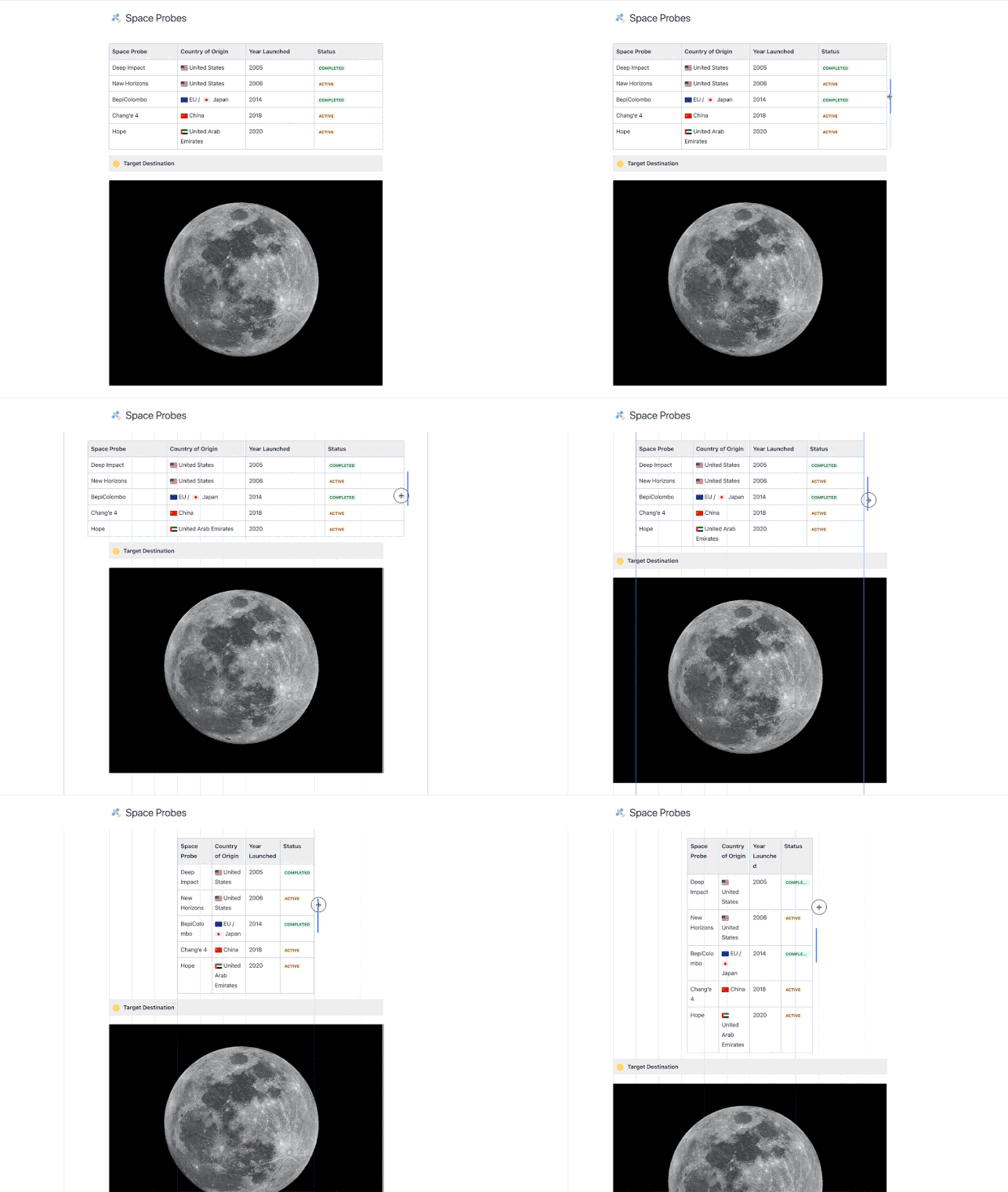
Use guides to align your table with other content on the page
Like media resizing in the editor, use guides to align your table width with other content on the page. You can also use guides to set your table width to one of the previous three widths - centered, wide, or full-width.
In case you missed them, we’ve recently rolled out a number of other updates to tables;
Custom Table Widths will be progressively rolling out over the next month, so if you don’t see it on Confluence today, you will soon!
Please let us know what you think or ask any questions in the comments below - we would " data-emoji-text="❤️">" data-testid="image-emoji- " data-emoji-type="image" aria-label="">
 " width="20" height="20" data-emoji-short-name="" data-emoji-id="2764" data-emoji-text="❤️" /> your feedback.


