In this article I present a solution to delete all Tempo worklogs from an issue, using Jira Automation and Tempo's REST API. The reason for creating this article is because I've got a follow-up question on my previous article. So.. let's get this!
Requirements
Rule description
This rule delete all Tempo's worklogs from an issue. Keep in mind that Tempo has a way of deleting all worklogs from a project, but this rule doesn't do this.
Prerequisites:
-
Create a Tempo API token
- Go to Tempo>Settings,
- Scroll down to Data Access
- Select API integration
Rule
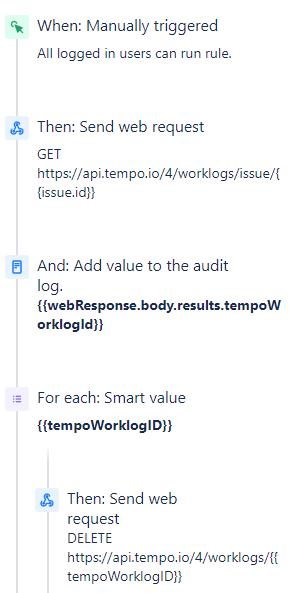
This rule has again pretty easy steps:
-
Manual trigger (or a trigger of your choice)
-
Send a web request to get all Tempo worklogs of the issue
-
Branch to run for every Tempo worklog using smart values
Rule Breakdown
Now let’s break down the rule:
🔫 Trigger
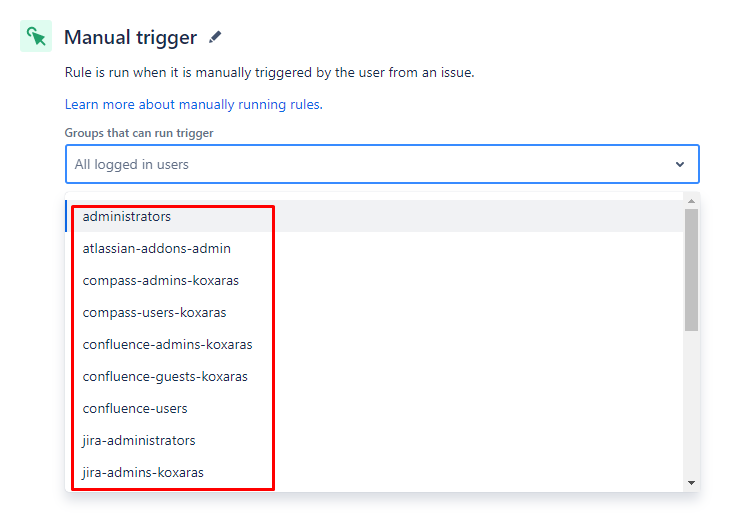
For the trigger I went with manual rule, since I wanted to have complete control of when the rule will run. Of course fill free to adjust the trigger to be run only by a selected group. Since this rule was on my test instance in which I am the sole user, I left it blank:
💡 Get all worklogs
The first component, after the trigger, is the “Send web request” component.
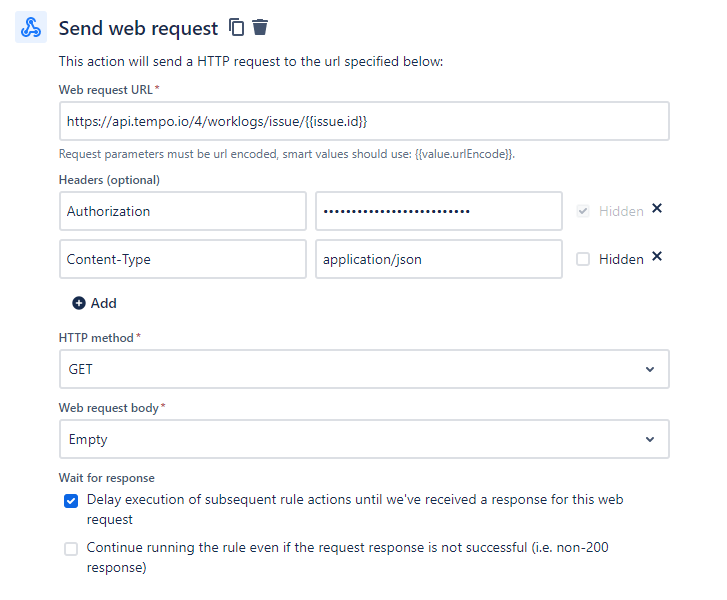
As a web request URL we enter the following URL, based on the first REST API endpoint:
https://api.tempo.io/4/worklogs/issue/{{issue.id}}
Tempo's base API URL is currently https://api.tempo.io/4. So after the base url, we use the first endpoint, which is to get all Tempo's worklog /worklogs/issue/{id}. We replace {id} with the {{issue.id}} smart value so this rule can work on all issues to which we decide to run it. In addition we add as headers:
On authorization, you will enter as a value the word “Bearer” followed by the API token which we acquired from the “Prerequisites” section.
As the http method, we use “GET”, we leave the body as EMPTY and we make sure to check the “Delay execution of subsequent rule actions until we've received a response for this web request”. We can also validate the request if we click on the “Validate your web request” expand section and type an issue key.
✒️ Audit Log (optional)
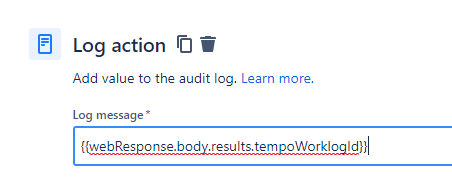
I inserted a Log component just to make sure that I'm getting the correct worklogs IDs. To do that, I used the smart value
{{webResponse.body.results.tempoWorklogId}}
which yields the tempo worklogs IDs.
🔀 Advanced Branching
The GET request from the previous web response will return a payload which we can further manipulate using the smart value {{webResponse}}. To be able to delete the worklogs it is imperative to know the worklogs ids. To do that we will use another smart value on the Advance Branching component:
{{webResponse.body.results.tempoWorklogId}}
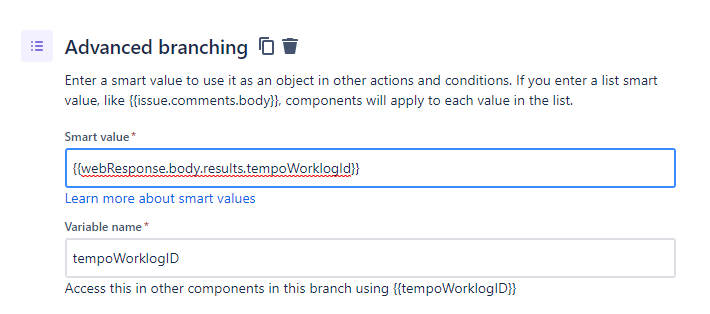
This advanced branching is different than the one from my previous article, since it's not imperative to split the values. We save the above smart value as tempoWorklogID (or a name of your preference).
❌ Delete each worklog
Next we add another “send web request” component.
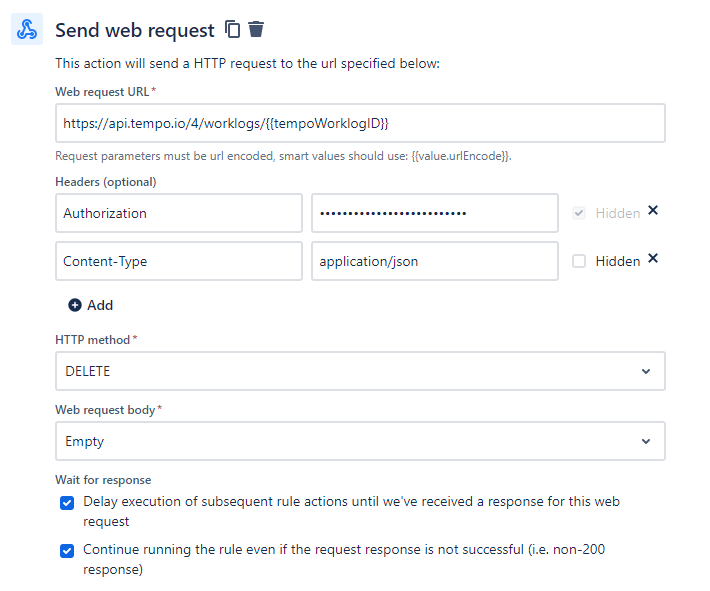
As a web request URL we enter the following URL, based on the second REST API endpoint:
https://api.tempo.io/4/worklogs/{{tempoWorklogID}}
We use the {{tempoWorklogID}} smart value which was constructed on the Advanced Branching component. Like before, we populate the headers accordingly:
As the http method, we use “DELETE”, we leave the body as EMPTY. You can again validate the request if you click on the “Validate your web request” expand section and type an issue key.
💰 A Penny For Your Thoughts
So that's it! That's the way to delete Tempo's worklog from an issue. Do you have any thoughts? Let me know if the comment section!


