Following the same logic from 'Create a Calculating Form' which explains how to calculate form number fields and make the sum of the values at the end, here I'll explain how to calculate fields with a predefined value and leave a total value. So this is an option of the workaround from the features below:
And is meant to help projects where it is necessary to calculate a sum of numbers that was linked to a product or object and report the total. In this documentation, I used Jira Forms with Automation For Jira(A4J) and Assets. Also, I used as an example a form related to an order purchase from a store in which the products have predefined prices. So it will calculate the number of items, multiplies the values according to the number of selected items, add them to the fees provided, and then informs the total of the purchase. This method can be used for other purposes (eg. general and administrative costs).
Important related documentation:
Create or edit a form
How AFJ works
Smart values
Set up the Assets objects custom field
Workaround steps:
-
Crete Assets objects schemas
- Product:
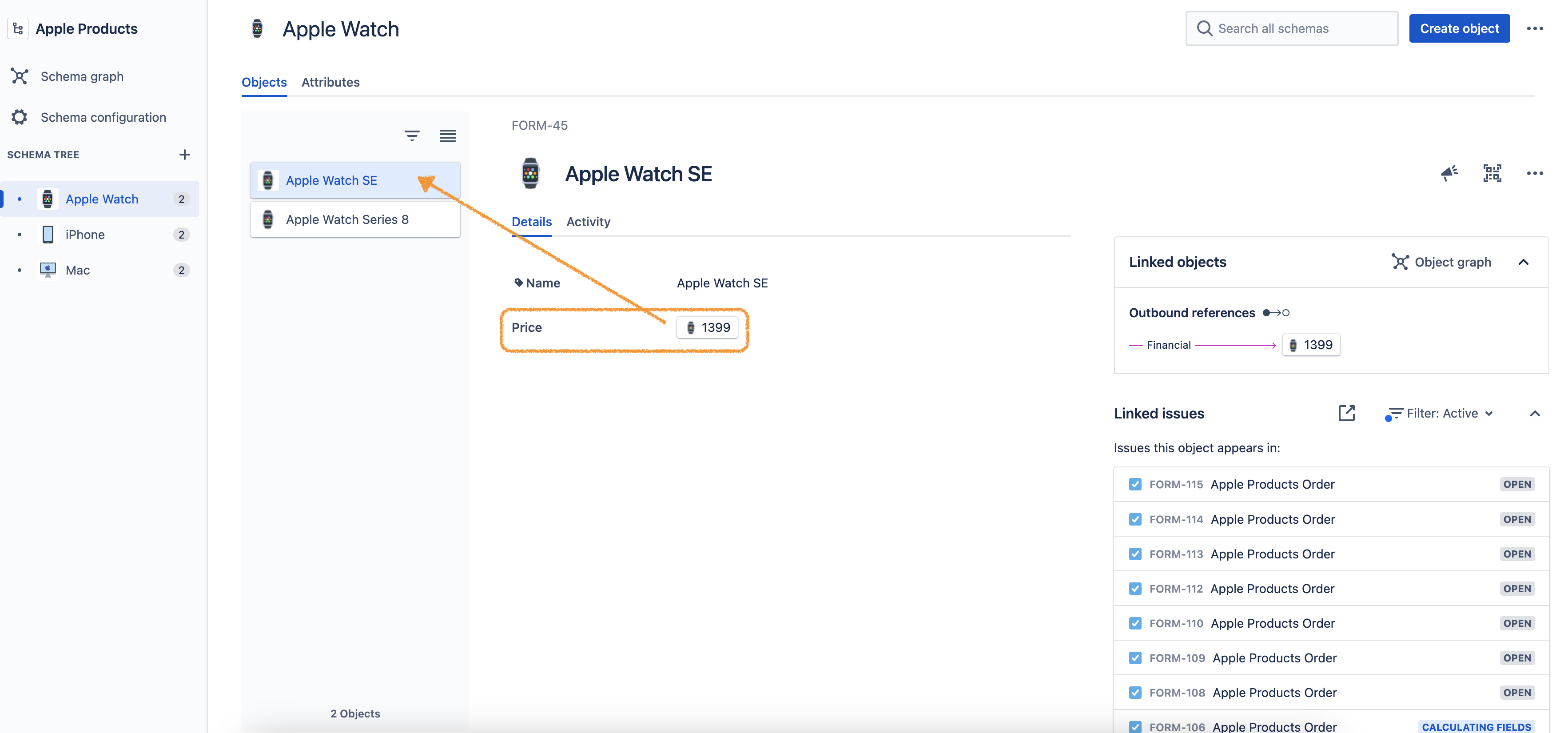
- Price(Note that, for this workaround, the object name will be the price value):
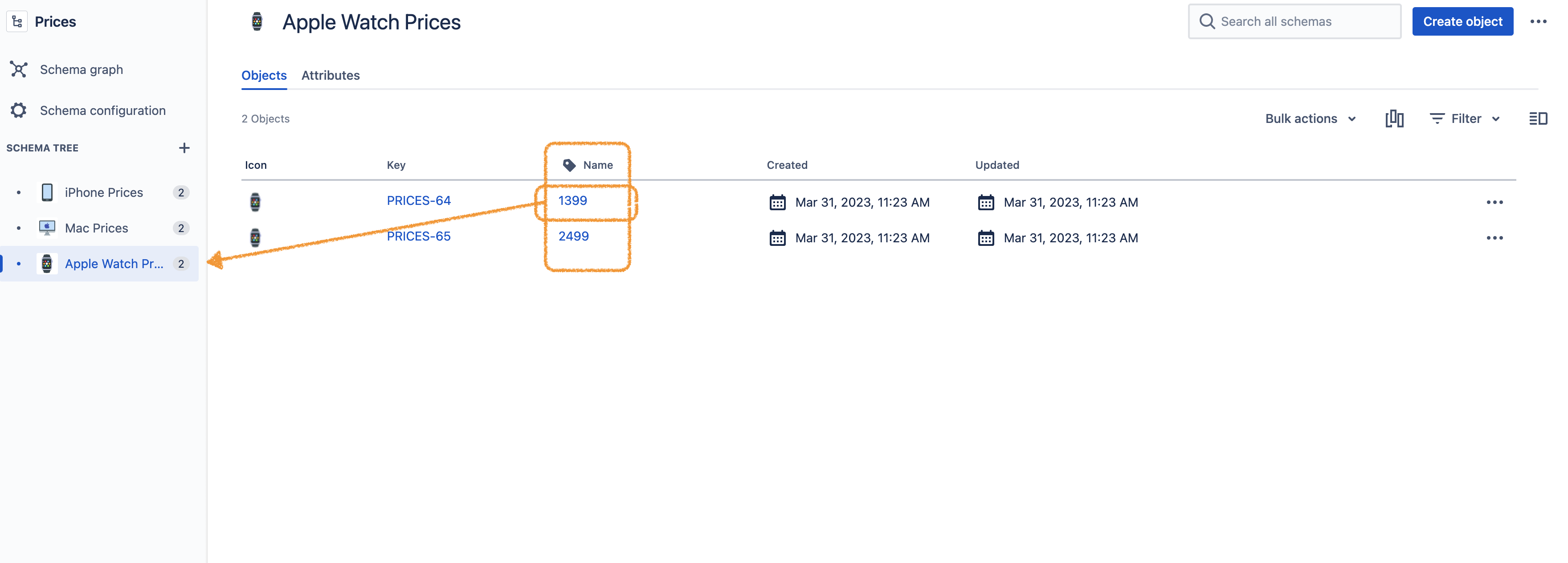
 Remember to mark the option "Allow others to select objects from this schema". For more details about object schemas, please refer to Create an object schema
-
Create Assets objects custom fields
-
Create a custom field (assets) for each option that will be used in the cascading values, I created the field "Apple Product" and "Apple Product Price".
- It will need to use the Filter issue scope (AQL) to reference the object custom field in the order of your cascading logic. In this example: Apple Product > Apple Product Price
Using the AQL:
object HAVING inboundReferences(Name = ${customfield_XXXX.label})
- Apple Product(I have 6 Apple products, so 6 Assets objects fields for each one):
- Apple Product Price:
Remember to mark the option "Display a default object when this field appears in a customer portal" to the refered field objects. For more details about object schemas, please refer to What is the Assets objects field?
-
Form Settings:
-
Create an Asset object field for each item that will be used in the calculation, as well as for each field that will hold the result of a calculation.
- It will need to link all form fields to custom Jira fields (this is necessary for the A4J to be able to get the answers from the fields):
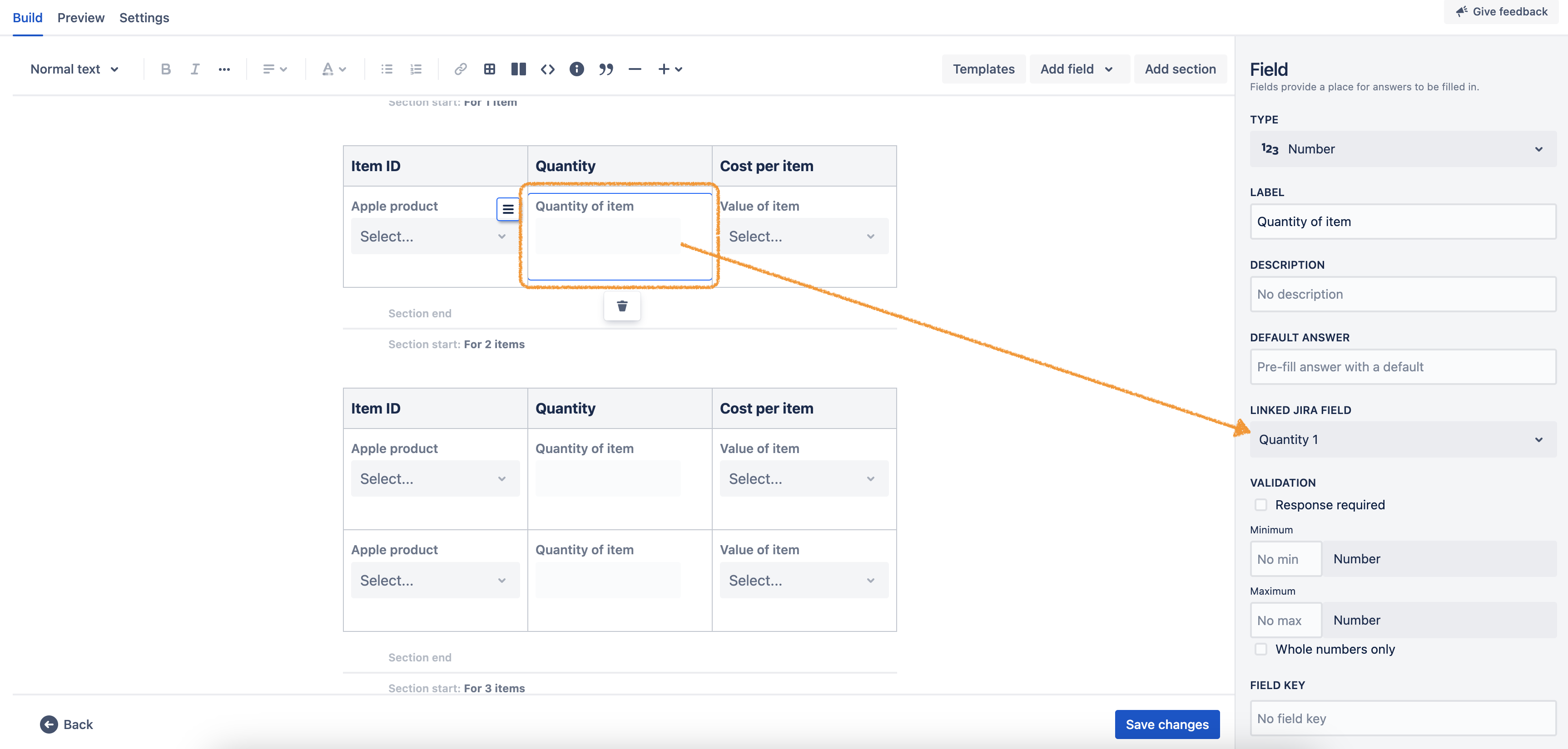
For more information, please refer to the documentation Link a form field to a Jira field.
-
Extra tip: You can use conditional logic to better organize your purchase order. In this example, I created a field to select how many products the order will have, and depending on the answer, it will open the necessary lines to fill in the number of products. For more information, please refer to the documentation Add a conditional field to your project using Forms.
- Create a Looping Transition:
-
Build the Automation Rule:
-
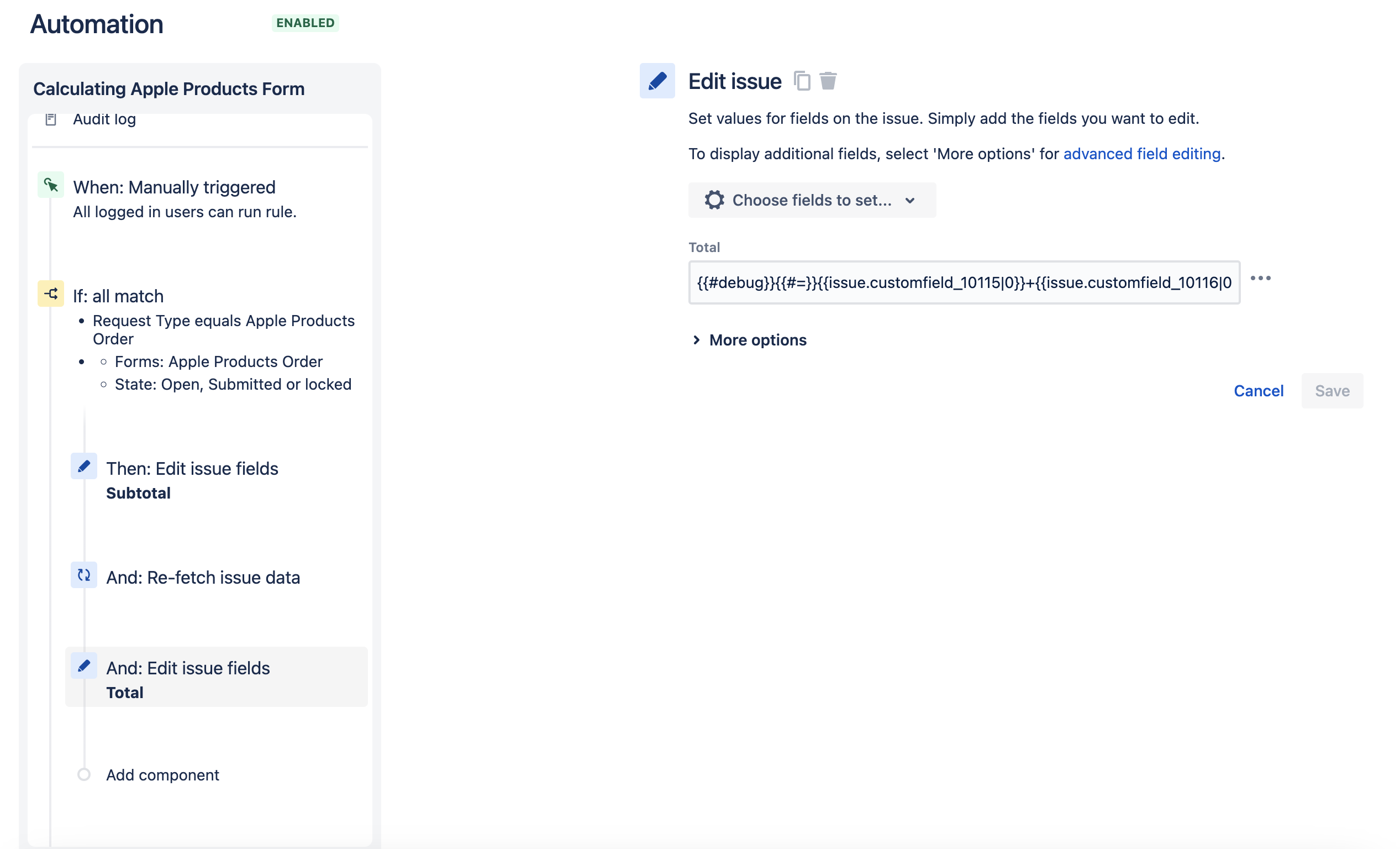
Use the Edit issue fields action to perform the calculation. You will need to reference the custom field ID with the Assets object custom field in the rule, in this example I used the multiplication of the items and then their sum to calculate the subtotal:
{{#=}}{{issue.customfield_10104|0}}*{{issue.customfield_10169.Name|0}}+{{issue.customfield_10105|0}}*{{issue.customfield_10175.Name|0}}+{{issue.customfield_10106|0}}*{{issue.customfield_10176.Name|0}}+{{issue.customfield_10106|0}}*{{issue.customfield_10177.Name|0}}+{{issue.customfield_10107|0}}*{{issue.customfield_10178.Name|0}}+{{issue.customfield_10205|0}}*{{issue.customfield_10179.Name|0}}{{/}}
-
So the icing on the cake for calculating the total is to put the Subtotal on the end of the smart value order (This is because there is a timing issue on the automation rule, as the Subtotal is still being calculated and does not have the value to be added in the Edit action of the Total):
{{#=}}{{issue.customfield_10115|0}}+{{issue.customfield_10116|0}}+{{issue.customfield_10114|0}}{{/}}
The customfield_10114 is the Subtotal field. To find the custom field ID please take a look at this documentation.
Also, the "|0" smart value is necessary to put a "callback" value if the field is blank. So it will return the value 0 and it will not give you an error in your automation rule.
This workaround will work as shown in the screen recording below (note that it will always be necessary to refresh the page to give A4J enough time to execute the automation rule and the attached form must be open for the calculation to happen):
 https://www.youtube.com/watch?v=MDmM0xOgVaI


