A practical guide to the new native read-only mode for Jira Data Center admins — what it is, why it exists, exactly what it locks (and what it doesn't), and how to use it during migrations, upgrades, and maintenance.
📌 Build apps for Jira Data Center? Read-only mode isn't automatic for third-party apps — some will keep writing unless you guard them. Vendors and developers should read the companion deep-dive: Is your app ready for read-only mode? What Jira Data Center vendors should know.
If you've ever run a Data Center to Cloud migration, a major upgrade, or a big infrastructure maintenance window, you know the quiet panic of the data drift problem: while your migration or backup is running, users keep creating and editing issues — and your carefully captured snapshot is out of date before it even finishes.
Until now, "freezing" a Jira instance meant reaching for workarounds that were either slow, risky, or both. Jira Data Center now ships with a native read-only mode that replaces all of that with a single, reversible toggle.
This post walks through what it is, how it works under the hood, and how to use it safely.

The global read-only mode banner as it appears to users The system-wide banner that tells everyone the instance is temporarily locked.
The old way: slow, risky, or both
Before native read-only mode, admins had two main options to stop writes during a maintenance window, and neither was great:
-
Manually swapping permission schemes. You'd associate every project with a read-only permission scheme, then revert it all afterwards. On a large instance with 500–1,000+ projects, that's 2–3 hours of error-prone clicking to set up, and several more hours to undo.
-
REST API scripting. Faster (roughly an hour), but many enterprise security and compliance teams block running external scripts or internal-facing API workarounds against production. So for a lot of organisations, this option was off the table entirely.
Both approaches were manual, hard to reverse cleanly, and easy to get wrong. Native read-only mode was built specifically to remove that toil: one switch instead of hundreds of per-project changes, and it's instantly reversible.
What read-only mode actually does
When read-only mode is enabled, Jira denies write operations for regular users, agents, portal customers, and non-system project administrators, while leaving all read operations available. Your users can still search, view, and browse issues, dashboards, and reports — they just can't create or change anything. A global banner tells everyone the instance is temporarily locked.
Two important things to internalise:
-
It is not a hard database lockdown. Read-only mode is enforced through Jira's project permission model. That means it reliably stops issue- and request-level changes made through the web UI, REST API, and mobile app — anything that goes through standard permission checks.
-
System administrators are exempt. They keep full write access, so a small group of admins, migration partners, and Atlassian staff can fix blockers mid-window without turning the mode off for everyone else.
And because it's a single toggle, turning it off restores normal write access immediately — no per-project change to remember and revert.
What it blocks — and what it doesn't
This is the part worth reading carefully, because the permission-model design has real consequences. Read-only mode stops interactive, permission-gated writes. It does not stop everything.
Reliably blocked
-
Issue / request data — create, edit, comment, transition, assign, attach (governed by project permissions).
-
JSM portal & request actions — raising requests, customer comments, approvals, participants, attachments.
-
Creating an organization in JSM from the portal or agent view.
-
Project administration by a project admin (the ADMINISTER_PROJECTS permission) — project settings, creating components/versions.
NOT blocked (this is by design)
-
Automation rules — they keep running and writing while read-only mode is on.
-
Voting and watching — users can still vote and add watchers.
-
Shared-object CRUD — creating/editing filters and dashboards.
-
Bulk change — bulk edit, transition, and delete.
-
Global Jira administration (the ADMINISTER permission) — user/group/scheme/workflow/field/config changes, plus project metadata changed via global admin.
-
Background processes — listeners, mail handlers, directory sync, and indexing.
-
System administrator actions — sysadmins are exempt entirely.
The Jira administration screen also surfaces a set of protected operations — writes that intentionally keep running so the instance stays healthy and auditable: login tracking, audit logs, administrator actions, the database connection pool, and plugins that write outside the permission model.
The mental model: read-only mode protects you from the everyday writes your users make through permission-checked paths. It does not freeze your database at the storage layer.
Preparing for a fully frozen dataset
Because a few things keep writing, read-only mode alone isn't enough when you need a genuinely frozen dataset — for example, a migration cut-over. For those scenarios, also:
-
Disable automation rules (they keep running in read-only mode).
-
Disable or pause incoming mail handlers — mail-to-issue creation keeps working, and email consumption on the mail server can be irreversible.
-
Pause user directory synchronisation if your directory provisions users/groups.
-
Confirm third-party apps respect read-only mode, or disable them.
-
Avoid bulk changes and shared-object edits, and limit who holds the global Jira Administrators permission during the freeze. (Ordinary project admins are already blocked; global admins are not.)
A word on imports, exports, and backups
These are system-administrator-only operations, so they're never available to regular users regardless of read-only mode — but the nuances matter:
-
XML export (backup) — pure read plus writing a ZIP to disk. Fully safe to run while read-only mode is on.
-
XML import (full restore) — always destructive. Read-only mode has no effect on what an import does internally: it shuts down services, wipes every entity table, restores from backup, and restarts Jira.
-
Project import — a sysadmin can still run it, and it writes data, which conflicts with a freeze.
The takeaway: read-only mode is not a safeguard against a full XML import. If protecting the database during a restore is your goal, control who can perform imports via the System Administrator permission.
How to turn it on
You need the Jira System Administrator global permission, and the action is WebSudo-protected (you'll confirm your password for a secure administrator session).
From the admin UI:
-
Go to Administration (⚙) > System.
-
In the sidebar, under Advanced, select Read-only Mode.
(Direct link: <your-base-url>/secure/admin/EditReadOnlyMode.jspa)
Navigating to Read-only Mode under Administration > System > Advanced Where read-only mode lives in the admin sidebar.
-
Turn on the Enable read-only mode toggle.
-
(Optional) Edit the Banner message users will see. The default is "Jira is currently in read-only mode for maintenance."
-
(Optional) Set an Estimated end time and time zone. Users see this as "Expected to return to normal operations at …". It's informational only — it does not turn read-only mode off automatically.
-
Save. Read-only mode takes effect immediately across the cluster.
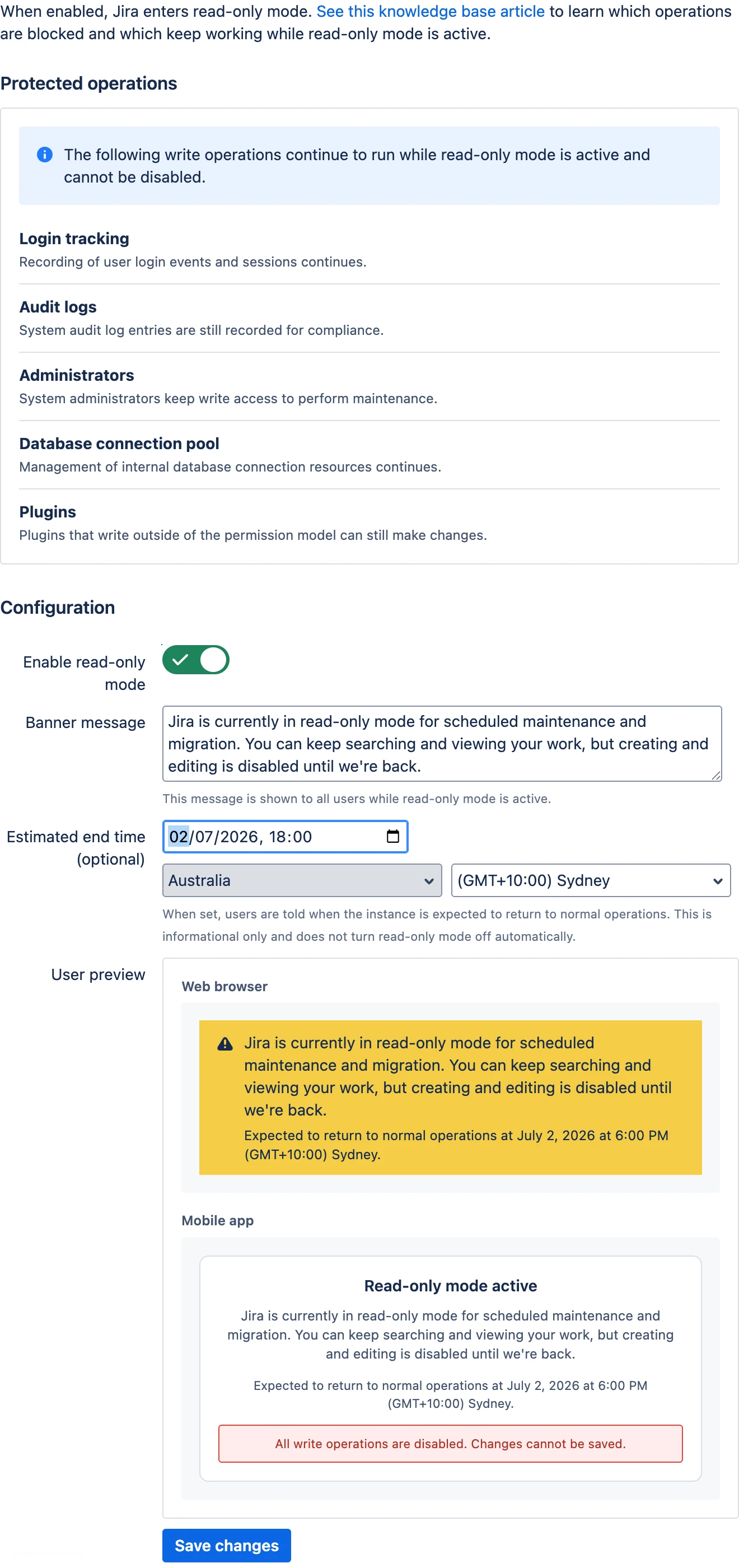
The Read-only Mode configuration screen with the enable toggle, banner message, and estimated end time The configuration screen: enable toggle, custom banner message, and an optional estimated end time.
To turn it off, flip the same toggle and save — normal write access is restored immediately. Remember to re-enable anything you paused (automation rules, mail handlers, apps).
Scripting it via REST
The same operation is available through the REST API — handy for automating a cut-over runbook.
Check the current status (available to any licensed user, so apps and integrations can adapt):
GET /rest/api/2/readonly-mode
{
  "enabled": true,
  "message": "Jira is currently in read-only mode for maintenance.",
  "endTime": "2026-06-30T18:00",
  "timeZone": "Asia/Beirut"
}
Enable or disable it (System Administrator + WebSudo required):
PUT /rest/api/2/readonly-mode
Content-Type: application/json

{
  "enabled": true,
  "message": "Jira is locked for a migration cut-over.",
  "endTime": "2026-06-30T18:00",
  "timeZone": "Asia/Beirut"
}
Common use cases
-
Migrating from Data Center to Cloud. Lock the instance during the cut-over window (typically 24–72 hours) so data doesn't drift while the migration runs, while a small group of admins, partners, and Atlassian staff keep the access they need.
-
Upgrading Jira. Freeze user changes during a pre-upgrade backup or the upgrade window to guarantee data integrity.
-
Infrastructure maintenance. Keep Jira available for viewing during database, storage, or network work while preventing new writes.
On phased migrations: even when you migrate projects in batches, put the whole instance into read-only mode. Projects share schemes, links, and other cross-dependencies, so a partial lock can still leave data inconsistent.
App compatibility
Not every app is automatically compatible with read-only mode. Apps that write through Jira's standard project-permission checks are blocked automatically. But apps that write directly — through managers, background jobs, event listeners, or their own REST endpoints — need to be updated by their vendor to respect the flag.
If you depend on an app during a maintenance window, confirm with the vendor whether it honours read-only mode. Vendors can find integration guidance in Atlassian's developer docs: Making your app compatible with read-only mode.
Auditing and troubleshooting
-
Is it currently on? Check Administration > System > Advanced > Read-only Mode, or call GET /rest/api/2/readonly-mode.
-
Who turned it on/off, and when? Every toggle is recorded in the Jira audit log — the same place other admin configuration changes land. Audit logging is a protected operation, so entries keep being written even while read-only mode is active. That gives you an accountable, retained record for reconstructing a maintenance timeline.
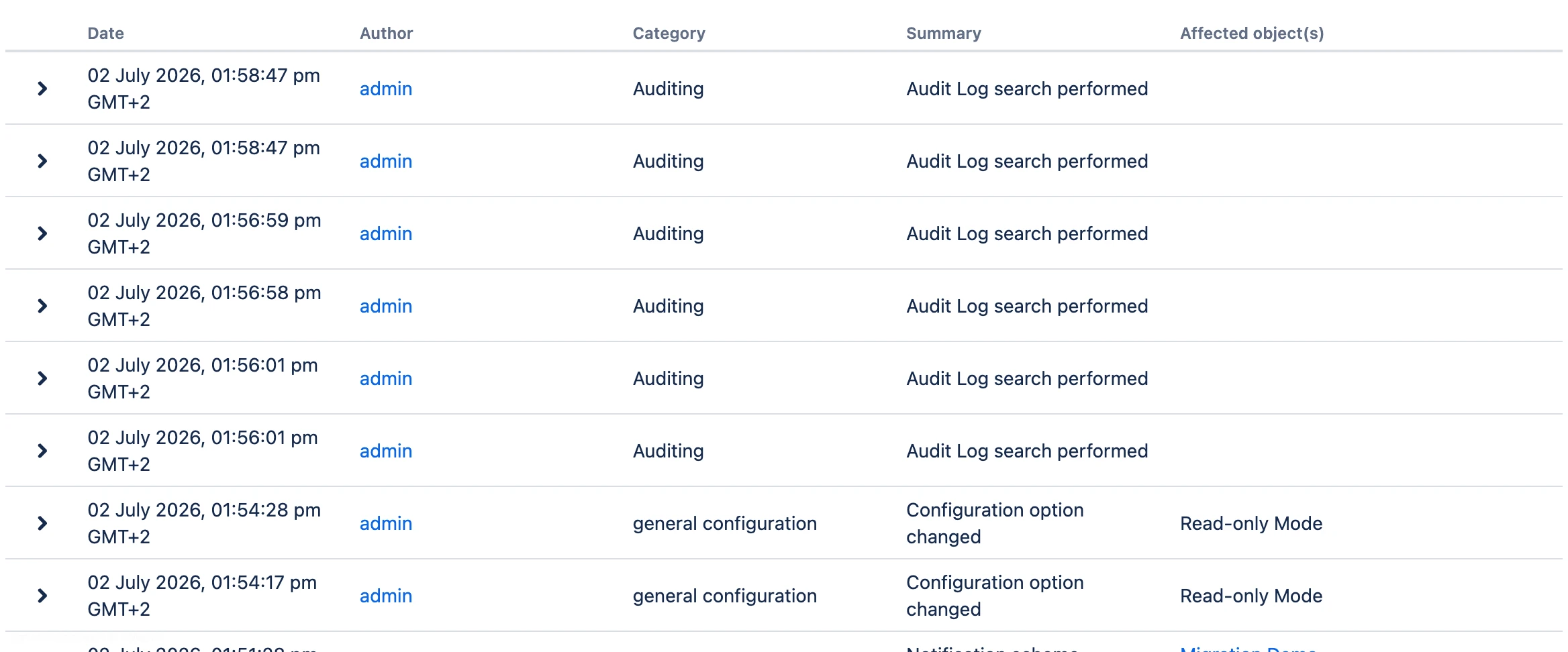
Audit log entry recording a read-only mode change The audit log captures who toggled read-only mode and when.
Read-only mode enabled by user 'jsmith'
Read-only mode disabled by user 'jsmith'
Availability
Read-only mode is a native Jira Data Center feature — it is not available on Jira Cloud. It's available since 10.3.23 and 11.3.8, and will be included in Jira 12.
Wrapping up
Native read-only mode turns what used to be a multi-hour, security-sensitive workaround into a single, reversible switch. Used well — with automation, mail handlers, and non-compliant apps paused alongside it — it gives you a clean, auditable way to freeze user writes during migrations, upgrades, and maintenance.
Just keep the mental model in mind: it's a permission-layer freeze, not a database lockdown. Know what it blocks, plan for what it doesn't, and you'll have a much calmer maintenance window.
Have you used read-only mode in a migration or upgrade yet? I'd love to hear how it went, and any gotchas you ran into, in the comments.
Further reading

