Hi community! Aya here from the Confluence product team, welcoming you to the next era of content creation and editing in Confluence!
Have you ever stared at a blank page struggling to get started? What if you could quickly take your ideas to draft to published content in just a few seconds? With Rovo in Confluence, now you can.
Simply describe what you want to create or edit – whether it’s a page, live doc, whiteboard, or database – and let AI do the rest. Even better, Rovo pulls context from data sources across Atlassian and connected 3rd party apps, creating context-rich, high-quality content that’s grounded in your team’s work.
Let’s see it in action.
👉 How do I get started with creating content with Rovo?
-
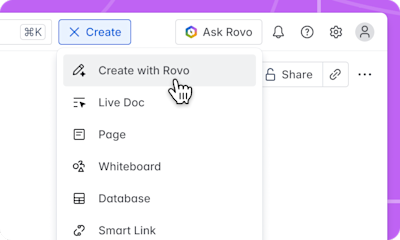
Click “Create with Rovo,” open up Rovo chat on the bottom right, or go to create.rovo.com
-
Write a prompt to tell Rovo what to create, or get started quickly with a prompt suggestion by use case. Add any links or reference materials to better guide Rovo on what info to include or pull from.
-
Let Rovo do its magic and watch the initial draft of your content come to life in your private preview area
-
After Rovo is done drafting your content, you can edit it directly or use Rovo chat to describe what you want to change, do, or know next.
-
Select “Add to Confluence” to publish your newly drafted page, live doc, whiteboard or database to your space – all of this happens in just a few seconds!
See more details here.
👉 How do I get started with editing content with Rovo?
-
There are several ways to ask Rovo to edit existing content in Confluence, including:
-
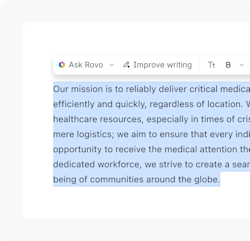
Highlighting text on a page and selecting “Ask Rovo”
-
Selecting “Ask Rovo” in the header bar at the top of every content item
-
Selecting the Rovo icon on the bottom right corner to open a chat window
-
Using the / command and selecting “Ask Rovo”
-
Write a prompt to tell Rovo what to edit, whether it’s to shorten copy, add a new section, change tone, or more.
-
See the edits stream in real-time within your content!
See more details here.
⭐️ Prompting 101
Not sure what to ask Rovo? Try these real-world prompts:
Project kickoff plan
“Turn this meeting into a clear project kickoff plan. Please include the main goals, important milestones, who’s responsible for what, a rough timeline, and any risks we should watch out for. It would be great if you could also add a section for open questions so the team can review and discuss.”
✅ This prompt works best when you include the link to a Loom meeting recording so it can pull from the transcript.
Postmortem report creation
“Summarize this whiteboard session into a postmortem report. Include what happened, why it happened, the timeline, what was affected, what we did to fix it, and how we can avoid this in the future. Make it easy for the team to read and share.”
✅ Don’t forget to add the link for the whiteboard.
Onboarding a new teammate
Create an onboarding template for a new team member. Please include a welcome note, a checklist for their first week, introductions to teammates, links to important resources, and a spot for any questions. Make it simple to update for different roles.
✅ Want more inspiration? Check out our prompt suggestions in the +Create screen.
📝 How to write great prompts
Get the most from Rovo with these tips:
-
Be specific: Tell Rovo exactly what you want (e.g., “Summarize this meeting into action items”).
-
Add context: Include links, like Loom meetings, Confluence pages, files, or a short description for better results.
-
Experiment: Don’t be afraid to try different phrasings—Rovo learns from your feedback!
🙋♀️FAQs
Who can create and edit content with Rovo?
Rovo is available to all customers with a Standard, Premium, or Enterprise Cloud plan of Jira, Confluence, Jira Service Management, or Teamwork Collection.
Where can I find more help or instructions on how to create and edit Confluence content with Rovo?
Check out this page, blog post, and support article for more information.
Can I use Rovo to create in other Atlassian apps?
Today, the creating with Rovo experience is only available in Confluence. Rovo is available in other Atlassian apps in different ways, and we’re working to bring this specific create/edit experience to Jira and other apps soon!
💙 Ready to Try It?
Jump in and click “Create with Rovo” in Confluence or go to create.rovo.com to get started!
Let us know what you want to create— drop your prompt examples or what you’re excited to try it on in the comments below.
👉 Also, want to learn more and get the chance to earn exclusive 🏆 badges and 🎁 swag? Then join us next month for Skip the Blank Page month! Check out this post for more details.
Happy creating!


