Update: Teamwork Graph CLI is now in GA. This is an older post for Open Beta launch. The GA announcement can be found here, and the latest installation instructions can be found here.
Hi Atlassian Community 👋
We are excited to announce the Open Beta for Teamwork Graph (TWG) CLI, a command-line interface that brings your connected Atlassian and third-party context directly into your terminal, designed from the ground up to be used by AI agents such as Claude Cowork, Claude Code, Cursor, Codex, and more. You can install the CLI using the instructions here.
Why Teamwork Graph CLI?
There are two common ways to connect AI agents to external tools: MCP (Model Context Protocol), which agents call as a live service, and CLI, which agents invoke as local commands. Benchmarks show that CLIs tend to be more token-efficient for agents, meaning agents spend fewer tokens per interaction. Earlier this year, we launched Rovo MCP server, allowing users to access Atlassian data in desktop and app agents. We also launched Teamwork Graph tools within the MCP server.
For our customers who prefer CLI for their agents, we built TWG CLI that is specifically optimized for AI agentic use. Now your agents can access your entire connected context across all the Atlassian apps, as well as the connected third-party tools such as GitHub, Google Docs and Figma using the CLI. Hence, we view these not as competing, but as complementary surfaces, which is why we offer both TWG CLI and Atlassian Rovo MCP server.
Key Features
We’ve built TwG CLI with ease of use in mind but targeting agents as the primary user. Listed below are a few feature highlights:
🔌 Skills
The TWG CLI comes with installable skills into .agents, Claude, Codex as well as packaged plugins like Cowork. This means agents like Cursor, Claude Code, and Codex can discover and use the CLI automatically, without any custom instructions required.
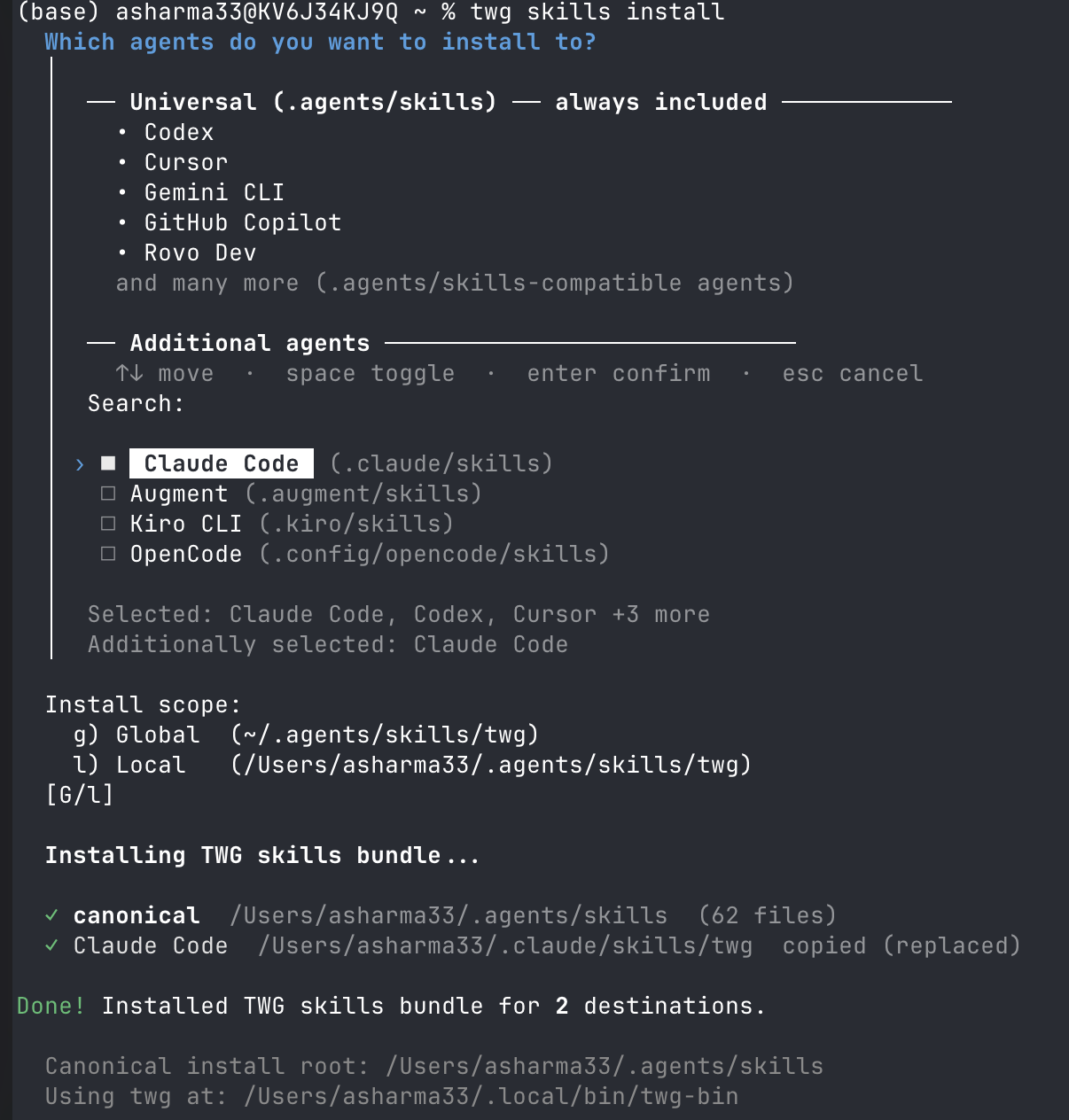
🤖 Agent-first design
Every command follows a single, consistent grammar — query, get, create, update, delete, and action — across all surfaces. Responses use a standardized, machine-readable envelope (data, meta, warnings, hints), so agents learn one pattern and apply it everywhere.
$ twg jira workitem get --id PROJ-123 -o json
$ twg goals --scope me -o json
$ twg work query --scope me --since 7d -o json
📖 Progressive help discovery
Help is available at every level so agents can self-navigate without the context bloat of upfront guidance.
$ twg --help # See all skill families
$ twg jira --help # Explore Jira commands
$ twg jira workitem --help # Get specific command options
🔑 Single authentication
One login, all apps. TWG CLI authenticates once and gives you unified context across Jira, Confluence, JSM, and all your connected third party apps. Note that if you are using Bitbucket, it may require an additional authentication.
🌐 Broad capabilities
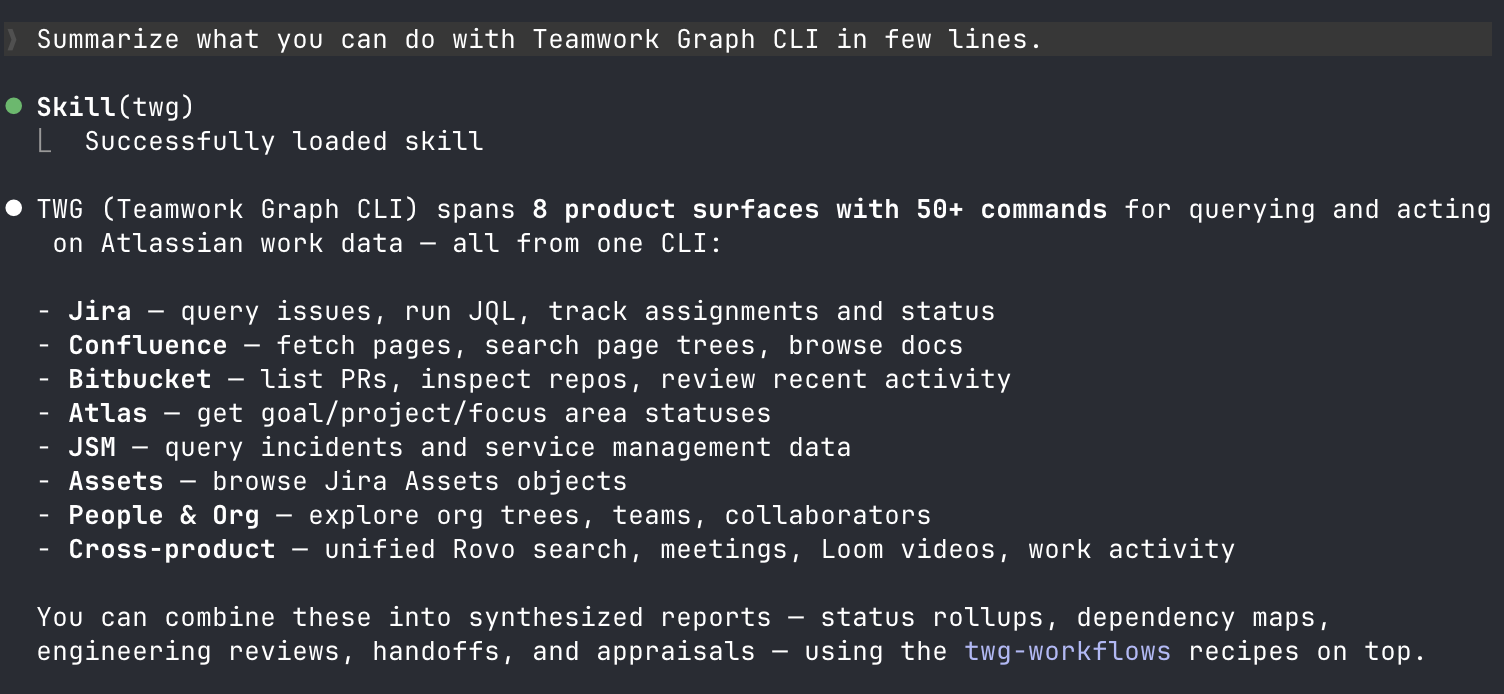
TWG CLI supports almost all Atlassian apps and connected third party data. It delivers cross-app context on:
-
Activities and relationships — cross-app work queries, collaborators, recently viewed items
-
Atlassian and third-party content — unified document, meeting, and video search across Confluence, Google Drive, SharePoint, and more
-
All Atlassian Apps — Jira, Confluence, JSM, Bitbucket, Teams, Assets, Customer Service Management, Jira Service Management, Jira Align, Talent and all the other Atlassian apps.
-
Cross-organizational insights — org trees, focus areas, goal hierarchies
See It in Action
Here is a short demo:
Try It Yourself
Let’s say you are a software engineer trying to get entire context on a work item
Example prompt to your agent
What’s the full picture on PROJ-4821—who’s on it, what’s linked to it, and is there already a review or deployment in motion?
What your agent will do using TWG CLI
-
Pulls the work item details and relationships from Jira (e.g., blocked items, epic, parent)
-
Surfaces related documents from Confluence
-
Checks Bitbucket for associated PRs and deployments
-
Gathers cross-app entities including third-party data such as remote links and designs
For some more example prompts, check out our product documentation here. We encourage you to try out all the queries or tasks you have. You'll find that TWG CLI covers more ground than you might expect.
Best Practices
-
Install the skill after installing TWG CLI so that your agent knows how and when to use the CLI
-
Explicitly tell your agent to use TWG CLI in your prompt to prevent your agents from getting confused between multiple skills.
-
Choose between Rovo MCP and TwG CLI: If you are already using Atlassian Rovo MCP and want to decide whether you should use TwG CLI alongside Rovo MCP or in place of Rovo MCP, this guide might help you understand the differences.
Feedback & Support
We'd love to hear what you think. Please install TWG CLI using the instructions here, and let us know how you found it. What use cases are you most excited about? Let us know in the comments below.
If you have any feature request or an issue that you are facing, please share it here or use the command twg feedback within the CLI to give us feedback. You can also ask your agent such as Claude Code to submit the feedback using this command.
Cheers,
Ashish
FAQs
FAQ 1: Is TWG CLI available to all customers?
Yes, TWG CLI is available to all our customers.
FAQ 2: Is TWG CLI free to use?
In the current Open Beta phase, TWG CLI is free to install and use.
In the future, installing the CLI will remain free, but certain forms of usage will be billed. With 90 days advance notice, certain enriched, value-added commands will be billed with at least 1 Rovo credit per call. Certain complex queries will cost more than 1 credit per call.
These enriched, value-added commands require TWG CLI to aggregate responses from multiple Atlassian and non-Atlassian apps and run AI inferencing to generate insights. For example, twg collaborator provides insights on collaborators by analyzing common artifacts and interactions between users in an organization. Similarly, twg context aggregates information across multiple Atlassian and non-Atlassian systems to deliver the best context around a work item, Confluence page, or user. These tools offer more value compared to the free tools but cost more due to additional compute requirements.
We will publish the detailed rate card with the 90 days advance notice before we start billing.
FAQ 3: How is TWG CLI different from Atlassian CLI?
While Atlassian CLI is excellent for human-driven administration, it was built before agentic usage was common. We built TWG CLI to offer a new, agent-first CLI that standardizes commands and outputs for how agents actually work. TWG CLI also offers additional capabilities over Atlassian CLI, such as access to cross-product data from Teamwork Graph, additional Atlassian tools such as Bitbucket, Teams, CSM, JSM, Jira Align, and Talent.
FAQ 4: Does TWG CLI work offline?
No. While TWG CLI is a local binary, it accesses cloud data and services. You need a network connection.
FAQ 5: Is my data leaving Atlassian when I use the CLI?
TWG CLI is a local binary that runs on your machine. It calls Atlassian's cloud APIs to retrieve data, but your data isn't stored or processed outside of Atlassian's infrastructure. Additionally, Teamwork Graph honors your IP and location allowlists, if you have configured them.
FAQ 6: What data does TWG CLI access and who can see it?
TWG CLI respects your existing Atlassian permissions. It only surfaces data that the authenticated user is already authorized to see. No new access is granted by installing or using the CLI.
FAQ 7: Does TWG CLI support OAuth?
No, TWG CLI doesn’t support OAuth yet. It currently supports API tokens for secure, targeted access. We are working on enabling OAuth support.
FAQ 8: Does TWG CLI only work with agent terminals?
No. Any AI agent or tool that can invoke command-line programs can use TWG CLI. For example, Claude Cowork uses it even though it is not an agent terminal.
FAQ 9: How can I get Teamwork Graph context inside the Atlassian Rovo MCP server?
Atlassian Rovo MCP server consists of Teamwork Graph tools that can help you get the Teamwork Graph context. Learn more here.


