We previously announced that you can now build Forge apps in Studio using natural language prompts (Build-custom-Forge-apps-in-Rovo-Studio-no-code-required), and it’s been incredible to see how many of you are already shipping awesome Forge apps for yourselves and your teams. The best part? Anyone can now build Forge apps, even if you’ve never written a line of code. That means more great ideas can turn into useful, real-world solutions.
We’re continuing to ship new improvements every week that make the AI-assisted building experience faster, more visual, and easier to control.
Here are five new enhancements you can start using today to level up app building in Studio.
1. Show Rovo what you want with an image
Sometimes a picture really is worth a thousand words. Instead of trying to describe a detailed UI or specific look using only words, you can now upload a screenshot or image directly into the Studio chat to show Rovo what you're after.
Want your app to look like a design comp? Have an existing tool you're trying to replicate? Just drop in the image alongside your prompt, and Rovo will use it as a reference when designing your app's UI.
Try it: Upload a quick sketch or wireframe and say, "Build me something that looks like this."
2. Point and annotate directly on your preview
One of the most common pieces of feedback from beta has been: "The preview looks close, but how do I tell Rovo exactly what to change?"
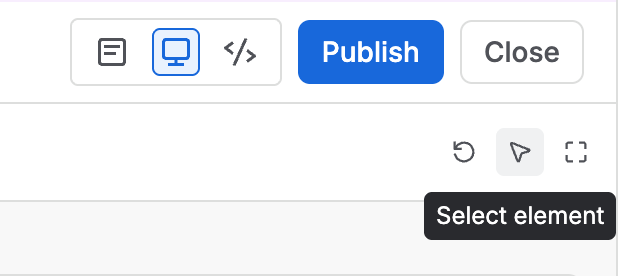
Now you can. With preview annotations, you can click on specific elements in your app preview and leave feedback right there - like adding a comment on a design file. Tell Rovo "make this button bigger" or "swap this chart for a table" by pointing at exactly what you mean.
No more trying to describe where something is in words. Just click, annotate, iterate.
3. Interrupt a build and change direction
Building an app takes a few minutes, and sometimes halfway through you realise you want to take a different direction. Previously, you had to wait for the full build to finish before making changes.
Now you can interrupt an in-progress build at any time. Changed your mind about the approach? Spotted something in the plan you don't like? Hit stop, give Rovo new direction, and it'll pick up from there - no need to start over.
4. Get notified when your build is done
App builds can take a few minutes - or longer, for complex builds. Now instead of watching a progress bar, you can let Studio inform you when your app is ready.
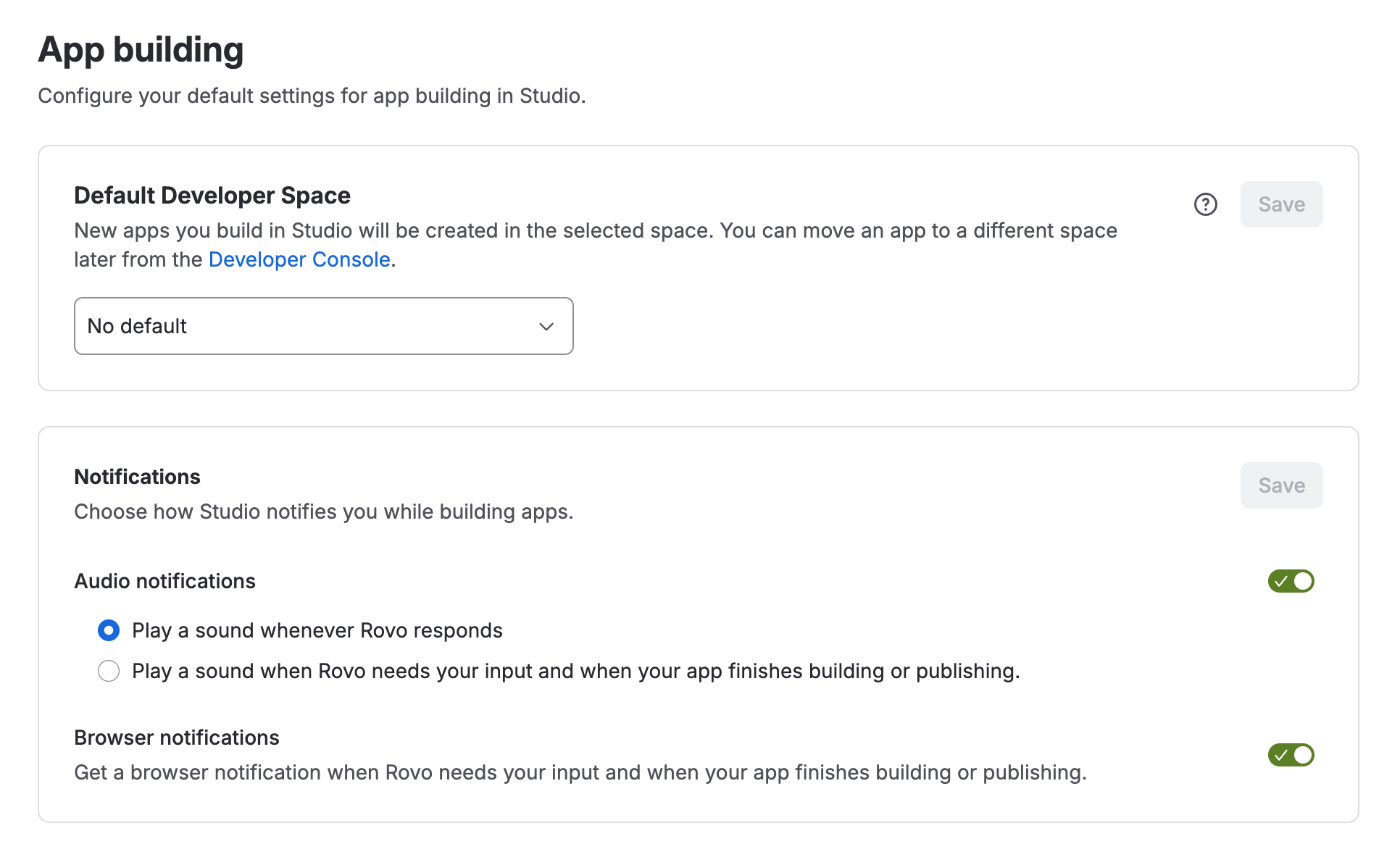
With browser notifications, Studio will now notify you when your build completes - so you can switch to other work, grab a coffee, or review another app while you wait. You'll know the moment it's ready for you to preview.
5. Manage apps in the right Developer Space
Every app you build in Studio lives in a Developer Space - it's how your organisation tracks who built what, and where usage is billed. Previously, you had to pick a Developer Space every time you started a new app, which added friction and confusion (especially if you always use the same one).
Now you can set a default Developer Space so you don't have to think about it each time:
-
When you select a Developer Space, you'll see an option to save it as your default for future apps.
-
Want to change it? You can open the selector and pick a different one, or update your default from your settings.
It's a small change, but it removes a speed bump that broke flow - especially for makers who build multiple apps and always want them in the same place.
You can personalise the notifications and dev space selection from Studio Settings. Click the settings cog (⚙️) in the top right, then select Apps under Studio Settings.
How to try these features
All of these improvements are available now in Studio. Just head to Studio open an existing app or start a new one, and you'll see the new capabilities in action.
If you haven't built a Forge app yet, here's a quick prompt to get started:
"Create a Jira global page that shows a summary dashboard of open issues by priority for a given project. Include a bar chart and a table with issue keys."
For more on getting started, check out our earlier post: Build-custom-Forge-apps-in-Rovo-Studio-no-code-required.
Tips for getting the most out of these updates
-
Combine image upload with your prompt - a screenshot + a sentence describing what's different gives Rovo a much stronger starting point.
-
Use annotations for precision - if something is 90% right but one element is off, point at it rather than re-describing the whole page.
-
Don't be afraid to interrupt - it's faster to stop and redirect early than to wait and undo later.
-
Let notifications do the waiting - start a build, switch tabs, and come back when it's done.
We want to hear from you
These features came directly from your feedback during beta - and we're not done yet. As app building approaches general availability, your input shapes what we prioritise next.
-
Feature ideas or feedback? Use the in-product feedback button in Studio - it goes directly to the team.
-
Found a bug or something unexpected? Drop it in the comments below and we'll triage it.
-
Built something cool? Tell us about it - we'd love to hear what you're creating.
Can't wait to see what you build next. 🚀
- Rovo Studio team


