Syncing multiple Salesforce cases to a single Jira Epic can transform how your support and development teams collaborate on complex issues that affect multiple customers.
By connecting related cases to one Epic in Jira, you can consolidate customer feedback, track resolution progress in one place, and keep all stakeholders updated without manual status checks across platforms.
This setup allows support teams to manage customer relationships in Salesforce while giving product teams visibility into how many customers are impacted by the same underlying issue. It eliminates the need for spreadsheets or manual tracking and ensures both teams stay aligned on priorities.
Use Cases for Syncing Multiple Salesforce Cases to One Jira Epic
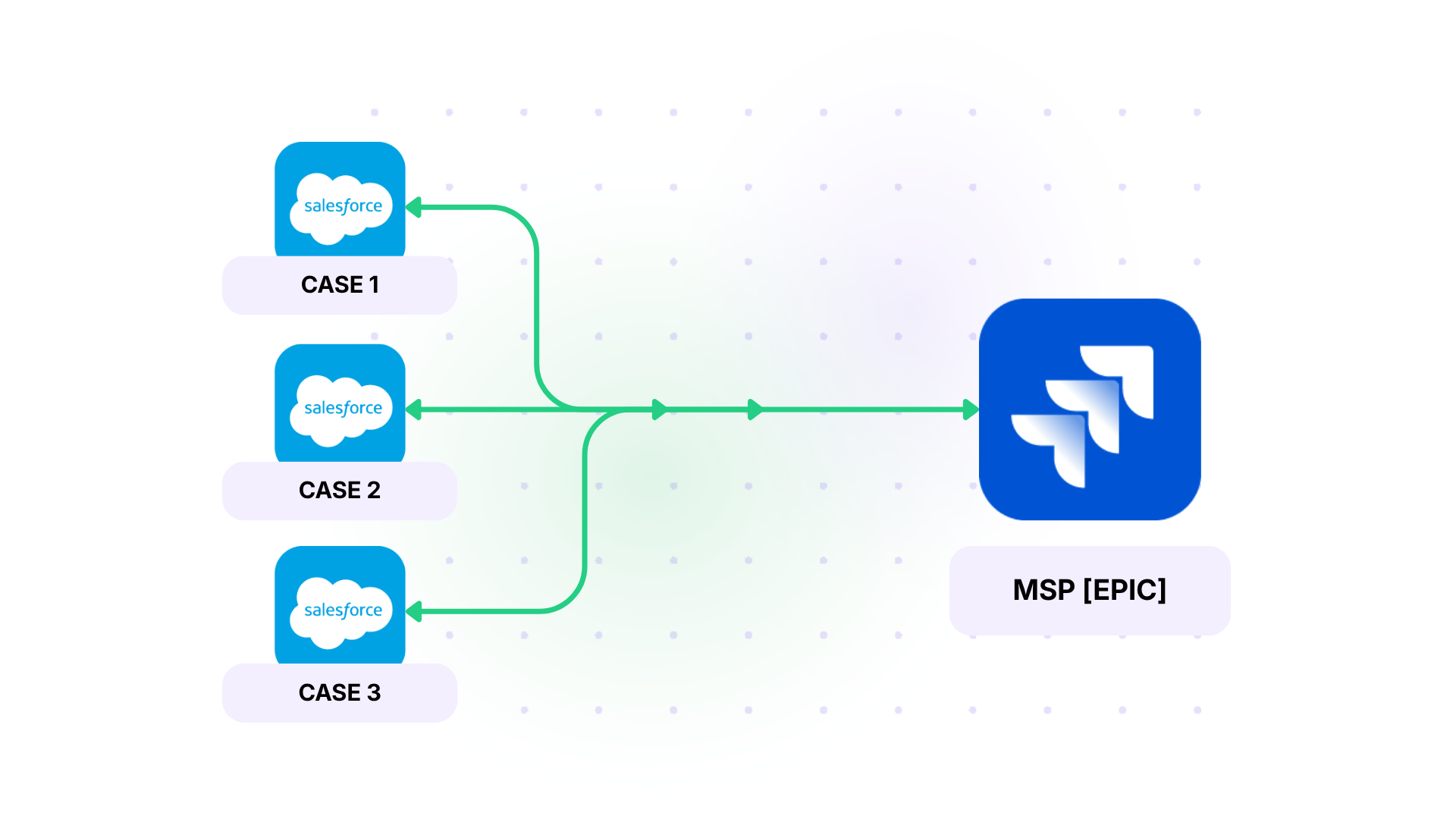
- Consolidate bug reports: When several customers report the same authentication bug in Salesforce, you need to sync all cases to a single Epic in Jira so developers can see the total customer impact while working on the fix.
- Feature request tracking: Aggregate multiple feature requests from different accounts into one Epic. Product managers can prioritize based on total demand, and support can reference the Epic when customers ask for updates.
- SLA management for major incidents: Link all cases related to a service outage to one Epic. When the Epic status changes to "Resolved", automatically update all connected Salesforce cases to "Closed" with a resolution summary.
- Enterprise account management: For large accounts with multiple concurrent cases, link them to a single Epic representing the account's implementation project. Track overall health and progress in one place.
- Escalation workflows: Automatically create an Epic when high-priority cases from VIP accounts come in, then link subsequent related cases to track escalation scope.
Who Needs to Sync Multiple Cases to a Single Epic?
Syncing multiple Salesforce cases to a single Jira Epic creates transparency between support and development teams, eliminates duplicate tracking, and gives everyone real-time visibility into customer impact.
Support reps can instantly see progress on fixes without asking developers for updates. Product managers can prioritize tasks and workflows based on how many customers are affected. And through it all, developers will have full context without switching between systems.
For SaaS companies tracking feature requests, consolidating them from multiple customers into a single Epic lets product managers prioritize based on total demand and easily notify all requesters when features ship.
Also, MSPs supporting multiple clients often deal with the same technical issues across different accounts. Linking cases from various clients to one Epic streamlines troubleshooting and knowledge sharing while maintaining separate case records for billing and SLA tracking.
Customer success teams at enterprise accounts need to sync cases to account-specific Epics, which gives them a unified view of account health and helps identify systemic problems before they escalate.
Developers and IT operations teams during service disruptions need to track all related cases while working on resolution, and linking everything to one Epic ensures consistent communication and more accurate post-incident reviews.
How to Sync Multiple Salesforce Cases to a Single Jira Epic With Exalate
Register or create an account with Exalate and connect your Salesforce and Jira instances.
- To start syncing multiple Salesforce Cases to a single Jira epic, we need to use Exalate’s scripting interface. This interface gives you access to a Groovy-based scripting UI where you can set up your use case, tailored to your requirements. If you’re new to Groovy, you can take the help of our AI assistant to generate the sync scripts for you.
This setup is necessary for implementing many-to-one logic that routes multiple cases to a single Epic.
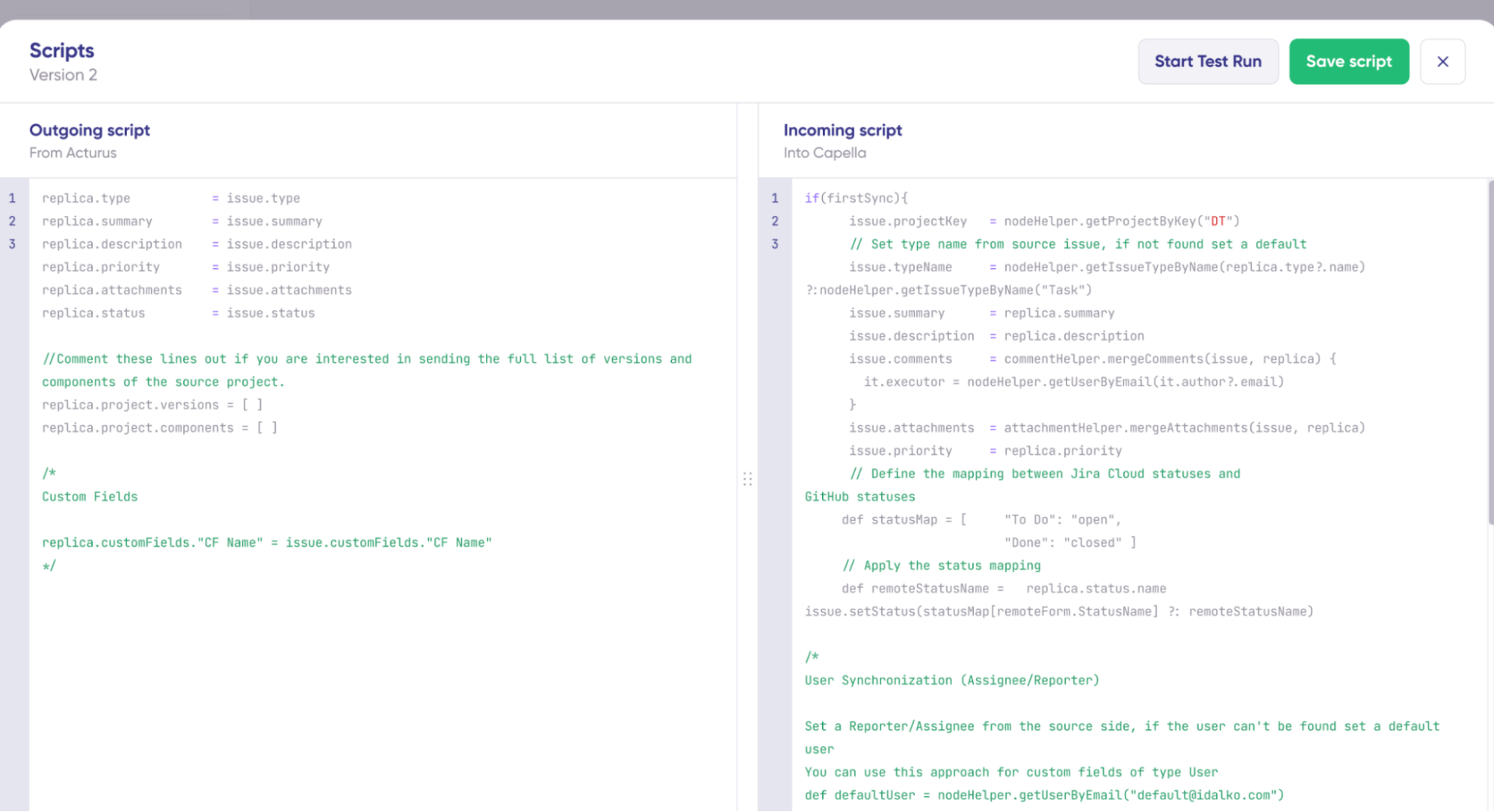
- Configure your Epic escalation and synchronization logic in Jira. On the Jira incoming sync side, set up the logic that determines which Epic should receive the Salesforce case.
You have several options:
- Use a custom field from the Salesforce case to find an Epic with a matching label or name
- Map Salesforce case types to Epic tags or components
- Store the Jira Epic key directly in a Salesforce custom field
- Set up field mappings between Salesforce and Jira. Specify which case fields should sync to the Epic and how updates should flow. Prompt the AI assistant to generate the mapping.
For example (Jira incoming side): "Map the Salesforce status ‘New’ to Jira’s ‘Open,’ ‘Working’ to ‘In Progress,’ and ‘Escalated’ to ‘Done’ in the Jira incoming configuration."
- Test the integration with real scenarios. Create multiple Salesforce cases that should link to the same Epic. Verify they all appear as child issues under one Epic in Jira. Update the Epic status and comments to check if they sync to cases.
Conclusion
With Exalate's AI-assisted scripting, you can build this many-to-one relationship without rigid templates or workarounds.
How do you currently track multiple customer cases related to the same product issue? Book a call with me to discuss your use case or start a discussion here.

