Managing projects in Jira often involves a flood of repetitive updates, status changes, and routine follow-ups. With automation, you can set up clear rules that handle them in the background. This helps you reduce errors and keep your projects running smoothly with minimum manual input.
Once you prepare a set of well-thought-out rules that work together, you get a coherent automation system that saves your team a lot of time and effort.
In this article, we’ll start with a few core concepts to set the context, and then, we’ll move on to practical automation use cases you can apply to your own projects.
What Types of Automation Can You Use in Jira?
Jira supports several automation approaches, depending on how much control and flexibility your team needs. The most common options include the following:
- Automation for Jira – Jira’s native rule engine that lets you react to events, check conditions, and automatically update work items. Teams use it to create, assign, or close tasks without manual actions.
- Workflow automation – Automation built directly into Jira workflows. Actions run automatically when a work item moves from one status to another.
- Data integration automation – Automation focused on syncing Jira with other systems. Typical examples include updating Jira based on GitHub activity or exporting Jira data to external tools for reporting and analysis.
- Third-party automation solutions – Additional automation provided by Marketplace tools. For example, Smart Checklist from TitanApps can automatically add pre-set checklists, such as the Definition of Done, without configuring native Jira rules.
- Advanced automation with the Jira API – A code-based option for those who have a strong technical background. By using the API, you can programmatically trigger Jira actions when native automation is not enough.
This article will mostly cover Jira’s native automation features, but we’ll also talk about using third-party solutions and briefly touch on other options.
Jira Automation Rules: How Do They Work?
In Jira, each automation is built as a rule. A rule is a small logical chain made up of four core elements that define when it runs and what it does:
- Trigger – This is the event that starts the rule. For example, a work item is created, updated, or moved to a different status.
- Condition – After the rule starts, Jira checks whether specific criteria are met. If the conditions match, the rule continues. If not, it stops.
- Branch – A branch lets you apply the same logic to related issues (work items). This is useful when you want the rule to run separately for subtasks, linked work items, or other related elements.
- Action – This defines the outcome of the rule. Jira can update fields, transition statuses, create new work items, send notifications, or link items.
Together, these elements make automation rules easy to set up and adjust. You define the event, verify the context, and tell Jira exactly what should happen next.
How to Set up a Jira Automation Rule?
- Go to Project Settings -> Automation. Click Create Rule. To use this feature, you must have Administrator rights for your project.
- Select the trigger. Type in the action or event you’d like to add as a trigger into the search bar and find it on the list. For example, Work item created (Issue created) or Work item commented.
- Add conditions to your rule and specify the required details. For example, Work item type is Task, or the Assignee field is empty. If you don’t have a condition, you can skip this part. In this case, the target action will be performed every time the rule is triggered.
- Select the action that should be performed and provide the details related to that action. Once done, save and turn on your rule.

Jira Automation With Third-Party Tools - Examples
As I mentioned earlier, Jira’s native automation is not the only option. In many cases, using third-party tools from the Atlassian Marketplace is simply more practical. These tools often cover specific automation scenarios and reduce the amount of manual setup required.
This approach has a few clear advantages:
- You save native automation runs – Jira plans limit how many rule executions your organization can use each month. When automation is handled by third-party tools, these limits remain untouched.
- Automation is quicker to set up – Configuration is often quite straightforward and does not require prior automation experience or technical skills.
- You get purpose-built automation – Some tools are designed for very specific scenarios. For example, Smart Checklist by TitanApps supports automation that works directly with checklists, which is not always convenient to build with native rules alone.
Next, let’s look at how this approach works in real Jira projects.
Example 1. Automatically Add Checklists to Jira Issues (Work Items)
Checklists are especially useful for tasks that include many steps and follow a predictable pattern. When the same type of work comes up again and again, these steps can be saved as checklist templates and reused. You can also apply them automatically, so every new work item starts with a ready-to-use checklist instead of a blank slate.
A common example in agile teams is the Definition of Done. This checklist captures the criteria a task must meet before it can be considered completed. By adding it automatically to relevant work items, teams keep quality standards consistent. Here’s how it can look:
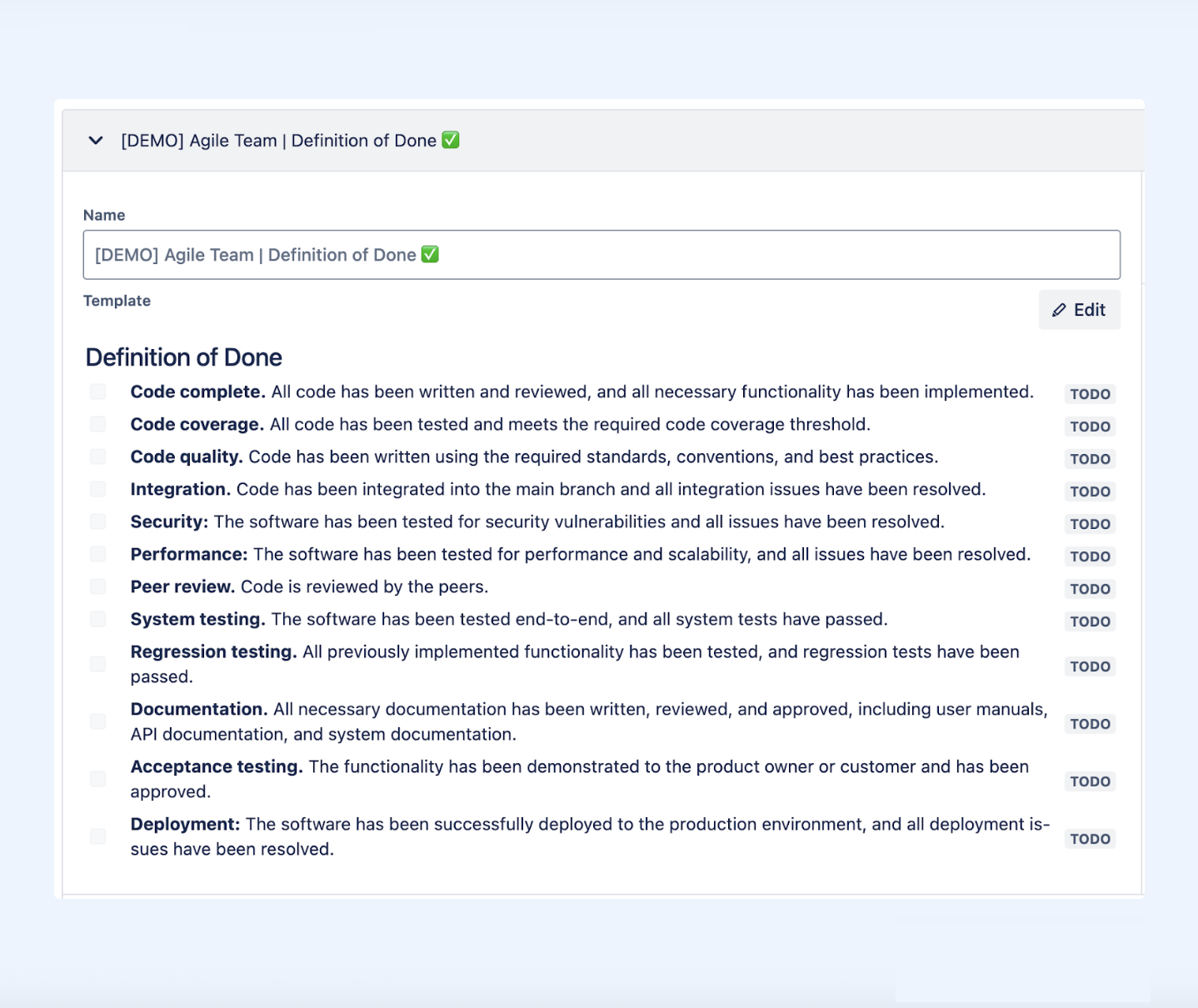
The same approach can be applied to many other scenarios. For instance, many teams use the Definition of Ready Checklist, Code Review Checklist, Onboarding Checklist, and so on. In general, checklist templates are useful for any repeatable processes.
With Smart Checklist, you can automatically attach a predefined checklist to every new work item of a chosen type. In this example, we applied the Definition of Done Checklist to all Tasks, so the expected criteria are always included as soon as the work item is created.
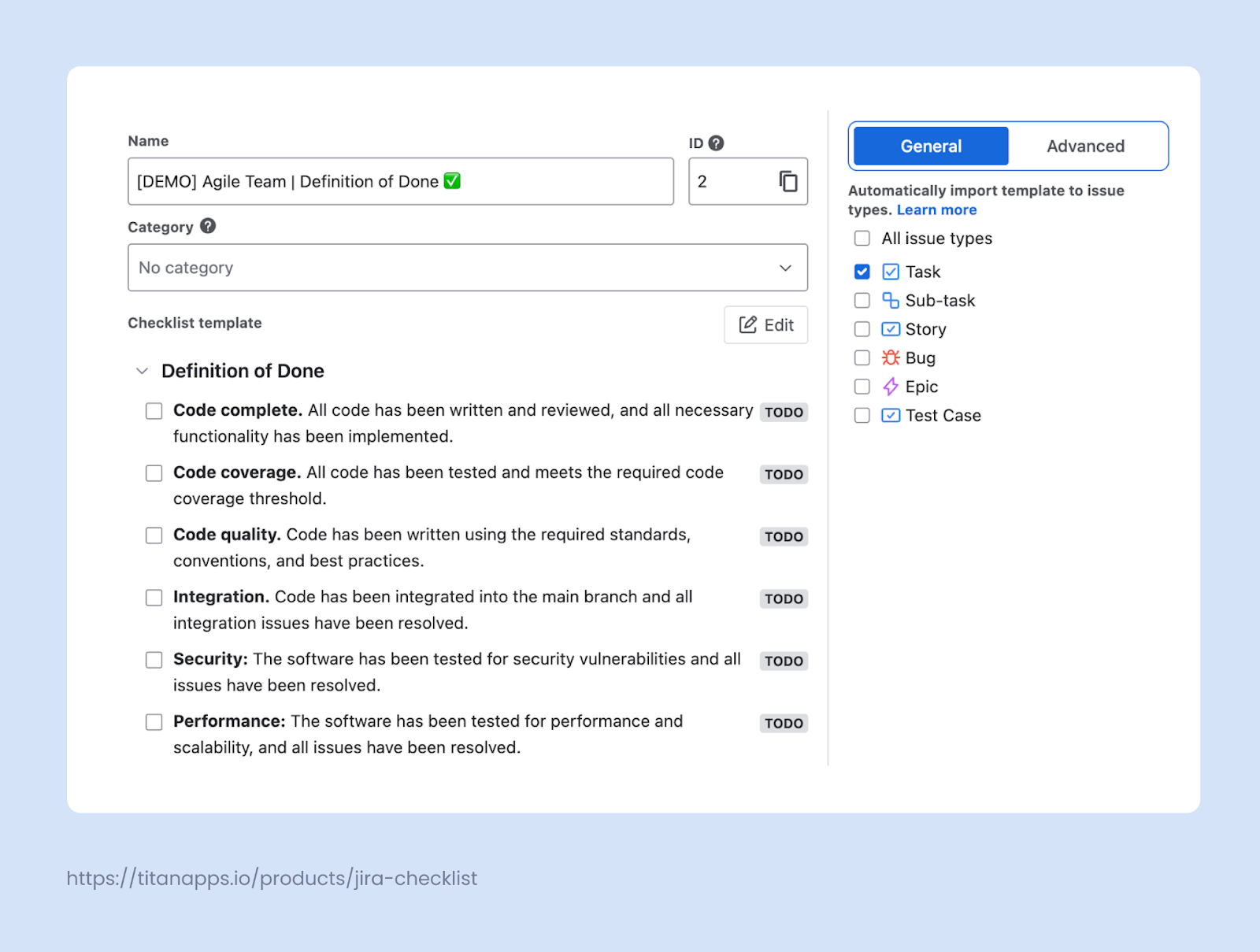
If you want to assign checklists based on more complex conditions, switch to the Advanced tab. For instance, you can set a condition to add an onboarding checklist to all work items that have “Onboarding” in their summary, and so on.
To set up this automation, install Smart Checklist for Jira by TitanApps. Then, paste your checklist in the Smart Checklist section of your work item. For more details, please see my article How to Add a Checklist to a Jira Issue (Work Item).
This solution works with Jira Cloud (including JSM) and Jira Data Center.
Example 2. Generate Work Items Automatically on a Schedule
Imagine your team runs the same regression tests on the same features regularly. Then, it’s practical to reuse test cases so that you don’t have to set up the same work items every sprint.
You can group your test cases as tasks under a single epic and save that structure as a template with Smart Templates:
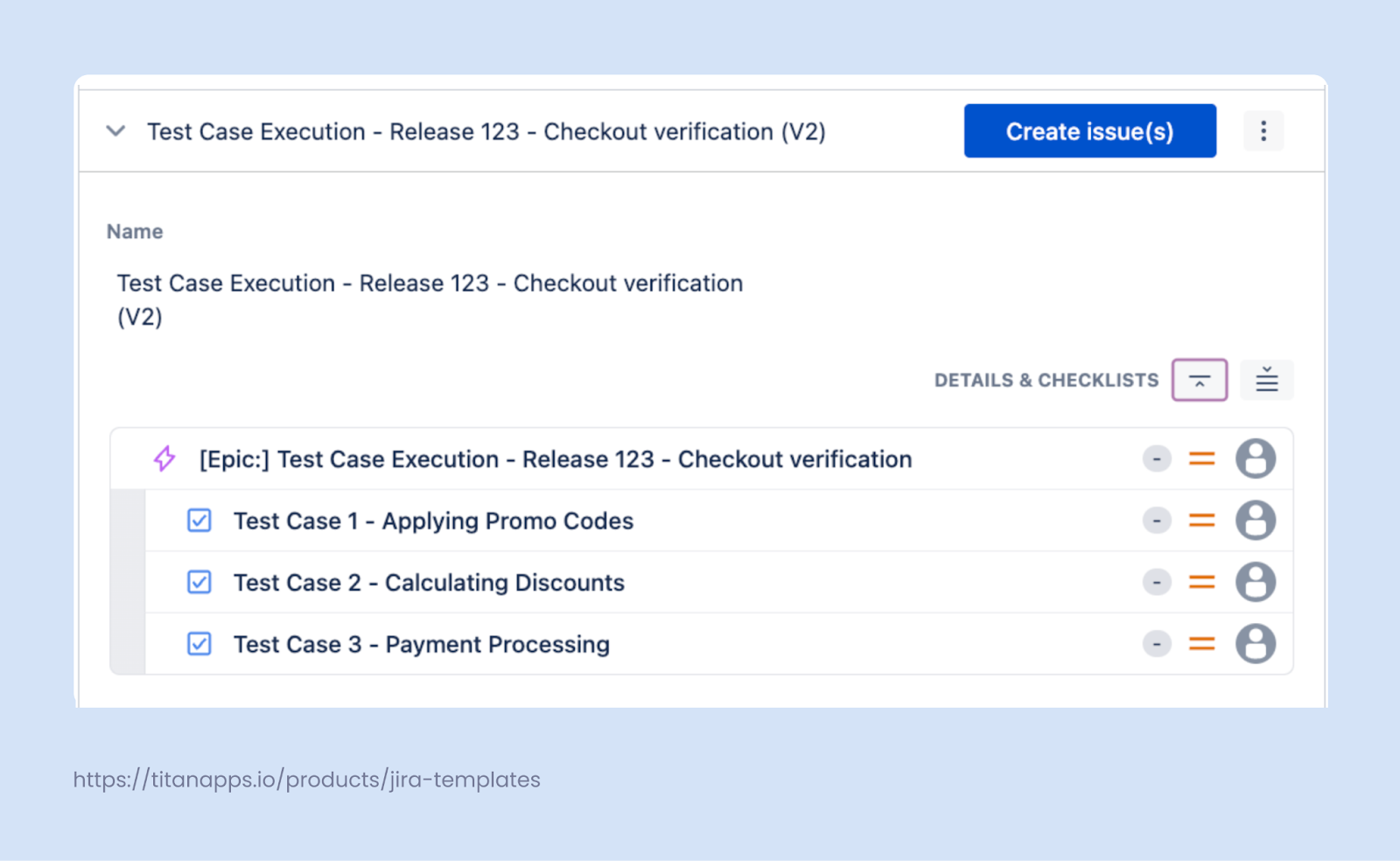
Using the built-in Scheduler, you can have this set of test cases created automatically every two weeks, right when regression testing begins. Jira will generate a new epic with the same structure and tasks as in the original template, so everything is ready as soon as the work starts.
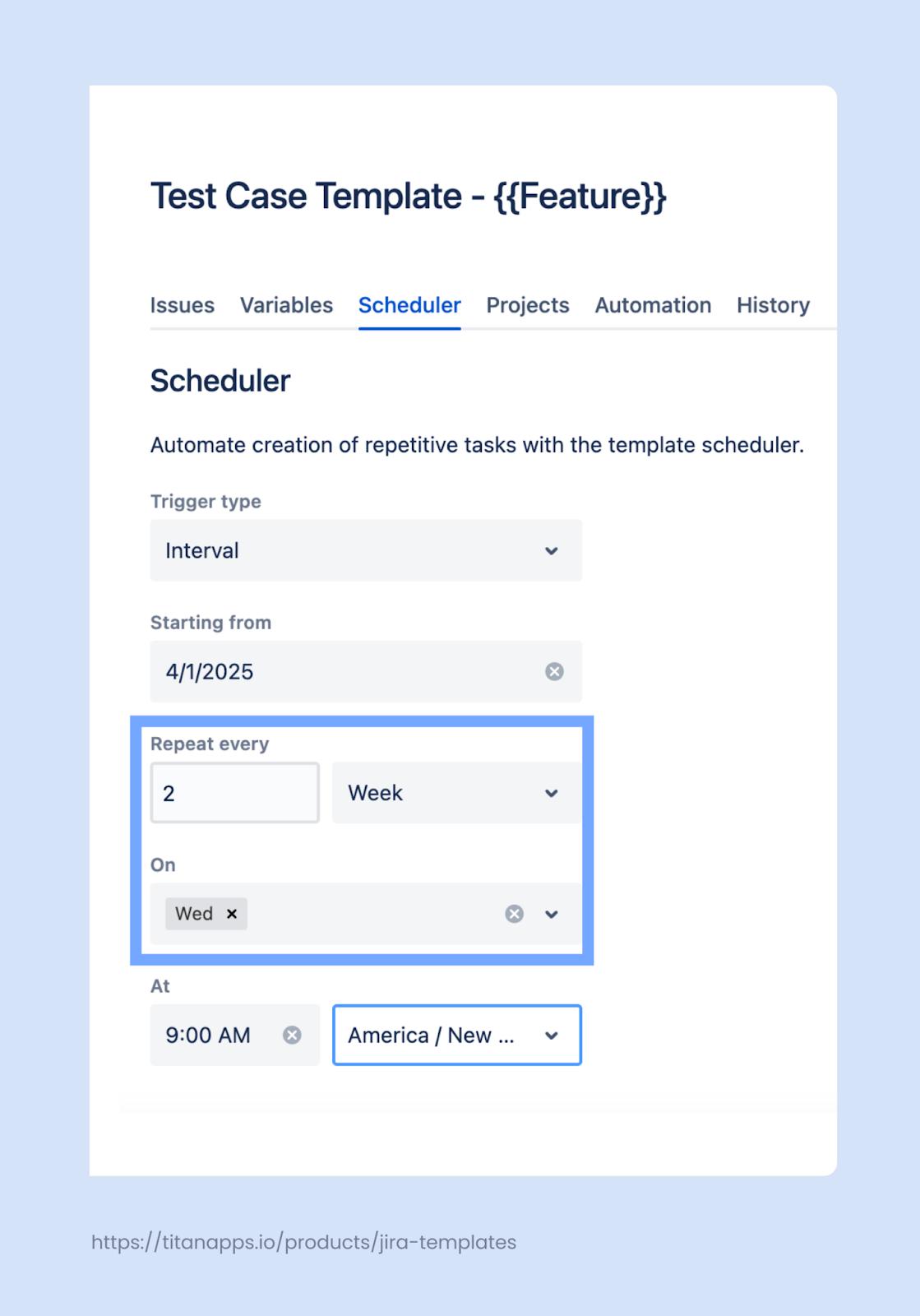
This approach can be applied to any repetitive tasks and recurring processes.
To set up this automation, install Smart Templates for Jira. Create a work item or set of work items that will serve as a template, and click Save structure as a template. To configure a schedule, open the Smart Templates tab in your project. Navigate to your list of smart templates, choose the one you want, and click the three dots -> Edit -> Scheduler.
That’s it! New work item(s) will be generated from the template according to your settings. Additionally, you can generate tasks from your template manually at any time you need.
Top 10 Jira Automation Examples Set up With Native Jira Functionality
Now, let’s move to rules that can be set up with Automation for Jira, which is natively available on the platform.
1. Link Mentioned Work Items
This is a simple rule, but it’s very practical when teams actively communicate in comments. Imagine someone adds a comment to a work item and mentions another one by its key. Without automation, this reference stays just text and doesn’t create a real connection.
With this rule in place, Jira automatically links the mentioned work item to the current one. The result appears in the Connected work items section, so the relationship is visible right away.
Here’s what this Jira automation rule looks like:
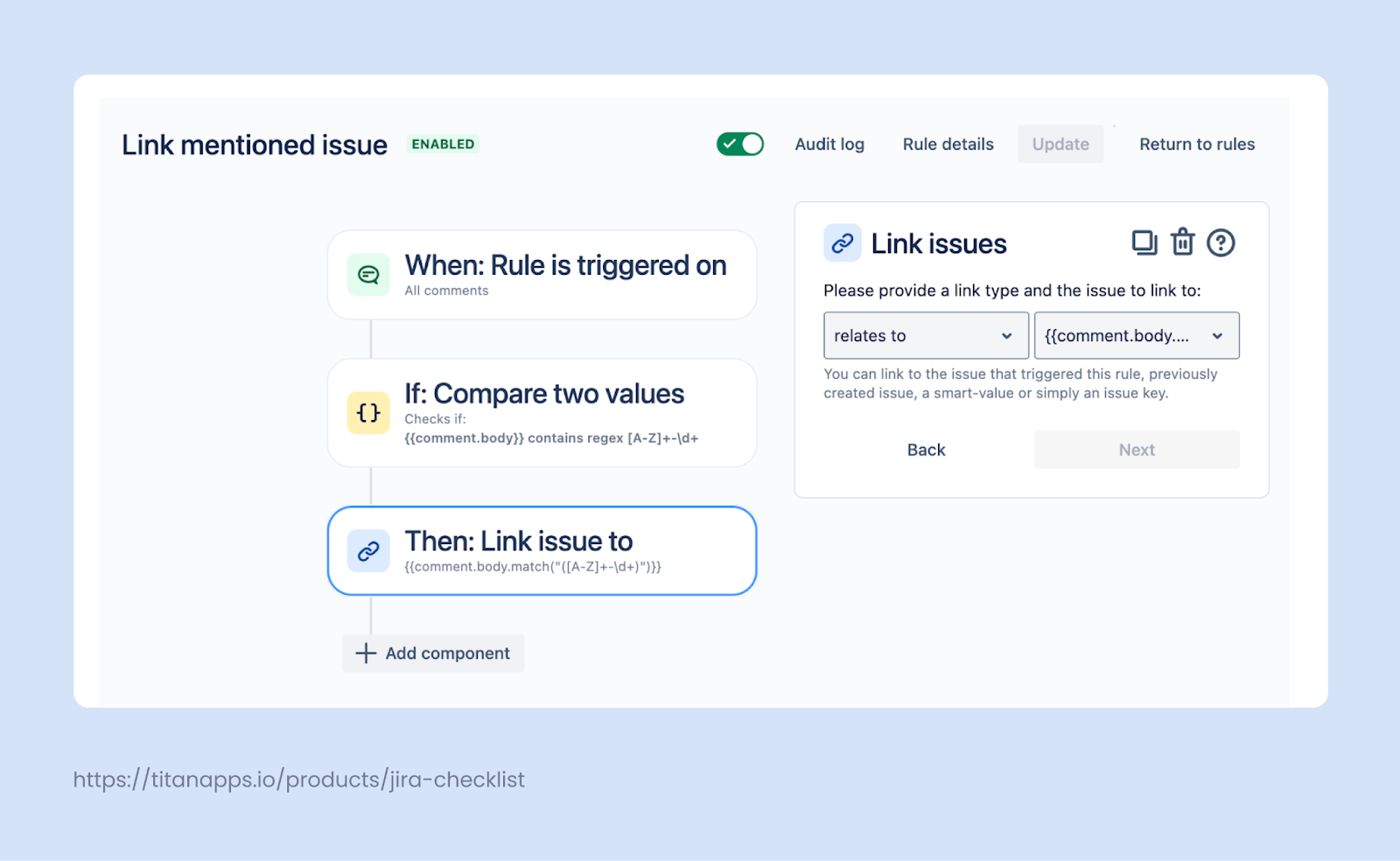
The rule runs every time a new comment is added. It scans the comment text and checks whether it contains a valid work item key, such as PRJ-123. If a key is found, Jira links the referenced item to the original one. You can also define the link type, for example, Relates to for related issues, to reflect the nature of the connection.
2. When All Child Work Items Are Done, Move the Parent to Done
This automation keeps parent and child work items aligned as work progresses. Teams do not need to manually update the parent once all related work is finished.
Here’s a typical scenario. A task is broken down into several sub-tasks, each owned by a different team member. Once all sub-tasks reach the Done stage, the parent task should be completed as well. This rule handles that step automatically:
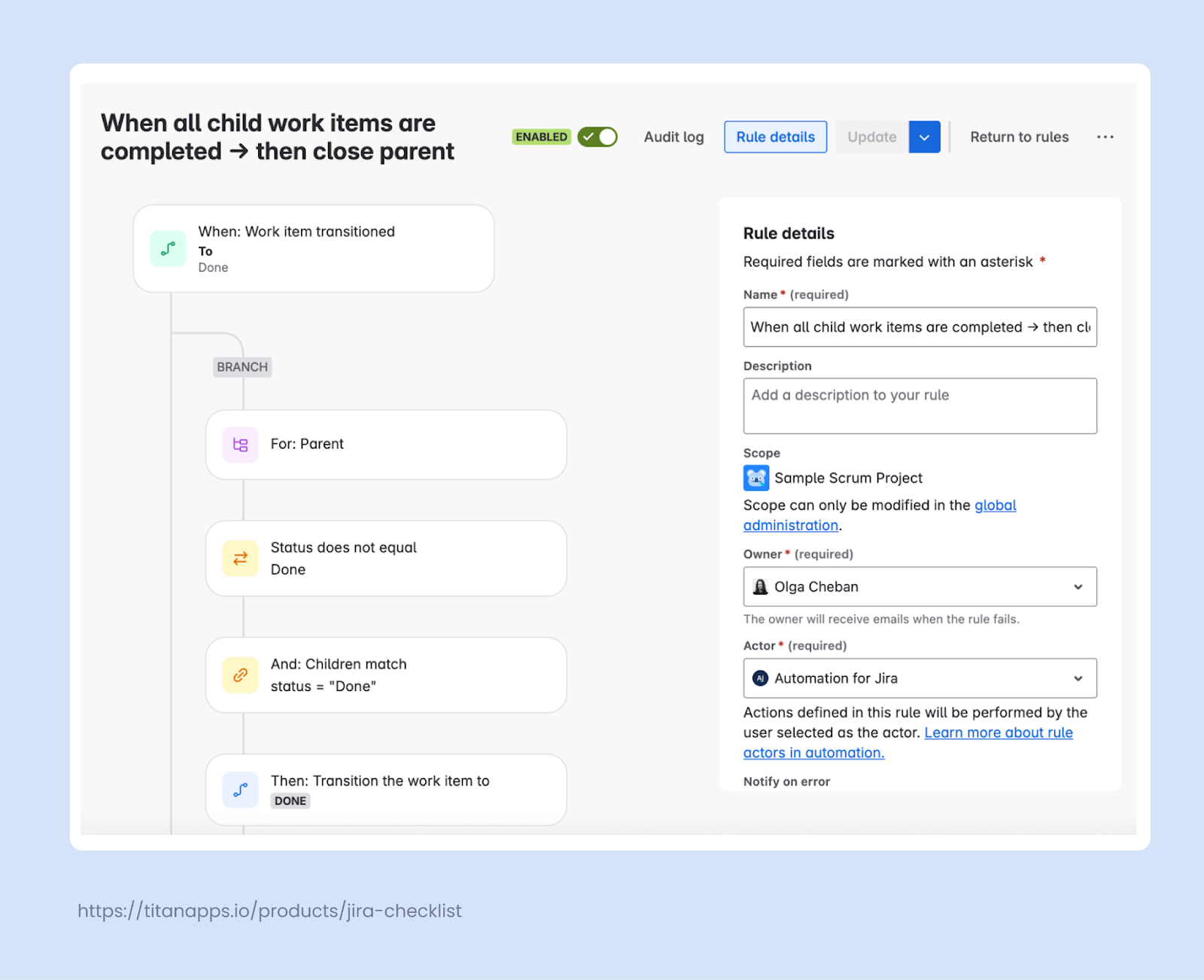
First, the rule is triggered when a child work item is moved to Done. This ensures it runs whenever progress is made on the task. Next, the rule switches context using a branch for the parent work item. From this point on, all checks and actions apply to the parent, not the child that triggered the rule.
Then, the automation checks two conditions: the parent work item is not Done, and all child work items are already Done. Once these conditions are met, the rule moves the parent work item to Done automatically. As a result, the board reflects the real completion state without extra manual steps.
This keeps statuses accurate, reduces manual updates, and helps everyone trust what they see on the board. It’s especially convenient when there are several team members working on subtasks, as they won’t have to check the statuses of other subtasks to decide whether to move the parent to Done.
3. Auto-add a Checklist to a JSM Ticket Based on Request Type
The next example is a rule that automatically adds a Smart Checklist to JSM tickets of the specified type.
Imagine an employee planning a business trip. They submit a request through the Jira Service Management portal and choose the request type “Business Trip”. When the ticket lands in the queue, it already includes a standard travel planning checklist. The assignee does not need to think about what to add or where to start. The action plan is already there.
Here’s another example: when a user submits a request suggesting a new feature, the rule automatically adds a checklist describing standard steps for this case.
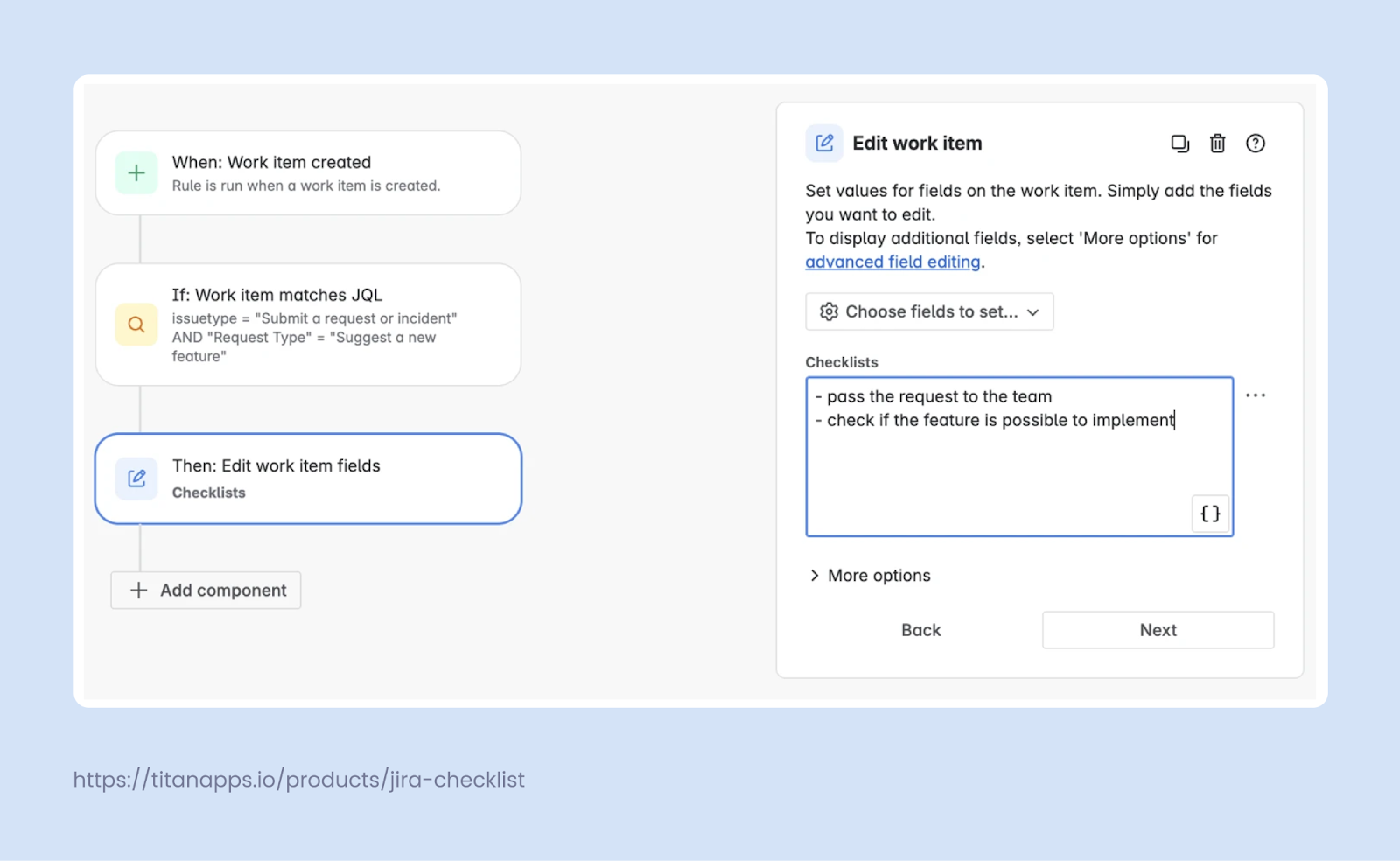
The same logic can be reused for other request types and even for regular Jira work items outside of Jira Service Management.
To be able to add checklists to your Jira work items, you will need to install Smart Checklist by Titan Apps first. For more details on how to set up this automation, please see this Adding a Checklist to JSM guide on Confluence.
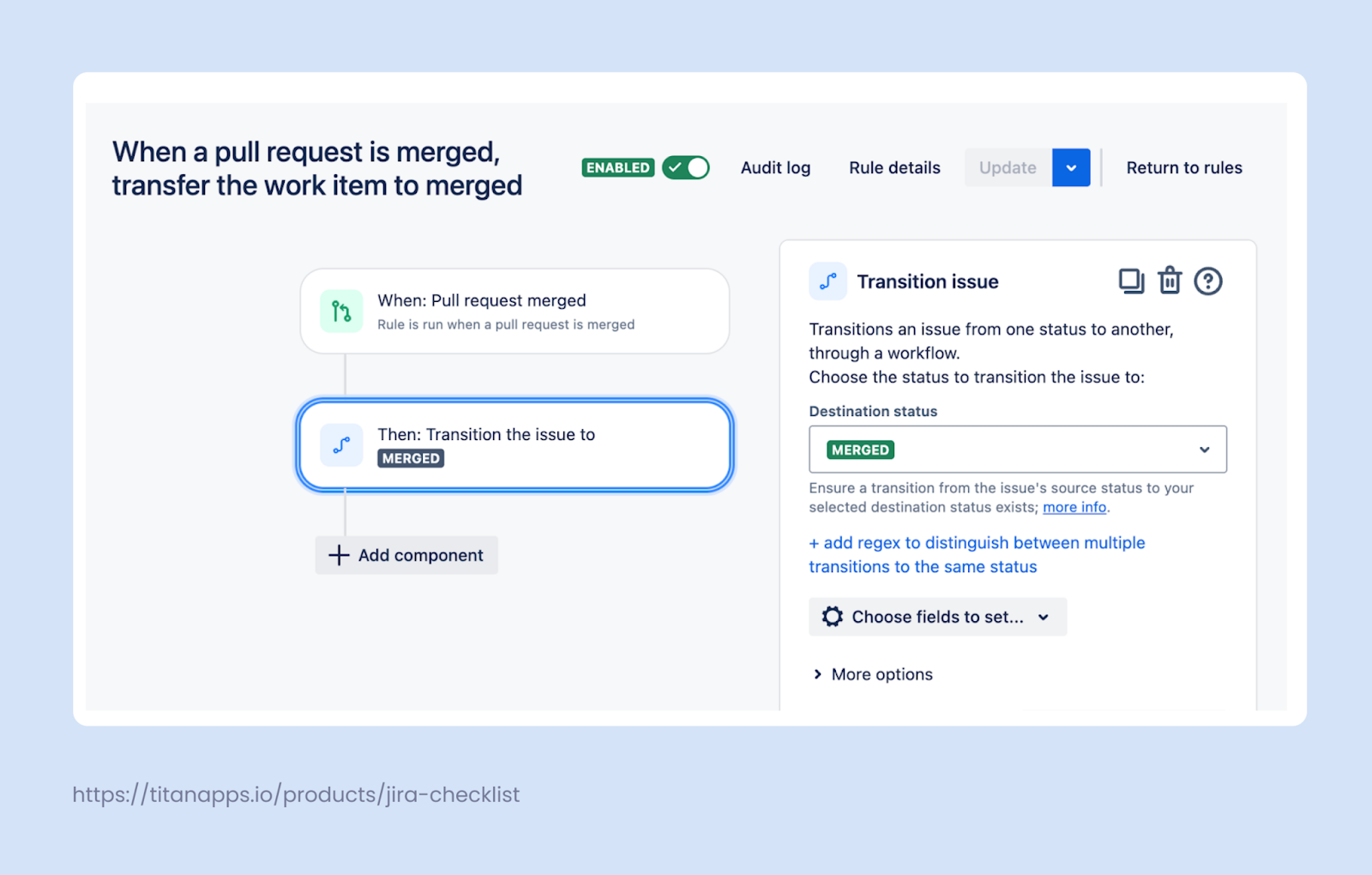
4. Update Work Item Status Based on GitHub Activity
In development teams, Jira is often connected to GitHub, GitLab, Bitbucket, or other dev tools. This connection helps keep code changes and Jira work items aligned without extra manual updates.
Consider a common situation. A developer finishes their work and merges a pull request. Jira receives information about this event from GitHub and automatically updates the linked work item. For example, the status moves from In Progress to Merged. The developer does not need to open Jira just to update the ticket. This reduces context switching and keeps work item statuses accurate without extra effort.
Please note that, for the automation rule to work, you should set up a Git and Jira integration first. After that, Jira automation can react to repository events and keep development progress visible in work items.
5. Auto-Assign Work Items Based on Their Summary
In many teams, certain types of work always belong to the same person. You can set up Jira automation that will assign tasks based on various conditions, such as particular field values or keywords in the work item summary.
Let’s take recruitment as an example. Here’s a rule that assigns any work item containing “Recruitment launch” in its description to the recruiter responsible for this type of tasks.
The rule runs when a new work item is created. It checks whether the description includes the specified phrase and whether the work item has no assignee yet. If both conditions are true, Jira assigns the work item to the predefined owner.
The same pattern can be reused for other scenarios: you can easily auto-assign issues (work items) when there are clear ownership rules. It’s also possible to trigger the rule manually - for this, select Manual trigger from work item as your trigger.

6. Clone Jira Service Management Tickets Into a Jira Project
Jira Service Management is often used to collect and track incoming requests, while the actual work happens in a Jira project. This split is common in software teams.
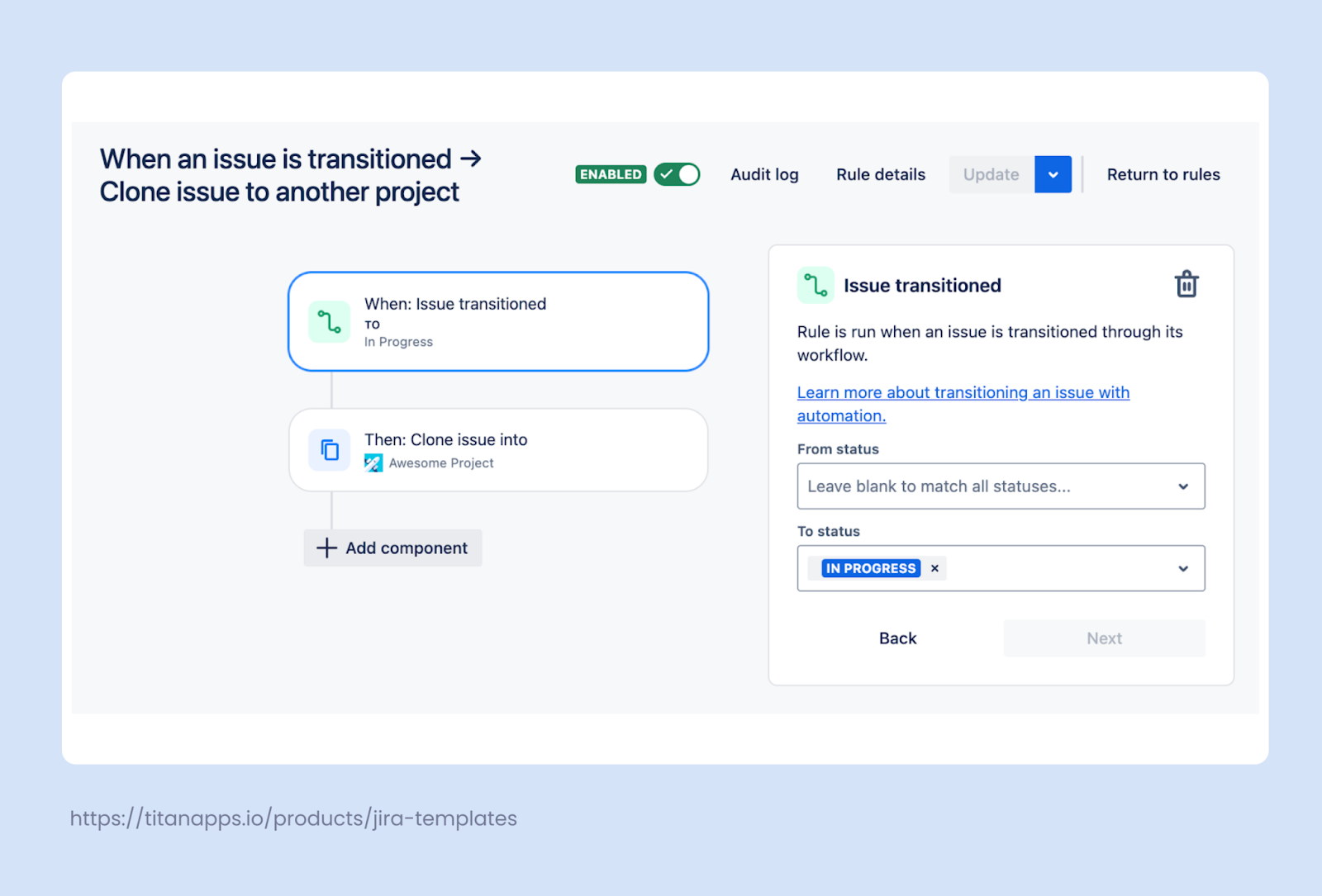
For example, a software user raises a ticket requesting a new feature through the JSM portal. The request needs to stay in JSM for communication and tracking, but the development team also needs a corresponding work item in their Jira project to plan and deliver the work.
This Jira automation covers that handoff. When a JSM request moves from To Do to In Progress, Jira automatically creates a cloned work item in the target Jira project. From that point on, the dev team can manage the task using their usual boards, workflows, and reports.
You can refine this setup further by adding more conditions. For example, the rule can clone only requests with the summary containing a specific keyword, such as “feature” or “integration.” This helps route only relevant requests into the development backlog while keeping the rest in JSM.
7. Sum up Story Points in a Parent Task Work Item
Here’s another common use of Jira Automation. Story point estimates often live on child work items, but planning usually happens at the parent level. Keeping these numbers in sync manually is easy to forget and hard to maintain. This automation solves that by recalculating the total automatically. When a story point value is updated on a child work item, Jira updates the parent with the new sum.
The rule shown below runs whenever the Story Points field value changes.
Then, it looks for the parent issue using JQL: parent={{triggerIssue.parent.key|"null"}}. The action is Edit work item fields. You will need to paste the following text in the Additional fields box under the More options menu:
{
"fields": {
"Story Points": {{lookupIssues.Story Points.sum|0}}
}
}
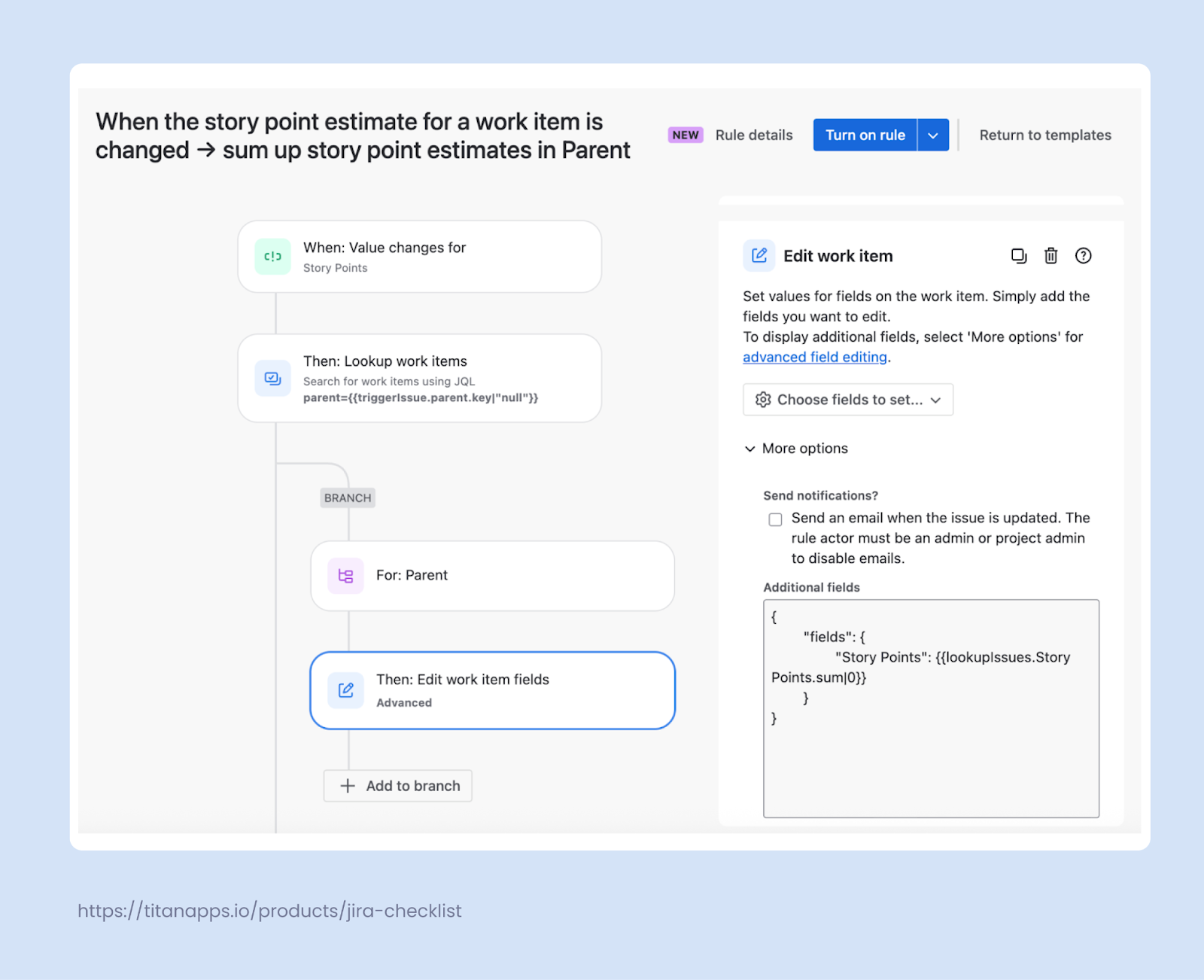
The automation identifies the parent work item and recalculates the total based on all its children. The parent’s Story Points field is then updated with the summed value.
As a result, parent work items always reflect the current scope of work. Teams can rely on accurate estimates for planning, capacity checks, and reporting without extra manual updates.
Similar logic can be applied to managing other custom fields.
8. Add a Watcher When a Bug is Created
Bug reports often require attention from several people, not just the assignee. Team leads, senior QA engineers, or on-call developers need to be kept in the loop, preferably as soon as a new bug appears.
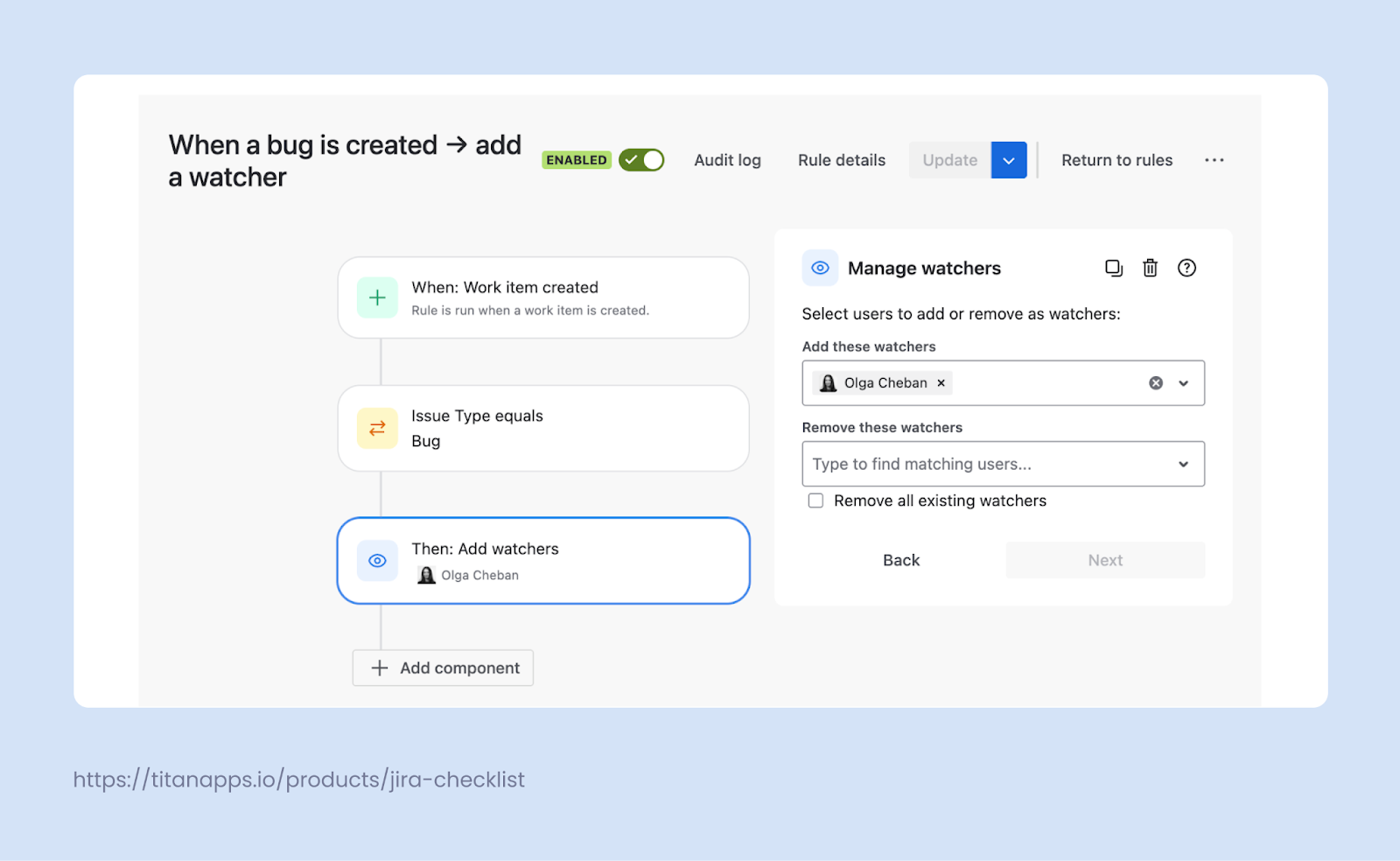
With this rule in place, Jira adds selected teammates as watchers when a Bug work item is created. As a result, they receive updates from the start, without being manually added or mentioned.
The rule is triggered on work item creation and checks the work type (issue type). If it is a Bug, Jira adds the predefined watchers to the ticket.
9. Generate Work Items Based on Conditions With Smart Templates
Previously, we showed how Smart Templates can be used to create work items on a schedule. In many cases, teams need to generate Jira issues based on other conditions, not just time.
For example, when a team finishes a feature, they may need to create a standard set of marketing tasks to support its launch. With Automation for Jira and Smart Templates, these work items can be generated automatically when a defined condition is met - for instance, when you add a label “Marketing template” to the work item. This can also be a status change or another field update.
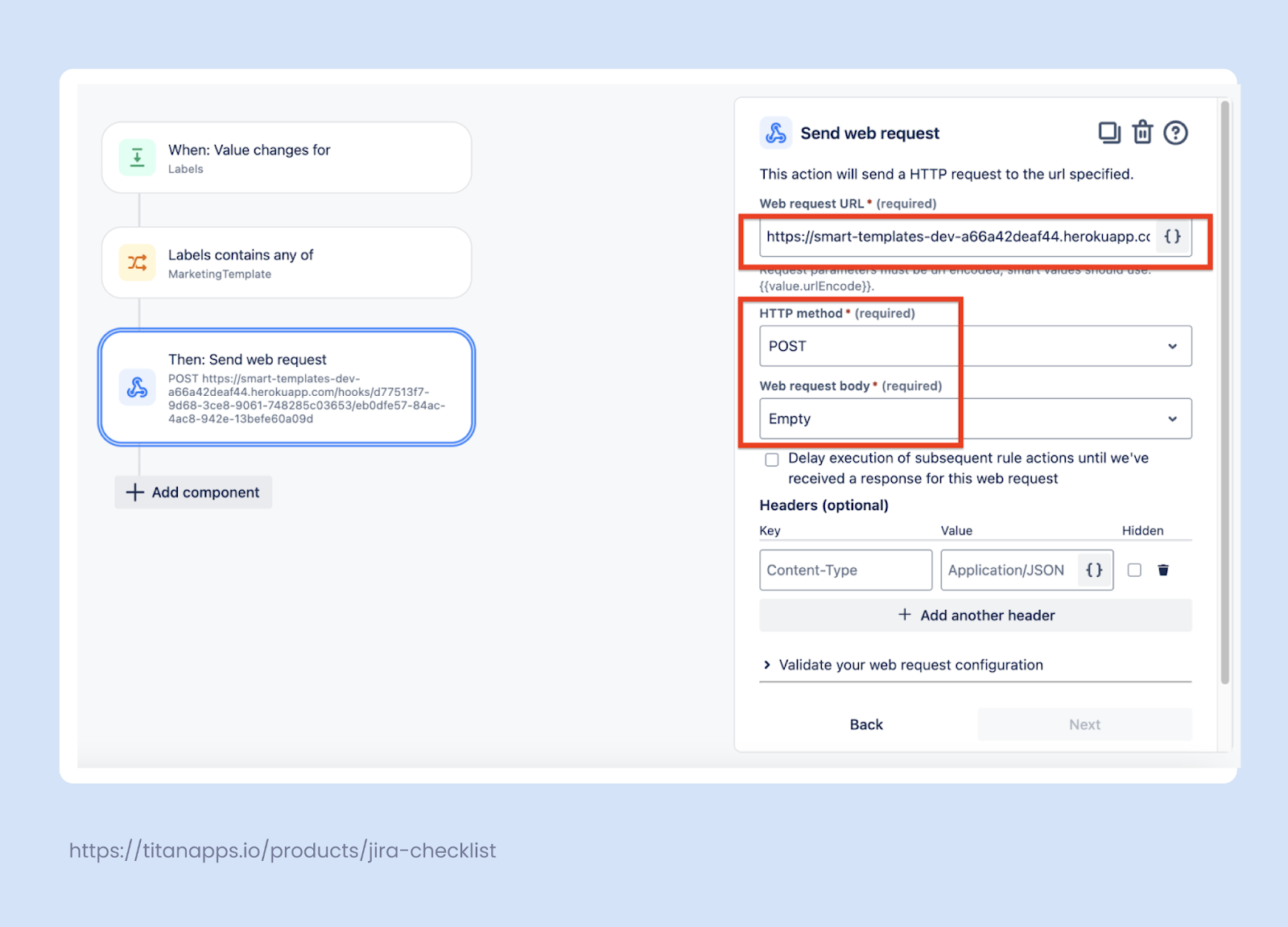
To set this up, you need to install Smart Templates and create the required work item template. Then connect it to Automation for Jira via a webhook so Jira can create new work items whenever the selected condition occurs.
For more details on integrating Smart Templates with Jira Automation, please see this guide.
10. Reassign a Work Item When Its Status Changes
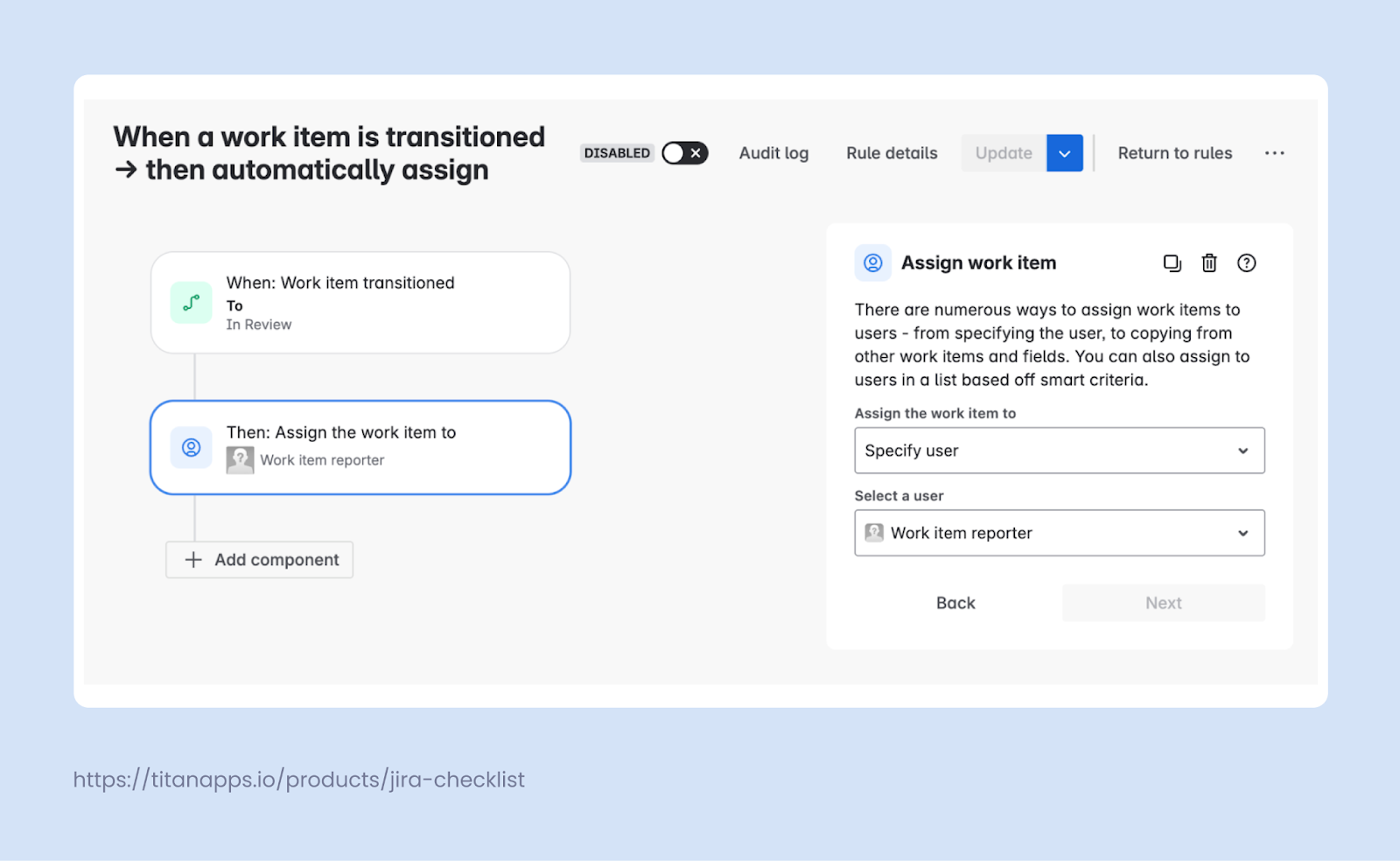
As work moves through a process, responsibility often shifts from one person to another. You can integrate automation into your Jira workflows and set up a rule that changes the assignee based on conditions.
In this example, a work item is reassigned automatically when its status changes from In Progress to In Review. Just select “Work item transitions / Issue transitions” as a trigger and “Assign the work item to”.
The assignee can be a specific person or a role-based value, such as the work item reporter. As soon as the item enters the review stage, Jira assigns it to the pre-defined reviewer. This keeps reviews moving forward and makes ownership clear at each stage of the process.
Optimizing Your Processes with Jira Automation
In this article, we explored practical automation options that teams use across different workflows. These examples cover common use cases, but they are only a starting point. Many more ideas can be found in Jira’s automation templates or uncovered through everyday work with your team.
Jira Automation is a broad topic. This core functionality of Jira Software supports no-code rules, smart values, and flexible conditions that fit real project management needs. For stronger results, teams often combine native rules with add-ons and integrations, especially in DevOps-heavy environments.
Smart Tools by TitanApps help extend these possibilities even further. Smart Checklist lets you apply structured checklists automatically, while Smart Templates help generate work items when the right conditions are met. Used together, these tools reduce manual steps and help teams focus on high-priority work instead of routine updates.
