Community resources
Community resources
Community resources
Stop Chasing Minutes: Track Time in Jira Without Killing Productivity
For PMOs and Team Leads, the "Time Tracking Paradox" is a daily reality.
You require high-fidelity, granular data not just for tracking how much time is being spent, but also to:
- Forecast sprints accurately
- Manage Quarterly budgets
- Justify resource allocations
As the project scales, the traditional process of collecting and analyzing this data can create an unintended bottleneck.
Let’s be honest: You don’t want to spend hours manually auditing project timelines, reconciling logs, and cross-referencing tasks, which creates a “hidden tax” on productivity. This manual oversight becomes a never-ending cycle of data cleanup—time that would be better spent on high-level strategy and quarterly planning.
The goal isn’t to fundamentally change your established workflow, but to enhance the way your team interacts with the process.
Is Manual Logging the Problem?
Short Answer: NO!
Here’s the truth: You don’t have to do extra work or sacrifice your productive time to get the project visibility you need. You just need to leverage Jira time-tracking plugins such as RVS Softek Suite. With the right tools, you can have both—effortless process management and peak productivity.
In this blog, we are going to discuss how to stop chasing time and start managing projects better with time tracking plugins by RVS Softek.
Method A: Automatic Tracking with "Time in Status"
One of the most accurate ways to track time in Jira is by leveraging the workflow itself. If a ticket is in progress, time is automatically being spent on it. Developers don’t need to stop and log every minute manually; the system does it for them in the background.
Time in Status Reports app (Jira Cloud) is an excellent tool for this. It automatically tracks the time a ticket spends in each workflow stage. Whether it's "In Progress," "Ready for Review," or "Blocked," the system captures this information in real-time.
How to use Time in Status Reports?
- Install “Time in Status Reports” from Atlassian Marketplace
- Open your browser and go to the Atlassian Marketplace.
- Use the search bar and type “RVS or 'Time in Status Reports By RVS"
- Select the app from the search results.

- On the app's page, click Try it free or Get it now.
- Select the Jira instance you want to install the app on and click Continue.
- Log in to your Jira Cloud instance if you're not already logged in.
- Once installed, you can find the “TIS - Time Reports” app under the Apps section in the Jira navigation bar.

- Choose the Time in Status Reports option.

- You can see the “Summary” section, which is the task that users create, and other columns like status, assignee, created, and other workflow statuses. This also shows the time of task creation and, whenever the task enters a new status, the date & time of the transition and how long it stayed in each status.
- Create Various Times in Status Reports
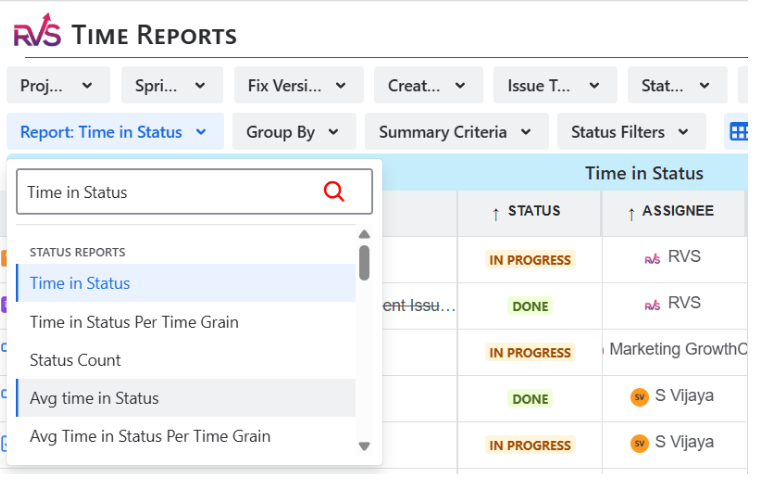
- Click on Reports from the top and find different types of time in status reports according to your requirements.

- Once the report is generated, click on the “Save” option on the right side of the screen
- Export Time in Status Reports

Click on “More” and export the report.
Method B: Manual Tracking with Worklog Time Tracking & Timesheet
While automation is ideal, there are times when manual logging is unavoidable—especially when tracking billable hours or internal reporting. The goal here is speed. Developers shouldn’t need to spend time on cumbersome workflows just to track a few hours of work.
The Worklog Time Tracking & Timesheets app (on Jira Cloud) allows developers to log hours quickly and efficiently in one view, without having to click into each individual Jira issue.
How to use Worklog Time Tracking & Timesheets?
- Install “Worklog Time Tracking & Timesheets” from Atlassian Marketplace
- Open your browser and go to the Atlassian Marketplace.
- Use the search bar and type “RVS or 'Worklog Time Tracking in Jira & Timesheets by RVS”
- Select the app from the search results.

- On the app's page, click Try it free or Get it now.
- Select the Jira instance you want to install the app on and click Continue.
- Log in to your Jira Cloud instance if you're not already logged in.
- Once installed, you can find the “WL-Timesheets” & “WL- Worklog Reports” app under the Apps section in the Jira navigation bar.

- Log Time with Worklog Reports

- First, log your time using worklog reports.
- On the dashboard,d you will get the log time in the right corner, click it, and enter the issue name, the total time spent, and the remaining estimate. You can add a work description as well.
- Once you login you can see the time stamp on the dashboard.

- Export Worklog report
- To get the worklog reports, go to “WL-Worklog report.”

- Once the report is generated, click on the “Save” option on the right side of the screen

Click on “More” and export the report.

Note: In both time tracking method you can:
- Filters and Custom Views: Users can apply filters to view time logs based on specific criteria, such as assignees, sprints, or projects. This is useful for managing larger projects and teams, ensuring that time tracking data is easily viewable based on what is important at the moment.
- Export Options: The plugin allows users to export time logs to CSV, Excel, or Google Sheets, making it easy to share data with stakeholders or use it for further analysis.
Final Thoughts
The Time in Status Reports and Worklog Time Tracking & Timesheets plugins provide efficient and automated ways to track time in Jira. Whether you’re looking for automatic tracking or streamlined manual logging, these tools ensure accurate data without disrupting your team's workflow.
If you need help setting up or customizing these plugins for your specific needs, don’t hesitate to reach out—happy to assist! (support@rvsoftwares.in )
Was this helpful?
Thanks!

Rahul_RVS
0 comments