
Time in Status in Jira represents a critical reporting metric that calculates the exact duration an issue remains in a specific workflow stage, such as 'In Progress' or 'In Review.' Unlike manual worklogs that track active human effort, Time in Status measures the overall flow of work through the system to identify process bottlenecks, calculate Cycle Time, measure Lead Time, and monitor strict Service Level Agreements (SLAs) compliance without requiring micromanagement.
What Are the Core Time in Status Metrics in Jira?
Before diving into the toolset, we must define the metrics. We do not only speak about speed anymore; we speak of specific flow components for Agile metrics.
|
Agile Workflow Metric
|
Measurement Start Trigger
|
Measurement Stop Trigger
|
Primary Business Value and Application
|
|
Lead Time
|
Issue Creation (e.g., status changed to "To Do" or "Open")
|
Issue Resolution (e.g., status changed to "Done" or "Closed")
|
Measures the total waiting time from the customer's perspective, representing the complete delivery lifecycle.
|
|
Cycle Time
|
Active Work Begins (e.g., status changed to "In Progress")
|
Active Work Completed (e.g., status changed to "Done")
|
Measures team velocity, engineering efficiency, and active execution speed while excluding backlog waiting periods.
|
|
Resolution Time
|
Ticket Creation in Jira Service Management
|
Ticket Resolved or Closed
|
Tracks IT Service Management (ITSM) and support ticket Service Level Agreement (SLA) compliance.
|
|
Blocked Time
|
Issue transitioned to "Blocked" or flagged
|
Issue transitioned out of "Blocked" status
|
Identifies exact duration of external dependencies, quantifying the financial cost of workflow impediments.
|
|
Issue Age
|
Ticket Creation
|
Current timestamp (Ticket remains Open)
|
Identifies decaying work that clutters the Agile board and requires immediate triage or archival.
|
|
Response Time
|
Customer Request Submitted (e.g., Ticket Creation)
|
Initial Reply Provided / Active Work Begins
|
Measures the customer's initial waiting time; high durations indicate overwhelmed support or engineering capacity.
|
Cycle Time vs. Lead Time
These two metrics are the "North Stars" of process improvement, yet they are frequently confusing.
Lead Time: It is the customer perspective. This clock starts the moment a request is created (Status: New/Backlog) and stops only when the value is delivered to the customer (Status: Done/Resolved). Lead Time measures the customer's experience of your organization's responsiveness.
Why is it important? You can have the fastest developers in the world, but if your backlog management is poor and tickets sit for months before being selected, your Lead Time will be high, which leads to unsatisfied customers.
Cycle Time: It is the team clock. This clock starts when actual work begins (Status: In Progress/Selected for Dev) and stops when the work is completed (Status: Done). Cycle Time measures the technical capability of the delivery team. If work item is reopened and completed again, that additional time is cumulatively added to the Cycle Time.
If Cycle Time is increasing, it indicates resource shortages or increasing complexity. So, you know where to look to solve a problem.
Resolution Time
Resolution Time tracks the lifespan of an issue from Creation to Resolution. While similar to Lead Time, it is often applied to support tickets (ITSM) rather than feature development.
However, a low Resolution Time is not always positive. We must correlate Resolution Time with Status Count (or Transition Count). Why? Short Resolution Time but high Transition Count shows that customers re-open tickets because fixes didn’t work. That means the team is prioritizing closing tickets, not solving problems.
Issue Age
Issue Age measures the time elapsed since creation for currently open issues. Unlike Cycle Time (which looks at finished work), Issue Age looks at unfinished work.
Why still crucial in 2026? Cognitive load is the scarcity of the modern era. Issues that have aged beyond a certain threshold (e.g., 90 days) without an update are effectively rotting. To keep things organized, identify issues with Age > 90 days and automatically move them to a "Won't Do" or "Archive" status, and keep the active board fresh.
Blocked Time
Perhaps the most financially significant metric is Blocked Time. This is the aggregate time issues spend in statuses like "Blocked," "On Hold," or "Waiting for Vendor." By measuring this, we can assign a dollar value to waste.
Here is how to calculate: (Total Blocked Hours) x (Average Hourly Burn Rate of Team).
This transforms a qualitative complaint (e.g., we are always waiting for the Ops team) into a quantitative business case (e.g., we lost $150,000 in productivity last quarter waiting for Ops environments).
Response Time
Response Time represents the exact duration from when a customer submits a request until a team member actively begins working on it and provides their initial reply. In essence, it measures the customer's waiting time. A consistently high Response Time is a critical warning sign indicating that your support or engineering teams are overwhelmed, lacking the capacity to even triage or begin investigating incoming tickets.
How to Track Time in Status Without a Plugin (Native Jira Features)
Before exploring third-party add-ons, it is essential to understand the tools Atlassian provides out of the box. Jira offers built-in methods for visualizing workflow bottlenecks and calculating Cycle Times, though they come with specific architectural limitations.
What Are the Time in Status Dots in Jira? ("Days in Column" Feature)
The "Days in Column" feature in Jira displays a series of colored dots at the bottom of an issue card on your board, with each dot representing one day the ticket has spent in that specific column. This provides teams with a quick visual indicator to identify stagnating tasks directly from the active sprint or Kanban board.
According to Jira's UI logic, the dots represent days in column using specific color indicators: A blank dot indicates 1 day, a grey dot indicates 2 days, and a yellow dot indicates 3 days. After this, the system transitions to red dots to indicate severe stagnation, where 1 red dot equals 5 days, 2 red dots equal 8 days, 3 red dots equal 12 days, and 4 red dots mean the issue has been stuck for 20 or more days. The interface will display a maximum of 32 dots per card.
|
|
|
|---|
|
|
1 day
|
|
|
2 days
|
|
|
20 days
|
|
|
25 or more days
|
How it works technically:
Default Settings: This feature is automatically enabled for Kanban boards and disabled by default for Scrum boards.
Configuration: To turn it on, a user must have board-administrator or project-administrator permissions. It is activated by navigating to your board, clicking Configure, and selecting the Columns tab.
Visual Limits: The interface will display a maximum of 32 dots per card.
Cumulative Tracking: The calculation logic is cumulative. For example, if a developer moves an issue to "In Progress" for two days, moves it to "Code Review" for one day, but then has to move it back to "In Progress" due to a failed review for another day, the dots will reflect a cumulative total of three days in the "In Progress" column.
The Limitations of Native Dots
While visually helpful for daily stand-ups, the dots feature falls short for accurate performance reporting. The native tracker runs on a continuous 24/7 clock, meaning it counts weekends, nights, and non-working holidays. This elapsed calendar time can significantly skew your Agile metrics when you are trying to measure actual human effort. Furthermore, Atlassian explicitly recommends disabling this feature if you are running a large instance (defined as having more than 300,000 issues, 100 boards, or 100 open sprints) because calculating these dots constantly across massive datasets can cause severe performance degradation and slow board load times.
How to Analyze Cycle Time Using the Native Jira Control Chart
The Jira Control Chart is the primary native analytical report for measuring Cycle Time and Lead Time. It maps the time spent by each issue in a particular status over a specified period, calculating complex statistical outputs including the average, rolling average, and standard deviation for your dataset.
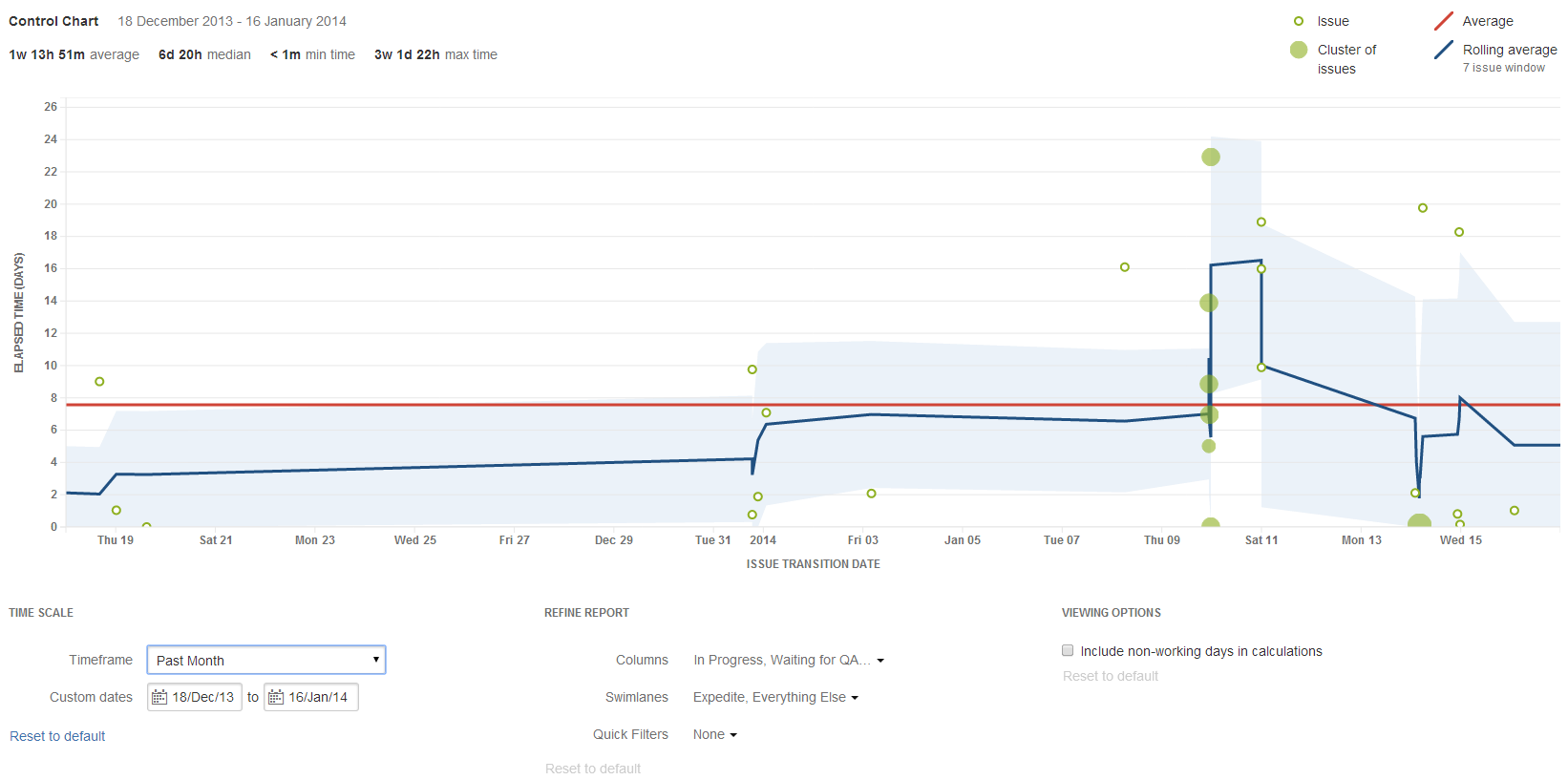
How it works technically:
Access: You can generate this report by navigating to your desired board, clicking Reports, and selecting Control Chart.
Application: It is highly effective for retrospective meetings. By measuring the variance in your team's Cycle Time or Lead Time, you can determine if your current delivery speed is predictable enough to confidently forecast future sprint performance.
The Limitations of the Jira Control Chart
Control Chart is an excellent Cycle Time tool, but it struggles with granular workflow analysis.
No Status Breakdown: It cannot provide a broken-down view of the exact time spent in every individual workflow status, it strictly groups them into the overarching cycle.
Rigid Filtering: The chart lacks the flexibility to filter your reporting data easily by custom fields, priority, or specific labels.
No Distribution View: It lacks a true histogram view, making it difficult to visualize how your team's work is distributed across different completion times to pinpoint specific systemic delays.
Because of these native limitations, many teams eventually transition to dedicated Time in Status marketplace plugins for their business intelligence needs.
Calculating Time in Status Using Jira Automation and Custom Fields
If your team requires exact time in status data without installing a plugin, the most reliable native workaround involves Jira Automation. This requires building two distinct automation rules to stamp the exact entry and exit times of an issue.
Step 1: Create the Destination Custom Field
You must first create a new custom field to store the timestamp. Choose the Date Time Picker field type and name it "Pending Date" (or your target status). Ensure this field is added to the relevant issue layout screens.
Step 2: Create the Entry Automation Rule
This rule stamps the exact time the issue enters the status.
Trigger: Issue transitioned (To status: Pending).
Action: Edit issue.
Field to set: Time in Pending.
Field value: Use the exact smart value {{now}}.
Step 3: Create the Calculation Automation Rule
This rule calculates the duration when the issue leaves the status.
Trigger: Issue transitioned (From status: Pending).
Action: Create variable. Name the variable NumberOfSeconds and use the following smart value syntax: {{Time in Pending.diff(now).seconds}}.
Action: Comment on issue. You can output the data by adding a comment such as: "This issue was in Pending status for {{NumberOfSeconds}} seconds" or by piping that variable into a numeric custom field for reporting.
When to Transition from Native Jira to a Time in Status Plugin?
While Jira is exceptional for tracking what needs to be done, its native reporting often falls short when you need to measure how efficiently it’s getting done. Native gadgets are designed for "Current State" snapshots but they struggle with "Historical Flow" analysis.
For teams that need to optimize velocity, identifying true bottlenecks requires more than just counting tickets. You need a tool that understands your specific working hours, separates active work from waiting time, and digs into the history of every issue.
|
Feature / Requirement
|
Native Jira Reporting
|
Timepiece - Time in Status for Jira
|
|
Time Calculation
|
24/7 Clock: Often counts weekends, holidays, and nights, significantly skewing agile metrics.
|
Custom Calendars: Defines working days and hours per team. Calculates true working time.
|
|
History Analysis
|
Shows current state. Accessing past duration requires manual log analysis or complex scripting.
|
After installation, instantly aggregates full issue history to show duration per status, assignee, or group.
|
|
Assignee Tracking
|
Shows who has the ticket now. Cannot easily show how long previous assignees held the ticket.
|
Duration per Assignee: Tracks exactly how long each user held an issue, identifying specific resource bottlenecks.
|
|
Field History
|
Only tracks status changes.
|
Tracks duration for ANY field (Assignee, Priority, Flagged, Custom Fields).
|
|
Metric Flexibility
|
Rigid: Standard gadgets (e.g., Control Chart) have limited configuration and struggle with complex workflows.
|
Customizable: User-defined metrics for Cycle Time, Lead Time, and Resolution Time with Consolidated Column.
|
|
Drill-Down Depth
|
Static: Aggregates often act as "black boxes" with limited ability to inspect the source data interactively.
|
Interactive: Click on any chart bar or table cell to see the exact issues and transitions contributing to the data.
|
The Solution: Timepiece - Time in Status for Jira
Timepiece is the oldest and most established app in this category on the Atlassian Marketplace. Trusted by over 5,000 customers in 110+ countries, it represents the enterprise standard for Jira reporting and Jira time tracking.
Comparative Advantages
An analysis of the competitive landscape reveals that Timepiece - Time in Status for Jira offers distinct advantages over generic alternatives:
Scalability & Performance: That is where Timepiece shines. With the capacity of up to 1 million issues per report, no other addon can come close.
All-in-One Solution: Timepiece consolidates "Time in Status," "Time Between Statuses," and 10+ other reports. You get consistent filtering and aggregation in a single package.
Strategic Aggregation: By grouping data into timeframes (e.g., Year, Month, Week), Timepiece reveals the narrative behind the numbers. This lets you spot trends, validate improvements, and prove the long-term impact of your decisions.
Field Versatility: The Any Field Duration report is a market-leading capability that extends tracking beyond status to ANY system or custom field.
Drill-Down Depth: The ability to drill down into not just lists, but specific transition histories from aggregate reports.
Scheduled Reports & Alarms: With Timepiece, you can be proactive without any manual effort. To automate your regular reports, use the Scheduled Report feature. To be alerted only when your attention is needed, set Alarms and get email, Slack or MS Teams notifications.
Visualization: A broader array of chart types, including Data Bar and Highlight Cells helps better visualization for reporting.
Timepiece AI Assistant: Built directly into the Timepiece app, this Rovo-powered helper allows you to turn plain English commands into preconfigured reports instantly.
Core Reporting Capabilities of Timepiece - Time in Status for Jira
Timepiece is not a single report but a suite of analytical engines. Each report type is designed to answer a specific fundamental question about the workflow.
Status Duration
The Status Duration (or Time in Status) is the foundational report of Timepiece. It answers the question: "How much time did we lose in each status?" It aggregates the total time an issue (or group of issues) spends in each workflow status. Status Duration is the primary tool for identifying bottlenecks in the workflow.
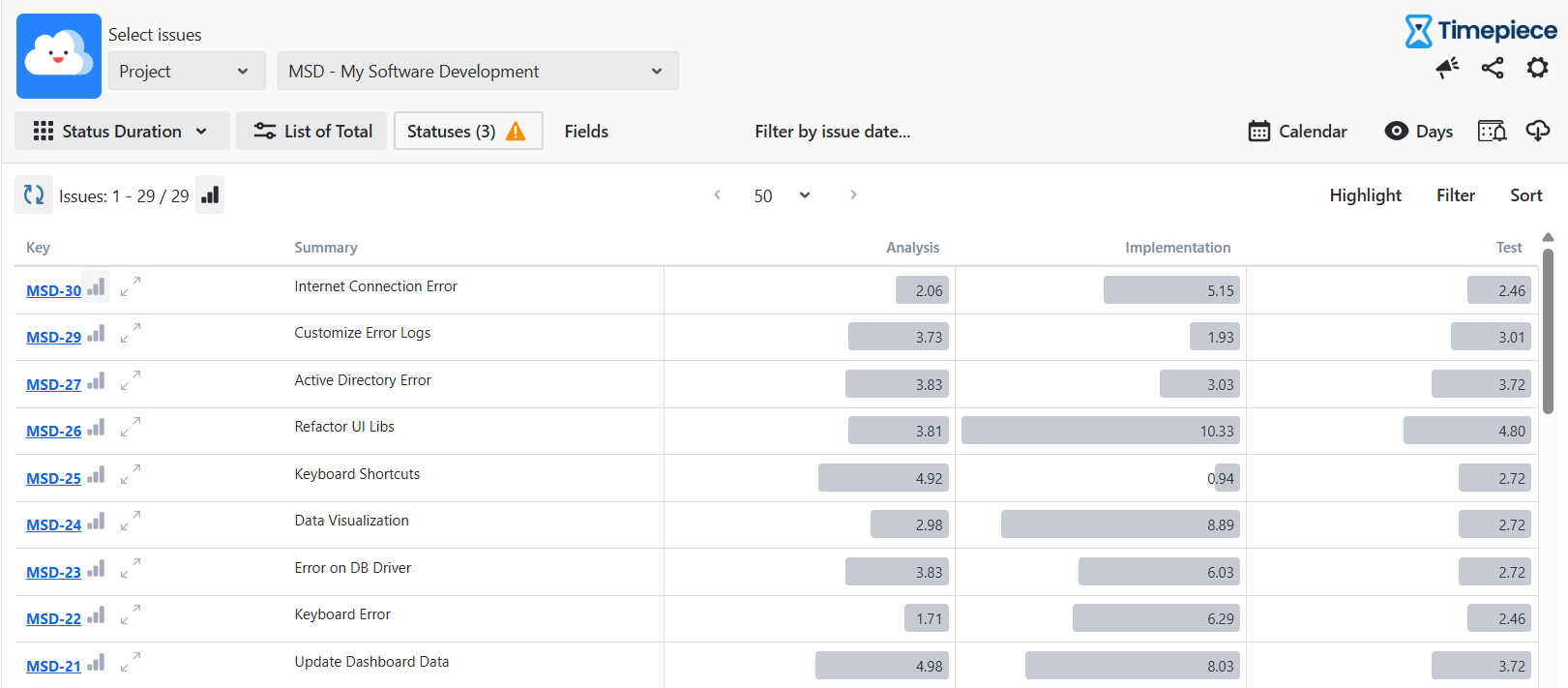
Pro Tip: The Hide Empty Rows feature allows users to strip away the noise of unused statuses, presenting a clean, executive-level view of active process steps.
Duration Between Statuses (DBS)
While Status Duration looks at individual steps, Duration Between Statuses looks at the journey. It answers: "How long does it take to get from Point A to Point B?"
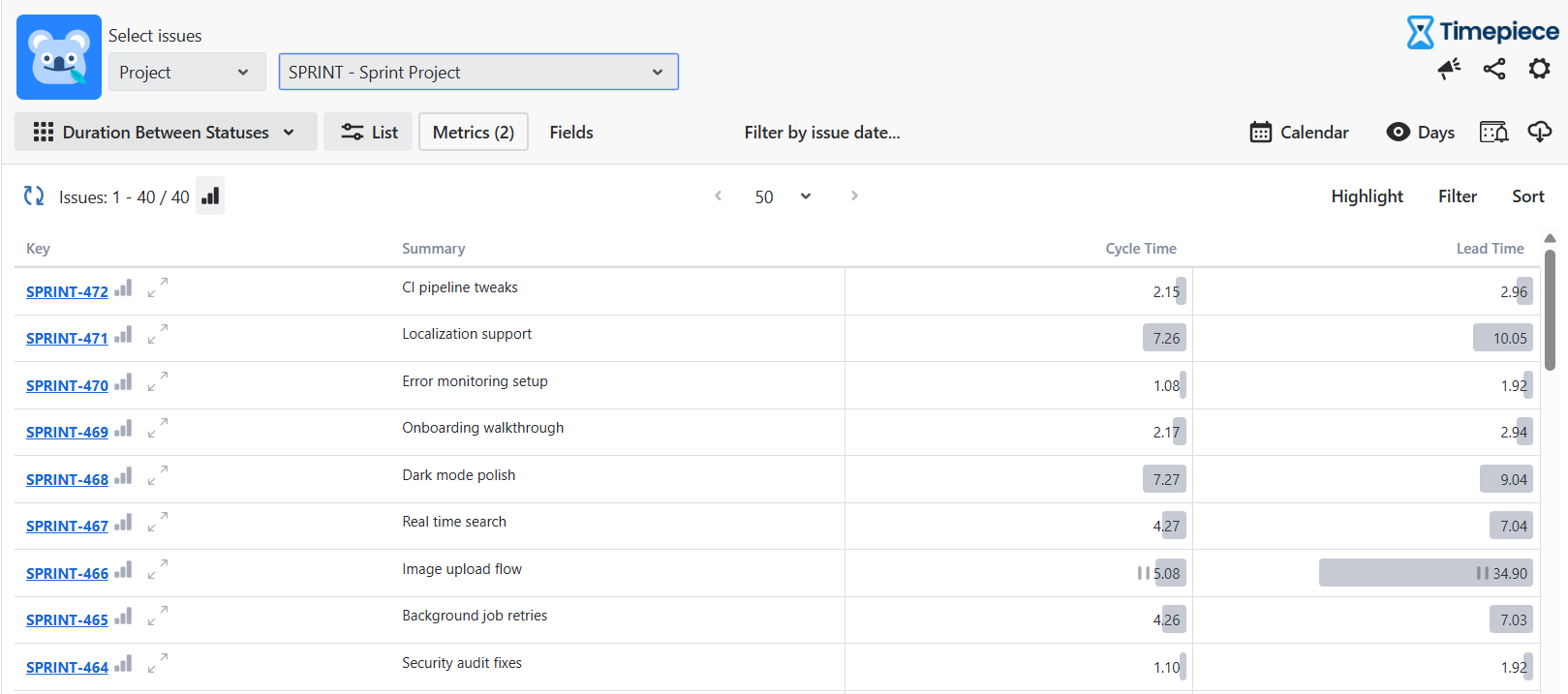
You can define a Start Status (e.g., Selected for Development) and an End Status (e.g., Done). The app calculates the time between the first entry into the start status and the last entry into the end status. With DBS, you don’t have to change your workflow to calculate Cycle Time, Resolution Time or Lead Time. You can just add any starting and ending point, exclude any statuses that may skew your data, and create your report easily.
Epic and Parent Task Roll-up
Agile scaling requires visibility beyond individual tasks. Timepiece automatically calculates the total time of all child tasks and subtasks and rolls them up into a single row for each Epic or Parent Task. It allows project managers to aggregate total Cycle Time or Lead Time across related issues, sum results at the highest hierarchy levels, and track true portfolio-level progress without writing custom scripts.
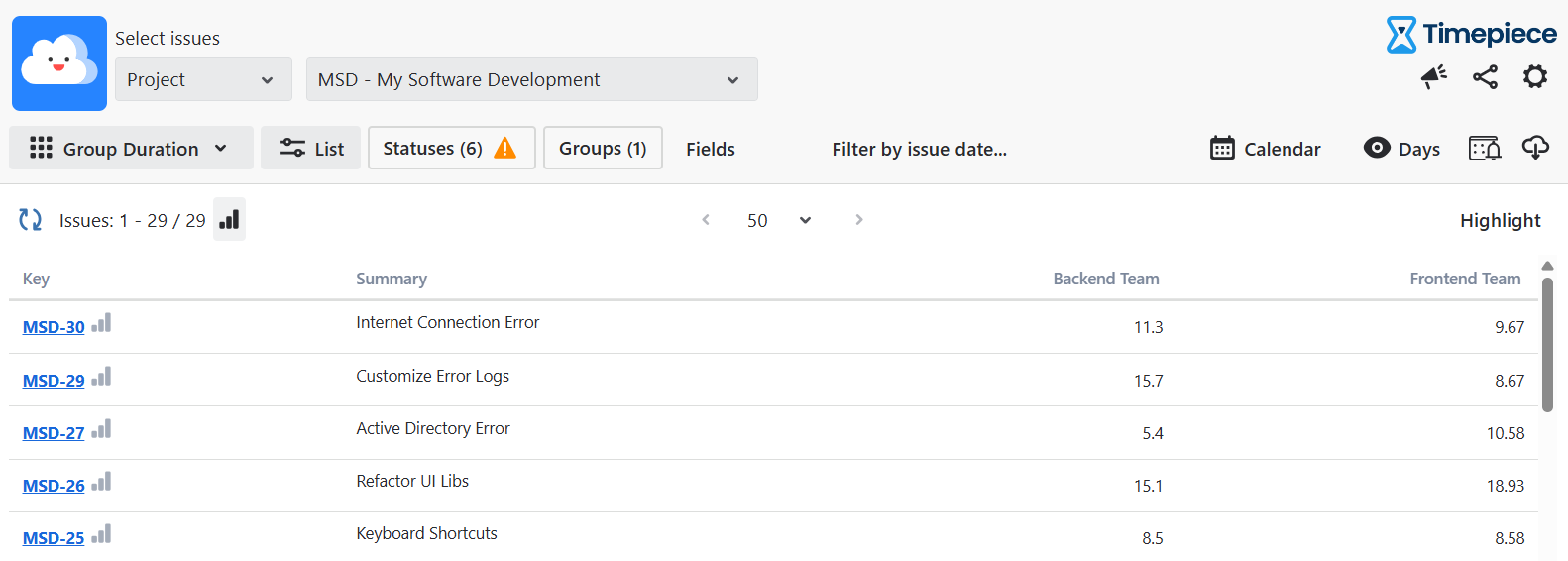
Assignee and Group Duration
Processes don't do work; people do. Assignee Duration and Group Duration reports pivot the data from the "what" to the "who." These reports attribute time to the user assigned to the issue during the status duration.
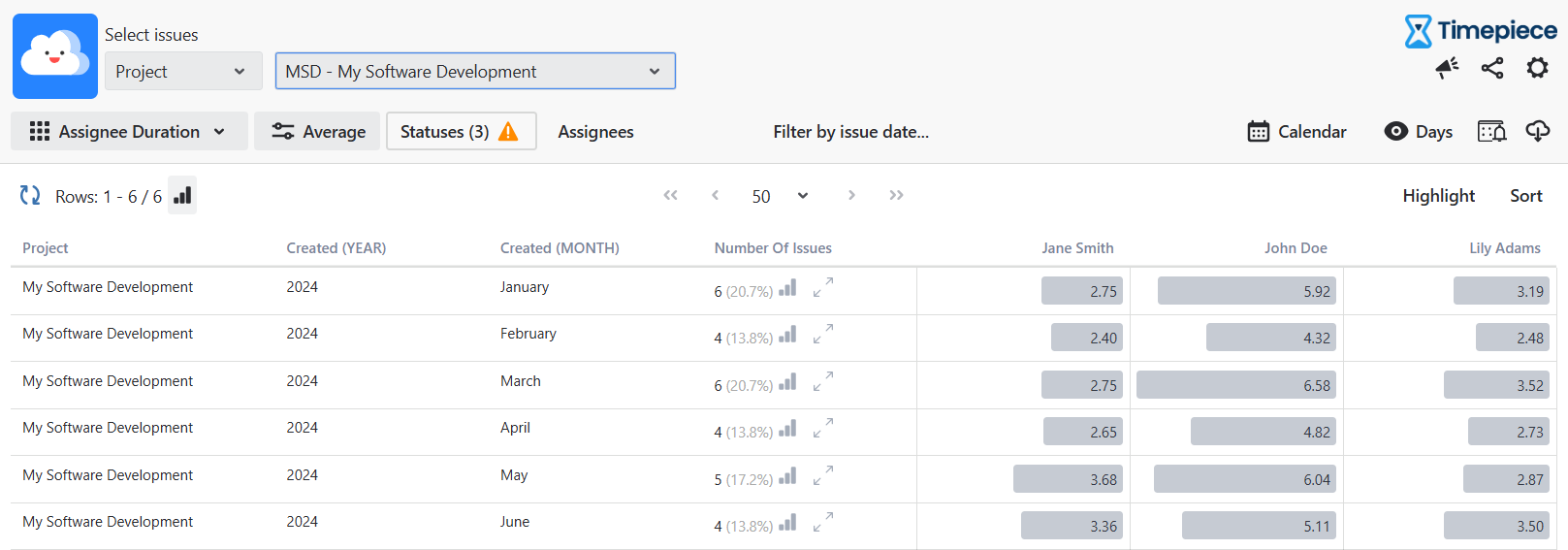
With Assignee reports, you can identify if a specific senior developer is the bottleneck because 90% of code reviews are assigned to him.
Group Analysis: By grouping users (e.g., "Frontend Team" vs. "Backend Team"), managers can see which functional areas are under the most temporal pressure.
Transition Counts and Status Counts
Efficiency is not just about speed; it is about quality. The Status Count and Transition Count reports are the radar for detecting "churn." These reports do not measure time; they measure frequency. How many times did this ticket enter "In Progress"? How many times did it transition from "QA" back to "Development"?
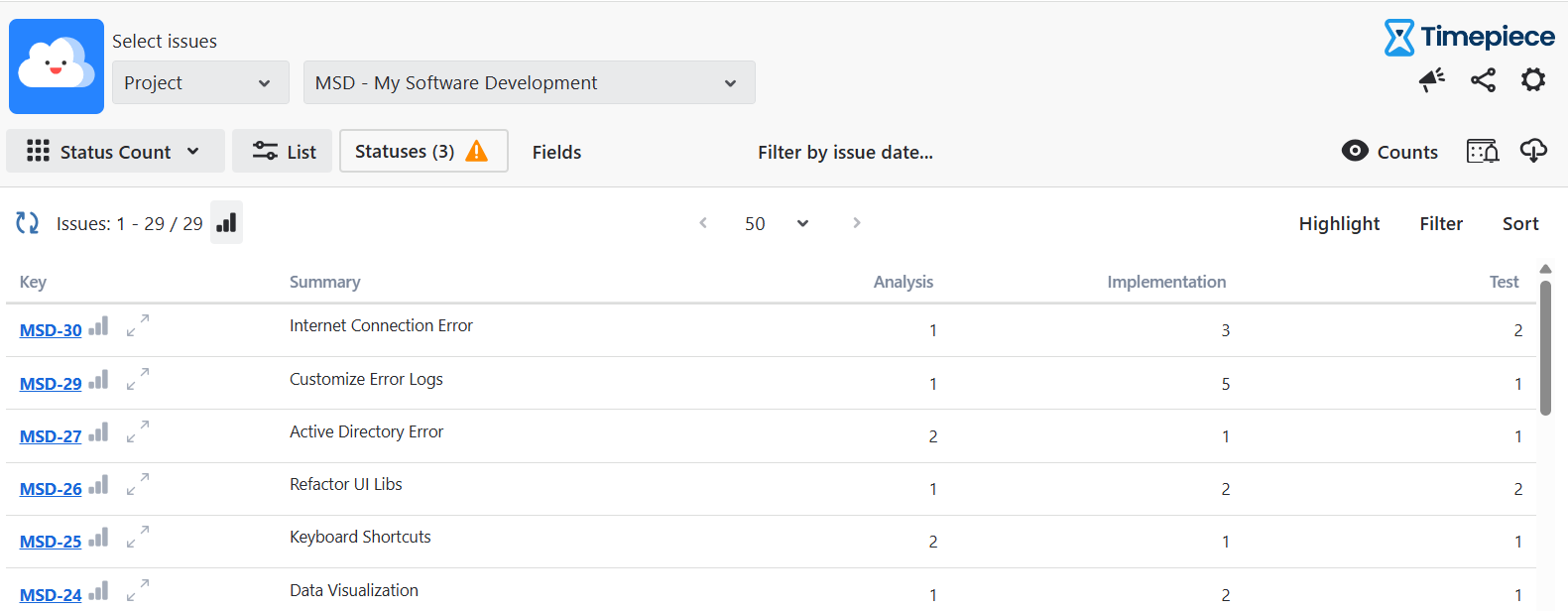
A high count in "Reopened" or multiple transitions between "Review" and "In Progress" indicate a failure of quality.
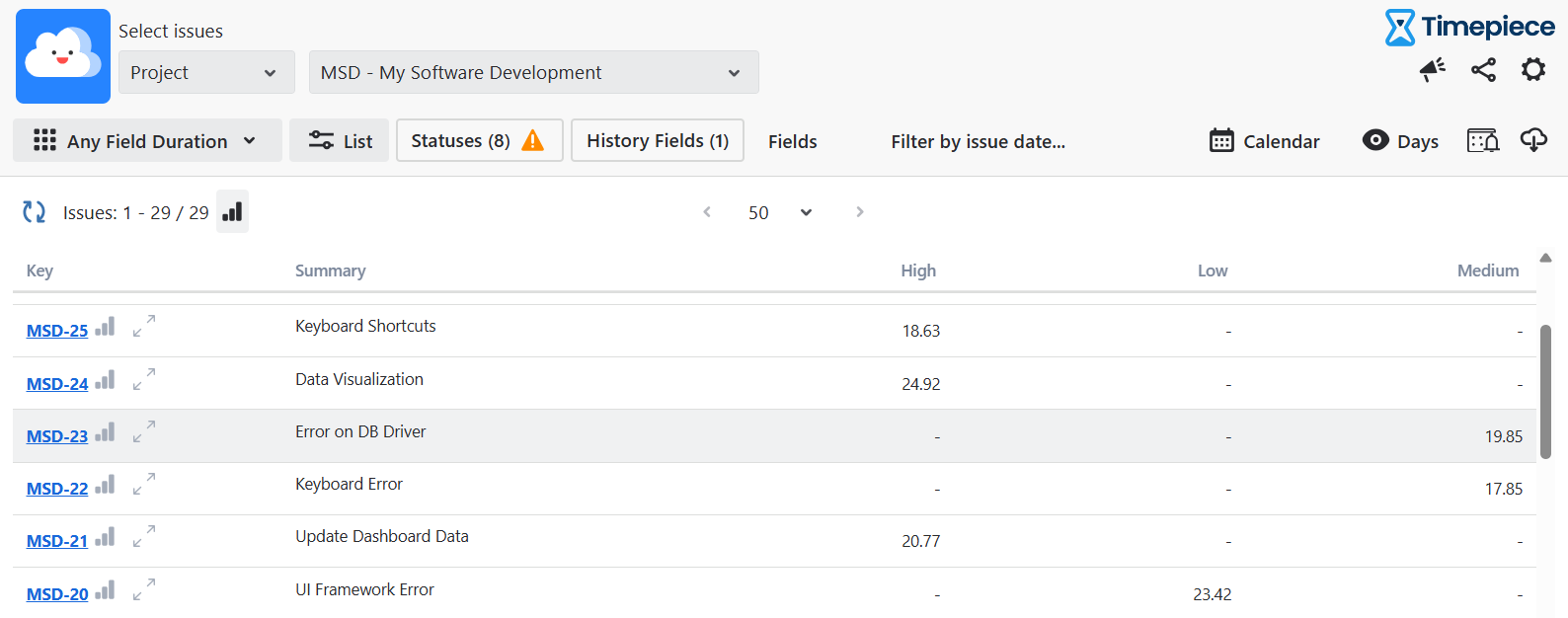
Any Field Duration
This is one of the most important report types Timepiece offers. Any Field Duration Report allows you to see how long each issue field held each value. It helps you identify many different wait times in workflow, without having to define a status for them.
Most apps only tell you how long a ticket was 'In Progress'. But if you have a 'Waiting for Vendor' checkbox or a 'Block Reason' dropdown, standard reports are blind to it. Timepiece’s Any Field Duration report tracks the time history of every field. You can finally answer: 'How many hours did we lose waiting for the Legal Department?' without changing your workflow statuses.
Here are some use cases for the Any Field Duration report:
Blocker Analysis: If you have a custom field called "Block Reason" (Values: "Vendor," "Architecture," "Budget"), this report can tell you exactly how many hours the project was blocked by "Vendor" vs. "Budget."
Priority Integrity: How long do High Priority tickets actually stay High Priority? Are they being downgraded to avoid SLA breaches?
Sprint Auditing: By tracking the "Sprint" field, this report reveals "Sprint Jumpers", issues that move from Sprint A to Sprint B to Sprint C.
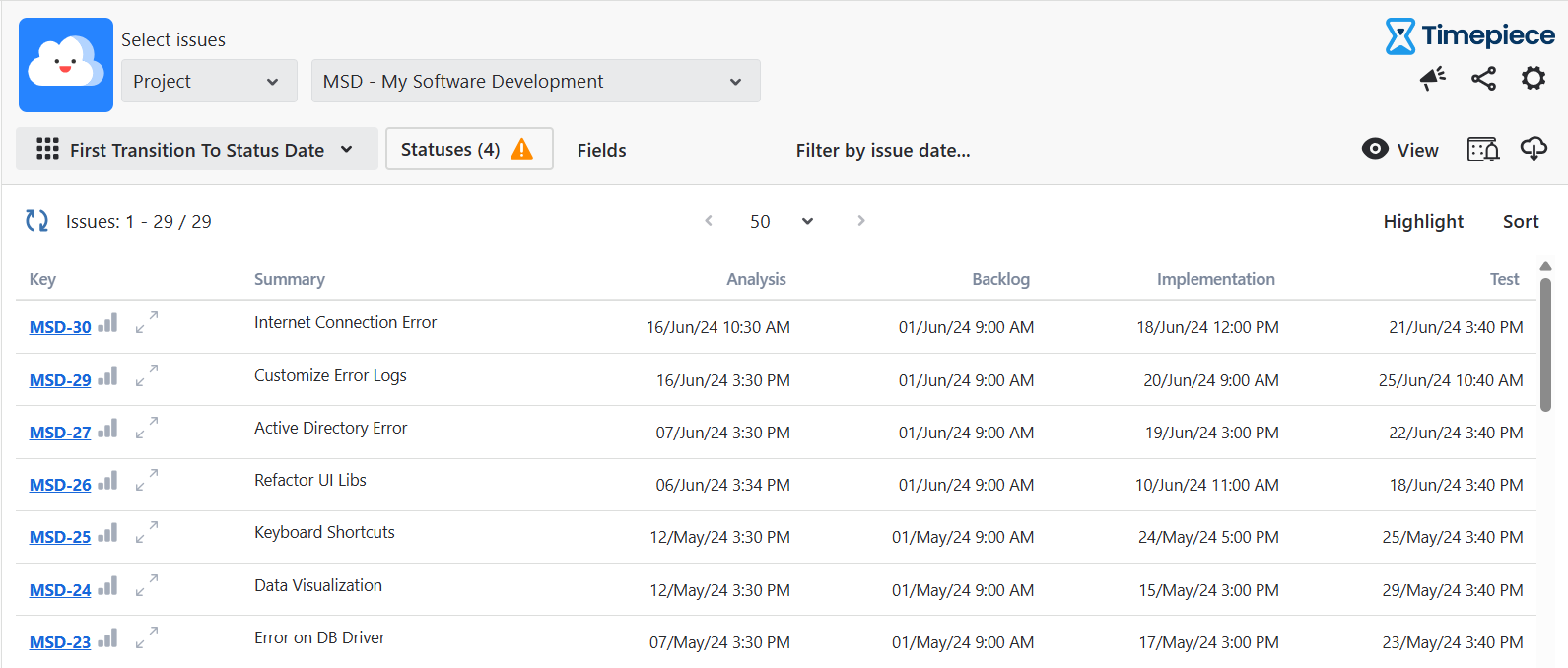
Date Reports
Date Reports provide the timestamps of first/last entry and exit for every status. This is crucial for "Root Cause Analysis" (RCA). When investigating a production outage, knowing exactly when a ticket moved through the pipeline allows correlation with server logs and other external events.
Custom Calendars
Timepiece allows for the creation of an unlimited number of Custom Business Calendars. So you can define specific working hours, working days and holidays for different teams in different time zones.
Timepiece’s custom calendar feature is granular enough to even exclude lunch breaks from performance metrics.
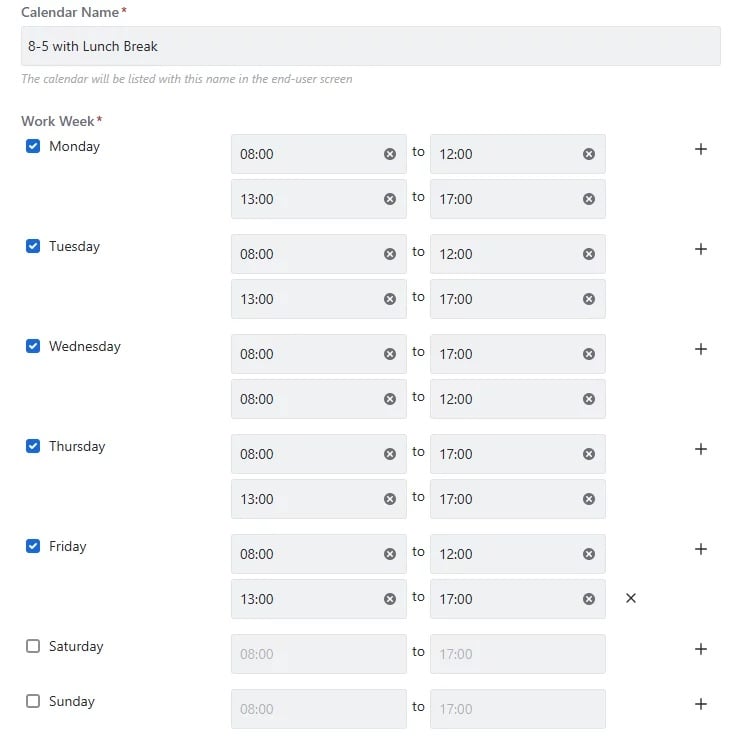
Moreover, each custom calendar operates in its own time zone. This is a significant differentiation.
Dashboard Gadgets & Charts
In data reading, visualization is the ‘last mile’ as it is crucial to make it easy to digest. As the saying goes: Data that is difficult to read is data that is ignored.
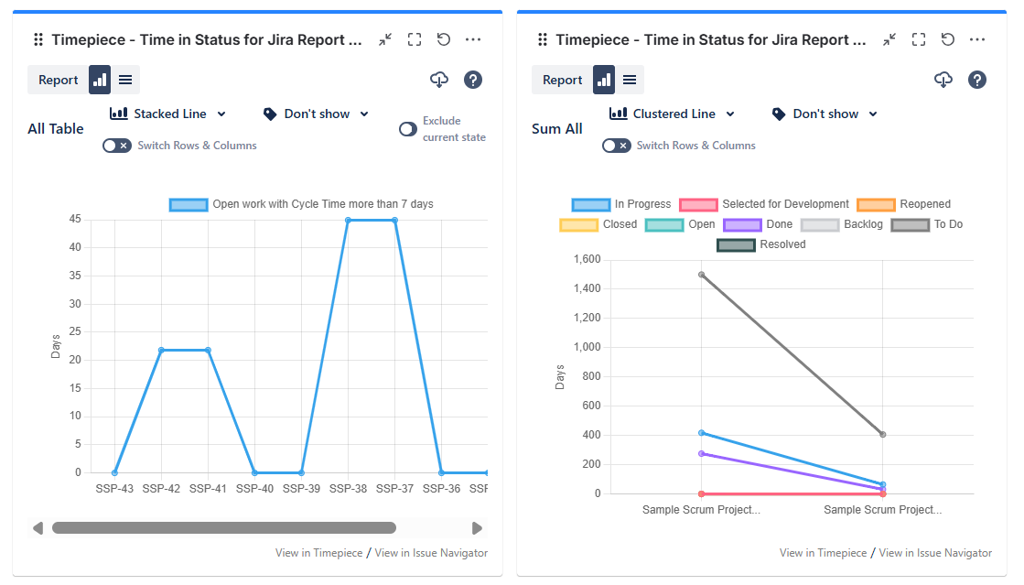
Timepiece offers gadgets for all its report types. Unlike static charts, these gadgets are dynamic. Drill-Down capability is available directly from the gadget. A manager viewing a dashboard can see a spike in "Code Review" time, click the bar, and immediately see the list of tickets in a pop-up, complete with filtering and sorting capabilities.
Different data stories require different visualizations. Timepiece supports a wide array of charts:
- Stacked Bar Charts
- Pie Charts
- Line/Area Charts
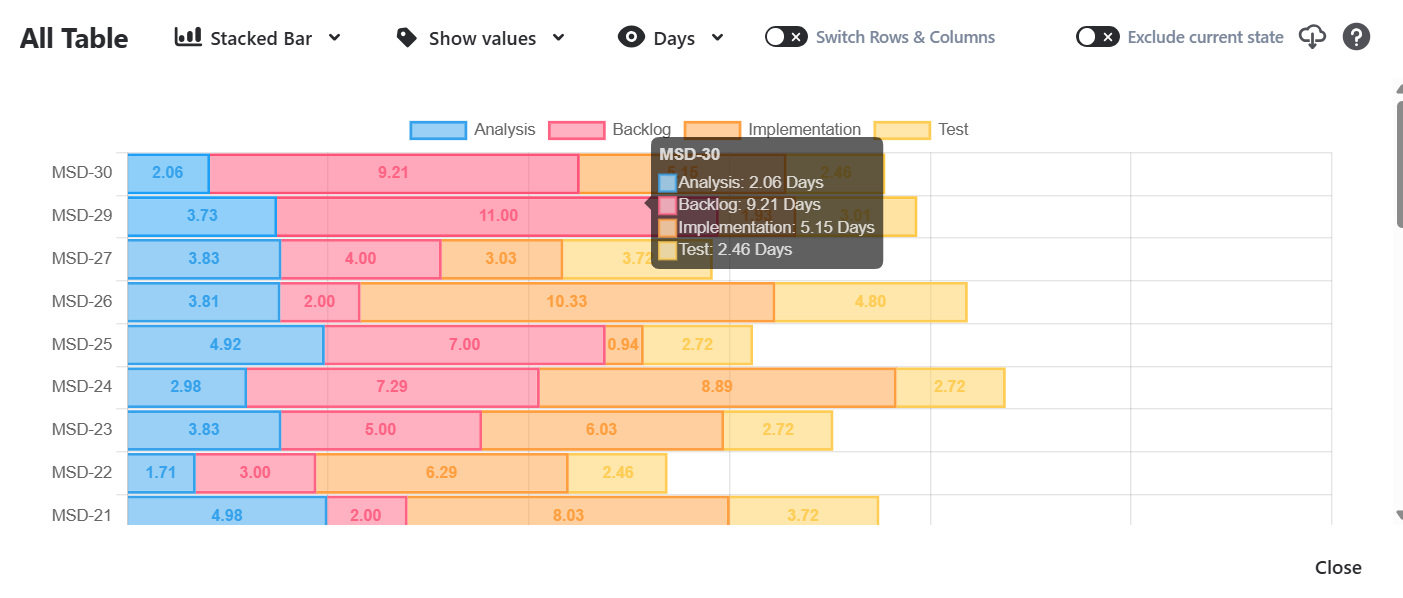
Also, you can easily highlight cells for those who prefer tables. Users can set conditional formatting rules (just like Excel.)
Performance & Scalability
Timepiece executes all calculations on our robust, server-side architecture. Unlike apps that rely on client-side processing, which frequently freeze browsers with as few as 3,000 issues, Timepiece is verified to process reports with over 1 million issues. This guarantees a stable, responsive experience that is never limited by your local machine's power, ensuring you get the data you need without bringing your browser to a halt.
Timepiece AI Assistant
Timepiece AI Assistant is an Atlassian Rovo-powered helper built directly into the app. It allows you to interact with your Jira data using plain English commands. Instead of clicking through complex menus or building manual filters, you can type prompts like, 'Help me measure Cycle Time for project ABC from In Progress to Done, but don't count time spent On Hold'.
The assistant understands custom working calendars, automatically handles complex reporting details like weekends and holidays, and generates ready-to-use configuration links that instantly open your fully preconfigured report.
Exporting Time in Status Data to Excel and Power BI
While native Jira views are useful for operational tracking, senior management often requires structured data integrated with enterprise reporting. Advanced apps provide robust export capabilities, such as exporting raw duration data via CSV files for Microsoft Excel, or utilizing a JSON Data Feed to pipe structured status reports directly into Power BI. This enables organizations to combine Jira data with ERP systems and analyze projects in a financial context.
Conclusion: Moving From Managing by Feeling to Data-Driven Intelligence
Tracking Time in Status is the foundational metric for optimizing your Agile workflows. Whether you rely on Jira's native control charts, engineer custom automation rules, or deploy advanced marketplace applications to track true business hours, gaining visibility into your bottlenecks is the first step toward predictable delivery.
Timepiece - Time in Status for Jira is not just a Time in Status app that shows you how much time an issue spent in a status. Don’t get me wrong, it can do that exceptionally. But Timepiece offers a lot more than that. It is designed to increase performance and efficiency, automate recurring reports, manage your team better to avoid burnout, and get the accurate data you need to analyze trends and be proactive with Alarms.
It is an analytic engine that helps you better understand your team, your flow, and identify where you need to improve.
For the Atlassian admin, the Project Manager, Scrum Master, Engineering Lead, or CTO, the adoption of such a tool is a declaration of intent. It signals a move away from "managing by feeling" to "managing by fact." In a world where speed is the currency of survival, Timepiece provides the watch, but more importantly, it provides the insight to stop wasting time.
You can discover more about Timepiece - Time in Status for Jira by visiting Atlassian Marketplace.
Frequently Asked Questions about Jira Time in Status
What is the difference between logging hours and process intelligence in Jira?
Logging hours focuses on manual worklogs to answer who worked on what and for how long, and it is crucial for billing and budgets. Process intelligence, on the other hand, analyzes automated historical data to identify where a process is inefficient and how long items wait in queues.
Can I see how much time an issue spent in a specific Sprint with Timepiece?
Yes, the Any Field Duration Report calculates the time spent in each sprint or the backlog by considering both the issue history and the system's sprint history.
Can I exclude the time an issue spends in its current status?
Yes, you can use the Exclude Current State checkbox to remove the duration since the last status change from your charts. This prevents a single "Closed" or "Done" status from skewing your visualization if the issue hasn't been updated for a long time.
Can I automate my weekly status reports for stakeholders?
Yes, the Scheduled Reports feature allows you to pick a saved Parameter Set and define a delivery frequency. Timepiece will automatically generate the report and send a secure download link to authorized users via email, Slack, or MS Teams.
Does Timepiece support non-technical teams like HR, marketing or finance?
Yes. Business teams use Timepiece to track non-technical KPIs. For example, HR teams use it to measure Time-to-Hire, while Finance teams use it to identify delays in Approval Cycle Times.
What is the difference between a Status Count and a Transition Count?
The Status Count Report tells you how many times a ticket visited a specific state, which is great for finding reopened issues. The Transition Count Report shows the direction of movement, helping you distinguish between planning failures and execution bugs.
Can I pull my Time in Status data into Power BI or Excel?
Yes, Timepiece offers a robust REST API for exactly this purpose. You can connect your data directly to external BI tools like eazyBI, Power BI, or Google Sheets for deeper portfolio-level analysis.
Can I get automatically notified if a ticket is blocked for too long?
Yes, you can set up proactive Alarms that trigger when specific criteria are met, such as an issue staying in a "Blocked" status for more than a week. These alerts can be sent directly to Slack, MS Teams, or your email.
To learn more about Timepiece - Time in Status for Jira and start making data-driven decisions, visit its Atlassian Marketplace page.


