Jira MCP turns your AI assistant into a working participant in your project management setup. Instead of switching tabs to copy ticket details into a chat window, you ask the assistant, and it pulls the data straight from Jira. You can also ask it to create work items, transition statuses, or update fields without leaving the conversation.
This article explains what Jira MCP actually does, where it falls short, and how to start using it in a way that produces results. We will also cover the data types it can reach, the limits to plan around, the security model, and how a typical team’s adoption curve looks across the first weeks and months.
Jira MCP in one minute
Jira MCP is a connector built on the Model Context Protocol - an open standard that lets large language models and other AI systems talk to external tools through a consistent interface.
The Atlassian Rovo MCP Server is the official implementation of Jira MCP. It runs on Atlassian’s infrastructure, uses OAuth 2.1 authentication, and gives your AI assistant scoped access to Jira and other Atlassian products. There are also community-built alternatives for the official Jira MCP, such as mcp-atlassian.
A few quick facts worth knowing upfront:
- The server itself is free for all Atlassian Cloud customers, but API calls count against your tier’s rate limit. Also, AI tools you use with Jira MCP are priced separately.
- MCP is not an AI model. It is the layer between your AI assistant and Jira’s data.
- Your existing Jira permissions still apply. The MCP server cannot grant access to a project or work item that you cannot already see.
- Both reads and writes are supported. Roughly one-third of MCP operations across teams are writes, not just queries.
- The official server is Cloud-only. Data Center customers need community alternatives or in-house setups.
What Jira MCP can do
Jira MCP supports three broad categories of actions: reading data, writing changes, and bridging Jira with other tools through the same AI assistant. Let's explore this in more detail.
Reading: Jira MCP can pull work item data and search results
This is the most common starting point. You ask your AI assistant a question about Jira, and it queries the MCP server to get the answer. The assistant can retrieve issue details, run JQL queries, fetch comments, list available workflow transitions, and read linked items.
Examples of read prompts that work well:
- “Show me all open Jira issues assigned to me in the Payments project.”
- “What is the status of PROJ-1234, and who is the assignee?”
- “Summarize the comments on this sprint’s blocker tickets.”
- “show bugs from the last two weeks with priority High or Highest.”
Writing: the MCP can make changes in Jira
Reads are useful, but the real shift happens when your team starts writing back to Jira through the assistant. The Jira MCP server exposes tools for creating work items, updating fields, transitioning issues through workflows, adding comments, and linking items together. Standard operations like createJiraIssue and getJiraIssue are part of the toolset.
Examples of write prompts:
- “Create a new bug in PROJ with this summary and description, and link it to PROJ-100.”
- “Move PROJ-1234 to In Review and add a comment that QA is unblocked.”
- “Assign PROJ-200 to Sarah and set the priority to High.”
Write operations should always be reviewed before execution. The assistant can misread a prompt, and a quick scan of what it plans to do prevents cleanup later.
Connecting to Atlassian apps and third-party tools
MCP becomes more powerful when you connect more than one server to the same AI assistant. With the official Atlassian server, you also get access to Confluence, Bitbucket Cloud, Compass, and Jira Service Management.
Add a GitHub MCP server, and your assistant can correlate Jira tickets with pull requests. Add a Google Drive or Slack connector, and the same chat can pull context from documents, messages, and your Jira projects at once.
This is where compound workflows start to make sense. A single prompt like “summarize what shipped last week, including linked GitHub PRs and Confluence release notes” spans several systems and would be tedious to assemble by hand.
The data types Jira MCP can work with
Knowing what data your AI assistant can reach helps you write better prompts and avoid asking for things that are out of scope. Here is the breakdown.
Standard work item data
The most common data Jira MCP returns covers everything you would normally see on a Jira issue (Jira work item) page:
- Core fields: summary, description, status, assignee, reporter, priority, labels, components, fix versions, due date
- Issue type and project metadata
- Comments and worklogs
- Linked items, including remote links to Confluence and external sources
- Workflow transitions available on a given item
This is enough for most day-to-day questions about sprint progress, individual ticket status, or recent activity across Jira issues.
Search and structured query results
The MCP supports several ways to find what you need across your workspace:
- Full JQL query support against any Jira project you can access
- Rovo natural language search across Jira and Confluence
- CQL search for Confluence specifically
Natural language search is helpful when you do not know the exact JQL syntax. JQL is still the right tool for precise queries and structured filters where the exact field names matter.
Confluence and broader Atlassian context
Through the same official server, you can also reach:
- Confluence pages with their content (available in Markdown, HTML, or ADF), child pages, and comments
- Bitbucket Cloud repositories, pull requests, and pipelines
- JSM ops alerts, on-call schedules, and team information
This matters because most teams do not keep all their context in Jira alone. A Jira work item often points to a Confluence spec and a Bitbucket PR, and the MCP can follow those links in one conversation.

Marketplace app data
A lot of teams rely on Marketplace apps for context that lives outside Jira's default fields. The good news is that this data is usually reachable through MCP too. There are a couple of ways apps can expose it.
The most common one is by storing context in standard Jira locations that the MCP already reads:
- Custom fields defined at the project or instance level
- Issue properties attached to individual Jira items
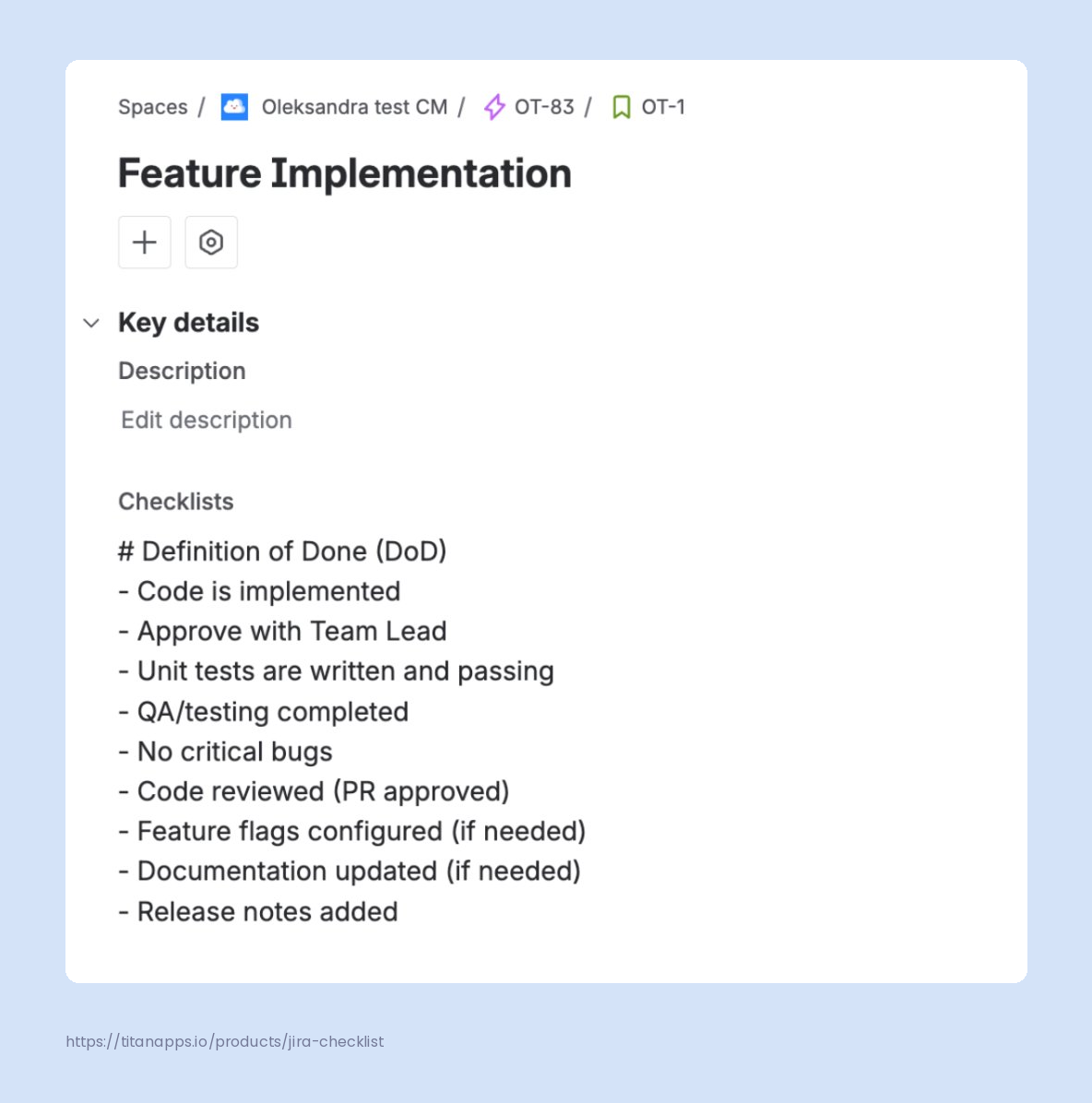
Smart Checklist for Jira is a clear example of this pattern. This third-party solution keeps checklist data in issue properties and duplicates the same data in a "Checklists" custom field, which makes it searchable through JQL. There is also a "Smart Checklist Progress" field that shows completion - for example, 7/10 or 10/10 Done.
In practice, this means your AI assistant can answer prompts like:
- "Which stories in the current sprint have incomplete Definition of Done checklists?"
- "Summarize what shipped last week, including checklist progress for each item."
- "List all bugs in this Jira project where the QA checklist is less than half complete."
Note: Smart Checklist is a process management solution that allows you to break down complex processes into actionable ToDos without subtasks overhead. You can save checklists as templates to streamline recurring tasks, and automatically add and update checklists to save your time.
The other route is newer: apps can also contribute their data directly to Teamwork Graph, which then makes it accessible for search and querying through MCP. This is a relatively new capability, and not all Marketplace apps support it yet.
Extended data from Teamwork Graph
Rovo MCP Server is also backed by Teamwork Graph, Atlassian's underlying data intelligence layer. It maps relationships between Jira issues, Confluence pages, Bitbucket repositories, people, and other objects across your Atlassian instance and more. The numbers are large: the graph spans 150 billion objects and relationships between them.
Teamwork Graph also reaches beyond Atlassian's own products. In total, it supports over 100 out-of-the-box connectors to various tools your organization already uses. Once those connectors are in place, the data they bring in is accessible to MCP through Teamwork Graph, for example:
- Conversations and channels from Slack
- Repositories and pull requests from GitHub or GitLab
- Customer records from Salesforce
- Builds and deployments from Jenkins, Azure DevOps, or Spinnaker
- Workforce data from Workday
This unlocks prompts that depend on connections across tools. For example, asking your AI assistant to pull the Google Drive spec linked to a Jira epic, summarize the Slack discussion about a specific ticket, or list the customer accounts in Salesforce that are tied to this sprint's bug reports.
Jira MCP usage limits
The official server is free to use, but every prompt to the Jira MCP server translates into one or more API calls, and those counts add up. Here are the main limits to plan around.
|
Atlassian Cloud tier
|
API calls per hour
|
Use cases
|
|---|
|
Free
|
500
|
Best for small teams testing the setup
|
|
Standard
|
1,000
|
Suitable for most everyday team usage
|
|
Premium / Enterprise
|
1,000 + 20 per user, up to 10,000
|
Scales with seat count for large workspaces
|
What’s out of scope for Jira MCP
People sometimes expect Jira MCP to be more than it is. It helps to set realistic expectations upfront. So, Jira MCP Server is not…
- Not an AI model. MCP is the connector layer between your AI assistant and Jira data. The intelligence comes from whatever AI assistant you connect, whether that is Claude, ChatGPT, Gemini, or Copilot. The quality of the output depends on the model, not the MCP server.
- Not Rovo. Despite the naming overlap, the Atlassian Rovo MCP Server is not the same as Atlassian’s Rovo AI product. The server is a connector for external AI clients. Rovo is Atlassian’s own AI experience that runs inside its products.
- Not a deep customization layer for Jira. MCP works through Atlassian’s APIs. It cannot change Jira’s UI, modify workflow rules, manage permissions schemes, or perform admin-level configuration beyond what the API exposes.
- Not a replacement for Jira Automation. MCP is request-driven: you ask, and it acts. Jira Automation is event-driven: a trigger fires, and a rule runs. The two are complementary, not substitutes.
- No Data Center support on the official server. The Atlassian Rovo MCP Server is Cloud-only. Teams on Data Center can use community-built MCP servers like mcp-atlassian, which run as Dockerized services and authenticate against your Jira instance using an API token. The tradeoff is that you own the hosting, patching, and security.
The Jira MCP adoption framework
There's no single right way to roll out Jira MCP, but here's an approach we recommend if you want to build up your team's usage without trying to do everything at once. Pacing the adoption helps your team build trust in the tool and discover what works before scaling up.
Week one: basic read prompts
Start with simple questions to build comfort with the interface. Ask the AI assistant about your sprint, your assigned items, or recent activity. The goal here is to get your team used to talking to Jira through chat instead of clicking around. Useful prompts at this stage:
- “What is assigned to me in the current sprint?”
- “Summarize my open Jira tickets and group them by status.”
- “Show me all bugs reported this week in the Mobile project.”
Weeks two and three: writing back to Jira
Once the team trusts the reads, start letting the assistant make small changes. Creating issues, transitioning statuses, and adding comments are good entry points. Each write builds confidence in the setup. Always review the proposed change before approving it, especially for bulk operations.
Useful prompts at this stage:
- “Create a new task in PROJ with this summary and assign it to me.”
- “Transition PROJ-300 to Done and add a comment summarizing what was completed.”
First month: cross-tool prompts
By now your team should start combining sources. Connect a second MCP server, or use the official server’s built-in Confluence and Bitbucket access. The prompts you write at this stage can span multiple tools in one go.
Examples that pay off here:
- “Which Jira tickets in the current sprint have linked GitHub PRs that are still open?”
- “Pull the spec for this epic from Confluence and create subtasks for each section.”
- “For each ticket I closed this week, draft a release note based on the description and comments.”
Past the first month, the biggest gains come from making good prompts reusable. When a teammate writes a prompt that produces really useful results, save it somewhere the whole team can find it. A shared prompt library compounds over time and turns the Jira MCP server into a team-level capability instead of an individual one.
Jira MCP from the security angle: what you should know
AI tools that touch your project management system raise reasonable security questions. Here is what the official Jira MCP server (Rovo MCP) provides, and where to be cautious:
- Your existing Jira permissions still apply. If you cannot view a project or work item in Jira, the AI assistant cannot see it through MCP either. Access is enforced per user, not shared across the team.
- Authentication runs through OAuth 2.1 by default. Authentication runs through OAuth 2.1 by default. The browser-based consent flow issues a token bound to your MCP client, and no credentials are shared directly with the AI model itself.
- Audit logs are available. The official server logs MCP tool invocations and client connections, which gives admins visibility into which actions were taken through the connector and by which client.
- Enterprise access controls. Domain allowlists, IP allowlisting, and per-product enablement are available for organizations on paid Atlassian tiers.
- Your Jira data does pass through the AI model. When your AI client retrieves Jira content through MCP, that content becomes part of the conversation context sent to the LLM. Review your AI provider’s data handling policies the same way you would for any other tool that processes work data.
- Community servers shift the security model. Self-hosted alternatives like mcp-atlassian put authentication, hosting, and patching in your hands. You get more flexibility, but you also take on more responsibility for keeping the setup safe. Unlike the managed Jira Cloud experience, most community setups use environment variables, an env file, or a similar configuration file to store the jira_api_token, the Atlassian account email, and your atlassian.net workspace URL.
For more information, please see Atlassian's MCP Security Guide.
6 Tips for using Jira MCP effectively
Once your team is past the setup phase, the difference between getting decent results and great results usually comes down to how you write prompts and structure your usage:
- Give the AI default context to avoid repeating yourself. Jira MCP works best when the AI already knows your project key, your account ID, and your usual filters. Add these defaults to your AI client's system instructions or rules file. After this, prompts like "show me my open work items" or "create a bug in the current project" will work without you having to specify the project key or your email every time.
- Be specific about the scope. The AI assistant works far better with narrow questions than broad ones. “List all bugs in the Payments project from the last 14 days” is a good prompt. “Tell me about our bugs” is not. AI translates your request into a JQL query under the hood. The more specific your prompt, the more accurate the query. Include project keys/names, time windows, and labels whenever you can.
- Ask the AI to search before creating. Duplicate work items clutter the backlog and confuse the team. Before creating a new ticket, instruct the AI to search for existing ones first. A good prompt is: "Check if there is already a work item about login errors on mobile. If yes, add a comment with the new details. If not, create a new bug." This pattern prevents duplicates and keeps related context in one place.
- Use MCP for triage and reporting, not just ticket creation. Many teams start with Jira MCP to create work items faster. The bigger win is in reporting and triage. You can ask for velocity trends, cycle time per engineer, overdue work items by team, or unestimated stories across multiple projects. These reports usually require building JQL filters and exporting to a spreadsheet. With MCP, you get them in seconds with a single prompt.
- One MCP server per goal at first. If you are new to MCP, start with just the Jira server before connecting others. It is easier to debug a single connection, and you will build a clearer sense of what the server can do before adding more sources.
- Watch the rate limits. Jira uses a points-based quota, and a single MCP prompt often fans out into multiple API requests in the background. Wide-scope queries and bulk writes drain the quota quickly. It can be helpful to split bulk writes into smaller batches.
Across the Atlassian community and developer ecosystems, teams are still figuring out which prompts and patterns work best. Treat your first months with Jira MCP as a learning phase, and share what works back with your team.
Jira MCP Server FAQ
Does Jira MCP work with Jira Data Center?
Not through the official Jira MCP (Atlassian Rovo MCP). That server is built for Jira Cloud only. Teams running Data Center can use community-built MCP servers, such as mcp-atlassian. These run as Dockerized services on your own infrastructure and authenticate against your Jira instance using an API token. You take on the hosting and patching, but you keep MCP access for self-managed setups.
How does Jira MCP differ from Jira’s existing REST API?
The Jira REST API is the underlying interface that both MCP and other integrations use to talk to Jira. The difference is in how you interact with it. The REST API expects structured JSON requests against specific endpoints, which is fine for developers and automations. MCP wraps that same functionality in a layer designed for AI assistants, so you can describe what you want in natural language and the assistant translates it into the right API calls behind the scenes.
Is Jira MCP the same as Rovo?
No. The naming overlap is confusing, but the two are different products. Rovo is Atlassian’s own AI experience that lives inside Atlassian products. The Atlassian Rovo MCP Server (Jira MCP) is a separate connector that lets external AI tools, like Claude or ChatGPT, talk to Jira through the open Model Context Protocol standard.
Can Jira MCP work with autonomous AI agents?
Yes, MCP can work with AI agents. Because the protocol exposes a consistent set of tools and authentication patterns, AI-powered agents can plan multi-step actions across Jira and other connected systems. Atlassian also has Agents in Jira in open beta, which allow MCP-compatible agents to be assigned tasks directly within Jira workflows. As with any agent setup, define clear scopes and review what the agent has done, especially during the early rollout.
How does Jira MCP handle data from third-party apps and Marketplace extensions?
Marketplace apps can store their data in issue properties or custom fields on your Jira issues. The MCP can read both. For example, Smart Checklist for Jira keeps checklist data in issue properties and duplicates it in a “Checklists” custom field for JQL searchability, plus a “Smart Checklist Progress” field. This means your AI assistant can answer questions that depend on Smart Checklist data, like the Definition of Done checklist completion across a sprint. The same pattern applies to other apps in the ecosystem.
How to connect Claude Code to Jira MCP?
Claude Code lets you add MCP servers with a single command in your terminal. Run:
claude mcp add --transport http atlassian https://mcp.atlassian.com/v1/mcp/authv2
This registers the Atlassian Rovo MCP Server in your local scope, so it loads in the project where you run the command. To make the server available across all your projects, add --scope user. To share the config with your team via a committed .mcp.json file, use --scope project instead.
After the command finishes, start a session with claude and run /mcp to confirm "atlassian" appears in the list. On the first tool call, Claude Code opens your browser for the OAuth 2.1 flow. Once you authorize, you can fetch ticket context, run JQL queries, or create work items without leaving your editor.
For more details, please see the official Claude Code Jira MCP setup guide.
How do I add Atlassian MCP to Cursor?
Open Cursor's settings and go to the MCP section. Add a new server with the following configuration:
"Atlassian-MCP-Server": {
"url": "https://mcp.atlassian.com/v1/mcp/authv2"
}
Save the config and enable the Atlassian server in your MCP settings. Cursor will open your browser to complete the OAuth flow with your Atlassian account. Once authentication completes, you can ask Cursor's chat to search Jira issues, run JQL, or create work items from the same window where you write code.
If you are on an older version of Cursor that does not support remote MCP URLs directly, use the mcp-remote proxy instead:
"Atlassian-Rovo-MCP": {
"command": "npx",
"args": [
"mcp-remote@latest",
"https://mcp.atlassian.com/v1/mcp/authv2"
]
}
This requires Node.js v18 or later.
VS Code and the JetBrains family follow the same pattern. You add the server URL to the IDE's MCP config file, authenticate through the browser, and the AI assistant gets access to your Jira data. The endpoint URL is the same across clients. Full per-IDE instructions are in the official IDE setup guide.
How do I install the Atlassian MCP Server?
For the official server, there is nothing to install on your end. The Atlassian Rovo MCP Server is hosted by Atlassian, and it is provisioned for your Jira instance automatically when the first user from your organization completes the OAuth flow. After that, the server is ready for everyone else on the same instance to use.
The actual effort sits on the AI client side. You add the server endpoint URL to your AI client's configuration, authorize it with your Atlassian account, and start sending prompts. Each user goes through their own OAuth flow, so the AI acts under their individual permissions.
If you need a community option for Data Center, projects like mcp-atlassian are typically distributed as Docker images. You configure them with environment variables that include your atlassian.net URL, your Atlassian account email, and a jira_api_token, then point your AI client at the local mcp-server endpoint over stdio or HTTP.
Wrapping up: where Jira MCP fits into your team’s setup
Jira MCP is not a magic upgrade for your project management process, but it is a real shift in how teams interact with Jira. Instead of opening a Jira client or jumping between browser tabs, you ask your AI assistant. The assistant uses the MCP integration to read or write through Jira’s endpoints, respects your access controls, and returns the result in the same conversation.
If your team works across Jira, Confluence, GitHub, and other AI systems, the value compounds quickly. Standard work like creating new issues, transitioning issue types through the workflow, or summarizing recent activity becomes a single prompt instead of a series of clicks. Compound workflows that touch multiple data sources, real-time queries against your jira_issues, and AI-powered drafting against your existing context all become available without writing custom integrations.
The protocol itself is still maturing, and the ecosystem of connectors keeps growing. Whether you stick with the official Atlassian Rovo MCP Server or explore community options for self-managed setups, the underlying patterns are the same. Start with read prompts, build trust with writes, expand to cross-tool workflows, and keep an eye on rate limits and dependencies as your usage grows. Done right, Jira MCP turns your everyday project management functionality into something your whole team can talk to.


