The Atlassian Community Forums are currently in read-only mode. We will be relaunching on a new platform on September 22 (read more here). We apologize for the extended downtime. For concerns or questions, please email communitymanagers@atlassian.com. See you on the other side, on the new Atlassian Community Forums! :)
×Community resources
Community resources
Community resources
Jira Data Center to Cloud Migration Checklist
Jira Data Center is officially going out of support in 2029, and although this may seem far away, the clock is already starting to run out.
Companies, which use DC, have a critical choice to make: when and how to migrate to Jira Cloud.
The reality is not complicated: the sooner you begin planning, the easier your migration is going to be. App compatibility will shift, DC expertise will be harder to find, and the last-minute rush can turn what is planned to be a manageable project into a budget-busting fire drill.

Image source: atlassian.com/migration
You can follow this guide and have a clear, practical roadmap of how to prepare your migration, prevent the usual pitfalls, and select the appropriate tools to keep your reporting, exports, and change history intact, including alternatives to DC-only apps.
Let’s break down what you need to know now.
Jira Cloud vs. Jira Data Center: Key Differences
Migrating from Data Center to Cloud is not a lift and shift. The platforms vary in terms of architecture, functionality and long term maintenance. Below are the fundamental differences that every DC admin must recognize prior to the move planning:
| What You Need to Know | Data Center (DC) | Cloud |
|---|---|---|
| Where it runs | On your own servers | On Atlassian’s servers |
| Who handles maintenance | Your IT team | Atlassian (fully managed) |
| Upgrades | You install updates yourself | Updates happen automatically |
| Security | You handle patches and controls | Atlassian provides built-in security & certifications |
| Automation & AI | Limited, often needs apps | Built-in Automation + Rovo AI |
| Apps | Many DC-only apps | Some differences, growing Cloud ecosystem |
| Costs | License + servers + maintenance | Subscription only, no hosting costs |
| Future | Ends in 2029 | Long-term strategic platform |
The Core Phases of a Successful DC → Cloud Migration
Migrating from Jira Data Center to Cloud is a multiphase project. This checklist breaks it down into simple, practical steps.
✅ Step 1: Check What You Have
- List Your Jira Projects and Users
- Note which projects, tasks and users are active.
- Make decisions on what you would want to keep and what you would clean or archive.
- Review the Installed Apps
- Check the apps installed on DC to see which of them will work in the Cloud.
- Make the list of apps you may need to remove, replace, or migrate separately.
🔗Check Cloud alternatives to your Jira Marketplace Data Center & Server apps
- Spot What Could Be Different in Cloud
- Compare your existing Jira configuration with what is offered on Cloud.
- Be aware of features or custom scripts, which are not available in Cloud.
- Clean Up User Accounts
- Ensure that every user has valid and unique email addresses.
- Delete old accounts or duplicates.
✅ Step 2: Make a Simple Plan
- Choose a Migration Style
- Move all at once (faster but requires downtime), or piece by piece (slower but safer).
- Set a Timeline
- Select cleanup, testing, final move, and user updates dates.
- Assign Roles
- Determine who manages apps, users, data checks, and communication.
- Set Up Your Cloud Site
- Get a free Cloud trial.
- Get User Management Ready
- Determine how and when users will move.
- Plan for Apps
- Contact app vendors to see if data can move.
- Schedule time for manual exports if needed.
✅ Step 3: Get Ready
- Install or Update Jira Cloud Migration Assistant
- Ensure that you have the latest version of JMA installed.
🔗How to Update or Install the Jira Cloud Migration Assistant
- Check Your Jira Health
- Ensure that your system is updated and working well.
- Clean Up and Back Up
- Archive or delete old data.
- Always make a copy of everything first.
- Fix Any Problems Connected with Users
- Check for incorrect emails or duplicate accounts.
- Review Permissions
- Ensure that you have enough Cloud licenses and admin rights.
- Optional: Pre-Migrate Users or Attachments
- Move users or big files in advance to reduce downtime.
- Set Up Cloud Apps
- Install Cloud versions of your apps and allow permission to move data.
✅ Step 4: Test The Migration
- Do a Test Run
- Move 1 or 2 test projects just to see what happens.
- Track time and check for any problems.
- Check if Everything Works Correctly
- Look at tasks, users, boards, and filters.
- Ask a few team members to test things.
- Make Adjustments and Finalize Your Plan
- Update your plan based on what worked or didn’t.
- Set a date for the real migration.
✅ Step 5: Final Migration
- Run Final Checks
- Check JCMA to make sure it is all correct.
- Migrate to Cloud
- Start the migration in JCMA.
- Don’t interrupt the process.
- Double-Check Your Data
- Take a look at tasks, boards and users.
- Make sure that all is going well.
- Go Live
- Share the Cloud site link.
- Lock or turn off the old Jira.
✅ Step 6: After Migration
- Final Data Check
- Compare number of tasks, users and groups.
- Make sure nothing is missing.
- Fix Links
- Get any old links to your old Jira updated.
- Reconnect Integrations
- Rebuild the app links and change the email settings.
- Help Users Adjust
- Share tips, log in assistance, and frequently asked questions.
- Improve Your Setup
- Use new Cloud capabilities such as automation or dashboards.
- Monitor and Support
Monitor the health of the system and gather feedback.
Welcome to Jira Cloud ☁️
With the help of Atlassian tools and guides, you can migrate to Cloud in smaller steps without significant headaches. You must start early, be very well-organized, and use the benefits of Jira Cloud to the maximum.
How to Find Alternatives to Data Center-Only Apps
Jira Data Center has some apps that are not compatible with Cloud. During migration, it is necessary to:
- Identify the apps that are not supported in Cloud.
- Find other similar alternatives.
The smartest alternative to many Data Center-only supported apps can be Issue History Jira by SaaSJet. It is a simple but highly efficient app that provides you with a full overview of all the changes that have been made in your Jira tasks.
Here are the reason to try Issue History to Jira:
- It is similar in Data Center and Cloud - no post migration surprises.
- You can test it now in your DC instance and continue using it without having to learn anything again.
- It displays all the changes that have been done to the Jira tasks: WHO made the change, WHEN it happened and WHAT had been modified (e.g., status, assignee, priority or any field).
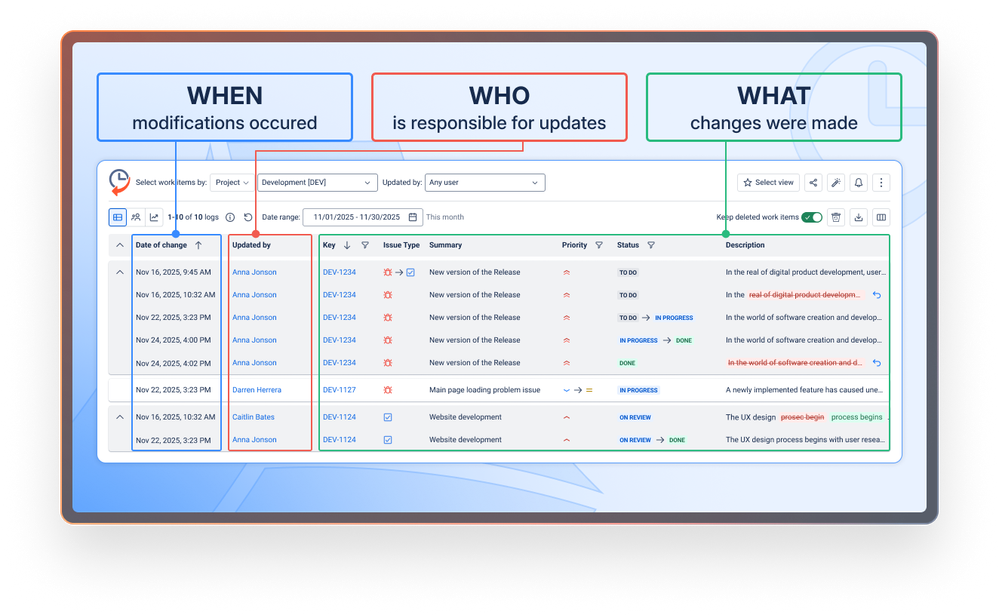
- It works well to see what a team is doing, create reports, or find what took place in a ticket.
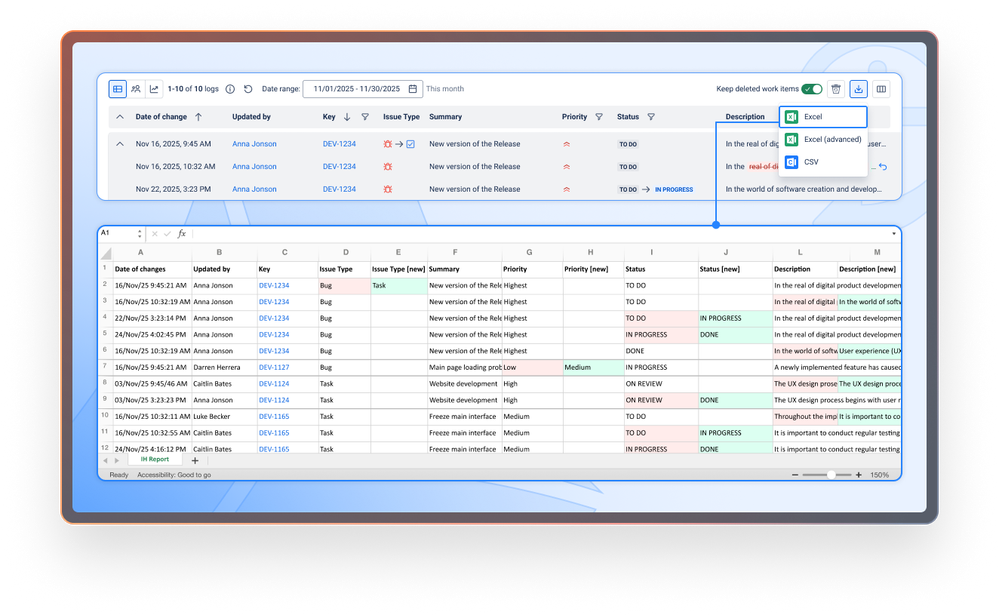
- Any changes can be easily exported to further analyze them or share updates with other people.
- It also allows tracking and restoring of deleted tasks, and undo edits in case you have made an error.
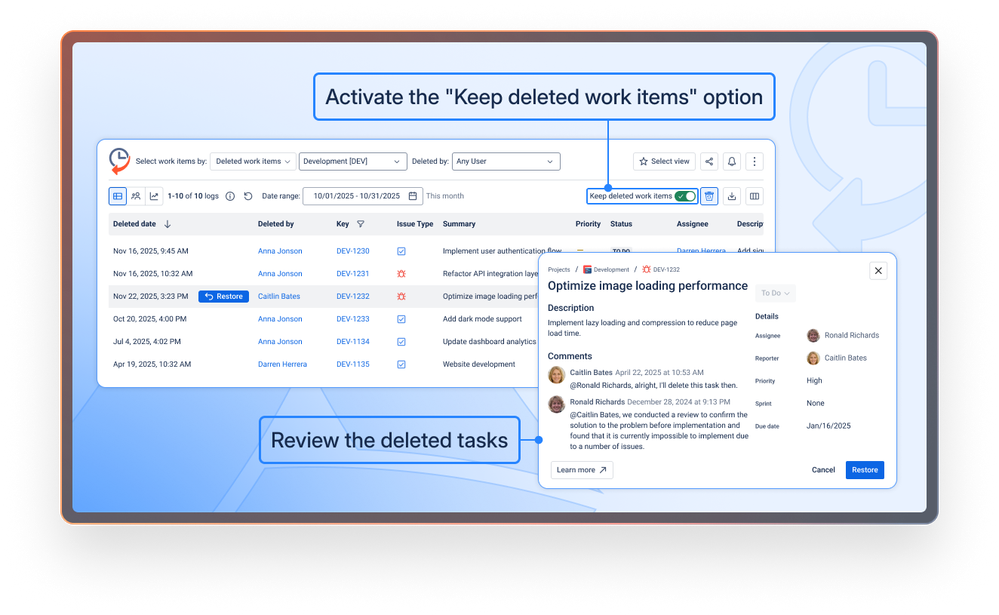
This makes it a great replacement, for example, for Recycle Bin for Jira by t2consult (DC-only).
🖼️ See Issue History for Jira app in action:
👉 Try the Data Center version 👉 Try the Cloud version
Final Thoughts
Migration of Jira Data Center to Cloud is a big step, but with the proper plan, tools, and timing, it can be a stress-free process. As soon as possible, find qualified people, do testing, and go live only after that, and don’t forget to find Cloud-friendly options to your favorite apps.
Was this helpful?
Thanks!

Natalia_Kovalchuk_SaaSJet_
0 comments