Three methods to make team availability visible—from native workarounds to visual planning tools
The cost of “invisible” vacations
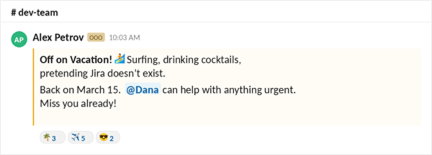
That's an actual Slack auto-reply. Alex is having a great time. I'm not—Alex owns three critical-path tasks this sprint, and I'm finding out he's gone on Wednesday because the vacation lived in Google Calendar. I was planning in Jira. Jira had no idea.
This is the ghost-resource problem. You make assignment decisions in Jira, but availability lives in Google Calendar, an HR dashboard, a messenger status, or someone's memory. There are two types of invisible time. Individual time off (vacations, sick days, personal days) is invisible because it's tracked per person, outside Jira. System-wide dates (public holidays, company days off) are invisible because Jira's native handling is limited and board-specific.
This article walks you through three methods to build a Jira vacation calendar that actually works—from free native workarounds to integrated planning tools where vacations and tasks share the same screen. Pick the one that fits your team.
Method 1: Native Jira workarounds (free but limited)
Before reaching for a plugin, it’s worth knowing what Jira gives you out of the box. The answer is: not much—but enough for very small teams.
Non-working days in board settings
Go to Board Settings→ Working Days. Here you can mark specific dates as non-working. The board’s timeline view adjusts accordingly—tasks won’t be expected on those days.
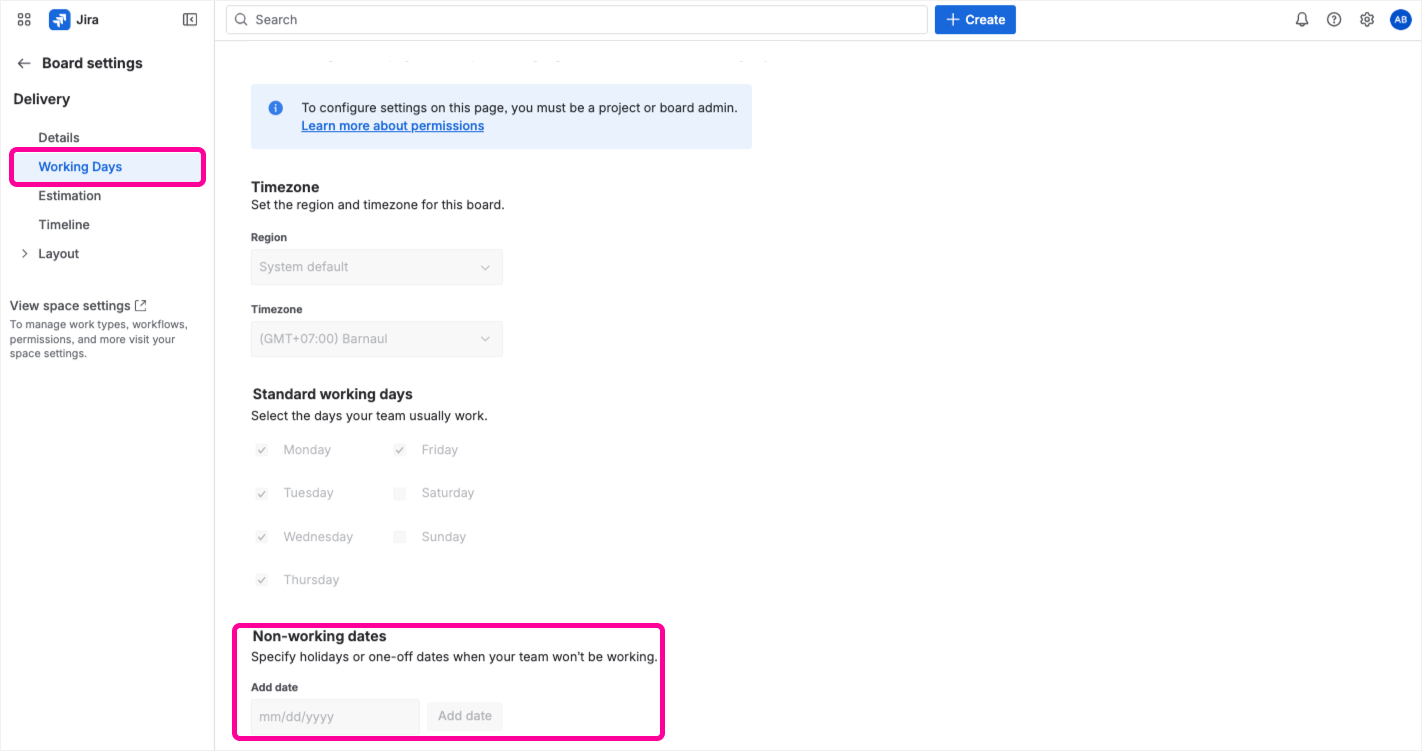
This is all Jira gives you natively. Notice there’s no field for “Alex is in Hawaii next week.”
The catch? This setting is board-specific. If your team works across three projects with three boards, you configure each one separately. It also only covers team-wide days—there’s no way to mark an individual’s vacation. And it doesn’t adjust capacity calculations, so your sprint commitment still assumes full headcount.
The “PTO issue” workaround
Some teams create a Jira issue type called “Vacation” or “PTO” (Paid Time Off). You create an issue, assign it to the person going on leave, set start and due dates, and it shows on the timeline like any other task.
It works—technically. But it clutters your backlog with non-work items, messes up your reports, and confuses teammates. (“Why is ‘Alex’s Vacation’ in the sprint?”) It also doesn’t affect capacity. The sprint still plans as if Alex is available.
💡Verdict: Method 1 is good enough for a team of five tracking one or two company holidays. It breaks down with 15+ people, multiple projects, or regional holiday differences.
Method 2: Dedicated vacation plugins
If your primary need is HR-style leave management—PTO balances, approval workflows, absence reports—dedicated plugins exist for this.
Vacation Manager for Jira
Employees request time off, managers approve it, and you can set up custom vacation types and recurring holidays—all inside Jira.
Several plugins handle this: Vacation Manager, Teamployees, Leave Tracker, Vacation Manager for Jira, Out of Office Assistant, Smart Time-off—they all offer some combination of leave requests, approvals, and time-off tracking. Most work on Cloud; Vacation Manager is Data Center only. The limitation most of them share: they're built for HR tracking, not sprint planning. You get approvals and balances, but you're still switching between the vacation calendar and your Jira board when you assign work.
Method 3: Integrated planning—vacations where you plan work
Tracking vacations doesn’t prevent double-booking. Seeing vacations on the same screen where you assign tasks does. If your PM has to check a separate calendar before dragging a task onto someone’s timeline, they won’t do it every time. The vacation needs to be in the way—physically blocking the space on the timeline—so you can’t miss it.
Visualizing availability: vacations alongside tasks
In Planyway's Workload view, every team member has their own lane on the timeline. To mark a vacation, just click the dates and switch the card type to Vacation or Day Off—that's it. These cards aren't Jira issues, so your backlog stays clean.
Planyway doesn't treat vacations as a separate feature. It's a resource planning tool, and vacations are just part of the workload math—mark someone as off, and their capacity adjusts across every project automatically.
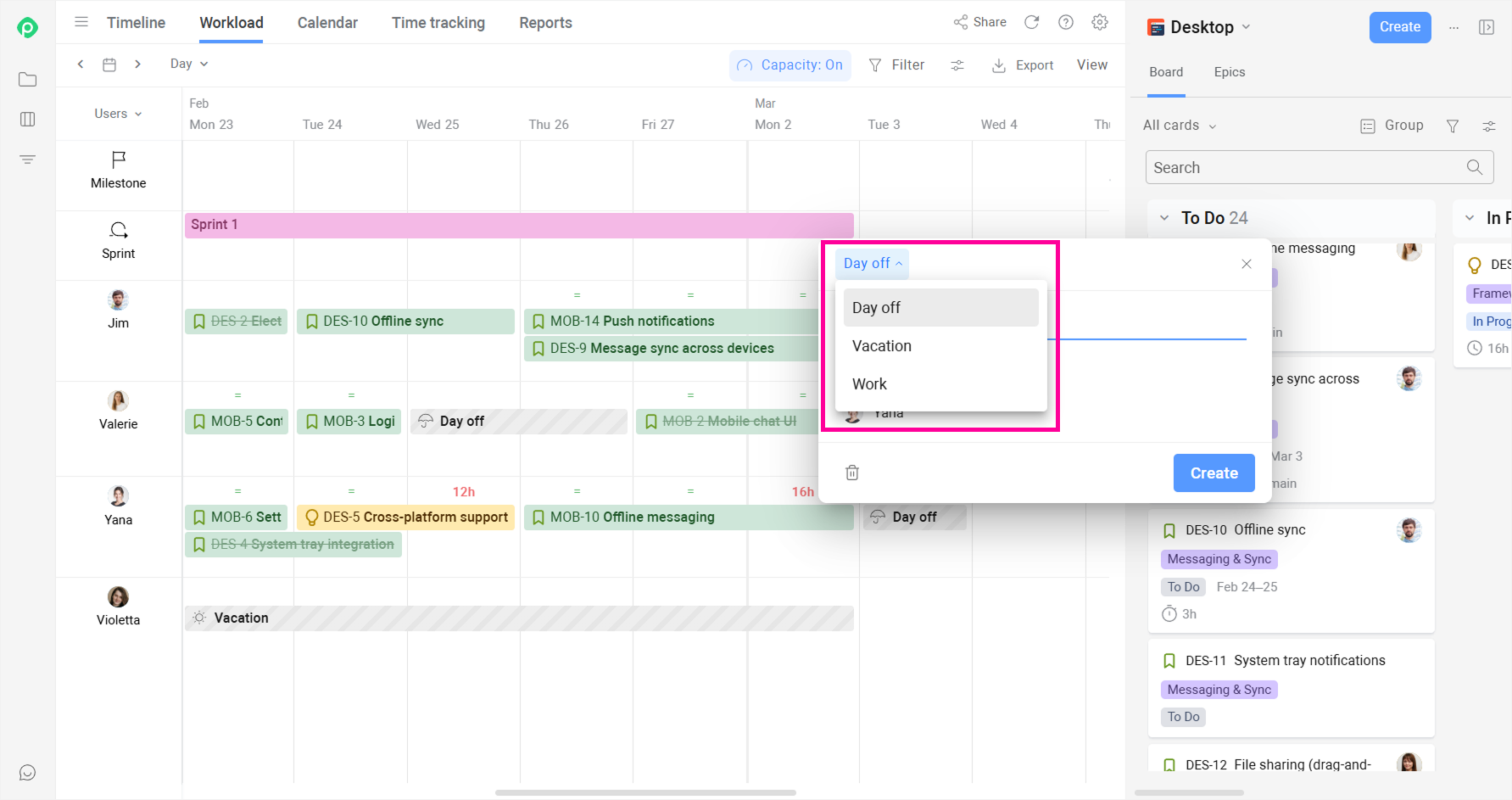
The vacation appears as a colored strip on the timeline. When you drag a task onto that period, you see the conflict immediately.
Setting global holidays
Go to General settings → Workload Schemes and select your country.
For distributed teams, create multiple schemes. “US holidays” for the New York team, “Germany holidays” for the Berlin team. Assign each scheme to the relevant members. Holidays appear automatically on their timelines and are excluded from capacity calculations.
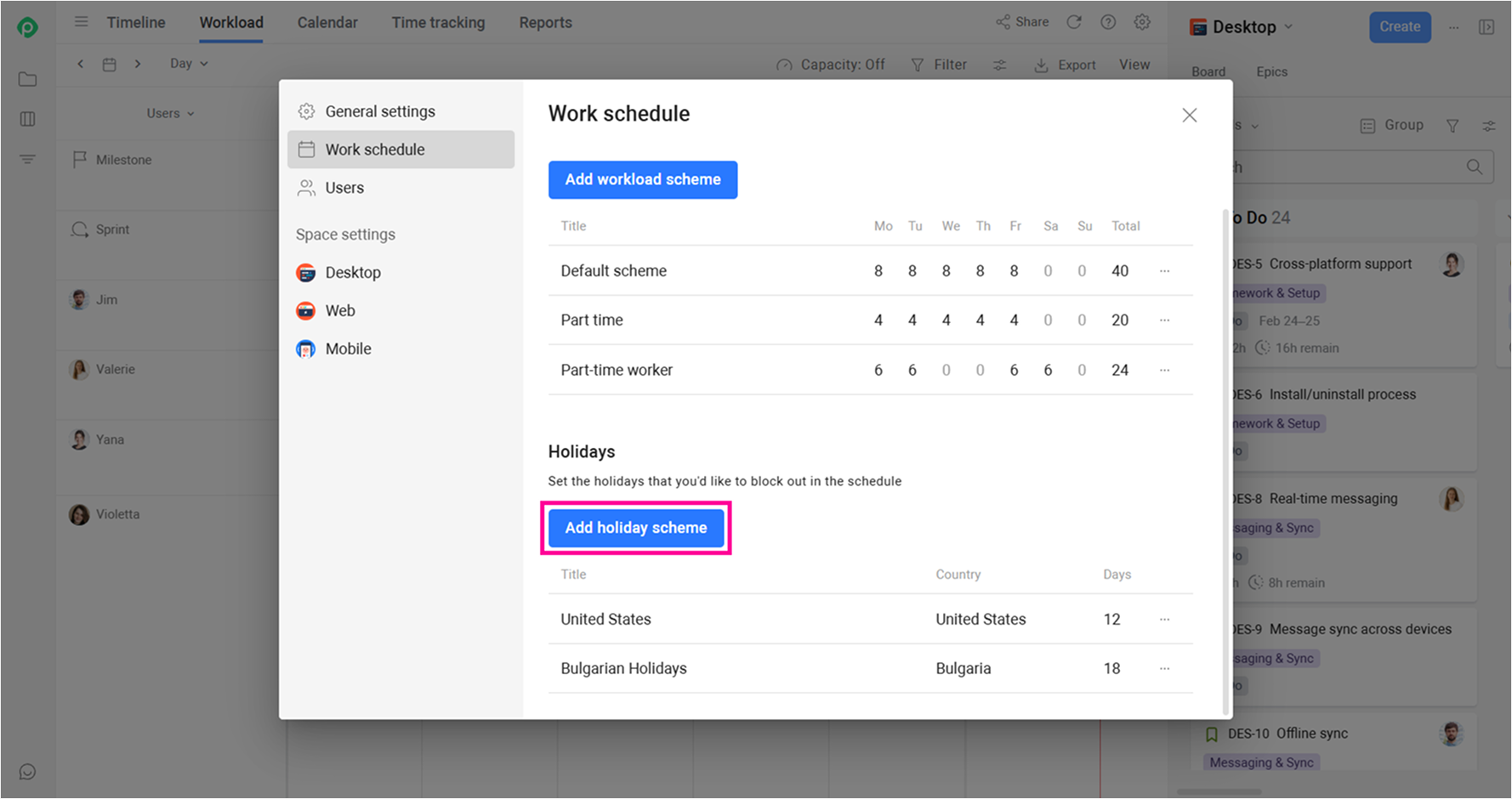
Five minutes of setup, twelve months of protected sprints. Not a bad trade.
Cross-project visibility
Connect multiple Jira projects to Planyway. Vacations and holiday schemes apply across all of them. When Alex is on vacation, that unavailability is visible whether you’re looking at Project A or Project B—because capacity is calculated per person, not per board.
This solves a problem Method 1 can’t touch: in native Jira, non-working days are configured per board. If someone works across three projects, you’d have to manually sync their vacation across three boards. In Planyway, you set it once.
Vacations are just one part of resource planning. For the full picture, see our getting started with Planyway.
Conclusion
The principle is simple: availability and task planning must live in the same view. When your vacation calendar is in one tool and your sprint board is in another, you’re planning around ghost resources—and you won’t find out until Wednesday.
Stop planning around ghost resources. Set up your team’s vacation calendar in Planyway today.
Get started free →
