Teams using Jira Service Management (JSM) hold critical customer data, but sharing it across tools and teams is a challenge. They also need to escalate information to other teams working on different platforms.
If only you could make sure the data present in JSM is there for everyone in your organization who needs it. You can do that with a Jira Service Management integration.
With third-party integration solutions, you can integrate JSM with other tools like Jira, Azure DevOps, ServiceNow, Zendesk, Freshservice, and more, exchanging data in the background without anyone having to lift a finger.
In this article, you'll learn how to set up Exalate, an integration app that connects your JSM instance with other platforms securely and reliably.
But before that, let's look at a few use cases where a Jira Service Management integration truly stands out.
Common Use Cases for Integrating Jira Service Management
Customer Support and IT Teams
If your customer support teams work in JSM and your IT team works in Jira, GitHub, or Azure DevOps, chances are you already exchange a lot of information manually. By integrating your JSM instance with these software development tools, you can automate your customer service workflows.
The support teams will always remain up-to-date with the current ticket statuses without resorting to manual methods. The development teams no longer have to rely on emails and spreadsheets to get the correct information about customer work items. With an integration in place, you can ensure you never miss critical deadlines, resolve work faster, adhere to SLAs, and maintain customer satisfaction.
ITSM Integration
Sometimes, teams are scattered across various ITSM tools like Jira Service Management, ServiceNow, and others. By integrating these multiple ITSM tools, you can streamline service delivery and management, even across complex workflows. Imagine tickets being routed automatically to multiple destinations based on their content. You can also control which fields to share during every escalation scenario. Productivity at its best!
MSP Integration
Managed service providers (MSPs) often have to connect to their customers or suppliers while working on platforms different from their own. Maybe the customers have outsourced support to JSM while they themselves use Jira. Connecting these diverse systems together via integrations can help MSPs gain a competitive advantage.
We had an MSP partner who offered Exalate integration as a part of their service package for customers. This improved the onboarding process and allowed their customers to integrate with the MSP services efficiently.
You need a robust, flexible tool capable of handling basic to advanced JSM integration use cases, as discussed. There are native ways to handle such integrations, but they are limited in functionality and features.
I recommend Exalate to set up integrations between JSM and other platforms. Its Groovy scripting engine opens you up to a lot of possibilities, and the unified management console makes it straightforward to oversee all your connections from one place.
Use Exalate to Connect Your Teams Working in Jira Service Management
Exalate is a script-based integration solution that connects multiple systems like Jira (Cloud and Data Center), Azure DevOps Cloud and Server, Salesforce, ServiceNow, Zendesk, Freshservice, Freshdesk, Asana, GitHub, and more through custom connectors. With the Script mode, you can set up complex Jira Service Management integrations and tailor the sync for your needs.
For example, if one of your teams is using Jira Service Management, and another is using Jira Software, you can sync various fields like organization, remote ticket ID, user mentions in comments, statuses, and much more. Keep working in your own Jira workflow without altering anything!
Exalate also provides AI-assisted configuration through Aida, which helps you generate and troubleshoot sync scripts using natural language prompts. So even if you are not deeply familiar with Groovy scripting, Aida can speed up the process significantly.
Connect to Partners Easily and Safely with Exalate
Exalate also shines in cross-company integrations. If you need to share data with a supplier or contractor, you can do so seamlessly.
It gives each partner operational control over what they share, and they can change that or switch off sharing at any time, so there's no need to worry about leaking data. Exalate is ISO 27001 certified, supports role-based access control (RBAC), and encrypts data both in transit (TLS 1.2/1.3) and at rest. You can review full security details at the Exalate Trust Center.
How to Set Up a Jira Service Management Integration with Exalate
So, onto using Exalate. It's much easier than you'd think.
Step 1: Go to the Exalate App and Create a Workspace
Go to the Exalate app and create an account or log in. Start by creating a workspace where you will manage your connections and integrations.
Click the "+ Create Workspace" button, enter a name and description, and confirm.
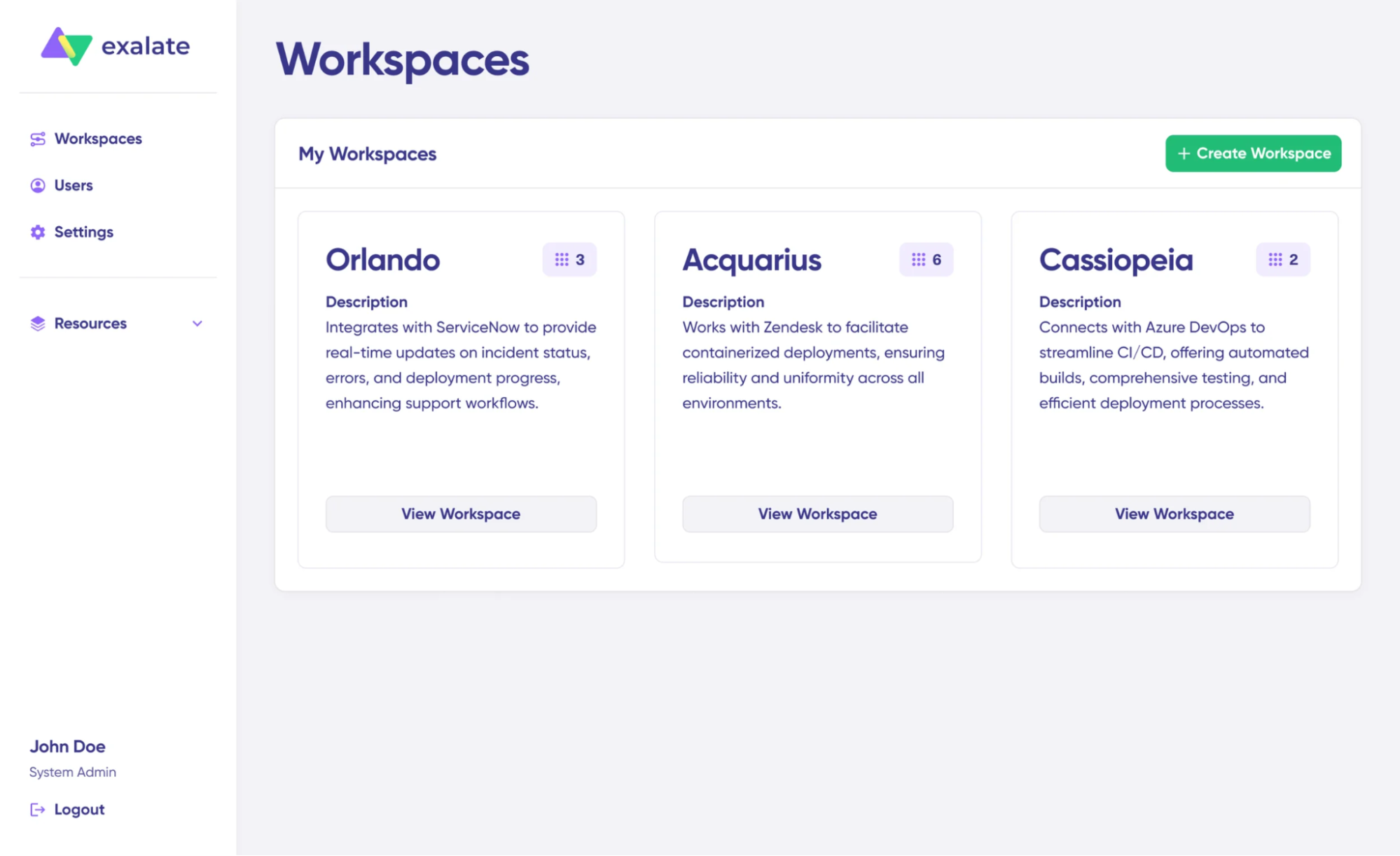
Step 2: Create a Connection Between JSM and the Other Platform
From your workspace, click "+ Add connections" > "Create new connection."
Enter the name and URL of your first system (for example, your JSM instance). Exalate will detect the platform and prompt you for authentication. For Jira, this uses OAuth. Repeat the same for the other side (ServiceNow, Azure DevOps, or whichever platform you are connecting to).
Give your connection a name and description, review the details, and click "Create connection."
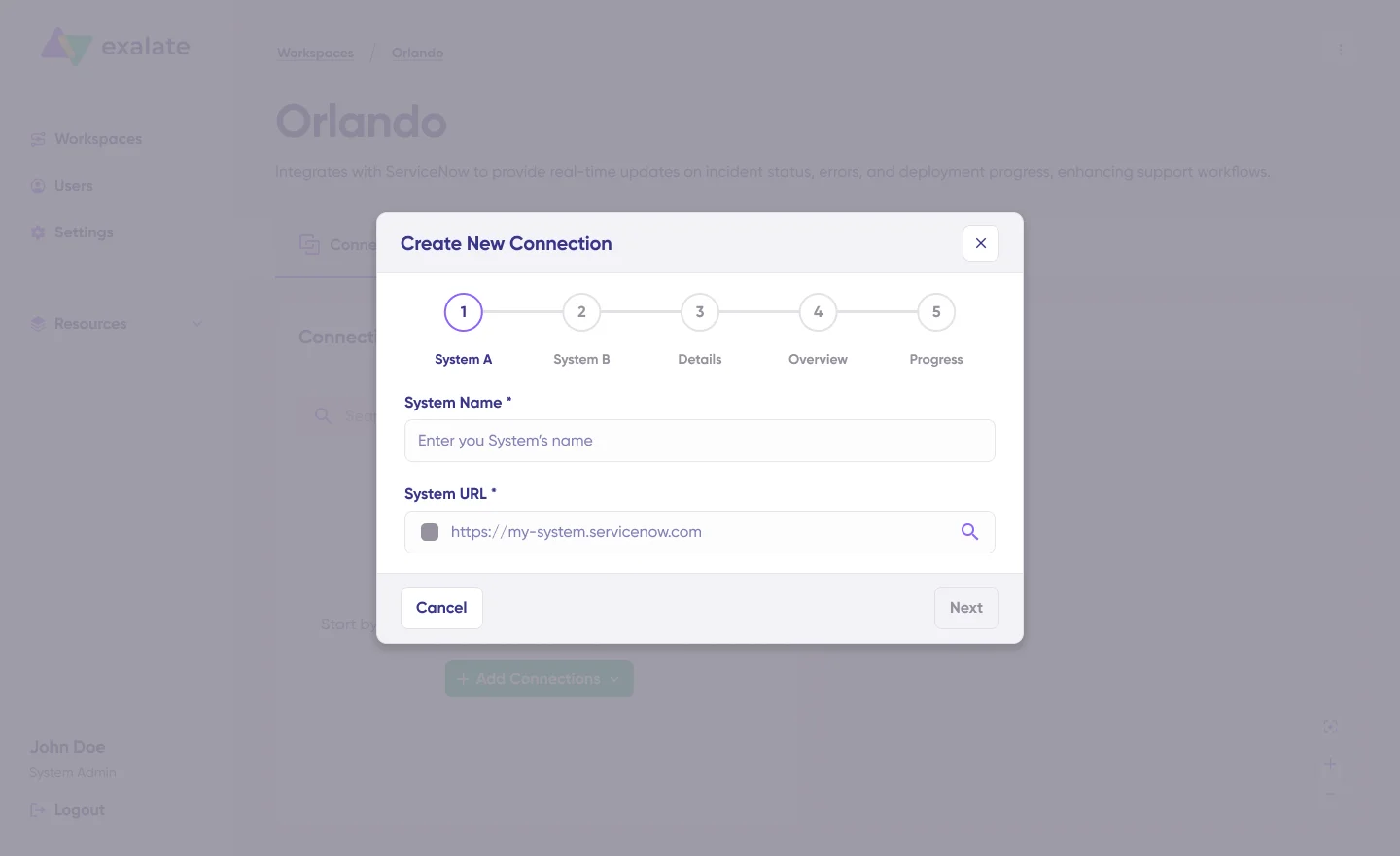
Once complete, select "Continue to configuration" and choose a Jira project you want to use for synchronization.
Step 3: Configure Your Sync Rules
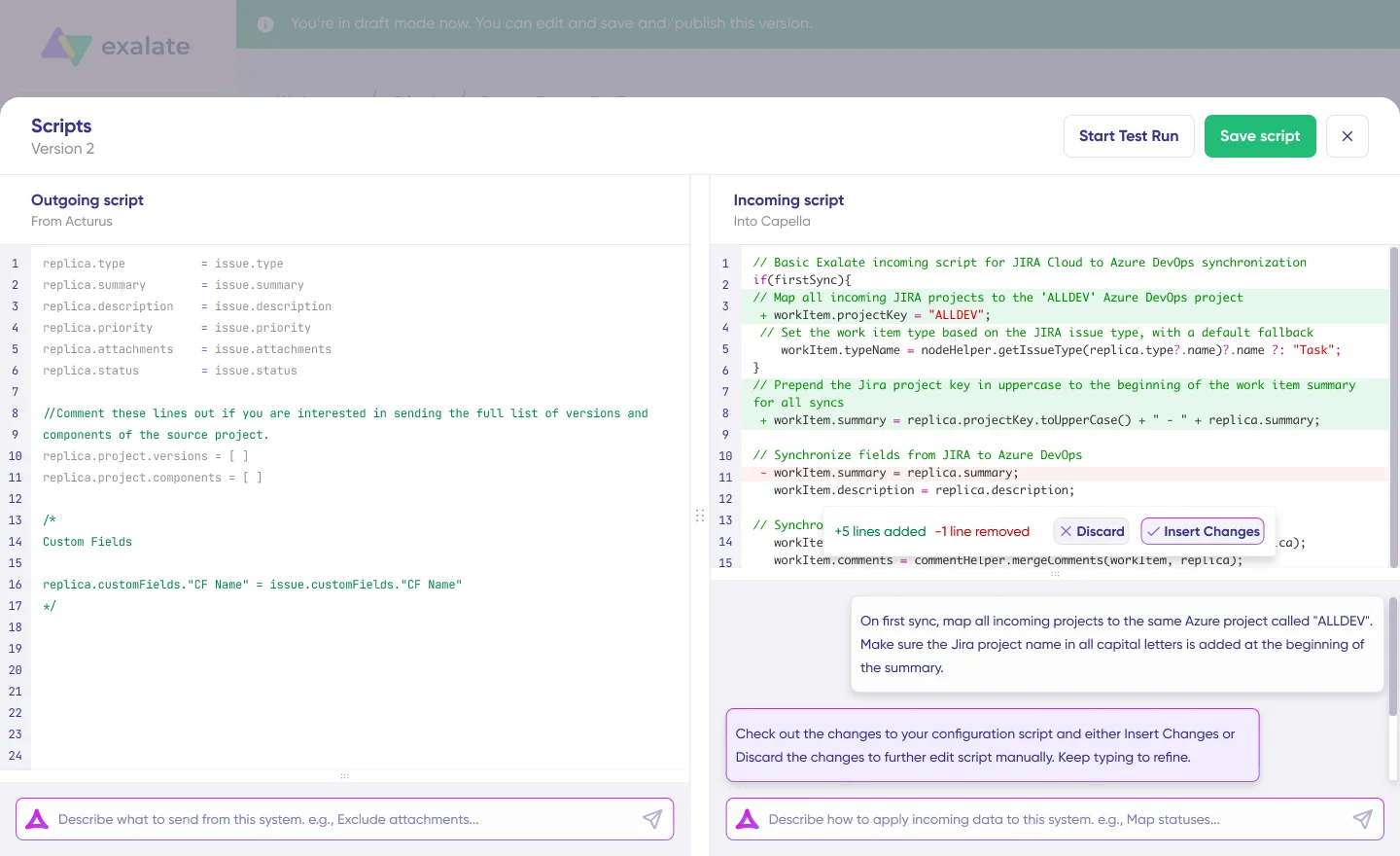
After creating your connection, you have two options: "Quick Sync" (publish the starter config and sync one item to verify your connection) or "Edit & Test" (open the draft editor to customize scripts before going live).

The sync rules are based on Groovy scripts divided into outgoing and incoming scripts. The outgoing script defines what data leaves one system, and the incoming script defines how that data is mapped on the other side.
To simplify the scripting process, use Aida, Exalate's AI-assisted configuration. Describe what you want in plain language (for example, "Exclude attachments" or "Map statuses between JSM and ServiceNow"), and Aida generates working Groovy scripts for you. Review its suggestions before applying them.
Step 4: Test with Test Run Before Going Live
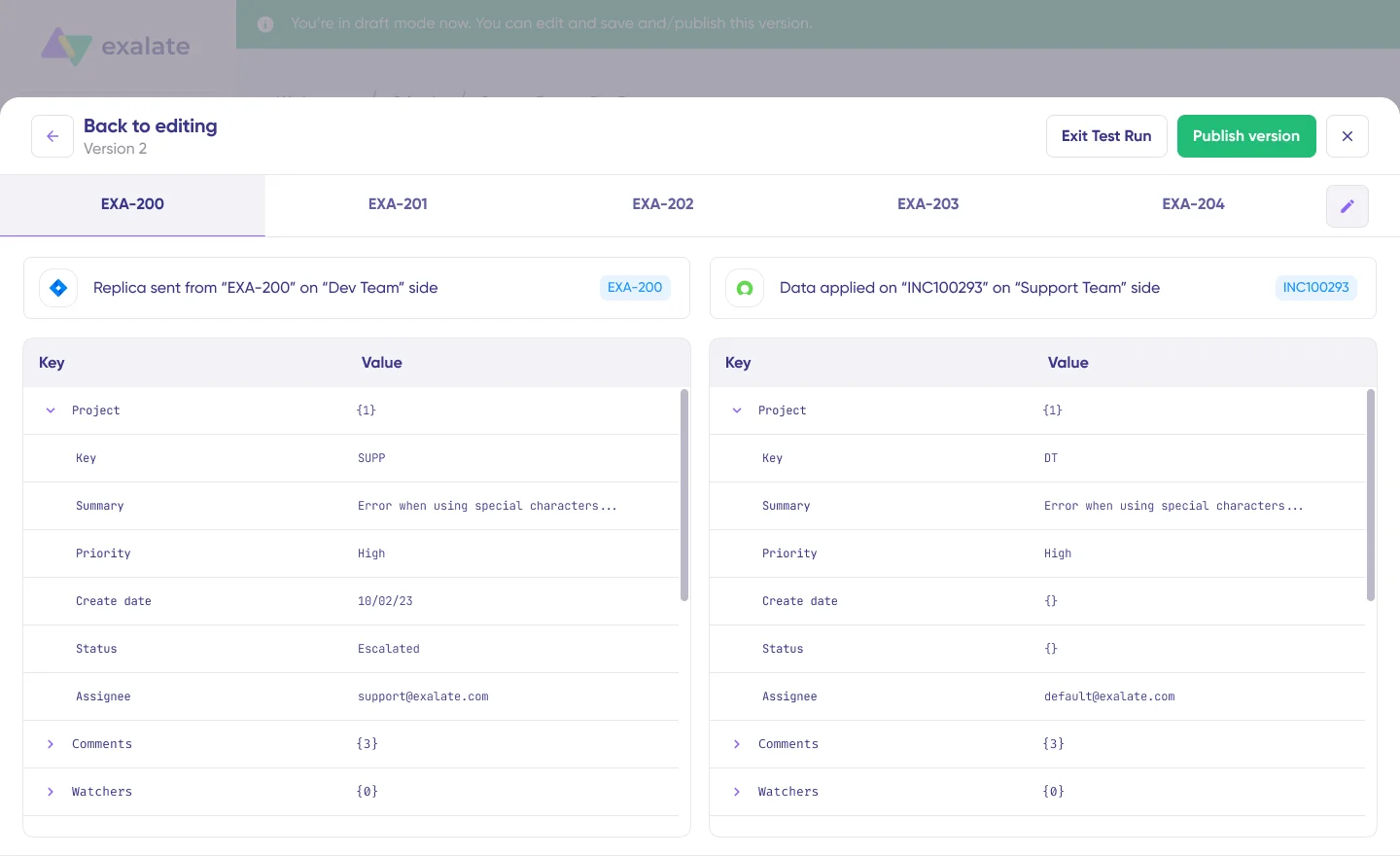
Before publishing your configuration, use the Test Run feature. Select the tickets you want to test against, run the test, and preview how field mappings will be applied. Review the incoming and outgoing replicas to verify everything looks correct.
This safety net prevents errors from affecting live data. Once you are confident, click "Publish Version" to activate your configuration.
Step 5: Set Up Triggers to Control Synchronization
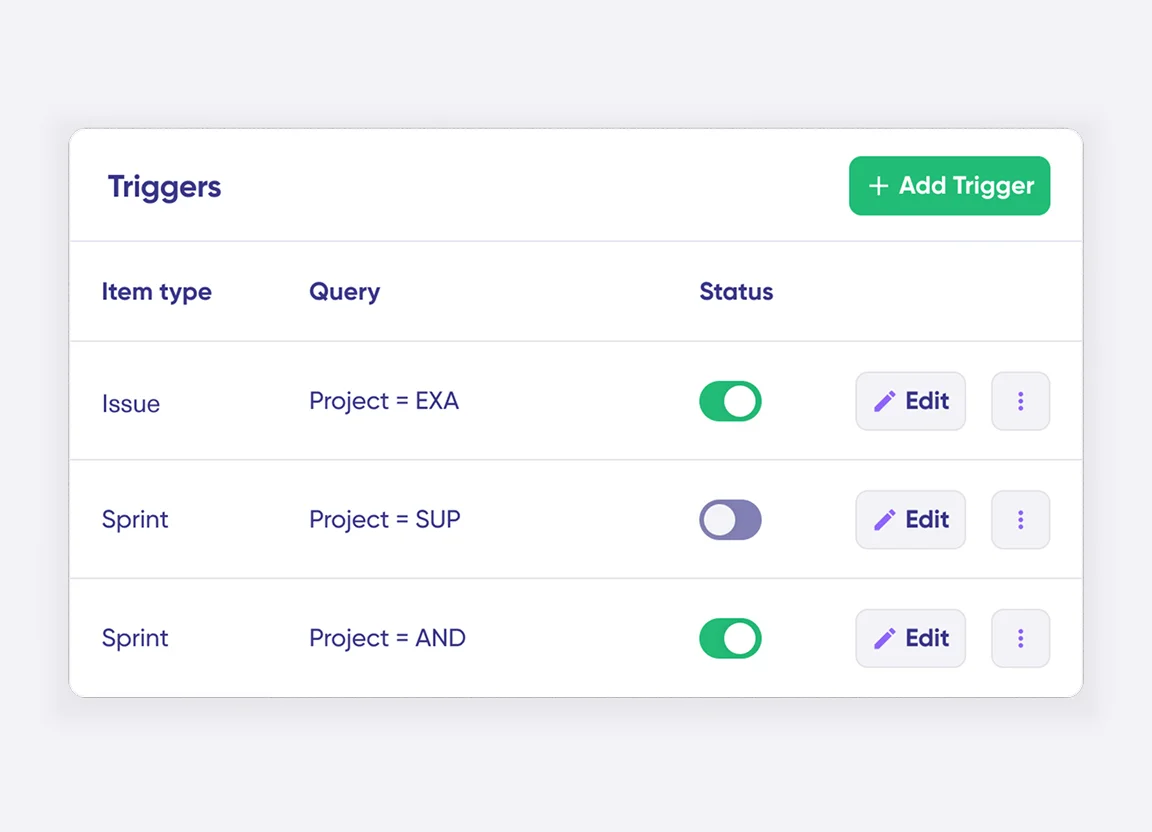
Triggers are conditions that control when tickets are synchronized. Click "+ Add trigger" and define your conditions.
You set conditions using Jira Query Language (JQL). For example, to sync all tasks:
issuetype = Task
You can use the platform's native query language or advanced search syntax for the other platform you’re connecting to. Remember, you can set triggers for both sides.
Step 6: Activate and Monitor
That's it. Your synchronization will start automatically based on the rules and triggers you set.
If any errors come up, go to the "Troubleshooting" tab in your workspace. Aida helps you troubleshoot by offering clear, context-aware suggestions for each error, including a plain-language explanation and a proposed fix.
Exalate also provides script versioning, so every time you publish a change, a new version is created. You can roll back to a previous version at any time if something goes wrong.
Start with Your Jira Service Management Integration
Integrating Jira Service Management with other platforms doesn't have to be complicated. With Exalate, you can automate data sharing between software platforms both within and outside your company. It's easy to do and can save your teams huge amounts of time, as well as let them make better decisions with the broader spectrum of information available to them.
As well as Jira Service Management, you can integrate many other platforms, including Azure DevOps Cloud and Server, GitHub, ServiceNow, Salesforce, Zendesk, Freshservice, Freshdesk, and Asana.
So if you're convinced that Exalate is the right tool for you, start a free trial or get in touch with us and see how we can help bring your teams together.

