Jira Data Center teams want the same productivity gains that AI brings to cloud products, but without giving up control over infrastructure, configuration, or workflow discipline. That is exactly where an AI agent inside Jira Data Center becomes valuable. Instead of asking users to jump between chat tools, copy issue data by hand, or manually rewrite requirements into structured tickets, an AI agent can work directly in the Jira context your teams already use every day.
With AI for Jira (Data Center), administrators can connect a supported LLM provider, enable built-in agents and AI features, and let teams use AI for issue creation, issue updates, issue transitions, search, and task breakdown without leaving Jira. The result is not just a nicer interface. It is faster intake, better issue quality, more consistent execution, and less operational friction for project teams.
Why an AI agent in Jira Data Center matters
For enterprise Jira environments, AI adoption is rarely just about generating text. It is about reducing repetitive work while staying aligned with real Jira structures such as projects, issue types, fields, permissions, and workflows.
An effective Jira AI agent should do three things well:
- Understand issue context instead of responding like a generic chatbot.
- Take action through Jira operations such as create, edit, search, and transition.
- Fit enterprise deployment realities, including provider choice, proxy support, and administrative control.
AI for Jira (Data Center) is built around that model. It supports tool-driven agent workflows for Jira issue management, includes built-in agents such as a Default Agent and a Subtask Breakdown assistant, and allows admins to expose AI features directly on the issue page for faster adoption.
What this plugin can do today
From a product capability perspective, the plugin is designed to be practical rather than ornamental. It can help teams:
- create issues and sub-tasks from natural language
- update issue fields from structured or semi-structured input
- transition issues through Jira workflows
- retrieve issue details and search issues
- expose AI entry points directly inside the Jira issue experience
- use built-in assistants such as Subtask Breakdown and comment summarization
- configure custom agents and AI features for different teams or use cases
From a platform perspective, administrators can connect the plugin to multiple model providers, including:
- OpenAI
- OpenAI-compatible providers, for example DeepSeek
- Ollama
- Azure OpenAI
- Qwen
There is also support for HTTP proxy configuration, which is important for many enterprise network environments.
How to set it up
The setup process is straightforward and can usually be completed in a few stages.
1. Install the app in Jira Data Center
Start by installing AI for Jira in your Jira Data Center instance, following your standard app deployment process.
Once installed, the app adds its administration area under the Jira admin plugins menu, along with dedicated pages for:
- AI provider configuration
- Agents Configuration
- AI Features Configuration
- statistics and labeling controls for AI-driven issue operations
2. Configure your AI provider
In the admin configuration page, choose the provider you want to use.
Depending on your environment, you can connect:
- OpenAI for a fast managed setup
- An OpenAI-compatible endpoint if your organization uses a compatible provider
- Ollama if you want a self-hosted model option
- Azure OpenAI if your AI strategy already runs on Azure
- Qwen if that model family fits your regional or platform requirement
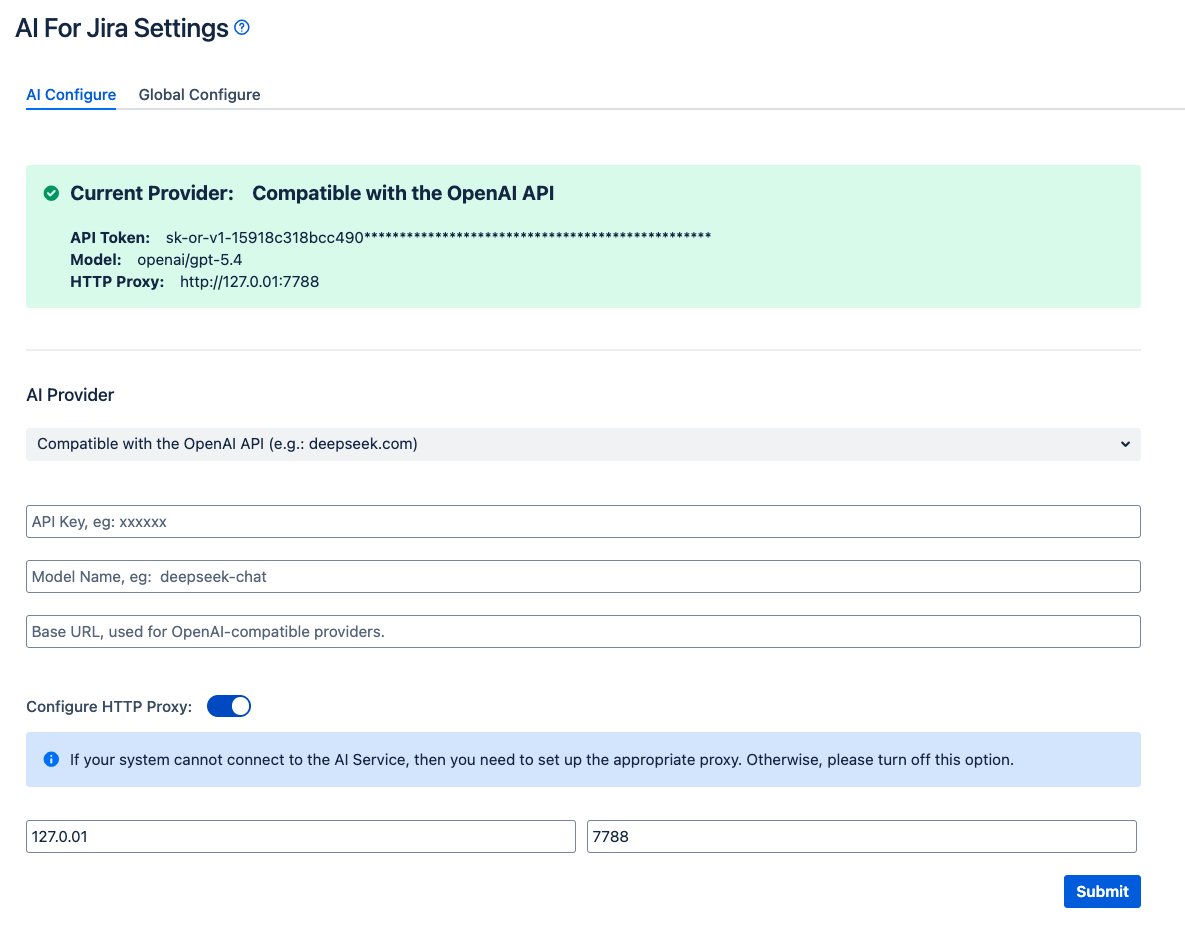
Then enter the required connection details, such as API key, model name, endpoint details, or deployment name. If your network requires outbound traffic to go through a proxy, configure the HTTP proxy settings at the same time.
This provider flexibility is an important point for Data Center customers. It lets teams adopt AI without being forced into a single model vendor or a single deployment pattern.
3. Enable the right agent experience
After the provider is configured, the next step is deciding how users will interact with AI.
The plugin includes a built-in Default Agent with broad Jira issue management capabilities, including creating, editing, searching, and transitioning issues. For teams that want more specialized experiences, the app also supports built-in and configurable assistants.
One example is the built-in Subtask Breakdown assistant. It is designed specifically to turn a larger Jira issue into a set of manageable sub-tasks, rather than simply generating generic suggestions.
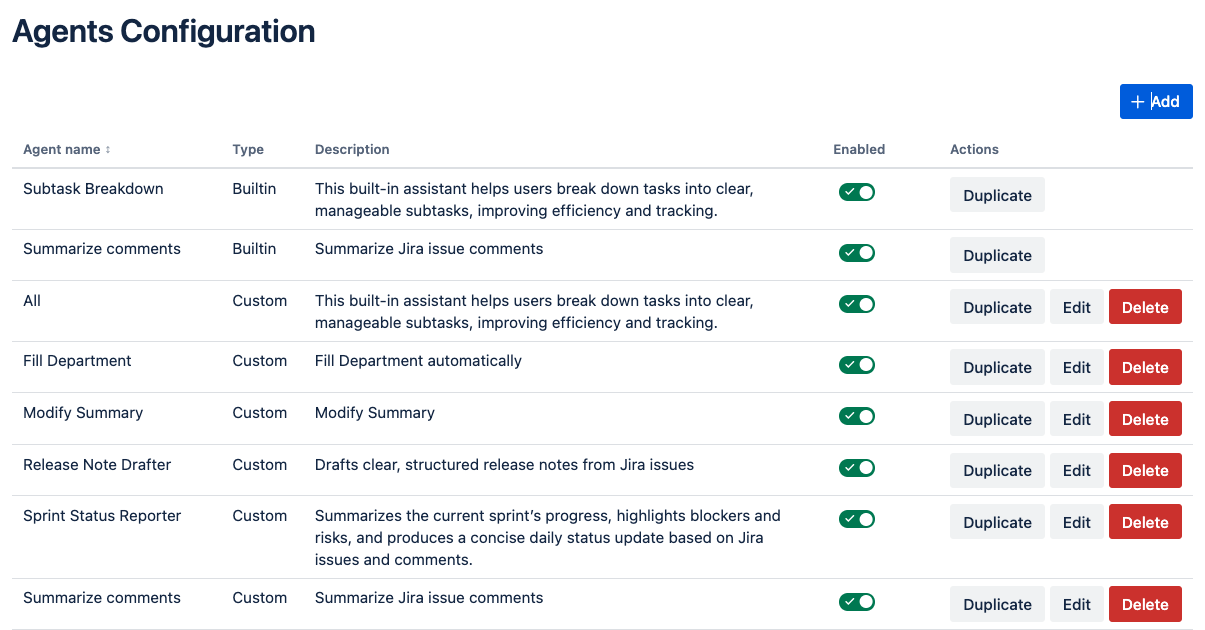
Example: Fill the Issue Field Automatically
The clearest way to understand the value of an AI agent in Jira Data Center is to look at one concrete workflow and follow it end to end.
In many service management and internal operations environments, the real bottleneck is not writing the ticket. It is routing the ticket correctly. A request may arrive with enough business context in the summary and description, but the `Department` field is still blank. That means the issue cannot be classified quickly, dashboards become less reliable, and handoffs start later than they should.
This is where a focused AI agent becomes useful.
Instead of asking the user to inspect the issue, interpret the request, and choose the correct department manually, the agent can read the current issue and fill the `Department` field based on the content that already exists in Jira.
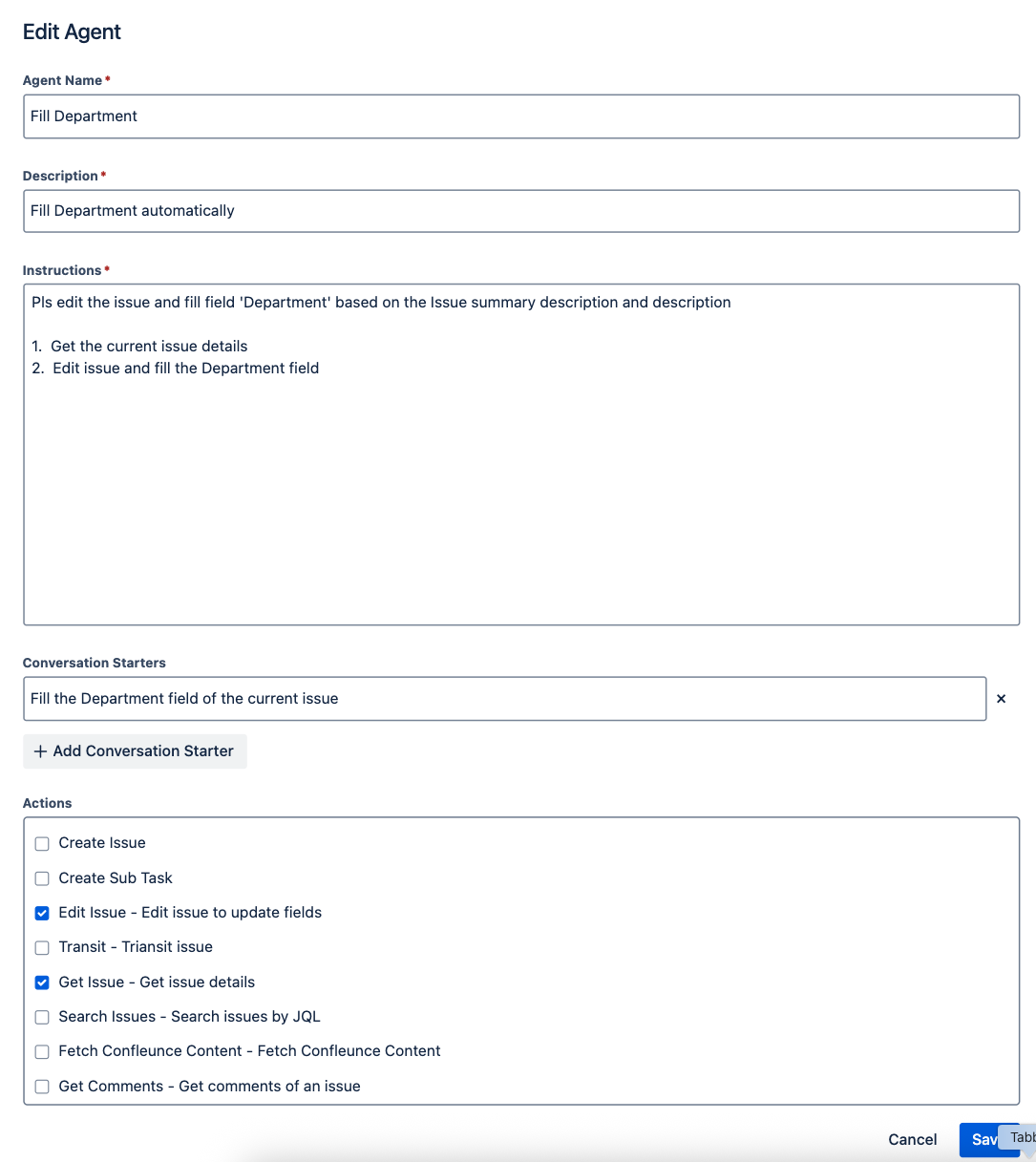
Configuration
Here is how that agent can be configured:
| Agent Name |
Fill Department |
| Description |
Fill Department automatically based on issue description |
| Instructions |
Please edit the issue and fill the `Department` field based on the issue summary and description.
1. Get the current issue details.
2. Edit the issue and fill the Department field.
|
| Conversation Starters |
Fill the Department field of the current issue |
| Actions |
Get Issue, Edit Issue |
Usage
Once this agent is configured, the user can open the current issue, click the `AI Agent` icon in the upper-right corner, and select the `Fill Department` agent.
From there, the user can invoke it with clicking the quick starter such as:
"Fill the Departmentfield of the current issue"
The agent then performs a short, practical workflow:
- Get the current issue details.
- Generate a preview of the proposed `Department` field update.
- Wait for the user to confirm the change.
- Edit the issue and fill the `Department` field.
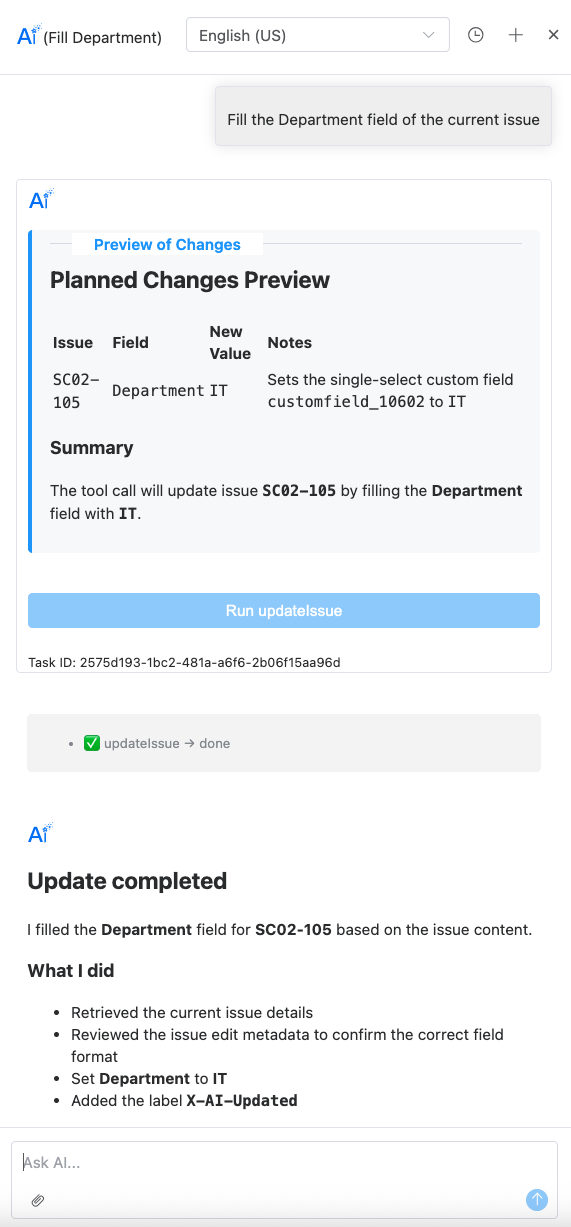
This is a strong example because it is small enough to deploy quickly but meaningful enough to deliver immediate operational value. The user does not need to understand the field structure and select options , remember the routing rules, or manually decide which department should own the issue. The agent reads the current issue context and updates the right field in Jira.
That matters because real Jira Data Center environments often rely on custom fields for triage, team ownership, reporting, and workflow routing. If those fields are missing or inconsistent, the downstream process slows down. With a focused agent like `Fill Department`, teams can reduce manual classification work and keep issue intake more consistent.
How It Works
From the user side, the experience is simple: open the current issue, invoke the agent, and provide a natural-language instruction.
Under the hood, the workflow is more structured.
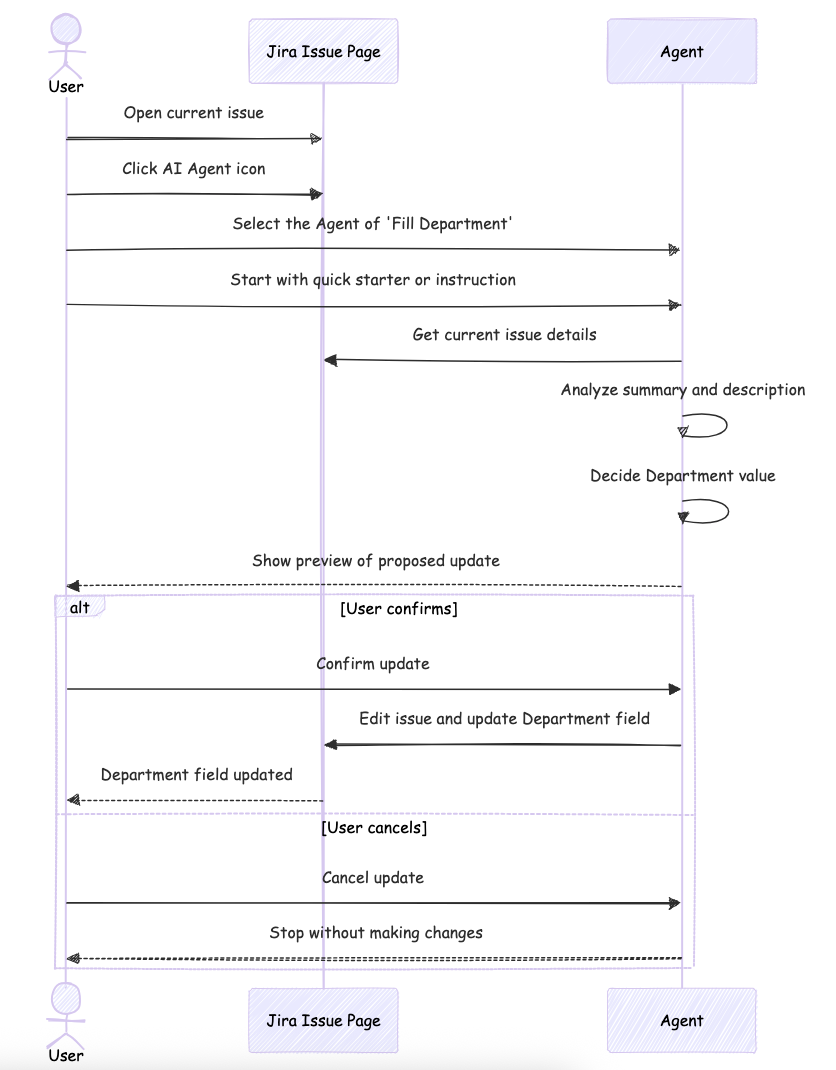
First, the agent uses its configured instructions and allowed actions to determine what it is supposed to do. In this example, the goal is narrow and explicit: inspect the current issue and populate the `Department` field.
Second, the agent retrieves the current issue details. This step matters because the decision should be based on the actual Jira content, not on a user retyping the ticket in chat. The summary and description already contain the business signal needed for routing.
Third, the agent interprets that issue context and decides which department best matches the request. For example, an access request may map to IT, a payroll dispute may map to Finance, and a benefits or policy request may map to HR.
Finally, the agent executes the issue edit and writes the result back to Jira. Because the workflow is tied to Jira issue operations, the output is not just a suggestion in a chat window. It becomes an actual field update inside the issue.
That is the key difference between a generic AI assistant and a Jira-native AI agent. A generic assistant can recommend what to do. A Jira AI agent can read issue context, call the right action, and update the issue in the same working flow.
Other Common AI Agent Scenarios
Once teams understand a focused case like `Fill Department`, it becomes much easier to see how the same pattern can be extended to other workflows. Beyond this example, teams commonly explore scenarios such as:
- breaking down a parent issue into clear sub-tasks
- assigning work to the most relevant owner or team member
- summarizing comments, discussions, or issue history
- finding related issue content through search and issue retrieval
- generating release notes for a selected fix version or release scope
These scenarios do not all need to be launched at once. In most Jira Data Center rollouts, the best path is to start with one narrowly defined agent that solves a visible operational problem, prove value quickly, and then expand to more use cases.
Technical value and business value go together
For Atlassian Community readers, the most important point is this: successful AI adoption in Jira Data Center is not just about model quality. It is about combining model intelligence with Jira-native execution.
That is why AI for Jira is compelling. Technically, it supports model choice, proxy-aware deployment, Jira issue operations, configurable agents, and issue-level AI features. From a business perspective, it helps teams:
- improve issue quality
- reduce manual ticket handling
- accelerate planning and execution
- drive adoption through in-context workflows
- bring AI into Jira without forcing users to leave Jira
For many organizations, that combination is the difference between an AI demo and an AI capability that actually gets used.
Final thoughts
If your Jira Data Center instance is full of high-value work but also full of repetitive issue maintenance, an AI agent is no longer a nice-to-have. It is becoming part of the operating model for faster, more consistent project execution.
AI for Jira gives administrators control over how AI is configured and gives users practical tools for getting work done, from field completion to sub-task creation. That makes it a strong fit for teams that want AI inside Jira, not alongside it.
If you are evaluating how to introduce AI into Jira Data Center, start with the simplest rollout path:
- connect your preferred model provider
- enable the default agent and a focused built-in feature such as Subtask Breakdown
- pilot it on one team that handles a high volume of issue creation and planning
That usually creates enough visible value to justify a broader rollout across the rest of the Jira environment.

