Organizations often end up with more than one Jira instance — for example, after a company grows, restructures, merges with another organization, or begins migrating from Data Center to Cloud. In many cases, different teams simply need autonomy and separate administration.
But even when systems stay separate, the work inside them usually doesn’t. Teams still need to coordinate, escalate issues, share progress, and make sure information stays aligned.
This post explains why multiple Jira instances appear, what it means to sync work across them, what options exist, and how a Jira-to-Jira connection can be set up in practice.
Why Teams Use Multiple Jira Instances
There are several reasons why organizations choose (or inherit) more than one Jira instance:
-
Team autonomy: Different departments prefer their own workflows, permission schemes, or change-management processes.
-
Performance and scale: Very large instances can slow down, so splitting workloads helps.
-
Compliance or security: Some groups work with regulated or sensitive data that needs isolation.
-
Mergers and acquisitions: Each company brings its own Jira setup.
-
Cloud migrations: During a phased move from Data Center to Cloud, both systems remain active for a period of time.
No matter the reason, sooner or later the same question appears: How do we keep work visible and consistent across these different environments?
What It Means to Connect Two Jira Instances
Connecting two Jira instances does not merge them. It simply keeps selected work items in sync so teams can collaborate without switching systems.
Depending on the method used, you can synchronize:
Syncing can be one-way or two-way. Each Jira instance keeps its own workflows and configurations.
Typical Challenges in Multi-Instance Environments
Teams often encounter the same issues:
Different workflows
Status names and transitions rarely match across instances, so mapping is required.
Different fields
Custom fields may not exist on both sides or may use different formats.
Visibility questions
Some comments or attachments should not be exposed to external teams or vendors.
Cloud vs Data Center differences
Authentication, rate limits, and API endpoints vary by hosting model.
Manual effort doesn’t scale
Copying updates by hand quickly leads to inconsistent data.
Ways to Link Two Jira Instances
There are four main approaches, each with its own trade-offs.
1. Manual export and import
Works for one-time transfers or migrations, but does not maintain ongoing sync.
2. Native Jira capabilities
Jira Automation, webhooks, and REST API can send basic updates between instances.
Useful for simple, one-way flows, but not full synchronization.
3. Custom-built REST API integrations
Gives full control but requires development, testing, and constant maintenance as workflows evolve.
4. Integration apps
Marketplace apps dedicated to Jira-to-Jira synchronization handle two-way sync, field mapping, attachments, selective rules, and conflict handling.
Getint is one example of such tools (others exist as well). These solutions are designed for long-term collaboration across Cloud, Data Center, or mixed setups.
Short summary table on how to link multiple Jira instances
| Method |
Best For |
Pros |
Limitations |
|---|
| Manual export/import |
One-time moves |
Easy to use, no extra tools needed |
No ongoing sync; comments and attachments not kept up to date |
| Jira Automation / REST API |
Simple, one-way flows |
Native to Jira; flexible triggers |
Not designed for full two-way sync; limited data types |
| Custom REST integration |
Very specific or controlled requirements |
Fully customizable; complete control |
High maintenance; requires development and ongoing updates |
| Integration apps |
Ongoing collaboration between instances |
Two-way sync, mapping, attachments, selective rules |
Requires installation and initial configuration |
How Syncing Works Behind the Scenes
Most synchronization solutions follow the same basic flow:
-
A work item changes in Jira A.
-
A rule checks whether it should sync.
-
Data is transformed so it fits Jira B’s workflow, fields, and structure.
-
Jira B applies the update according to its own rules and permissions.
-
If two-way sync is enabled, updates from Jira B follow the same process back to Jira A.
This allows both teams to keep their own Jira configuration while still receiving accurate updates.
Common Use Cases
Cross-company collaboration
Vendors, partners, or clients often have their own Jira instance. Syncing allows both sides to coordinate work without exposing internal projects.
Engineering + Service teams
Jira Service Management may run in one instance while development happens in another. Escalated items stay in sync automatically.
Distributed development
Different teams or business units work in separate Jira environments but contribute to the same product.
Mergers and phased migrations
While systems operate in parallel, syncing keeps everything aligned until a long-term strategy is chosen.
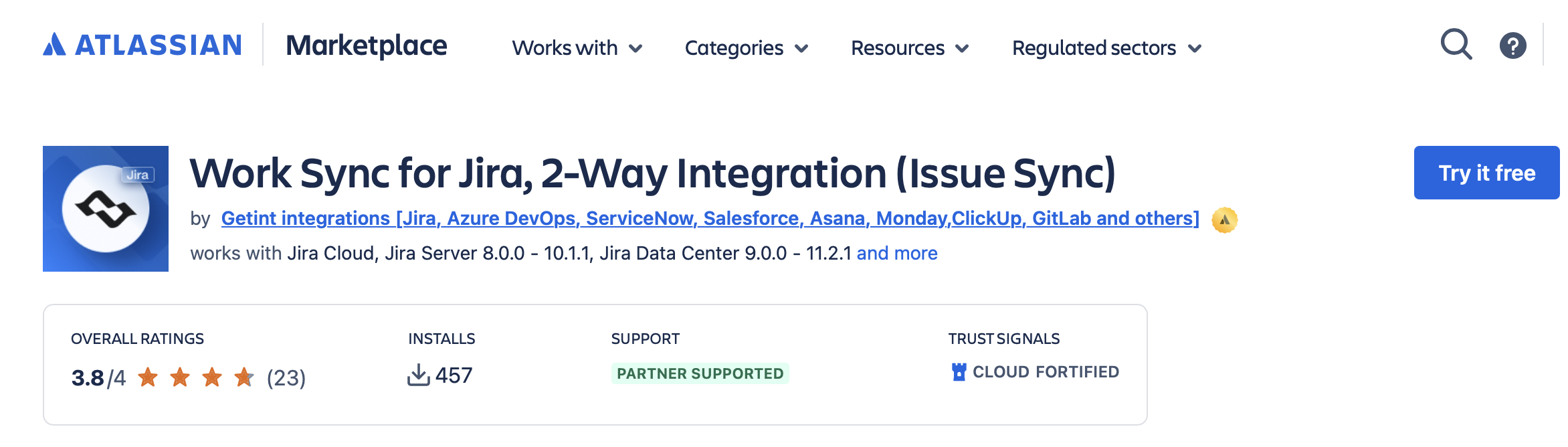
Example Setup: How a Jira-to-Jira Sync Works Using Getint
Below is a general outline of how a marketplace integration tool typically works.
This is based on Getint Jira-to-Jira connector, but the overall setup is similar across tools.
1. Install the app
Install the integration app on both Jira instances (Cloud, Data Center, or mixed).
2. Create a connection
Choose Jira-to-Jira, authenticate both sides, and connect the two systems.
3. Select projects and issue types
Map which projects sync and how issue types correspond (e.g., Story ↔ Story, Bug ↔ Bug).
4. Define sync rules
Choose which items should sync — for example, based on JQL, labels, or statuses.
5. Map fields and statuses
Align fields, custom fields, and workflow statuses between the two instances.
6. Configure comments, attachments, and work logs
Choose what to share and what to keep internal.
7. Test the sync
Create a test item and verify updates flow both ways.
Once configured, synchronization runs automatically in the background.
Best Practices
-
Keep workflows understandable: Clear status mapping reduces confusion.
-
Sync selectively: JQL filters prevent clutter and improve performance.
-
Review mappings periodically: Workflows evolve; sync rules should too.
-
Protect sensitive data: Only sync what should be shared.
-
Test changes safely: Validate updates in a test project before modifying production rules.
Summary
Working across multiple Jira instances is increasingly common. Whether due to growth, security requirements, migrations, or organizational structure, teams still need shared visibility into the work happening elsewhere.
Linking two Jira instances — whether through Jira Automation, custom integrations, or a dedicated sync app — helps teams collaborate more efficiently without forcing them onto the same workflows or infrastructure. With the right setup, each instance stays independent while the work stays connected.
