The Atlassian Community Forums are currently in read-only mode. We will be relaunching on a new platform on September 22 (read more here). We apologize for the extended downtime. For concerns or questions, please email communitymanagers@atlassian.com. See you on the other side, on the new Atlassian Community Forums! :)
×Community resources
Community resources
Community resources
How to Do Capacity Planning in Jira: A Simple Guide
As a concept, resource capacity planning often appears to be more complicated than it actually is. At its core, this exercise is meant to help you answer a pretty straightforward question: How much work can you sign up for without missing deadlines or overloading people? If you use Jira, you already have most of the data you need — tasks, estimates, assignees, and sprint timelines. The trick is turning that information into a capacity plan you can actually act on.
What is Capacity Planning?
Capacity planning is the process of matching the amount of work you want to do against the amount of work your team can actually do within a fixed time frame (usually a sprint or a project phase). In general, it's calculated by comparing available capacity (with vacations, holidays, meetings, and admin work factored in) against planned workload. If the tasks are bigger than the available capacity of your team, you have a capacity problem.
How to Do Resource Capacity Planning in Jira
Although Jira cannot be classified as one of the dedicated capacity planning tools, and it doesn't offer advanced workload visualizations out of the box, you can still do basic resource planning here. If you're disciplined about logging everyone's availability and consistent with estimating your tasks (whether you prefer story points for agile work or time estimates for more predictable projects), you can absolutely build a solid capacity foundation. However, you'll have to review sprint backlogs and team workloads manually, which takes a bit of eyeballing, but it definitely gets the job done.
For instance, in a Scrum setup, you'll want the total story points assigned in a sprint not to drastically exceed the team's historical velocity, which acts as a proxy for capacity. Kanban teams can monitor work-in-progress (WIP) limits alongside team size and throughput to get a continuous view of capacity utilization.
Either way, the capacity planning process starts with one thing: estimating the work.
1. Estimate Task Duration
Jira allows you to add estimates for each task. Estimating task duration accurately is critical for capacity planning because it determines how much work can be assigned within a sprint. For your convenience, you can also add fields for the remaining estimate.
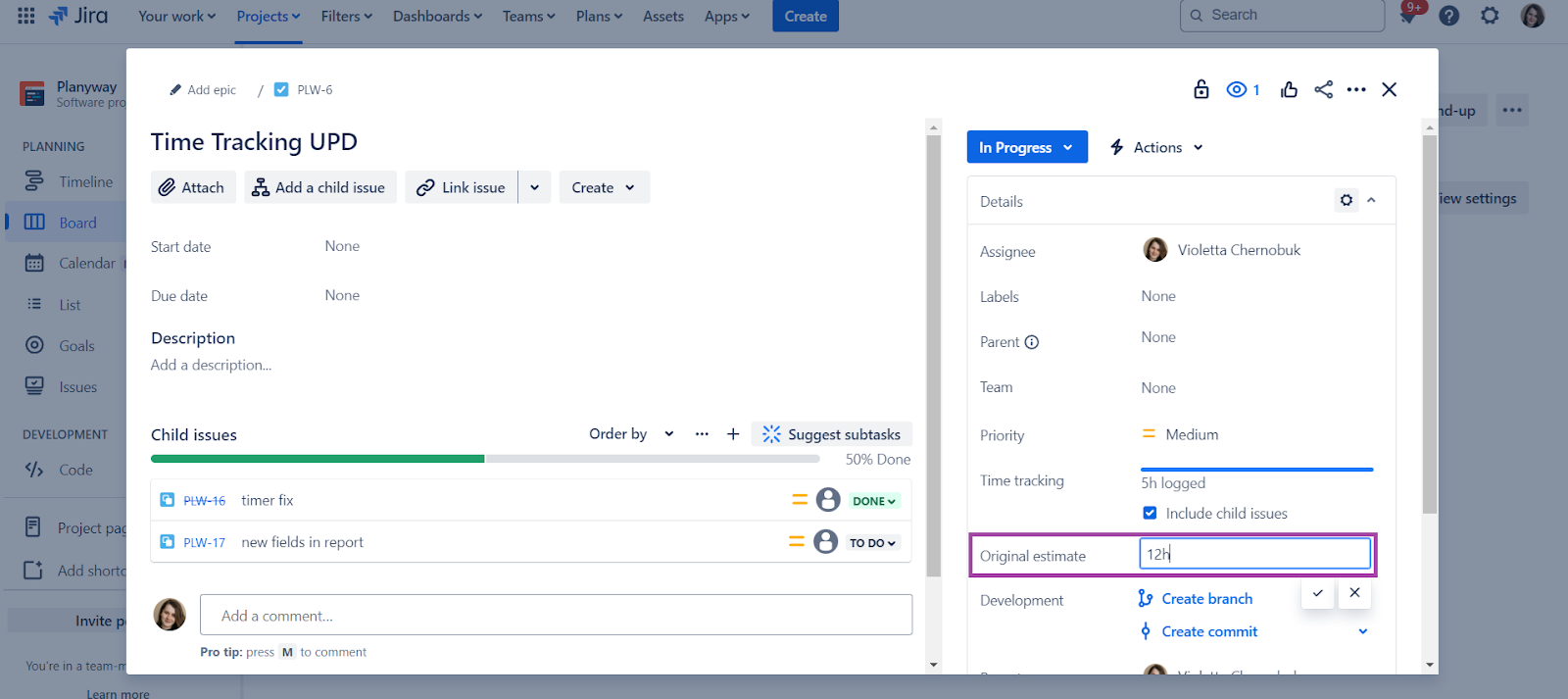
You can use Jira’s Story Points or Time Estimates (in hours or days). Whichever metric you choose, ensure it aligns with your team’s working methods:
-
Time Estimates work well for teams where task durations are relatively predictable.
-
Story Points are better suited for Agile teams that estimate work complexity and effort instead of duration.
2. Plan Sprints Around Capacity
Once you’ve set up your team’s capacity and added estimates to your Jira tasks, you can start planning your sprint. The goal is to ensure that the total workload for each team member stays within their remaining capacity. Here's how:
-
Create a sprint in Jira (learn how).
-
Assign tasks to team members based on their resource availability. Use the estimate-to-capacity ratio to ensure that no one is overbooked.
-
Jira’s burndown charts can help track progress over time and ensure that you’re staying within capacity.
3. Plan Capacity Visually
If you want more than hard numbers and prefer your resource allocation to be visualized, you have several options depending on how advanced you want your Jira resource capacity visualization to be.
At the basic level, teams use Timeline (Roadmap) views, backlog filters, and estimates to manually distribute work across people and time. This gives you a visual sense of workload, but it doesn’t calculate capacity or availability automatically. This option is available for all Jira plans.
On Jira Premium, you can use Jira Plans (Advanced Roadmaps), whose advanced planning features allow you to see work across multiple teams and projects in one timeline and get a clearer view of how work is distributed over time. However, Jira Plans still have some limitations in terms of effective capacity planning:
-
There's no individual capacity tracking in Jira Plans
-
You can’t set skills and roles for teammates
-
It doesn't factor in vacations and days off
-
Capacity is typically modeled at the team level, which can make it feel uniform unless you explicitly break it down into individuals or custom structures.
-
Workload is still based on estimates and planned assignments rather than real-time resource utilization or live availability.
If these limitations don’t fit your ideal workflow or you simply don't want an upgrade just to unlock capacity planning, you can explore dedicated capacity planners for Jira. One of them is Planyway.
Jira Capacity Planning with Planyway
If you want your Jira capacity planning to be more visual, convenient, and aligned with your real team availability, we recommend checking out Planyway. Planyway is a cross-project planning app for Jira that brings projects, capacity, and team schedules into one shared timeline. With Planyway, you can:
1. Set capacity for teams and individuals
Planyway gives you full flexibility in how you manage capacity across your organization. Here, you can customize working hours and availability both at the team level and for individual team members to reflect different schedules and working patterns.
Planyway allows you to create workload schemes, assign them across users and teams, apply holiday calendars, and adjust availability as needed. Workload calculations automatically adapt to each person’s actual capacity and roll up into a team-level view.

2. Manage workload with drag-and-drop
In Planyway, you can also adjust workloads directly on the timeline by dragging, stretching, or reassigning work items.

Workload indicators instantly show whether someone is under-allocated, perfectly allocated, or overloaded, while Planyway recalculates workload automatically based on available capacity and your selected estimate source (original, internal, or remaining estimate).
If a task involves multiple contributors, Planyway also bundles Multi-assign, which allows you to split a single work item across several people and manage shared resources. Each assignment can have its own estimate and contribute separately to workload calculations, making shared ownership easier to plan and visualize.
3. Include vacations and other days off
Add vacations, holidays, sick leave, and other days off directly into your workload view. Capacity updates automatically, workload is recalculated accordingly, so you always get a realistic view of team availability and can optimize capacity planning with confidence.
For distributed teams, you can also apply holiday calendars by country and manage availability individually.
4. Integrate time tracking and reporting
Planyway combines time tracking with workload visibility, so you can see not only what was planned, but also how work actually unfolds across your team in real execution. Tracked effort is tied directly to specific tasks, people, and projects. This makes it possible to compare planned allocation with real progress as work happens, instead of reviewing it only after the sprint or project is finished.
5. Compare Capacity vs Planned Work
Planyway's Workload report shows how scheduled work compares to your team’s available capacity by taking into account working hours, vacations, and holidays. It helps you quickly see whether someone is overloaded or still has room for more work, so you can adjust plans before execution starts.

6. Compare Planned vs Tracked Time
Planyway also compares planned or estimated effort with the actual time your team logs on tasks, linking estimates directly to real execution across people, projects, and individual work items.

Common Pitfalls in Jira Capacity Planning and How to Avoid Them
Even with the best tools, mistakes happen. Here are some common pitfalls you’ll want to avoid when doing capacity planning in Jira:
-
Overloading your team. Just because a team member has 8 hours in a day doesn’t mean they can work 8 hours straight on one task. Make room for meetings, breaks, and unexpected tasks.
-
Solution: Factor in buffers for breaks and other non-task-related work.
-
-
Inaccurate task estimates. If your time estimates are off, your capacity plan is useless.
-
Solution: Use historical data to improve your estimates or use Jira’s time tracking to get more accurate as you go.
-
-
Not updating capacity regularly. Life happens. People get sick, go on vacation, or get reassigned.
-
Solution: Regularly update your team's capacity in Jira to reflect real-world changes.
-
-
Failing to account for dependencies. A task might be estimated at 4 hours, but if it's blocked by another team or a pending approval, those 4 hours stretch across days.
-
Solution: Map dependencies early using Jira's link types (blocks/is blocked by) and add a dependency buffer to your sprint timeline—not just to individual estimates.
-
-
Basing capacity on ideal velocity. Using your best-ever sprint velocity as the baseline sets unrealistic expectations. One great sprint doesn't mean every sprint will be that smooth.
-
Solution: Use a rolling average of the last 3-6 sprints, and pad that number by 10-15% for variability.
-
-
Scheduling all high-complexity tasks in the same period. Even if total hours add up, a sprint full of ambiguous, high-cognitive-load work will drain your team faster than a mix of simple and complex tasks.
-
Solution: Balance complexity across the sprint. In Jira, tag tasks with complexity scores (e.g., T-shirt sizes) and visually spread them out using the sprint planning board.
-
Benefits of Capacity Planning
So, why should you care about capacity planning in the first place? Here are at least a few solid reasons to do it:
-
It helps prevent burnout. When work is planned around how much capacity the team has, you avoid overloading people and keep workloads more sustainable, which directly supports team morale.
-
It improves predictability. If tasks are assigned based on what the team can realistically handle, it becomes much easier to forecast timelines and set realistic deadlines.
-
It leads to better resource allocation. You can distribute work more evenly, making sure no one is overloaded while others are underused.
-
It improves communication and transparency. Everyone has a clearer view of who is working on what, which makes planning discussions more grounded and less guesswork-driven.
-
It helps you achieve project goals. When capacity is aligned with workload, teams can focus on the right priorities and move toward delivering planned outcomes at a sustainable pace, without getting blocked by overload or missed timelines.
-
It improves delivery reliability. When plans match actual capacity, teams are far more likely to deliver work on time without last-minute reshuffling.
For larger organizations or those practicing scaled agile frameworks, capacity planning often extends beyond individual teams to program and portfolio levels. Tools within the Atlassian ecosystem, such as Jira Align, offer more sophisticated features for capacity planning across multiple teams and for longer-term horizons like Program Increments (PIs). These systems aggregate team-level capacity data to provide a strategic overview, helping to align development capacity with broader business objectives. While the principles remain similar, the tooling and scope become more comprehensive to manage interdependencies and larger initiatives.
Wrap-up
Capacity planning in Jira doesn’t have to feel like a chore. With the right approach and capacity planning tools (hi, Planyway), you can better track capacity, balance resources across multiple projects, and manage tasks without overwhelming your team. Whether you’re trying to balance workloads, track time, or avoid common planning pitfalls, we hope that these tips will help you handle capacity like a pro. Keep your team happy, healthy, and always on track. ✌
Was this helpful?
Thanks!

Mary from Planyway
11 comments