Create
Turn on suggestions
Auto-suggest helps you quickly narrow down your search results by suggesting possible matches as you type.
Showing results for
Community resources
Community resources
Community resources
How to Build a Jira-Based Tax Intake and Approval Workflow
June 24, 2026 edited
Before any numbers make it to ONESOURCE, Bloomberg Tax, or an external auditor, your team faces a messy process of gathering data. A local controller might email a huge file of jurisdiction data. The finance team sends a trial balance. Procurement urgently requests a W-9 so a vendor payment can go through.
The actual calculation might happen in another system. But all the related work—like collecting documents, reviews, approvals, follow-ups, and audit evidence—often ends up scattered across emails, spreadsheets, chat messages, and separate checklists.
This is where Jira can help. Smart Forms for Jira can bring more control to the process.
Start with What Jira Can Already Do
Jira is already a solid tool for managing tax-related work when you need visibility and clear ownership.
A tax team can set up a dedicated Jira project for internal tax operations, using work item types like tax request, vendor tax review, tax package review, filing task, or approval. Jira workflows can match the real process, with steps like submitted, in review, waiting for clarification, approved, rejected, or ready for filing.
Jira Automation can also help. For example, teams can assign work by request type, send reminders before deadlines, notify reviewers, or escalate overdue items. Dashboards show what is open, blocked, approved, or close to a filing deadline.
However, one common weakness in Jira’s standard setup is that the quality of intake depends on how well the requester fills out the work item.
So while Jira manages the workflow well, it needs a better way to handle the initial intake.
Tax Work Starts Before the Ticket Is Ready
Tax teams usually do not lose time because they cannot track tasks. The real issue is that work often starts off incomplete.
A local finance team might send data in a different format than others. A reviewer may approve something in an email thread, but later it is hard to link that approval to the work item.
This leads to the typical tax operations cycle:
Tax asks for missing information.
Finance resends attachments.
Procurement waits.
Reviewers ask where the latest version is.
As a result, the audit trail is harder to piece together than it should be.
Smart Forms helps by making the first step a guided process. Instead of starting with an incomplete ticket, the requester uses a structured form.
Smart Forms as the Intake Layer for Tax Teams
The AA tax team can use Smart Forms as the entry point for common tax workflows. The key is to avoid building one huge form with every possible tax question. Instead, the form should guide the requester based on the type of request. Smart Forms support multiple conditions and advanced logic using numbers, dates, or option selections.
For example, if the request is about a vendor, the form can ask for vendor-related documentation. If it is about some sum of money, when the sum is greater than X, it can show questions more relevant to the smaller or larger amount.
This approach makes it easier for the person submitting the request and keeps things clearer for the tax team.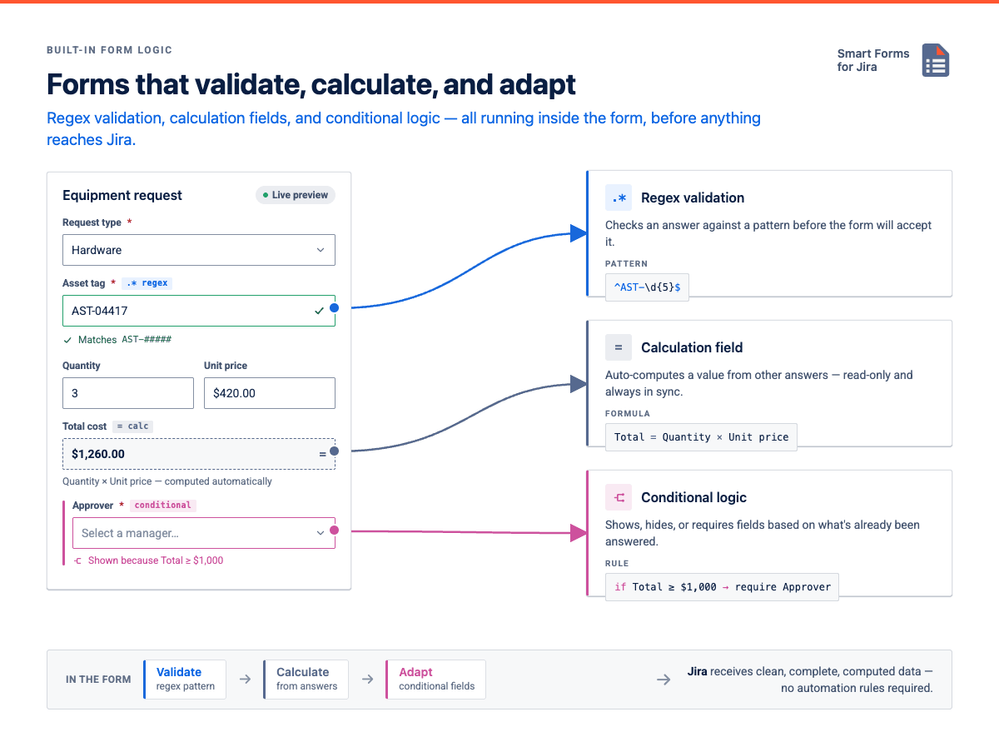
One Setup: Create the Jira Work Item and Map the Right Data
The most useful Smart Forms setup is not “collect form responses first, then manually create a ticket.” The stronger setup is to connect the form directly to Jira.
When someone submits a form, the app can create a Jira work item and populate the relevant Jira fields from the form answers. This means the request enters Jira structured enough to be routed, prioritized, reported, and reviewed.
For example, a tax request form can create a work item in the tax project, add the submitted responses to the issue, attach supporting files, and map key answers to Jira fields used for workflow rules or reporting.
This matters because tax teams need more than just a filled form. They need a Jira item that can move through the workflow.
Once the data is mapped, Jira Automation can take over:
Route the request to the right reviewer.
Set priority based on urgency or risk.
Notify the tax manager when approval is needed.
That is the real benefit: Smart Forms captures the request correctly, and Jira takes care of the next steps. Even better, you do not need a custom field for every question. Form answers can map to a single field, like description, or to any field, like label, without adding new ones.
Use Prefilled and Auto-Attached Forms for Review Steps
Tax workflows rarely finish after the first submission. There are usually more steps, such as clarification, review, approval, final sign-off, or collecting evidence.
This is where Smart Forms can be automatically added to Jira work items at the right time.
For example, when a tax package issue is created, a review checklist can be attached automatically. When a vendor tax review moves to “Waiting for Tax Approval,” an approval form can appear in the issue.
These forms can also be prefilled with values from the Jira work item using smart values, so the reviewer does not have to re-enter information that is already there. The form can open with the request type, entity, deadline, owner, or other known values already filled in. The reviewer just adds any missing review details.
This is especially helpful for tax teams because it keeps every step linked to the same Jira work item.
The Core Blueprint: How to Structure Tax Operations in Jira
To turn your tax operations from a messy inbox into a repeatable, automated process, you need to separate your calculation engine from your workflow engine. Your tax software handles filing, while Jira manages the process, the people, and compliance tracking.
A modern, streamlined tax workflow follows a clear four-phase lifecycle:
[ Branded Intake Form ] ➔ [ Field-Mapped Jira Work Item ] ➔ [ Automated Review Checklist ] ➔ [ Permanent Audit Trail ]
Phase 1: Build an Intelligent, Context-Aware Request Portal
With a drag-and-drop builder, you can design an easy-to-use Tax Consultation or Compliance Request Form. Instead of overwhelming business users with a huge form full of every possible tax question, use conditional logic to adapt the form based on their selections.
You can embed this form directly on a public Confluence page, pin it as a permanent Jira project sidebar shortcut, or host it on an internal website or SharePoint intranet via a secure external share link. External vendors or third-party advisors can securely complete the form and upload documentation from any browser or mobile device without needing a Jira account.
You can add simple or advanced regex validation to your forms to check inputs like tax numbers or other values. You can also use a calculation field to handle calculations directly in form with a formula.
Phase 2: Implement a Lean Schema Mapping Strategy
One of the biggest problems Jira administrators face when building intake workflows is creating too many custom fields. For example, if someone needs 15 data points for a tax audit, the admin might create 15 new custom fields. If this happens in several departments, your Jira setup can hit performance limits and end up with lots of unused fields.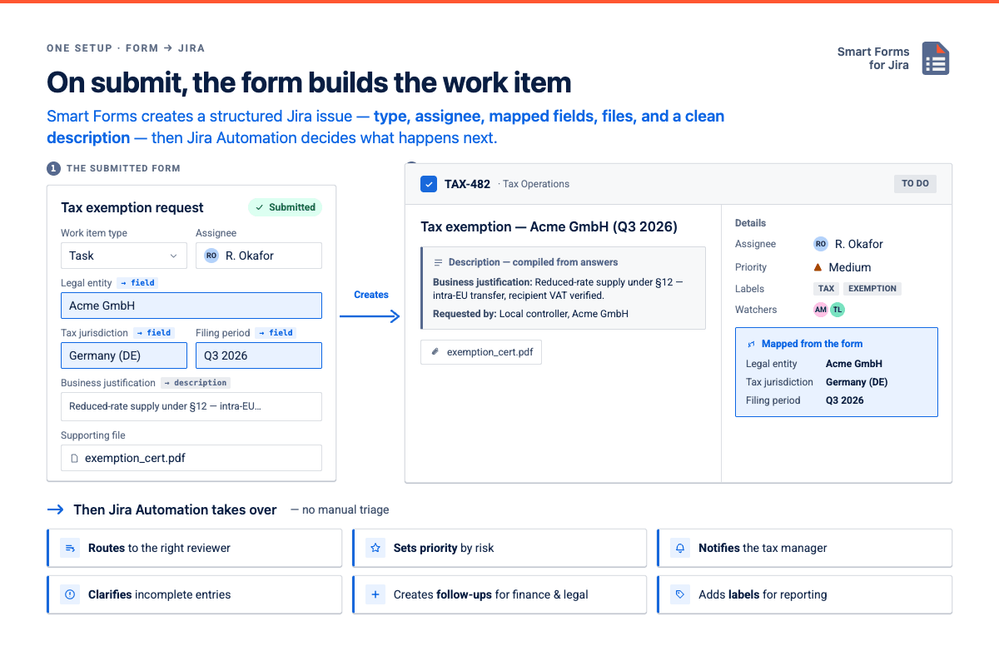
With Smart Forms for Jira, you have full control over how form responses connect to your Jira data. You only need actual Jira fields for data your team needs to query with JQL, run reports on, or use for automated SLA rules.
To keep your Jira site clean, make use of the three distinct mapping strategies:
Form-to-Jira Data Mapping Matrix
|
Mapping Strategy
|
Technical Mechanics
|
Ideal Use Case
|
|
Map to Custom Field
|
Response writes directly to a specific Jira system or custom field. |
Critical data required for active reporting, filtering, or SLA tracking (e.g., Filing Period, Legal Entity, Tax Jurisdiction).
|
|
Form-to-Description Mapping
|
Multiple form questions compile automatically into a single, beautifully structured block inside the native Jira Description field in a clear Label: Response format.
|
Narrative or deep contextual data that agents need to read but don't need to query (e.g., Steps to Reproduce, Business Justification, Exemption Explanations).
|
|
No Mapping (Form-Only)
|
Data lives securely inside the attached form instance and the centralized Responses dashboard, completely separated from your Jira custom fields schema.
|
Optional supporting data, secondary checklist answers, or qualitative survey responses. |
Phase 3: Leverage Silent Background Automation
When a form is submitted, the handoff should be seamless and immediate. The data entered into your intake form can automatically create a structured Jira work item or update an existing ticket in real time.
For high-volume compliance environments, you can configure hidden form fields with preset default values to tag your tasks invisibly.
User Submits Form ➔ Hidden Field Appends 'dept:tax-compliance' ➔ Jira Automation Routes directly to specialized queue.
By mapping a hidden field with a default value, like dept:tax-compliance or SOX-control-evidence, directly to the native Jira Labels field, your background workflows can act immediately without bothering the end-user with technical questions.
Streamlining the Workflow with Jira Automation:
- Context-Driven Assignment: If the mapped Tax Jurisdiction field equals "California" or "EMEA", Jira Automation assigns the work item to the corresponding regional tax analyst.
- Materiality Escalate: If a custom Transaction Amount field exceeds a defined threshold, an automation rule elevates the priority to Highest and adds your Corporate Tax Director as an explicit watcher.
- Automated Verification Checklists: The moment the parent intake issue lands, Jira can automatically create specific sub-tasks for payroll, internal auditing, or corporate legal, passing down the exact context collected from the original submission.
Phase 4: Enforce Compliance with Electronic Review Loops
A big challenge in compliance-driven workflows is making sure tasks do not move to a closed status before all the needed documentation or reviews are done. By default, Jira’s workflow engine can require fields to be filled, but it does not know if a full process form or tax worksheet has been completed. Smart Forms for Jira solves this by connecting with your workflow’s verification steps.
Setting Up a Controlled Compliance Gate:
- Auto-Attach on Status Change: When an onboarding or audit issue transitions from Open to In Progress or Review, your predefined Tax Technical Review Checklist or SOX Control Form attaches to the issue automatically.
- Auto-send form for submission: when the form is attached, you can send this form on workflow trigger to the person who has tp submit this form
- Mandatory Field Enforcement: Mark key validation questions within the checklist as Required. The form cannot be submitted with blank rows or missing sign-offs.
- Automated Status Transitions: Once the reviewer checks the boxes and hits submit, the form can automatically transition the Jira issue status to Approved, Awaiting Final Sign-Off, or Locked for Provision—removing the needto click throughs workflow colums.ns.
[Transition: Review] ➔ Auto-Attach Checklist ➔ Submit (All Fields Completed) ➔ Auto-Transition to Approved
Phase 5: Prefill Follow-Ups via URL Parameters
Multi-step accounting workflows frequently involve multiple stakeholders. A local controller submits the initial numbers, an internal analyst verifies them, and a tax director provides final sign-off.
To make the review process painless, your secondary forms shouldn't start as a completely blank slate. You can use URL parameter pre-filling to carry known data from the Jira issue directly into follow-up approval or review links.
Using Jira Automation's Send Email action combined with Smart Form URL properties, you can generate an automated approval email containing a dynamically populated link:
Plaintext
When your tax director clicks that link in their email or Microsoft Teams notification, the approval form opens up with the issue key, the entity name, and the transaction amount already filled out in the background. They only have to review the pre-populated data, add their review notes, and check the "Approve" box—reducing administrative friction by up to 80%.
Data Portability and Analytics
When tax season wraps up or an external audit begins, your data needs to be fully organized, queryable, and easily accessible.
Because\ stores your data directly in relation to your issue objects, forms and drafts stay entirely portable. If you copy or clone a compliance issue, or move a support ticket into a software development project for a technical bug fix, your attached forms and submitted responses move with it seamlessly, preserving historical context perfectly across boards.
For high-level operational reporting, you can jump into the dedicated Responses Tab to view aggregate analytics, track turnaround volume across regional teams, spot process bottlenecks, and export clean, formatted PDF or Excel datasets ready for your executive stakeholders or financial BI pipelines
Was this helpful?
Thanks!

Olha Yevdokymova_SaaSJet
Atlassian Partner
Atlassian Community Events
Copyright © 2026 Atlassian
1 comment