We're moving! The community forums are migrating to a new platform on September 22. Learn more
×Community resources
Community resources
Community resources
How to Automatically Track How Long Issues Stay in Backlog in Jira
We’ve all seen it: the Jira backlog that becomes a "black hole." Issues enter, but it’s often unclear how long they sit there before the team actually starts working on them.

While Cycle Time (In Progress → Done) is a standard metric for most agile teams, Backlog Time (Created → In Progress) is frequently overlooked. Yet, tracking how long issues stagnate in the backlog is crucial for understanding your true Lead Time and ensuring that high-priority requests aren't gathering dust.
In this article, we’ll look at how to measure this using native Jira reports and how to get precise, automated data using Time Metrics Tracker|Time Between Statuses.
Why Native Jira Reports Aren't Always Enough
Jira does provide built-in tools for general trends:
- Control Chart: This native report shows the time issues are spent in specific statuses and helps understand variance.
- Cumulative Flow Diagram (CFD): By looking at the "To Do" band, you can visualize work accumulation. A widening band indicates the backlog is growing faster than the team can process it.
However, if you need to exclude weekends, set specific working hours, or get automated alerts when a ticket has been ignored for too long, you will likely need a more specialized solution.
How to Configure Precise Backlog Tracking
To get granular data, you can use Time Metrics Tracker to automate the calculation of "Backlog Time." Here is a step-by-step guide on how to set this up.
1. Configuration for Precise Tracking
You can create a custom metric specifically to measure the duration between when a ticket enters your initial status (usually "To Do" or "Backlog") and when work actually begins.
- Define Timers: Set the Start timer to "First transition to To Do" and the Stop timer to "First transition from To Do." This captures the exact wait time.

- Set Work Schedules: Unlike native Jira reports, you can configure a Work Schedule (e.g., Mon-Fri, 9:00–17:00). This ensures the calculation only counts time during your team's actual working hours, preventing weekends or holidays from skewing your data.

- Automatic Calculation: The app pulls data directly from the Jira issue changelog and historical timestamps, meaning it calculates these durations automatically for past and present issues without manual data entry.
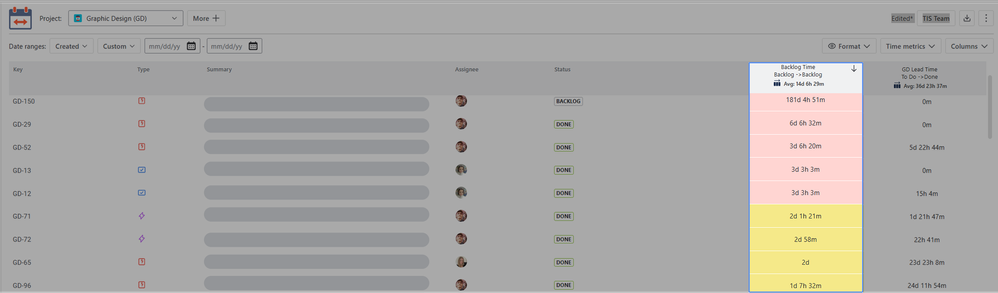
2. Analyze Data: Average Age & Sorting
Once your metric is defined, the Grid View allows you to analyze the health of your backlog instantly.
- Get the Average Age: You don’t need complex Excel formulas to see if your backlog is "aging." Select your "Backlog Time" metric in the grid, and the app automatically calculates the Average Duration for all filtered issues. This answers the question: "On average, how long does a ticket wait before we touch it?"

- Sort to Spot Bottlenecks: Simply click the metric column header to sort in descending order. This immediately brings the issues that have spent the longest time in the backlog to the top. This simple action highlights your biggest bottlenecks so you can tackle them first. Conversely, sorting by Ascending helps you analyze tasks that moved the fastest.

- Export Data: Need to present this to management? The app provides flexibility with exporting data. You can export your custom metrics to Excel or CSV to perform deep-dive analysis or combine them with other company KPIs.

3. Visualization and Dashboarding
Make the data visible to the whole team using dashboard gadgets:
- Agile Metrics Dashboard Gadget: Displays customized reports directly on your Jira dashboard, showing you the exact time each issue has spent in the backlog.

- Scatter Plot Gadget: This is excellent for spotting anomalies. It visualizes backlog durations as dots on a chart, helping you instantly detect outliers — specific issues that have been sitting in the backlog significantly longer than average.

4. Automated Alerts for "Aging" Items
To prevent tasks from being forgotten:
- Visual Color Tagging: Set Warning (yellow) and Critical (red) time limits. Issues that exceed these durations will be automatically color-coded in the report.

💡 Pro Tip: Filter Your Data
If you have items like Epics or long-running technical initiatives that naturally stay in the backlog for very long periods, they can distort your reporting. It is recommended to use a JQL filter within the app to exclude these issue types from your reports. This ensures your metrics reflect the reality of your day-to-day delivery tasks.
Take Control of Your Backlog
Understanding your backlog duration is the first step toward reducing Lead Time and improving customer satisfaction. Whether you use native charts for an overview or an app for precise metrics, the key is to start measuring.
Want to see how this works with your specific workflow?
- 🚀 Try Time Metrics Tracker on the Atlassian Marketplace.
- 📅 Book a Demo: Let us help you set up metrics tailored specifically to your team's workflow and schedule.
Was this helpful?
Thanks!

Anastasiia Maliei SaaSJet
0 comments