Teams using Jira products (Software, Service Management, and others) can sync work items, epics, and other entities with corresponding GitHub issue fields through a bidirectional integration.
You need a dedicated integration solution for this. One option is the native GitHub for Jira app on the Atlassian Marketplace, but this tool only links branches, commits, and pull requests to Jira work items. It does not create bidirectional workflows or sync custom fields.
The other option I'd recommend is the third-party integration solution, Exalate. It provides a Groovy scripting engine for mapping the incoming and outgoing data on both Jira and GitHub, giving you full control over what syncs and how.
Why Integrate Jira and GitHub
Before jumping into setup, it helps to understand what a proper integration delivers. Development teams live in GitHub, while project managers, QA, and operations teams often work in Jira. Without integration, someone ends up manually copying updates between the two, which is slow and error-prone.
A Jira GitHub integration bridges this gap by syncing work items bidirectionally. When a developer updates a GitHub issue, the corresponding Jira work item reflects those changes in real time, and vice versa. This eliminates context switching, reduces duplicate data entry, and gives every team real-time visibility into project status.
Common use cases include syncing GitHub issues to Jira stories or bugs, mapping pull request statuses to Jira workflow transitions, syncing labels and custom fields across both platforms, and escalating bug reports from Jira to GitHub repositories for developer action.
What to Consider When Choosing a Jira GitHub Integration Solution
Not all integration tools work the same way. When evaluating options, focus on these capabilities:
Bidirectional sync. One-way integrations (like the native GitHub for Jira app) create links but do not synchronize work items. Changes in Jira won't update GitHub, and vice versa. True bidirectional sync keeps both platforms current regardless of where changes happen.
Custom field mapping. Pre-configured mappings handle simple use cases like titles and statuses. But if you need to sync custom fields, priority levels, labels, or platform-specific attributes, you need a solution that supports custom transformations.
Real-time updates. Delays between systems create confusion. If a GitHub issue shows "closed" while Jira shows "in progress," teams make decisions on stale data. Real-time sync ensures both platforms always reflect the current state.
AI-assisted configuration. Setting up integrations traditionally requires developers who understand both platforms' APIs and scripting languages for setting up advanced scenarios. AI-assisted tools reduce implementation time and help non-developers configure sync rules faster.
Security and compliance. Your integration handles code-related data, work item details, and potentially sensitive project information. Look for ISO 27001 certification, encryption in transit (TLS 1.2/1.3) and at rest, role-based access control (RBAC), and decoupled access control that separates integration management from system credentials. Platforms with public Trust Centers let you review security documentation before committing.
Scalability. You might start with one Jira project syncing to one GitHub repository. But as your organization grows, you may need multiple Jira instances connected to multiple GitHub repos, plus other tools like ServiceNow, Azure DevOps, or Salesforce in the mix.
Why Use Exalate for Jira GitHub Integration
Exalate combines scripting flexibility with operational simplicity through a unified management console:
- Script-based engine: Groovy scripting for any custom Jira GitHub workflow, including field mapping, conditional logic, and data transformations
- Unified console: Manage all integrations and connections from a single interface. Form multi-tier integration networks across Jira, GitHub, and other platforms
- Aida (AI-assisted configuration): Helps generate and troubleshoot sync scripts from natural language prompts
- Test Run: Test your sync scripts against real data before production deployment
- Script versioning: Every script publish creates a new version with a full audit trail, rollback capability, and draft mode
- Real-time sync: Complete queue visibility and work item history
- Security-first: ISO 27001 certified, RBAC, encryption at rest and in transit. Visit the Exalate Trust Center
- Supported integrations: Jira, Jira Service Management, ServiceNow, Azure DevOps Cloud and Server, Salesforce, Zendesk, Freshservice, Freshdesk, Asana, GitHub, and custom connectors
- Outcome-based pricing: You pay for active work items in sync, not user seats. Costs scale with actual usage, not team size
How to Get Started With Jira to GitHub Integration Using Exalate
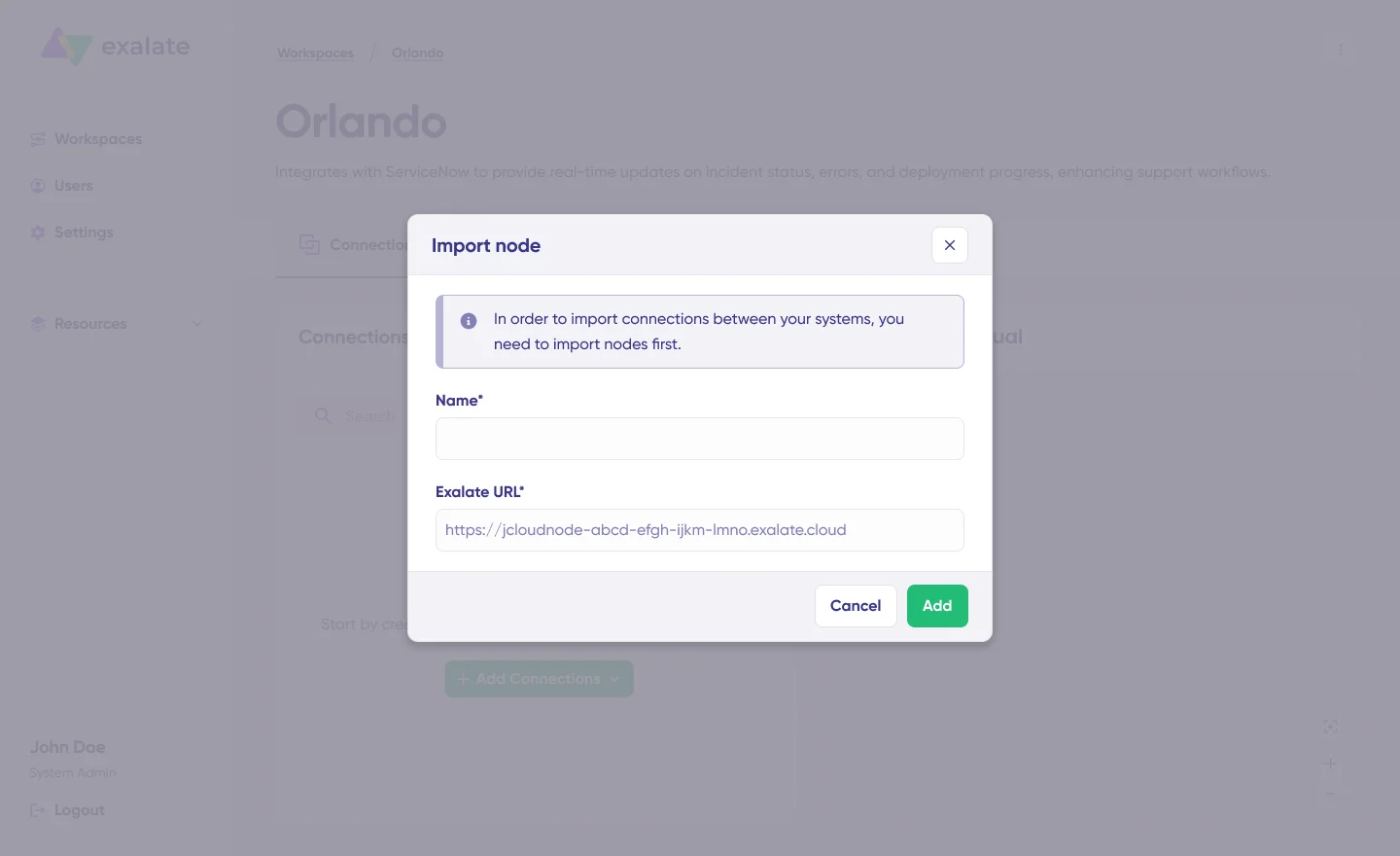
To get started with Exalate for GitHub, you can choose to import your existing Exalate Classic connections using the “Import connection” feature.
Read this complete guide to understand the process, or contact our team to discuss your use case.
Configuration Options
After importing your connection, you have to configure it to implement your use case.
Open the Draft Editor
To start making changes to your sync configuration, click "Create a new version" or select "Open latest draft".
This ensures you don't accidentally modify the existing configuration. Changes in the draft are saved automatically. You can find this option on the Connections page.
Click the "Edit" button to open the editor and modify the sync rules.
Understanding Sync Rules
Sync rules are based on Groovy scripts. With these scripts, you can add custom data logic and mapping, along with conditional flows, allowing you to adapt for any complex or advanced use case.
The scripts are divided into incoming and outgoing scripts:
- Outgoing script: If the sync direction is from Jira to GitHub, the outgoing script holds the values passed from Jira to GitHub
- Incoming script: The incoming script defines how the values coming from Jira are mapped in GitHub
These scripts will be reversed if the direction changes.
Replica works like a message payload and holds the actual data passed between the synced entities. It exists in JSON format.
Here is a sample line of code for syncing Jira custom fields:
replica.customFields."Custom field name" = issue.customFields."Custom field name"
The above code snippet populates the custom field in Jira with a value from the GitHub side and vice versa. In the other instance's incoming sync, make sure to map the value received from GitHub to the correct work item field.
To stop something from syncing (for instance, attachments from Jira to GitHub), simply remove that script line from the outgoing Jira script.
AI-Assisted Configuration
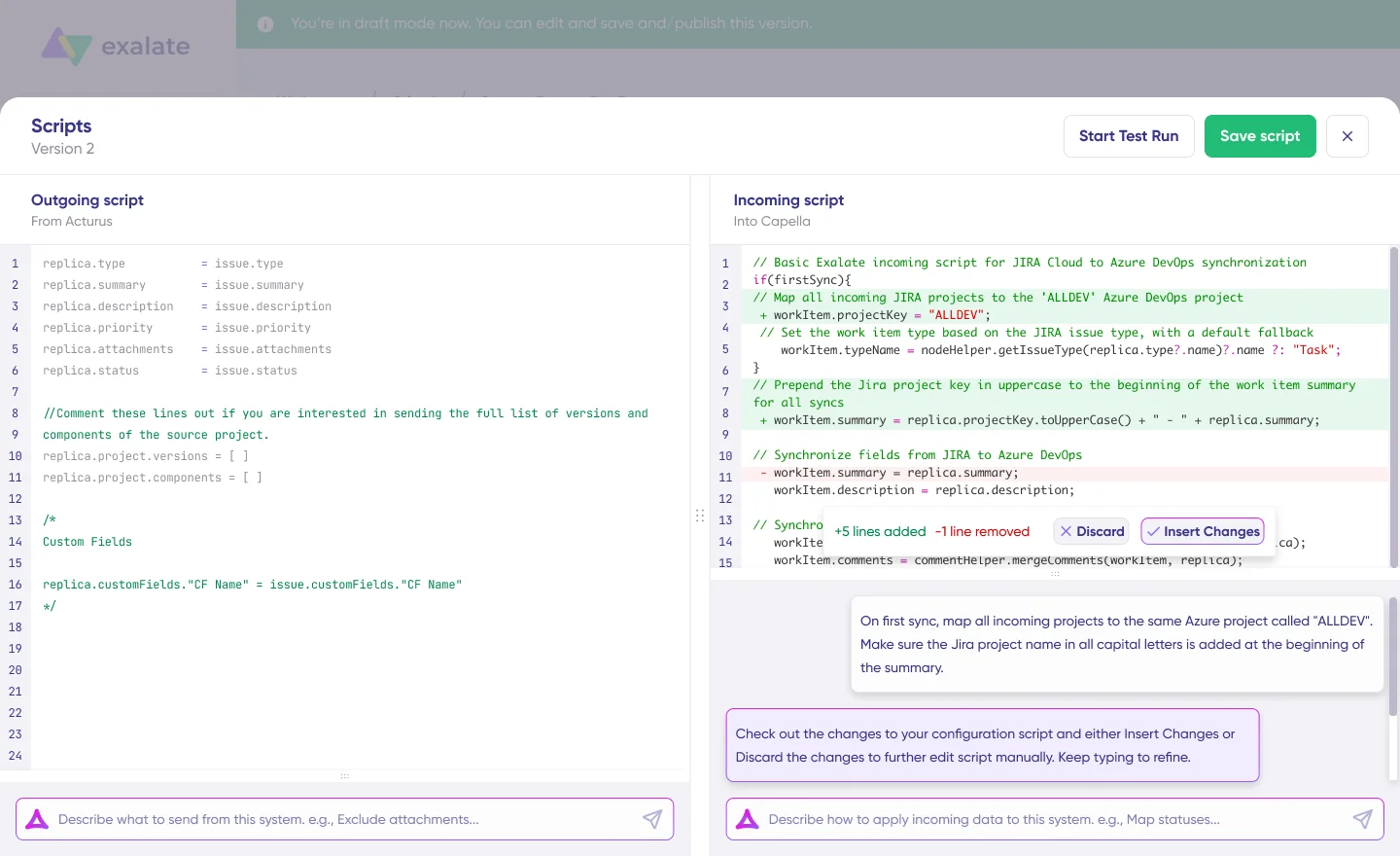
To save time and simplify the scripting process, you can use Exalate's AI-assisted configuration feature called Aida to generate sync scripts.
Aida helps you in two ways:
- For Outgoing scripts: Describe what data should leave your system. For example, "Exclude attachments" or "Only sync high-priority work items"
- For Incoming scripts: Describe how incoming data should be applied to your system. For example, "Map statuses" or "Set a default assignee if the user can't be found"
Based on Exalate's scripting API and your existing scripts, Aida generates working Groovy scripts with proper field mappings.
Once Aida finishes drafting your script, review the suggested changes. Green highlights indicate new lines that will be added, while red highlights show lines that will be removed. You can choose to "Insert" or "Discard" Aida's suggestions.
Note: While Aida is helpful, like any AI tool, please review the generated code before applying it.
Test Run: Validate Before Production
Once your sync scripts are ready, you can choose to "Save script" or proceed to test them using the "Start Test Run" option.
To test the configuration, select the items you want to apply the sync to. You can select multiple items. Once selected, click "Start Test Run". You can now view all the incoming and outgoing replicas for each item you selected in their respective tabs.
Review how the sync configuration will be applied to your items, preview the replica, and verify that the field mappings look correct. If needed, go back, adjust the scripts, and test again. Deploy only when you're confident everything works correctly.
This safety net prevents errors from affecting live data.
Once everything matches your needs, click "Publish Version" to apply the updated configuration to your live synchronization.
Adding Triggers
To start your sync automatically, add triggers, which are conditions or filters you apply to specific items. For instance, you can sync all Jira work items that have a label "sync", or sync all open issues in a specific GitHub repository.
Click the "+ Add trigger" button to start creating triggers. These triggers are platform-specific:
- For Jira: Use Jira Query Language (JQL) to specify conditions for work items or sprints
- For GitHub: Use GitHub's advanced search syntax to apply the trigger to issues or pull requests
Here are sample JQL triggers:
- project = FIR and labels = sync
- project = XProject and assignee = JDoe
- worklogDate > startOfWeek()
Here are sample GitHub triggers:
- is:issue is:open label:bug repo:username/test
- is:pr is:open repo:username/test
- is:issue org:Organization
Save your changes by publishing them.
Deploy and Monitor
That's it. Your first synchronization will start automatically based on the sync rules and triggers you have set.
Troubleshooting with Aida
If there's an error, go to the "Troubleshooting" tab of your workspace. Hover over the error you want to diagnose and click on the Aida icon that appears next to it. You will see an AI-generated suggestion including a short explanation of the error and a proposed solution.
You can also view "Error details" to copy the stack trace and "Replicas" to view the JSON format if required. Choose to "Resolve" and retry errors as needed.
Advanced Jira to GitHub Integration Use Cases
Exalate gives you the flexibility to adapt your synchronization for different Jira GitHub integration scenarios. Here are a few commonly implemented use cases.
Sync milestones between GitHub and Jira. GitHub milestones can be mapped to Jira versions or fix versions, keeping release planning aligned across both platforms. When a milestone is updated in GitHub, the corresponding version in Jira reflects the change.
Sync pull requests between Jira and GitHub. Pull request metadata, including status, author, reviewers, and merge information, can sync to Jira work items. This gives project managers visibility into code review progress without leaving Jira.
Custom field mapping across platforms. Jira sends data as Wiki format, while GitHub uses Markdown. Exalate uses converters (Transformers) to handle formatting differences, converting HTML to Wiki, Markdown to Wiki, or Wiki to HTML as needed.
Multi-instance connections. Connect multiple Jira instances to multiple GitHub repositories through a unified console. Administrators can perform bulk operations, apply consistent script templates across similar integrations, and visualize the entire integration network.
To get started with Exalate for GitHub or discuss your use case and requirements, please contact our team.


