⭐ Introduction
Have you ever thought about on-clone placeholders?
Have you ever imagined being able to set placeholder values for your cloned templates before cloning, so they apply only to this particular clone activity?
Usually, placeholders (or smart values) are used to pull a value from a specific field of the current issue or a related issue. This is extremely powerful – for example, in Jira Automation, smart values let us generate work items from data in other issues, users, projects, dates, Loom recordings, and more. They operate on information already in Jira, making them ideal for rules that must run at any time in the future.
But what if we want to use placeholders in work items that are generated manually, created from templates, or fully controlled by end-users?
What if there is no existing issue from which we can extract the values?
This is exactly where on-clone placeholders come in.
In this article, I will show you how to use placeholders to build reusable templates and how to populate them with values that are relevant to your current, unique case – right at the moment of cloning.
⭐ Why on-clone placeholders?
Whenever we create tasks from templates, we often need to repeat the same information across multiple issues. Whether it's:
-
a new hire’s name,
-
a client’s details,
-
a buddy or manager,
-
timelines,
-
URLs,
-
integration details,
-
support contacts,
… manually updating all of this can be:
❌ frustrating
❌ error-prone
❌ and extremely time-consuming
On-clone placeholders solve this by letting you define variables such as:
{{NewHireName}}
{{ClientName}}
{{GoLiveDate}}
{{SPOC_Email}}
{{HiringDate}}
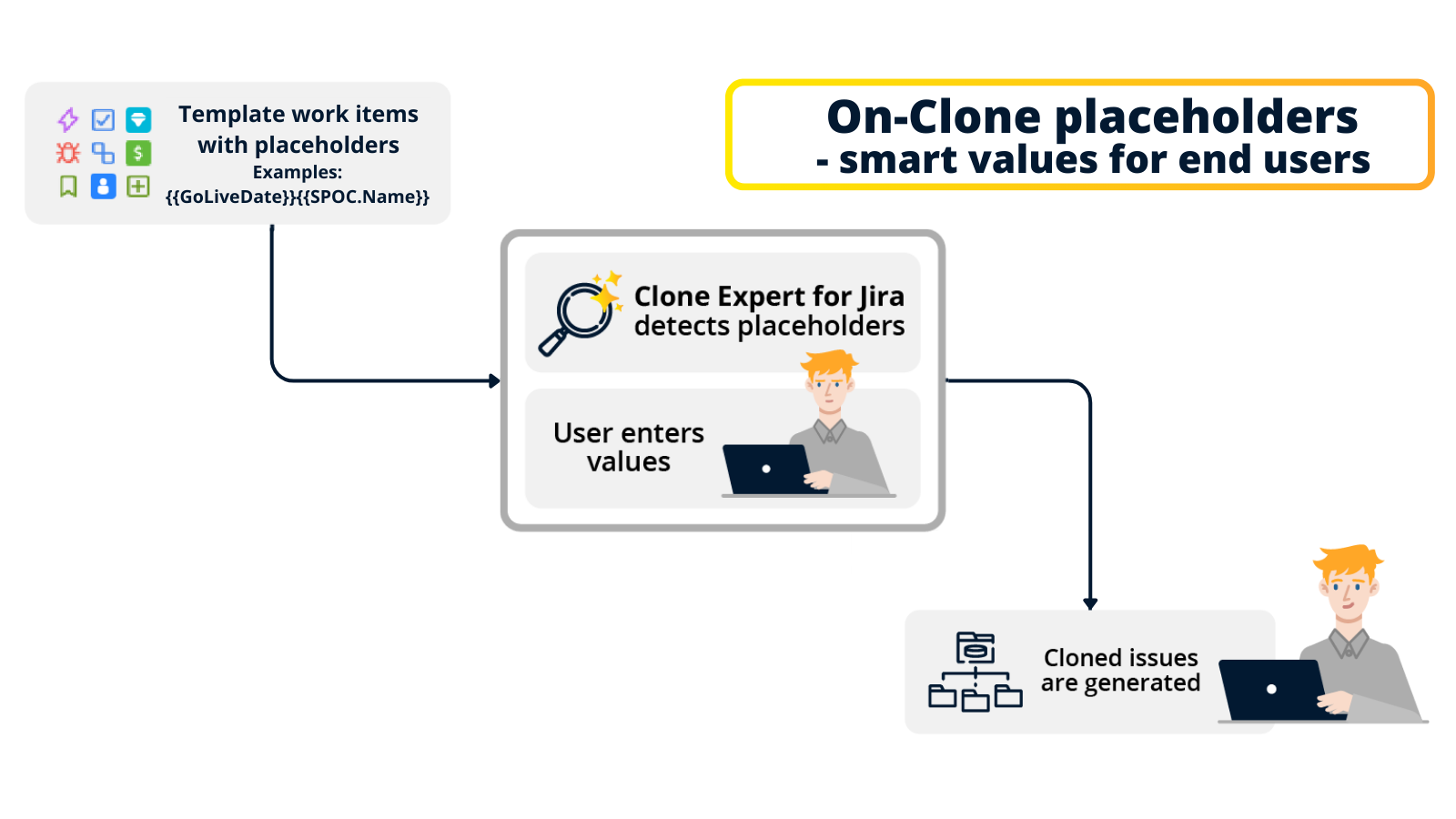
During cloning, Clone Expert for Jira automatically detects all placeholders and asks you to provide values for this particular cloning activity.
After cloning, all placeholders are replaced across Summaries, Descriptions, text custom fields, and subtasks.
Let’s look at two practical, real-world examples.
⭐ Example 1: New Hire Onboarding
First, let’s consider the new-hire onboarding process.
Yes, it’s a frequently-used scenario, but precisely because we all understand it very well.
In my previous article (https://community.atlassian.com/forums/App-Central-articles/Why-repetitive-work-deserves-better-than-manual-effort/ba-p/3145891), I showed how to create a template using native Jira functionality.
Now, let’s enhance it with on-clone placeholders.
Why placeholders help here
Onboarding requires reusing the same information across multiple tasks:
-
new hire's name
-
private email
-
manager’s name
-
buddy’s name
-
hiring date
Instead of writing this over and over again, simply place a placeholder such as:
Epic
[TEMPLATE] {{NewHireName}} – Hiring & Onboarding
Tasks
[TEMPLATE] {{NewHireName}} Define agreement details
[TEMPLATE] {{NewHireName}} Medical Checks
[TEMPLATE] {{NewHireName}} Prepare employment contract and required documents
[TEMPLATE] {{NewHireName}} Send documents for signature and collect signed copies
[TEMPLATE] {{NewHireName}} Forward documents to accounting/payroll
[TEMPLATE] {{NewHireName}} Announce the new hire on the intranet
[TEMPLATE] {{NewHireName}} Assign a buddy or mentor
Use placeholders inside descriptions too
Placeholders also work inside Descriptions, checklists, acceptance criteria, and other long-text fields.
Example:
Task
[TEMPLATE] {{NewHireName}} Prepare employment contract and required documents
Description
Prepared documents must be sent to {{NewHireName}} ({{NewHirePrivateEmail}})
at least 1 week before {{HiringDate}}.

Make sure to notify {{ManagerName}} once the package has been delivered.
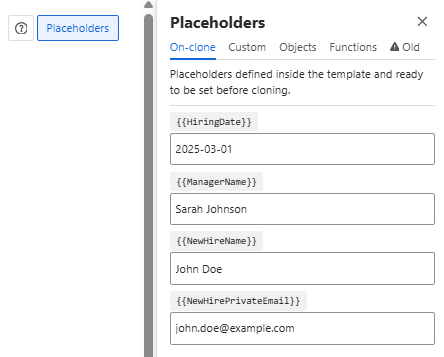
During cloning, enter values like:
…and the entire template becomes fully personalized instantly.
⭐ Example 2: New Client Implementation
Another excellent use case for on-clone placeholders is a new client onboarding/implementation of your product.
This process usually involves:
-
setting up an environment,
-
aligning contacts,
-
scheduling kickoff,
-
configuring integrations,
-
gathering requirements,
-
migrating data,
-
preparing SLAs,
-
and managing go-live.
And it usually repeats for every new customer.
Placeholders for client onboarding
Here’s a set of placeholders that work extremely well:
Contacts
{{SPOC_Name}}
{{SPOC_Email}}
{{SPOC_Phone}}

{{SME_Name}}
{{SME_Email}}
{{SME_Phone}}
Contract & documentation
{{documentation_URL}}
{{contractStart}}
{{contractEnd}}
Client details
{{ClientName}}
{{ClientShortName}}
{{ClientIndustry}}
{{ClientLocation}}
{{ClientSize}}
Project & implementation
{{ProjectName}}
{{EnvironmentURL}}
{{GoLiveDate}}
{{KickoffDate}}
{{ImplementationPhase}}
{{NumberOfUsers}}
{{TrainingScope}}
Integrations & configuration
{{Integration_CRM}}
{{Integration_ERP}}
{{APIKey}}
{{LicenseKey}}
{{WebhookURL}}
SLA
{{SupportTier}}
{{SLA_ResponseTime}}
{{SLA_ResolutionTime}}
⭐ Example client implementation template
Here is a complete example you can integrate into your implementation process.
Epic
[TEMPLATE] {{ClientName}} – New Client Implementation
TASK 1: Kickoff & Alignment
[TEMPLATE] {{ClientName}} Kickoff meeting preparation
Subtasks:
TASK 2: Access & Environment Setup
[TEMPLATE] {{ClientName}} Environment provisioning
Subtasks:
-
Create client instance at: {{EnvironmentURL}}
-
Configure user access for {{SPOC_Name}}
-
Generate and store API key: {{APIKey}}
-
Validate license key: {{LicenseKey}}
TASK 3: Requirements & Configuration
[TEMPLATE] {{ClientName}} Requirements gathering
Subtasks:
-
Review workflows for {{ClientIndustry}}
-
Identify required integrations: {{Integration_CRM}}, {{Integration_ERP}}
-
Define roles for {{NumberOfUsers}} users
-
Prepare configuration draft for {{SME_Name}}
TASK 4: Data Migration
[TEMPLATE] {{ClientName}} Prepare data migration plan
Subtasks:
-
Validate received datasets
-
Map fields to the system structure
-
Plan migration timeline before {{GoLiveDate}}
-
Provide test summary to {{SME_Email}}
TASK 5: Client Training
[TEMPLATE] {{ClientName}} Training sessions
Subtasks:
-
Prepare training materials based on {{TrainingScope}}
-
Schedule training with {{SPOC_Name}} and {{SME_Name}}
-
Create documentation space: {{documentation_URL}}
-
Record training summary
TASL 6: Final Review & Go-Live
[TEMPLATE] {{ClientName}} Final go-live validation
Subtasks:
-
Confirm readiness checklist
-
Validate configurations and integrations
-
Ensure support coverage based on {{SupportTier}}
-
Announce go-live on {{GoLiveDate}}
TASK 7: Post-Go-Live Support
[TEMPLATE] {{ClientName}} Hypercare support phase
Subtasks:
-
Monitor usage for 2 weeks
-
Track SLAs (response: {{SLA_ResponseTime}}, resolution: {{SLA_ResolutionTime}})
-
Weekly sync with {{SME_Name}} and {{AccountManager}}
-
Document findings in {{documentation_URL}}
⭐ Final thoughts
On-clone placeholders let you transform a static template into a flexible, personalized structure that adapts to each cloning operation.
They help you:
-
avoid repetitive manual edits
-
ensure correctness and consistency
-
speed up template reuse
-
reduce errors
-
standardize work across teams
Whether you’re onboarding employees, implementing new customers, running repetitive operational workflows, or managing internal processes, placeholders can save you hours every week.
💬 What processes in your organization could benefit from on-clone placeholders?
Let me know in the comments!
⭐ Want to explore more?
Suppose you’d like to try on-clone placeholders yourself. In that case, the functionality is available in Clone Expert for Jira – the cloning & templating app used by teams to streamline repeatable processes, improve consistency, and speed up project setup.
🔗 Clone Expert for Jira on the Atlassian Marketplace
📘 Documentation & more examples
You can find additional placeholder use cases, configuration tips, and template patterns in the Clone Expert documentation
🎥 Want a personalized walkthrough?
If you’d like to see how on-clone placeholders work live – or discuss how they could support your team’s specific workflows – feel free to reach out and schedule a short demo session.
