If you administer a Jira Cloud instance, you've probably run into work that's too complex to click through manually but too narrow to justify building a Forge app: migrating data from one custom field to another after a field rename, reassigning all filters when someone leaves, bulk-creating issues at the start of a new project. When Automations don't cover it, the official answer is always to build a Forge app.
That means a local development environment, the Forge CLI, a manifest file, tunneling for development, and a deployment step before your code touches any real data. That overhead makes sense for a production app serving a large team long-term - less so for a one-off bulk update.
The gap Script Console fills
Script Master for Jira is built around a specific idea: Jira administrators should be able to write and run scripts in the browser, using their current admin account, without setting up anything locally. Script Console is the module that makes this possible.
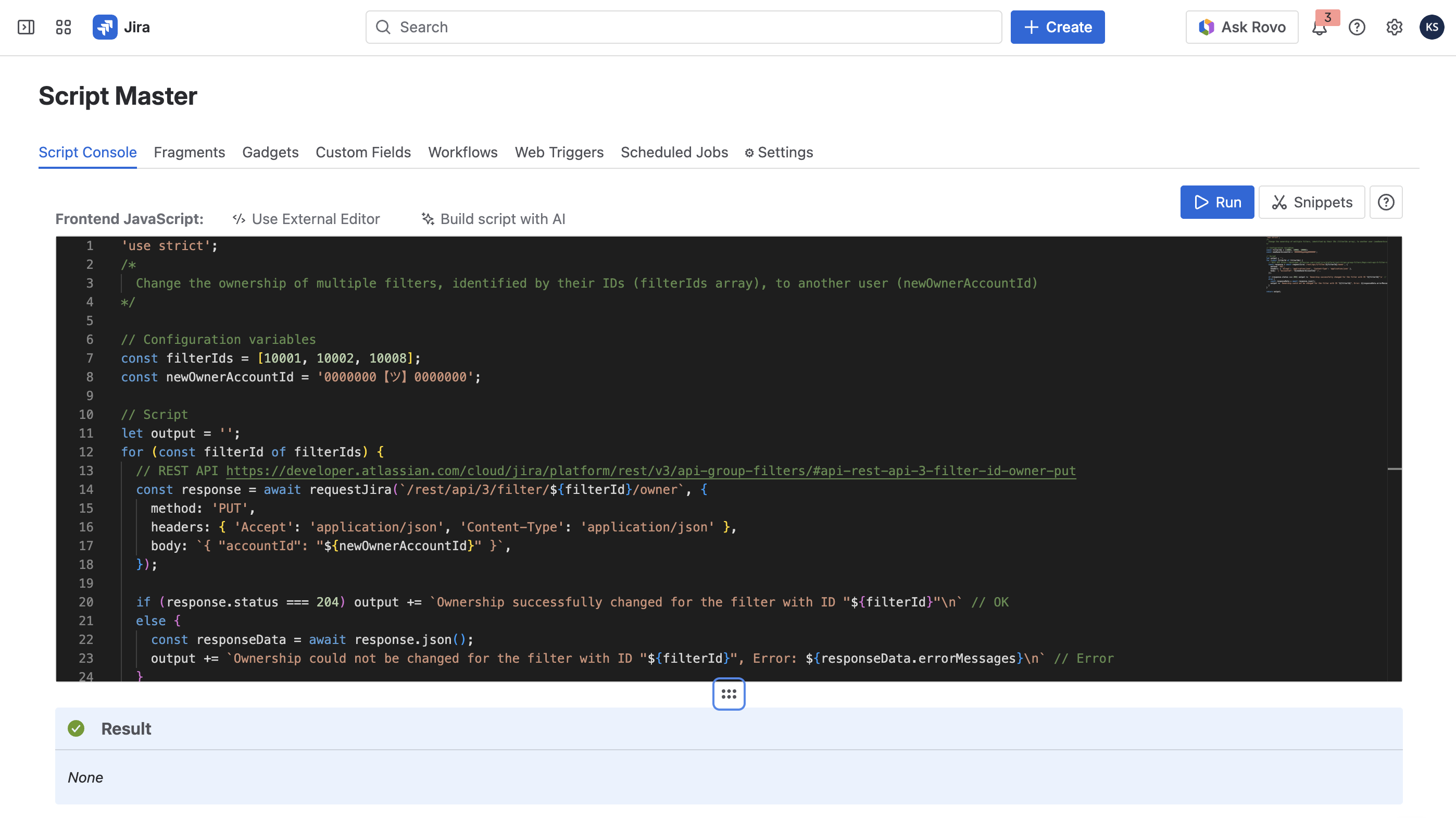
“Script Console” is a code editor embedded in the Jira admin interface. You write JavaScript, click Run, and the script executes inside your Jira instance under your permissions, with access to Forge bridge APIs and the full Jira REST API. Everything runs inside Atlassian's infrastructure - no data leaves your cloud environment.
Script Console is built on Forge Custom UI, so all scripts you write are Forge-compatible. If a script grows complex enough to warrant a standalone app, you can take the same code and migrate it to a proper Forge app without rewriting anything.
Getting started
Open the Script Master menu in Jira and click Script Console. You'll find a full code editor with syntax highlighting and autocomplete. From there you can write from scratch or use the Snippets Library, which includes ready-to-paste examples for common admin tasks, each linking to the relevant Atlassian REST API documentation.
For most tasks that come up in day-to-day admin work, the Snippets Library has something close enough to adapt. Reading a snippet alongside the API docs gets you to a working script faster than starting cold.
A real example: migrating data between custom fields
Here's a situation that turns up often in Jira migrations. A custom field is being renamed or consolidated: you create the new field, configure it correctly, and now need to copy values from the old field into the new one across all issues in a project. At any real scale, doing this through the UI is not an option.
The script below handles the full operation. You provide a JQL query to select the issues, the source field name, and the destination field name - using the exact names as shown in "Jira Settings > Issues > Custom Fields" - and run it.
/** Copy Custom Field Value Between Fields** For every issue matching a JQL query, reads the value from SOURCE_FIELD_NAME* and writes it to DEST_FIELD_NAME. Works with any custom field type: text,* number, date, select, multi-select, user picker, labels, checkboxes, etc.* because it copies the raw value object exactly as Jira returns it.** Typical use cases:* - Post-migration field consolidation (rename a field: create new, copy, retire old)* - Backfilling a new field from an existing one across an entire project* - Syncing the same value across two fields during a transition period** MODES:* DRY_RUN = true - Audit only: show what would be copied, no writes made* DRY_RUN = false - Live: copy values for real** OPTIONS:* SKIP_IF_DEST_NOT_EMPTY Set to true to never overwrite an existing value in the destination.* Useful when backfilling: only fill blanks, leave existing values alone.* SKIP_IF_SOURCE_EMPTY Set to true (default) to skip issues where the source has no value.* Prevents accidentally clearing destination fields.*/// Configurationconst JQL = 'project = "MYPROJECT" ORDER BY created ASC';const SOURCE_FIELD_NAME = 'Old Field Name'; // exact name as shown in Jira Settings > Custom Fieldsconst DEST_FIELD_NAME = 'New Field Name'; // exact name as shown in Jira Settings > Custom Fieldsconst DRY_RUN = true;const SKIP_IF_DEST_NOT_EMPTY = true;const SKIP_IF_SOURCE_EMPTY = true;// Step 1: Resolve field names to internal field IDs//// Custom fields in Jira REST API are referenced by ID (e.g. "customfield_10023"),// not by name. We fetch the full field list and look up both fields by name.const fieldsResp = await requestJira('/rest/api/3/field', {headers: { Accept: 'application/json' },});if (!fieldsResp.ok) throw new Error(`Failed to load field list: HTTP ${fieldsResp.status}`);const allFields = await fieldsResp.json();const findField = (name) =>allFields.find((f) => f.name.toLowerCase() === name.trim().toLowerCase());const sourceField = findField(SOURCE_FIELD_NAME);const destField = findField(DEST_FIELD_NAME);if (!sourceField) throw new Error(`Source field not found: "${SOURCE_FIELD_NAME}"\n` +`Check the exact name in Jira Settings > Issues > Custom Fields.`);if (!destField) throw new Error(`Destination field not found: "${DEST_FIELD_NAME}"\n` +`Check the exact name in Jira Settings > Issues > Custom Fields.`);if (sourceField.id === destField.id) throw new Error(`Source and destination are the same field (${sourceField.id}). Nothing to copy.`);const sourceId = sourceField.id; // e.g. "customfield_10023"const destId = destField.id; // e.g. "customfield_10045"console.log(`Source: "${SOURCE_FIELD_NAME}" -> ${sourceId} (type: ${sourceField.schema?.type ?? 'unknown'})`);console.log(`Dest: "${DEST_FIELD_NAME}" -> ${destId} (type: ${destField.schema?.type ?? 'unknown'})`);// Step 2: Paginate through all matching issues//// We only request the two fields we care about to keep responses small.const PAGE_SIZE = 50;const allIssues = [];let startAt = 0;while (true) {const resp = await requestJira(`/rest/api/3/search?jql=${encodeURIComponent(JQL)}` +`&startAt=${startAt}&maxResults=${PAGE_SIZE}` +`&fields=${sourceId},${destId}`,{ headers: { Accept: 'application/json' } });if (!resp.ok) {const err = await resp.json().catch(() => ({}));throw new Error(`Issue search failed: ${JSON.stringify(err.errorMessages ?? err)}`);}const data = await resp.json();allIssues.push(...(data.issues ?? []));if (data.issues.length === 0 || allIssues.length >= data.total) break;startAt += PAGE_SIZE;}console.log(`Fetched ${allIssues.length} issue(s) matching JQL.`);// Step 3: Copy values//// We write the source value directly to the destination field.// This works for all field types because Jira accepts the same object format// in PUT that it returns in GET (for custom fields).//// Examples of what gets copied transparently:// Text/URL: "some string"// Number: 42// Date: "2024-06-01"// Labels: ["label1", "label2"]// Select: { "value": "Option A", "id": "10001" }// Multi-select: [{ "value": "Opt A" }, { "value": "Opt B" }]// User picker: { "accountId": "abc123", "displayName": "..." }let copied = 0, skipped = 0, failed = 0;const log = [];for (const issue of allIssues) {const sourceValue = issue.fields[sourceId];const destValue = issue.fields[destId];if (SKIP_IF_SOURCE_EMPTY && (sourceValue === null || sourceValue === undefined)) {skipped++;log.push(`${issue.key}: SKIP - source is empty`);continue;}if (SKIP_IF_DEST_NOT_EMPTY && destValue !== null && destValue !== undefined) {skipped++;log.push(`${issue.key}: SKIP - destination already has a value`);continue;}if (DRY_RUN) {copied++;const preview = JSON.stringify(sourceValue);log.push(`${issue.key}: WOULD COPY ${preview.length > 80 ? preview.slice(0, 80) + '...' : preview}`);continue;}const updateResp = await requestJira(`/rest/api/3/issue/${issue.key}`, {method: 'PUT',headers: { Accept: 'application/json', 'Content-Type': 'application/json' },body: JSON.stringify({ fields: { [destId]: sourceValue } }),});if (updateResp.status === 204) {copied++;log.push(`${issue.key}: OK`);} else {failed++;const err = await updateResp.json().catch(() => ({}));const msg = JSON.stringify(err.errors ?? err.errorMessages ?? err);log.push(`${issue.key}: FAILED (HTTP ${updateResp.status}) - ${msg}`);}}// Summarylog.push('');log.push('=== SUMMARY ===');log.push(`Issues matched: ${allIssues.length}`);log.push(`Copied: ${copied}`);log.push(`Skipped: ${skipped}`);log.push(`Failed: ${failed}`);if (DRY_RUN) {log.push('');log.push('[DRY RUN] No changes were made. Set DRY_RUN = false to apply.');}return log.join('\n');
Here's how it works.
The first thing the script does is fetch the complete Jira field list and resolve both field names to their internal IDs. Custom fields in the REST API are referenced by ID - something like customfield_10023 - not by display name. You provide the human-readable names from Jira Settings; the script handles the lookup and validates that both fields exist and are distinct before it does anything else.
It then paginates through all issues matching your JQL, requesting only the two field IDs it needs to keep responses lightweight. For each issue, it reads the source field value and writes it directly to the destination. Because it copies the raw object as returned by the API, it works for any field type without special handling - strings, numbers, dates, select options, multi-select arrays, and user picker objects all pass through correctly.
Two flags control the behavior that matters most in practice. DRY_RUN defaults to true, which runs the script in audit mode: it logs what would happen for each issue without writing anything. You get a full preview before any data changes. Set it to false when you're satisfied with the output.
SKIP_IF_DEST_NOT_EMPTY stops the script from overwriting a destination field that already has a value. This is the right setting when backfilling a new field: only blank issues get updated, and anything entered manually stays untouched.
Running in dry-run mode first is worth making a habit. The output gives you a line-by-line record of exactly what will happen before anything is written.
Output example:
Source: "Old Field Name" -> customfield_10047 (type: string)Dest: "New Field Name" -> customfield_10092 (type: string)Fetched 37 issue(s) matching JQL.MYPROJECT-1: SKIP - source is emptyMYPROJECT-2: WOULD COPY "Phase 1 - Discovery"MYPROJECT-3: WOULD COPY "Phase 1 - Discovery"MYPROJECT-4: SKIP - destination already has a valueMYPROJECT-5: WOULD COPY "Phase 2 - Implementation"MYPROJECT-6: SKIP - source is emptyMYPROJECT-7: WOULD COPY "Phase 2 - Implementation"MYPROJECT-8: WOULD COPY "Phase 1 - Discovery"MYPROJECT-9: SKIP - destination already has a valueMYPROJECT-10: WOULD COPY "Phase 3 - Testing"MYPROJECT-11: SKIP - source is emptyMYPROJECT-12: WOULD COPY "Phase 2 - Implementation"MYPROJECT-13: WOULD COPY "Phase 3 - Testing"MYPROJECT-14: SKIP - destination already has a valueMYPROJECT-15: WOULD COPY "Phase 1 - Discovery"MYPROJECT-16: SKIP - source is emptyMYPROJECT-17: WOULD COPY "Phase 4 - Release"MYPROJECT-18: WOULD COPY "Phase 2 - Implementation"MYPROJECT-19: SKIP - destination already has a valueMYPROJECT-21: WOULD COPY "Phase 3 - Testing"MYPROJECT-22: WOULD COPY "Phase 3 - Testing"MYPROJECT-23: SKIP - source is emptyMYPROJECT-24: WOULD COPY "Phase 4 - Release"MYPROJECT-25: WOULD COPY "Phase 1 - Discovery"MYPROJECT-26: SKIP - destination already has a valueMYPROJECT-27: WOULD COPY "Phase 4 - Release"MYPROJECT-28: SKIP - source is emptyMYPROJECT-29: WOULD COPY "Phase 2 - Implementation"MYPROJECT-30: WOULD COPY "Phase 3 - Testing"MYPROJECT-31: SKIP - destination already has a valueMYPROJECT-33: WOULD COPY "Phase 1 - Discovery"MYPROJECT-34: SKIP - source is emptyMYPROJECT-35: WOULD COPY "Phase 4 - Release"MYPROJECT-36: WOULD COPY "Phase 2 - Implementation"MYPROJECT-37: WOULD COPY "Phase 3 - Testing"MYPROJECT-38: SKIP - destination already has a valueMYPROJECT-39: WOULD COPY "Phase 4 - Release"=== SUMMARY ===Issues matched: 37Copied: 24Skipped: 13Failed: 0[DRY RUN] No changes were made. Set DRY_RUN = false to apply.
Other tasks Script Console handles well
The field copy script covers one specific scenario. The same pattern - JQL to select issues, REST API calls to read and write - works for a broad range of admin work. A few that come up regularly:
Transferring filter and dashboard ownership from a departing user to an active account, across the entire Jira instance in one run
Bulk-cloning issues matching a JQL query into a target project, with an optional summary prefix
Creating batches of issues from a structured template at the start of a sprint or recurring project
The Snippets Library inside Script Console includes working examples for these and others, each with links to the relevant Atlassian REST API documentation.
A note on AI assistance
Script Master includes a "Build script with AI" feature. It generates a prompt you can paste into whichever coding assistant your organization uses. Because the prompt references the Script Console API documentation, the code that comes back already follows the right structure and patterns. It's a practical starting point for tasks outside the Snippets Library. That said, always review what the AI generates before running it - check the logic, the JQL, and any field references against your actual instance.
Install Script Master
Script Master for Jira and Script Master for Confluence have a 30-day free trial and stay free for teams of up to 10 users, additional script examples can be found on the documentation.
What admin tasks keep coming back? The manual steps you've accepted as routine, the bulk operations you dread, the cleanups you do once a quarter by hand. Drop them in the comments - we're collecting real cases and want to see if Script Master can solve them for you.
