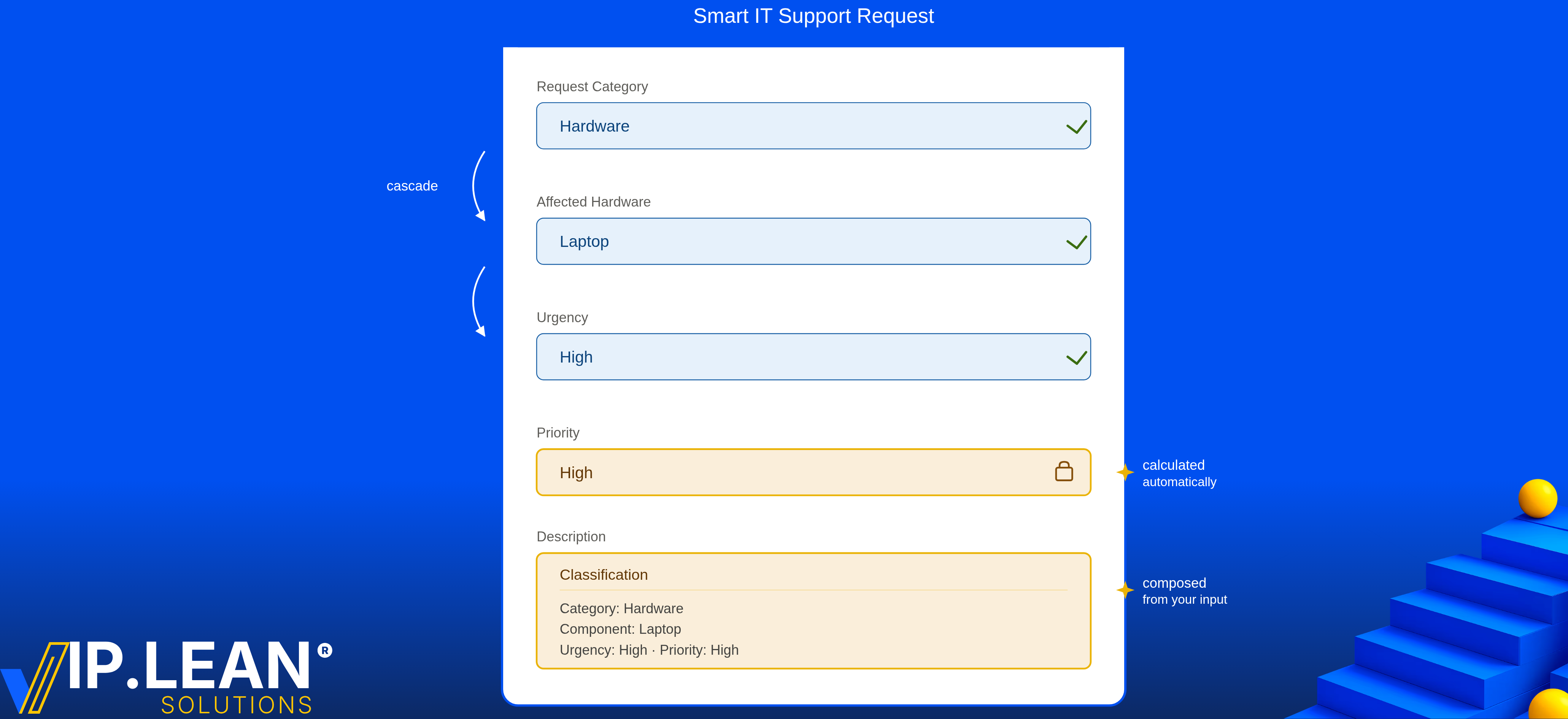
Why portal data accuracy matters
Most JSM tickets start with a form. Whatever the customer fills in is what the support team works with from there — queues, SLAs, automations, reports. The structure of that data decides whether a ticket lands in the right place; the accuracy decides whether the agent has to follow up to fill in the gaps.
The catch: portal data isn't flat. Some fields only make sense after another field has a specific value. Some options should be narrowed down based on what was selected before. Some fields are critical in one scenario, irrelevant in the next.
Atlassian already covers parts of this out of the box. JSM Forms offer conditional logic at the section level and a polished customer experience. Native field configuration lets admins decide how fields appear per request type (name, description, required, pre-fillment). What has been harder to achieve on the portal is live, field-level reactivity — show/hide, required/optional, option filtering, value composition — driven by what the customer just did.
That's the gap Atlassian's UI Modifications API is opening up — currently in Preview for Jira Service Management. Direct, programmatic control over custom and system fields, right inside the portal.
What's now possible
There are different ways to work with Atlassian's UI Modifications API — Atlassian Third-Party Apps with scripted approaches and no-code configuration are available. This article walks through one practical example using VIP.LEAN Behaviours Builder.
As of today, VIP.LEAN Behaviours Builder supports the JSM customer portal create screen across the field types and modification methods that Atlassian currently exposes through the UI Modifications API for the portal. The portal create screen is still narrower than the standard Jira create, view, and transition screens. Here's the current coverage:
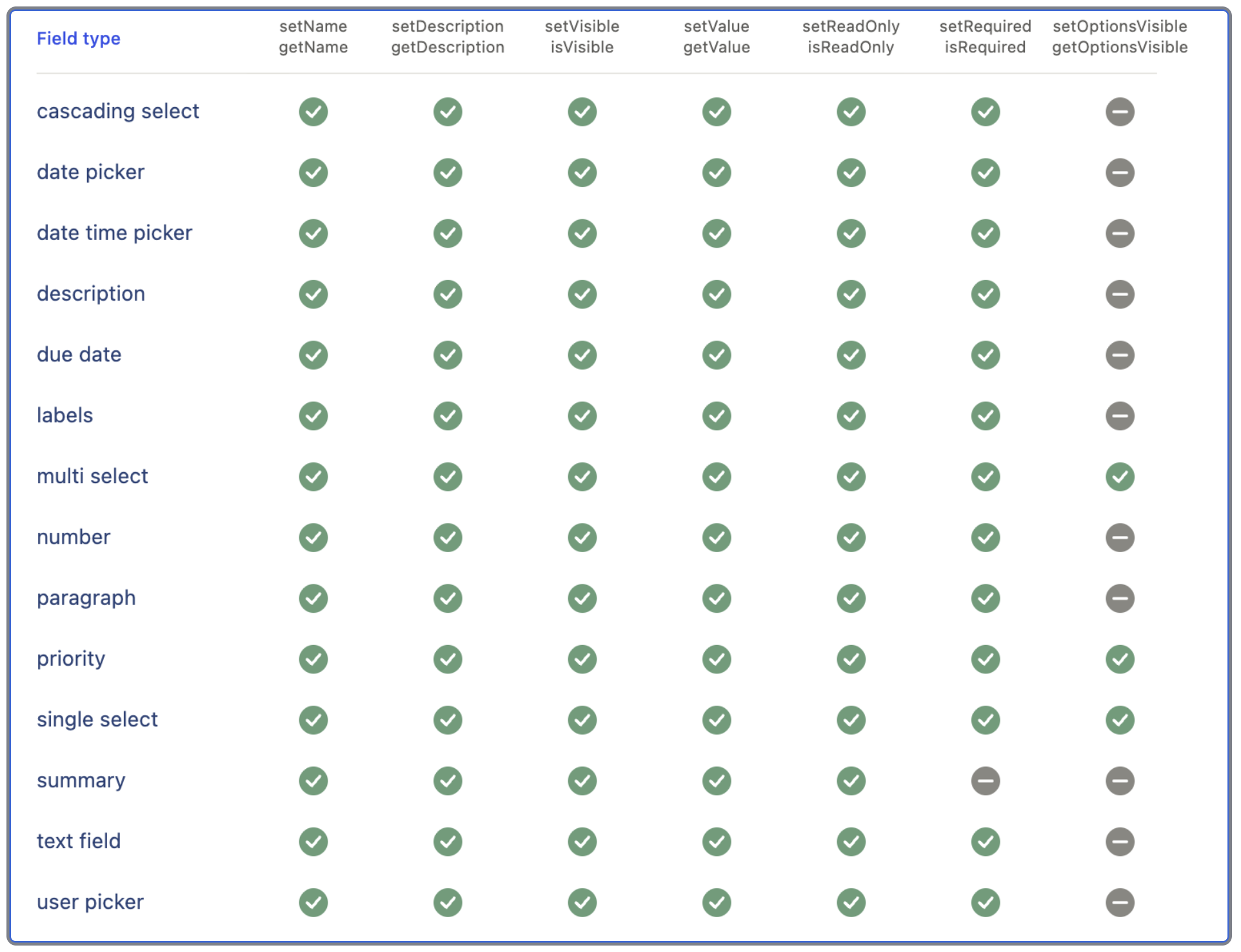
Atlassian's UI Modifications API surface for the JSM customer portal create screen — the layer Behaviours Builder operates on. Source: Atlassian developer documentation.
Example scenario — a Smart IT Support Request
What we wanted to achieve
For this scenario, the goal was a portal experience that's tightly guided from start to finish:
-
Fields appear one after another, in a cascade — the customer is never overwhelmed with everything at once
-
Only the right fields show up, based on what was selected before
-
Priority is not picked by the customer — it's computed automatically from the combination of previous fields
-
The Description isn't a free-text dump — it's an auto-generated rich-text summary that pulls in all the structured values, with one small free-text section the customer can use to add anything else worth knowing
The design — before any configuration
Before configuring a single behaviour, it's worth sketching out the control flow you want to achieve. The capabilities Atlassian exposes through the UI Modifications API, and what Behaviours Builder makes available on top of them, define what's possible — and a clear design up front keeps the implementation focused.
Here's the decision matrix for this example:
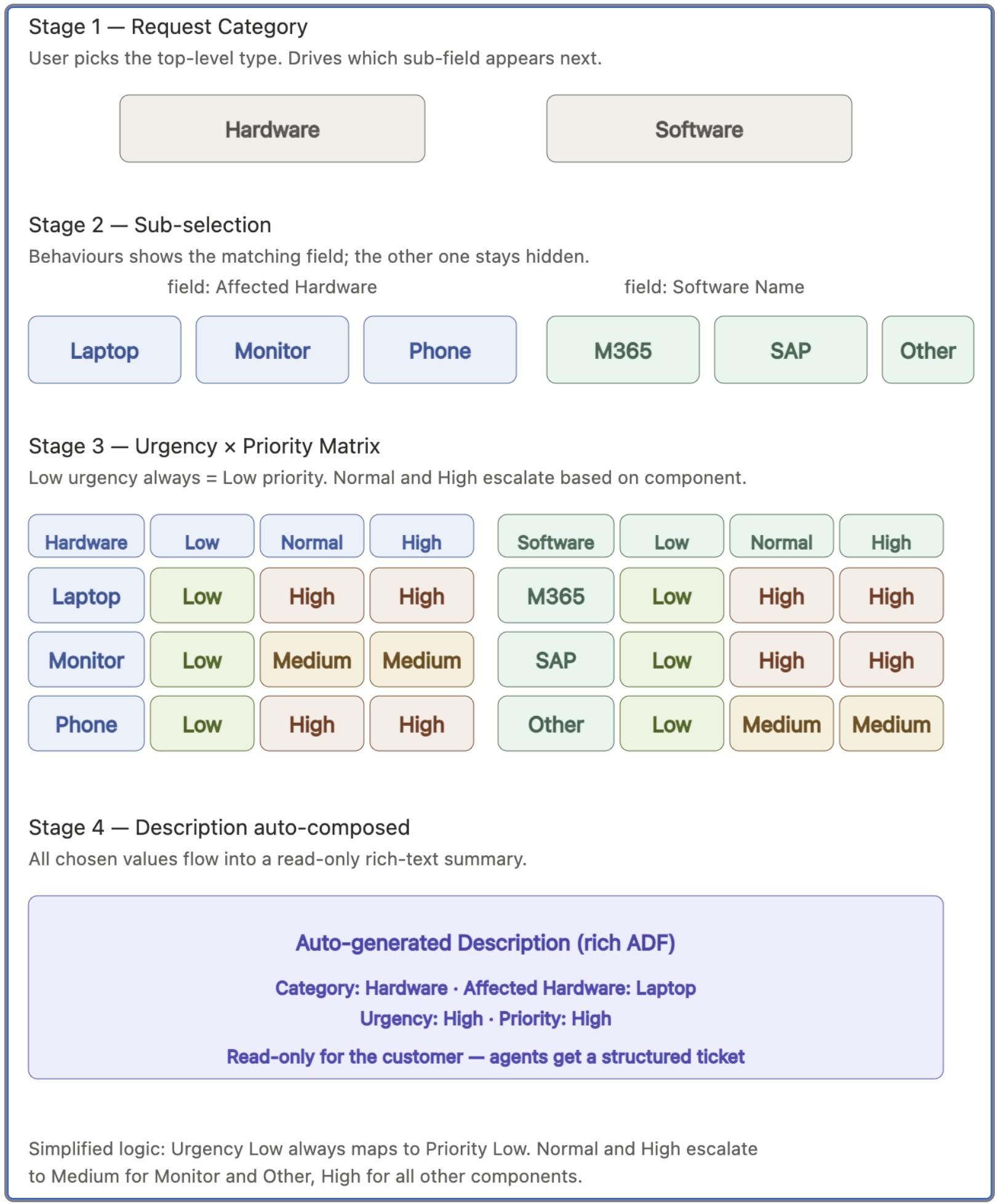
The four stages of the customer journey: request category drives the sub-selection field, the sub-selection combined with urgency drives the priority, and all chosen values flow into the auto-generated description.
This step turned out to be the most important part of the setup. Once the decision matrix was clear, the actual configuration became fairly straightforward.
The result — Behaviours Builder in action
After applying the behaviours, the portal looks and behaves like this:
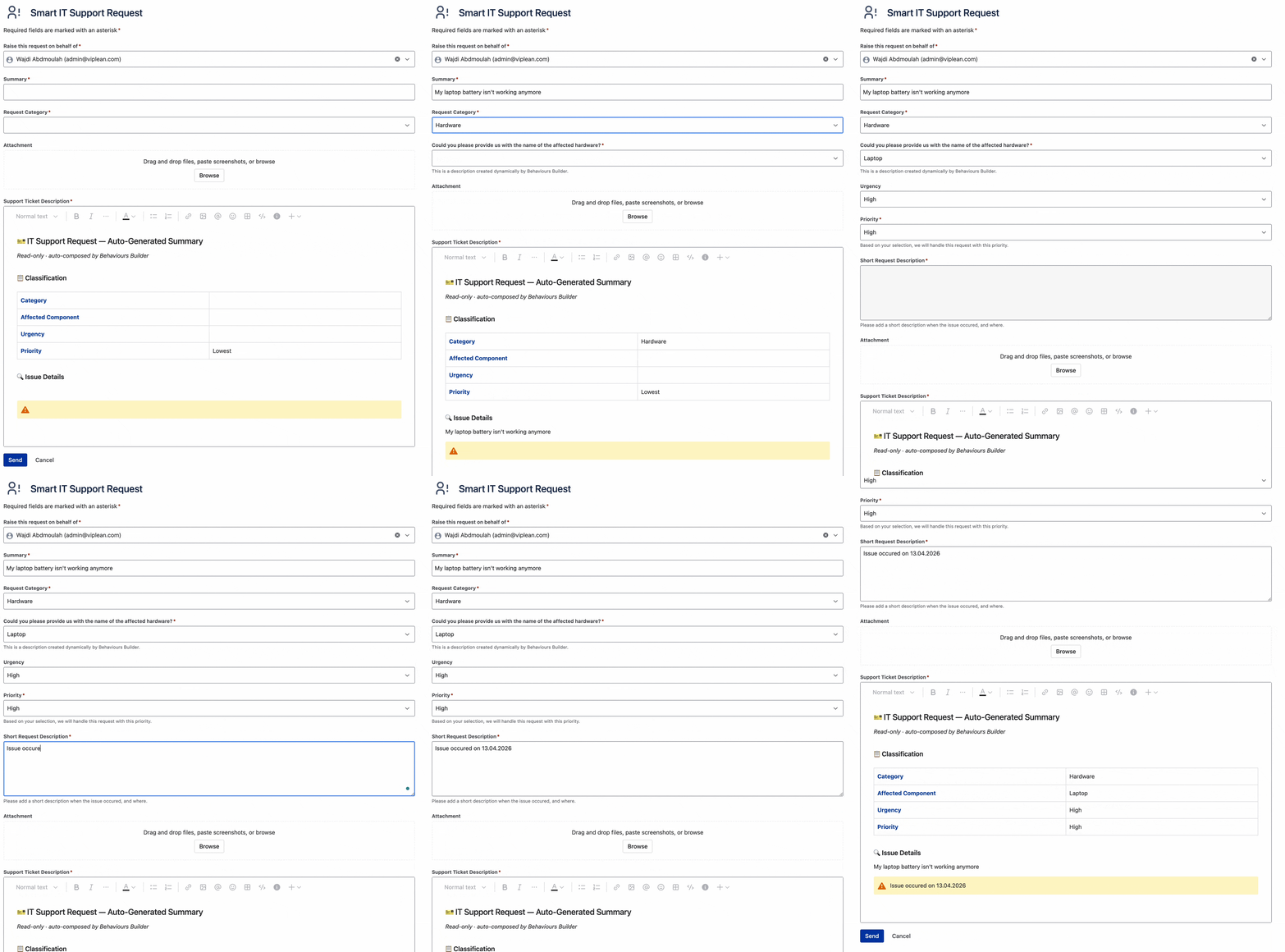
Fields cascade in as the customer makes selections. Priority is set automatically. The Description is composed in real time as a structured summary. Read-only fields are protected from edits.
How it's built — no scripting required
The configuration above does not require any custom scripting. Once the logic is mapped out, a Jira administrator can configure it directly in Behaviours Builder.
A few capabilities that made this scenario possible:
-
Field-level control across the supported API surface. Show, hide, required, optional, read-only, set value, filter options, label, description — all available where the portal API allows it.
-
Conditions that can model real decision logic. Field values combine with basic operators (AND, OR, NOT) into expressions of any depth. The priority rule in this example depends on several inputs, so a simple one-field condition would not have been enough — if Affected Hardware is Laptop or Phone and Urgency is Normal or High, then Priority is High.
-
A structured description instead of a blank text box. Rather than asking the customer to explain everything manually, the Description is assembled from the answers already provided — with headings, tables, and formatting composed live as the form is filled.
-
Reusable conditions, both branches under control. A condition is defined once and used to drive both the true and the false scenarios. If the Request Category is Hardware makes the hardware fields appear; the same condition (with NOT operator) hides them again the moment the customer switches to Software — same logic, opposite outcome, no duplicate configuration.
In our setup, the configuration took around 20 minutes once the decision matrix was clear.
A look inside Behaviours Builder
To make the configuration tangible, here are three views from the actual setup:

The full list of actions configured for this portal. Each action targets one field and applies one modification — show, hide, set value, set required, filter options. Together, they orchestrate the cascade.
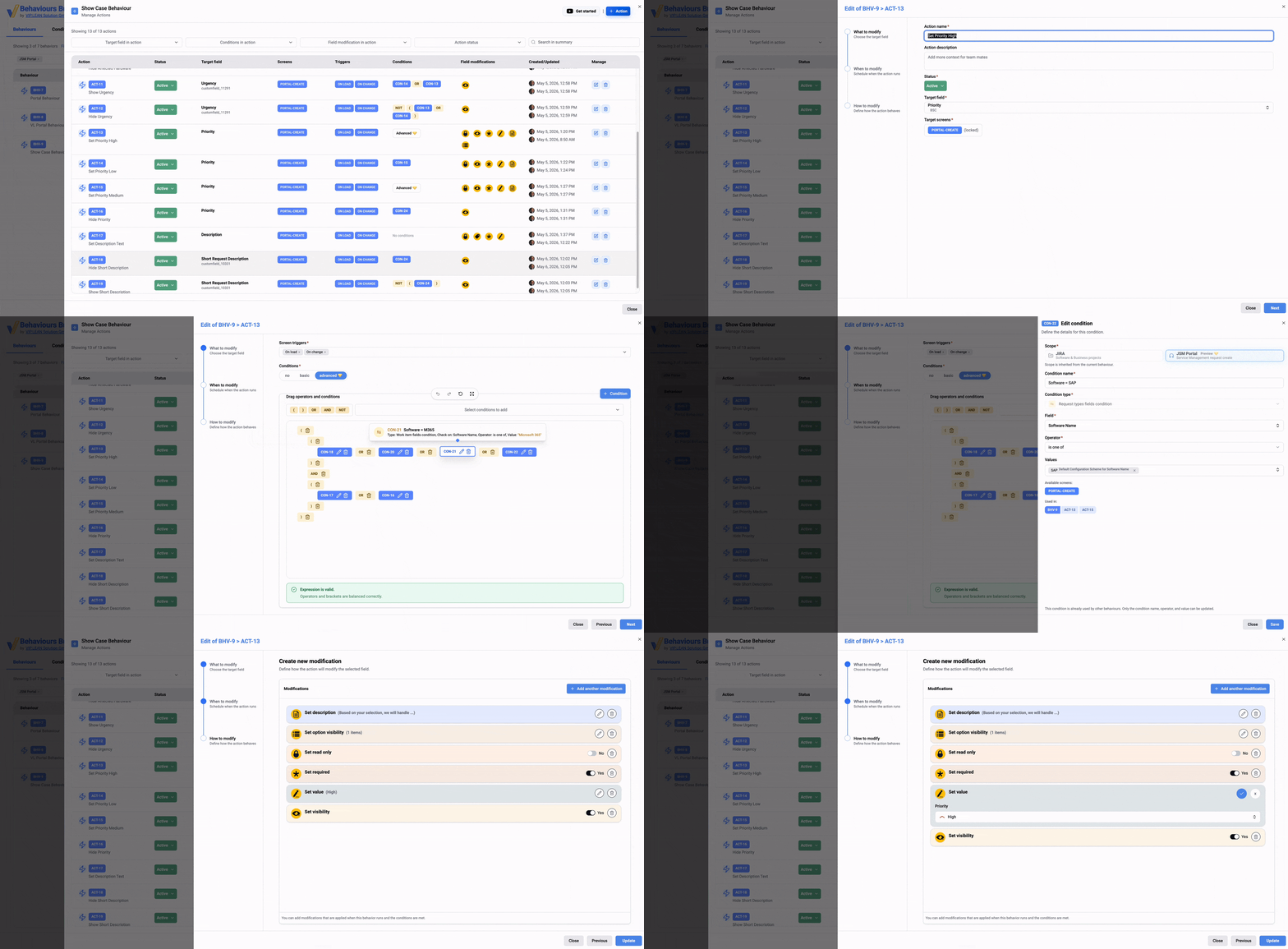
The condition expression that drives Priority to High — a compound logical expression combining Affected Hardware, Software Name, and Urgency, configured visually with reusable building blocks.
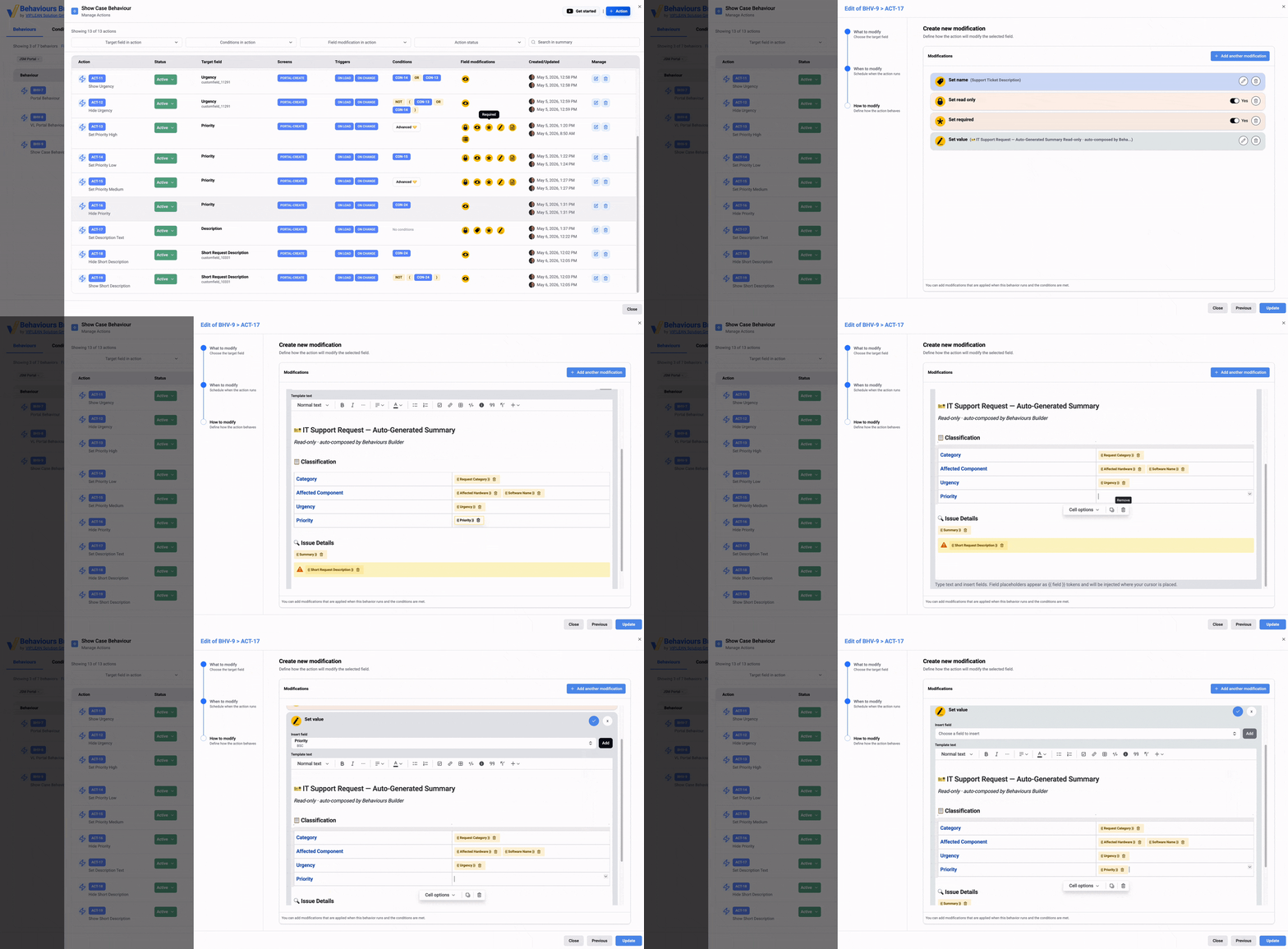
The rich-text editor that composes the Description live as the customer fills the form. Field values from across the form are pulled into a structured summary with headings, a classification table, and the customer's own input.
What's not yet covered
A few honest notes on what the portal layer doesn't do yet:
-
View screen on the portal isn't supported. The UI Modifications API today covers the portal create screen. The view side is not part of that surface yet — see Atlassian's developer documentation for the current state.
-
Internal Agent View and Transition screens for related JSM Work Items are not supported yet.
-
Some field types are still missing. The API is in Preview, and the supported field types are listed in the documentation linked above. Radio buttons, for example, aren't part of the supported set yet.
Links:
If you've solved similar portal scenarios — or if there's one you'd like us to cover next — we'd be happy to hear about it.
