Jira helps teams track work. Confluence allows teams to document and share knowledge. Connecting them together forms a continuous workflow: work occurs in Jira, and documents remain up to date in Confluence.
Using Jira macros in Confluence lets you display Jira work items, reports, and roadmaps on your pages. No copying, no screenshots, no manual updates.
This improves:
- Team visibility
- Reporting accuracy
- Collaboration
- Visibility between plan and action
In this article, we will explore the most useful Jira macros and how teams can use them daily.
What Is a Macro in Confluence?
A macro in Confluence is a small tool that provides additional functionality to a page.
You can think of a macro as a building block. You don’t always need to write out text, but can add a macro to represent dynamic information, including:
- Table of Jira work items
- Progress chart
- Roadmap
- Status summary
- Report based on filters
Macros enhance Confluence pages and make them more interactive and powerful. They are able to extract real-time data from other tools (such as Jira), automate content, or design visual reports.
When you insert a Jira macro into a Confluence page, it links to Jira and displays real-time information. Whenever anything in Jira changes, that page updates automatically, and no one has to make any changes.
Most Useful Jira Macros in Confluence
Now let’s look at the 5 most useful Jira macros and how teams use them in real projects.
1. Create Jira Work Item
With this macro, you can directly create a new Jira work item without leaving Confluence.
Use cases:
- Transform meeting notes into tasks.
- Prepare action items in sprint planning.
- Turn requirements into development work.
How to use it:
- Click Edit on your Confluence page.
- Type /Jira and select Create Jira work item.
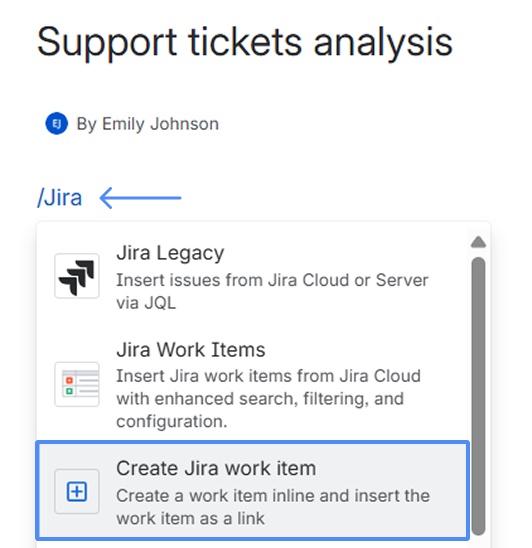
- Fill in the required fields (space, summary, due date, work type, etc.).
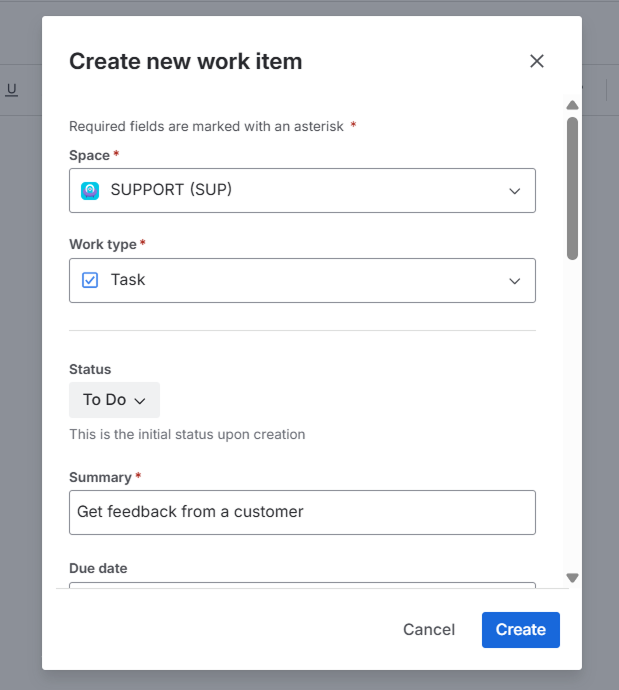
- Click Create button, and the new work item will automatically link back to the Confluence page.

2. Jira Chart Macro
Jira Chart macro allows you to convert Jira data to visual reports such as pie charts or progress reports.
Use cases:
- Sprint review dashboards.
- Monthly reporting.
- Priority or assignee status breakdown.
- Executive summaries.
How to use it:
- Click Edit on your Confluence page.
- Type /Jira Chart.
- Select a saved filter or type JQL.
- Select the chart type (e.g., Two Dimensional).
- Insert the macro.
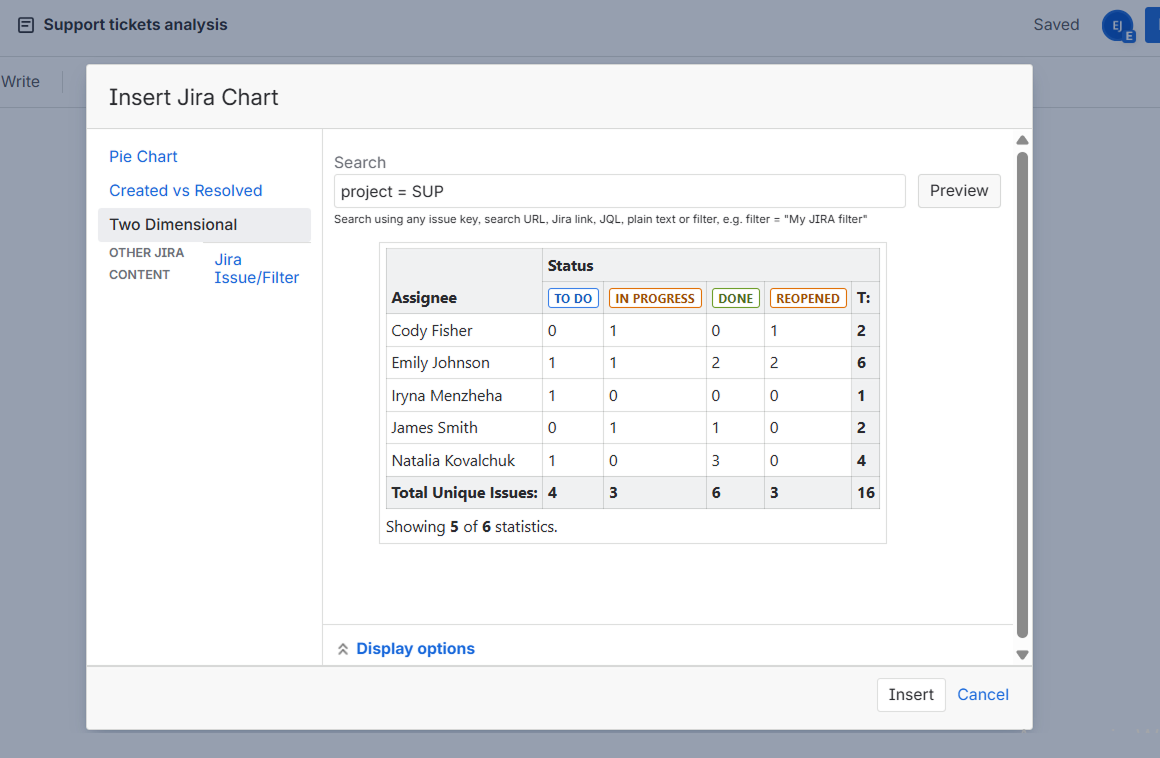
The chart can be automatically updated as Jira information changes.
3. Jira Timeline Macro
Jira Timeline macro displays Jira work items in a visual format of a timeline within a Confluence page.
Use cases:
- Release planning.
- Roadmap documentation.
- Project milestone tracking.
- Team visibility across teams.
How to use it:
- Click Edit on your Confluence page.
- Type /Jira timeline.
- Choose your filter or project.
- Insert into the page.
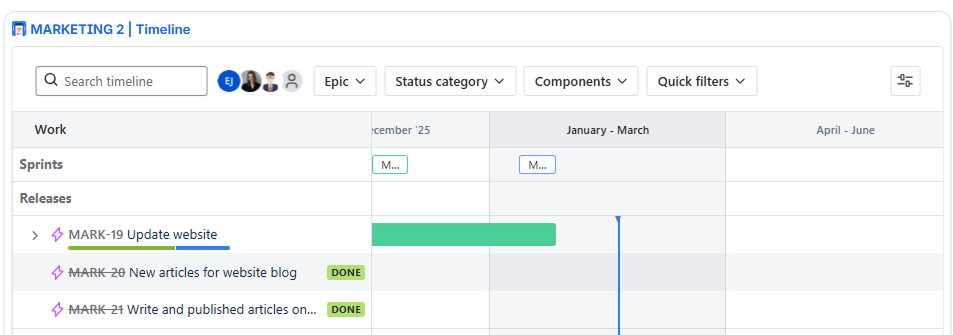
This maintains planning and documentation in line with each other.
4. Jira Issues Calendar
This macro displays Jira work items in a calendar format.
Use cases:
- Deadline tracking.
- Release schedules.
- Content planning.
How to use it:
- Click Edit on your Confluence page.
- Type /Jira Issues Calendar.
- Select a project or filter.
- Select the date field (e.g., due date, created date).
- Insert the macro.
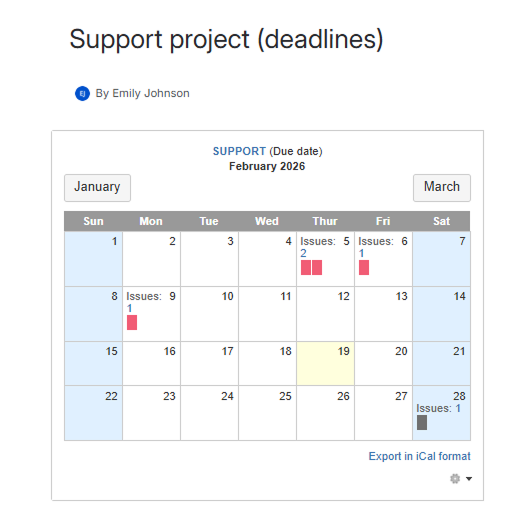
This helps teams, for example, to have a clear picture of upcoming deadlines.
5. Work Item Activity Macro (by Issue History for Jira)
Work item activity macro (provided by Issue History for Jira (Work Item History) app) provided by SaaSJet, is the macro that brings detailed work item changes tracking to Confluence. This macro is history-centered, unlike typical macros, which display only current data.
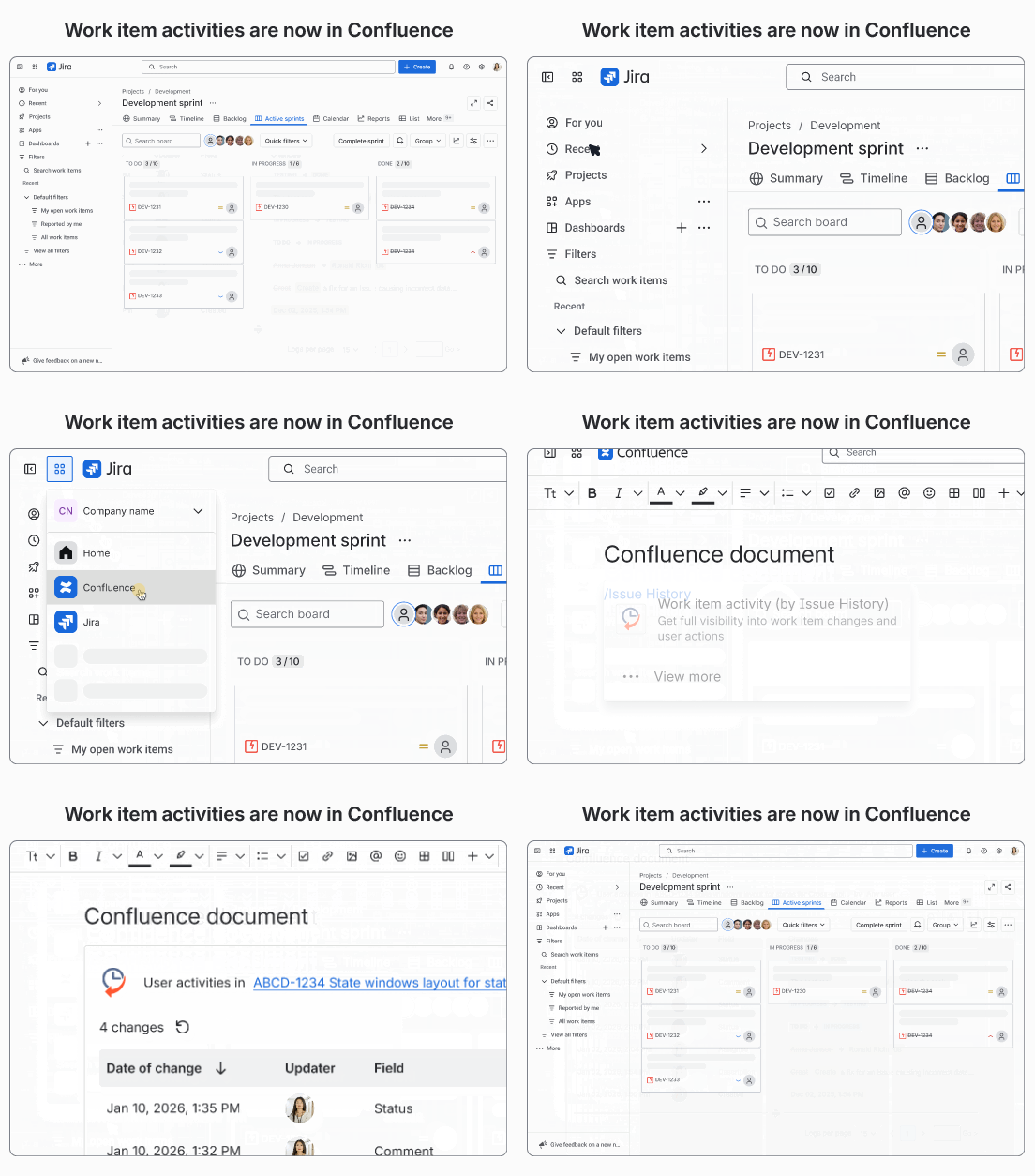
What it provides:
- Field-level change history.
- Work item status changes.
- Assignee changes.
- Deleted work item tracking.
- Export-ready audit reports.
Use cases:
- Compliance documentation.
- Tracking of financial approval.
- Incident timeline analysis.
- Audit preparation.
How to use it after the installation of Issue History for Jira app from the Atlassian Marketplace:
- Click Edit on your Confluence page.
- Type /Work item activity (by Issue History).
- Select the work item to view its history.
- Filter updates by a specific user after selecting a work item.
- Insert the macro. It will automatically load the full change history for the selected work item, which you can also easily export to Excel, CSV, or PDF.
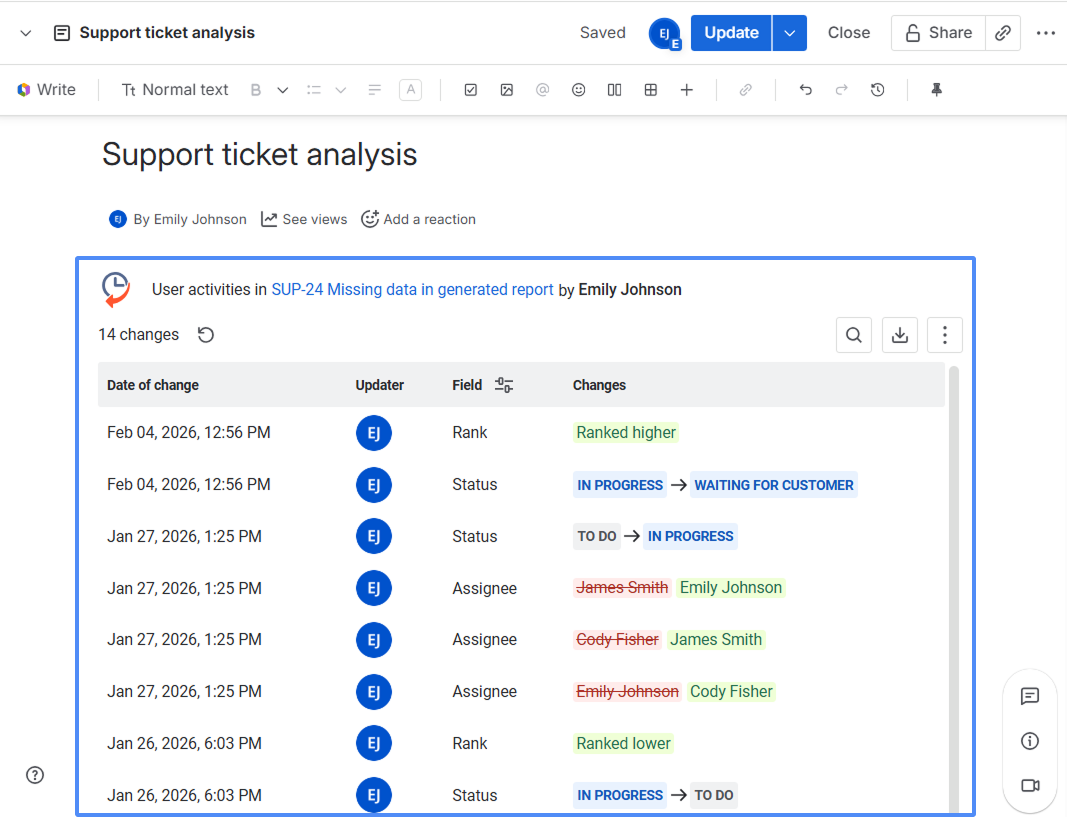
This macro helps teams keep not only current data, but also full change history visible inside their documentation.
Issue History for Jira app is especially valuable for teams that rely on both Jira and Confluence for daily work and documentation. It gives full visibility into work item changes (including status updates, assignee transitions, due date changes, etc.) directly where teams collaborate and document decisions.
🔎 Ready to improve your tracking and visibility? Try Issue History for Jira app by SaaSJet today and explore its full capabilities.
Summing Up
Jira and Confluence are most effective when they are entirely linked with the appropriate macros and integrations. With the built-in Jira macros, you can create live reports, visual timelines, and dynamic documents that can always be updated. And with an advanced tracking app such as Issue History for Jira, you can have deeper visibility, stronger audit readiness, and better control over your work item changes.
