Most service desk teams spend a surprising chunk of their day on repetitive tasks that shouldn’t require a human at all. Assigning incoming tickets. Updating statuses. Closing stale requests. These things happen dozens of times a day, taking up significant time.
Jira Service Management automation takes that burden off your team. A well-placed set of rules can streamline assignments, status transitions, checklist application, Slack alerts, and more – all without human input. In this article, we’ll cover how JSM automation works, then walk through ten Jira Service Management automation examples you can adapt to your own workflows.

What is Automation for Jira? Definition
Automation for Jira is a native, no-code feature that lets you build clear rules for automated actions without writing any code.
This functionality works across Jira Software, Jira Work Management, and Jira Service Management. It’s available on Jira Cloud and Data Center. In JSM specifically, there are extra service-desk triggers like “SLA threshold breached” and “Form submitted” that you won’t find in other project types.
Jira Service Management Automation: Typical Use Cases
Automation is most valuable wherever your team handles the same types of repetitive tasks over and over. Common scenarios include:
- Repetitive ticket actions: auto-creating, assigning, or tagging new requests. You can assign issues to specific agents or teams based on request type, priority, or custom field values.
- Standard processes: onboarding, approval workflows, and escalation paths
- SLA management: sending breach warnings before service level agreements deadlines are missed
- Queue hygiene: closing stale tickets, re-opening them when a customer responds
- Status transitions: moving tickets forward based on events, not manual intervention
- Form handling: routing tickets to the right owner once a customer submits a form
What Does a Jira Automation Rule Consist of?
Every automation rule runs in the background, listening for events in your JSM service project. When a matching event occurs, the rule checks whether your conditions are met – and if they are, it carries out the action.
Rules are built from four components:
- Trigger – the event that starts the rule, such as “Work item created” or “Comment added.” You can also trigger rules when someone adds a comment to a Jira issue.
- Condition – a check that must pass before the action runs, for example “Request type is Procurement.”
- Branch – lets you apply separate logic to a subgroup of work items, like subtasks only.
- Action – what happens when the rule fires, such as assigning a ticket or sending a Slack message.
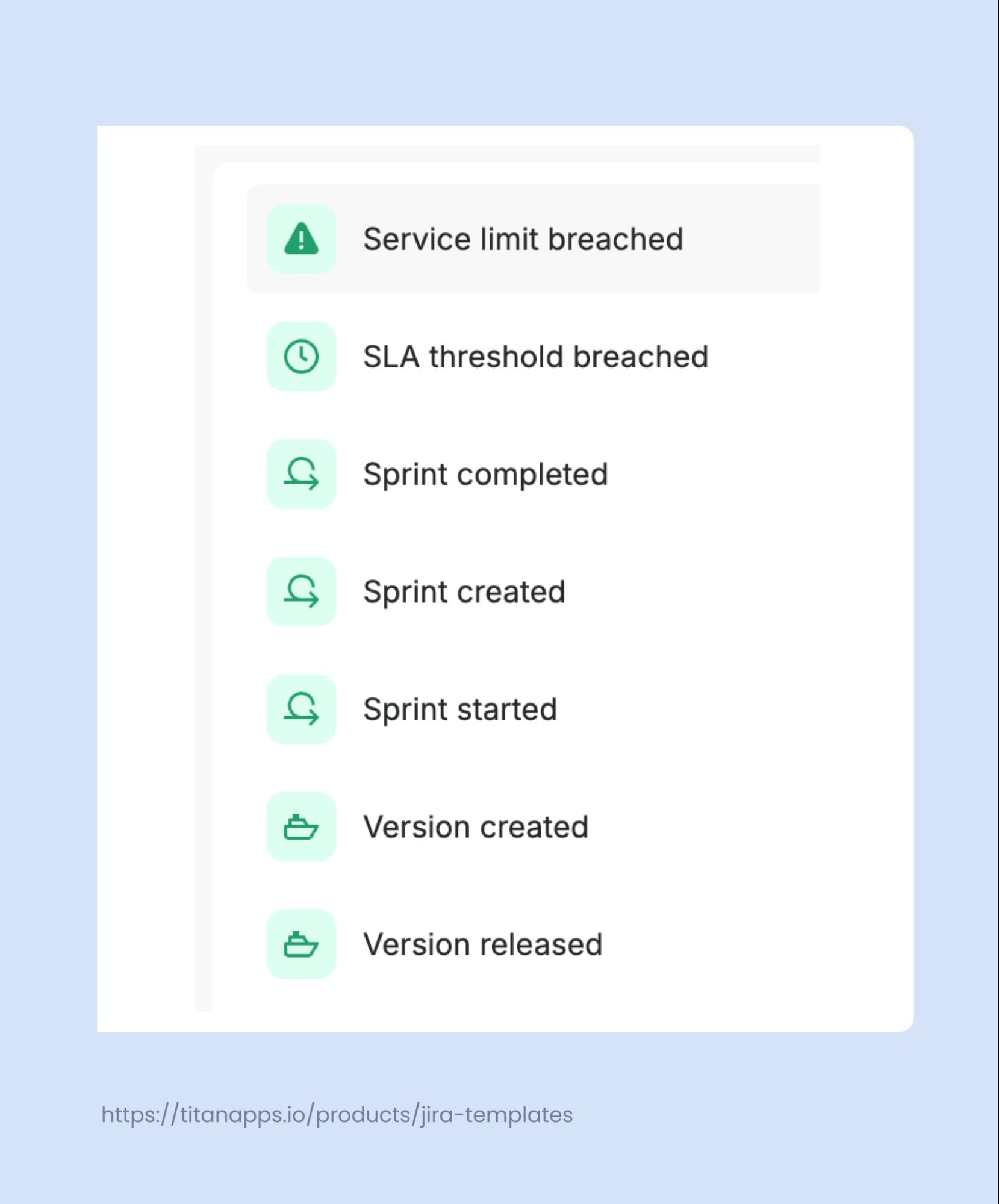
As we mentioned earlier, JSM automation also includes service-desk-specific triggers that don’t exist in standard Jira Automation. Examples include “SLA threshold breached,” “Form submitted,” and “Service limit breached.” These make JSM automation especially powerful for support teams.
How to Set Up an Automation Rule
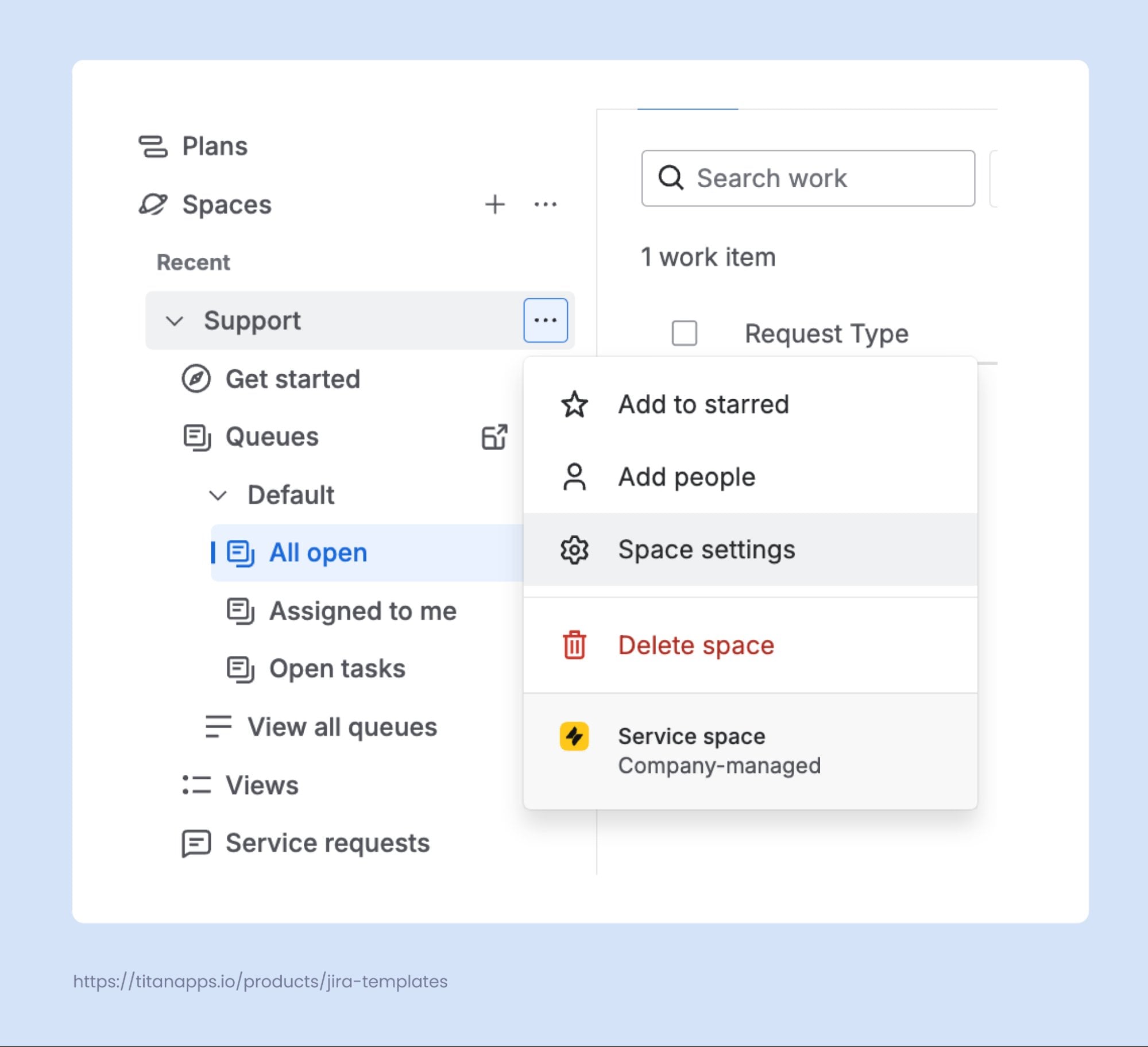
You need Administrator permissions to set up Jira Service Management automation rules in your service projects. Here’s how to get started:
- Open your JSM project, click the three dots, then go to Space Settings (or Project Settings) → Automation → Create Rule → Create From Scratch.
- Choose a trigger. Search for the event you want, such as “Work item created” or “Work item commented.”
- Add conditions if needed. For example: “Request Type is Hardware Request” or “Approvers field is empty.”
- Set the action. Define what should happen when the rule runs, such as editing a field or sending a notification.
- Save and enable the rule. You can also run a validation before turning it on.
Jira Service Management Automation Limits by Plan
Every JSM Cloud plan includes a monthly cap on automation rule runs. Once you hit the limit, all rules stop executing until the next month. Planning your automation strategy around these limits is important - especially if you rely on scheduled rules that run daily.
Here's how the limits break down for Jira Service Management Cloud:
|
Plan
|
Monthly rule runs
|
How it's calculated
|
|
Free
|
500 per site
|
Fixed, regardless of agent count
|
|
Standard
|
5,000 per site
|
Fixed, regardless of agent count
|
|
Premium
|
1,000 per user per month
|
Scales with team size (e.g., 50 agents = 50,000 runs/month)
|
|
Enterprise
|
Unlimited
|
No cap on rule executions
|
A few important details:
- Only successful rule runs count. If a rule triggers but its conditions don't pass and no action is performed, it doesn't count toward the limit.
- Each run counts once, even if the rule performs multiple actions. A rule that assigns a ticket, adds a comment, and sends a Slack message still counts as one execution.
- Limits are per product, not pooled. If you also use Jira Software, its automation runs are counted separately from JSM. A cross-product rule (e.g., creating a Jira Software work item from a JSM trigger) counts against the product where the rule originates.
- You can monitor usage in Settings → System → Global Automation → Usage tab.
- Jira also provides a "Service limit breached" trigger that you can use to send yourself an alert before the monthly quota runs out.
For the full breakdown and edge cases, refer to Atlassian's documentation on automation usage calculation.
10 Ready-to-Use Jira Service Management Automation Examples
The examples below cover the most common service desk scenarios. Each one is built using native Jira Service Management automation and can be adapted to your own request types and workflows.
1. Move a Ticket to Active Status When a Customer Submits a Form
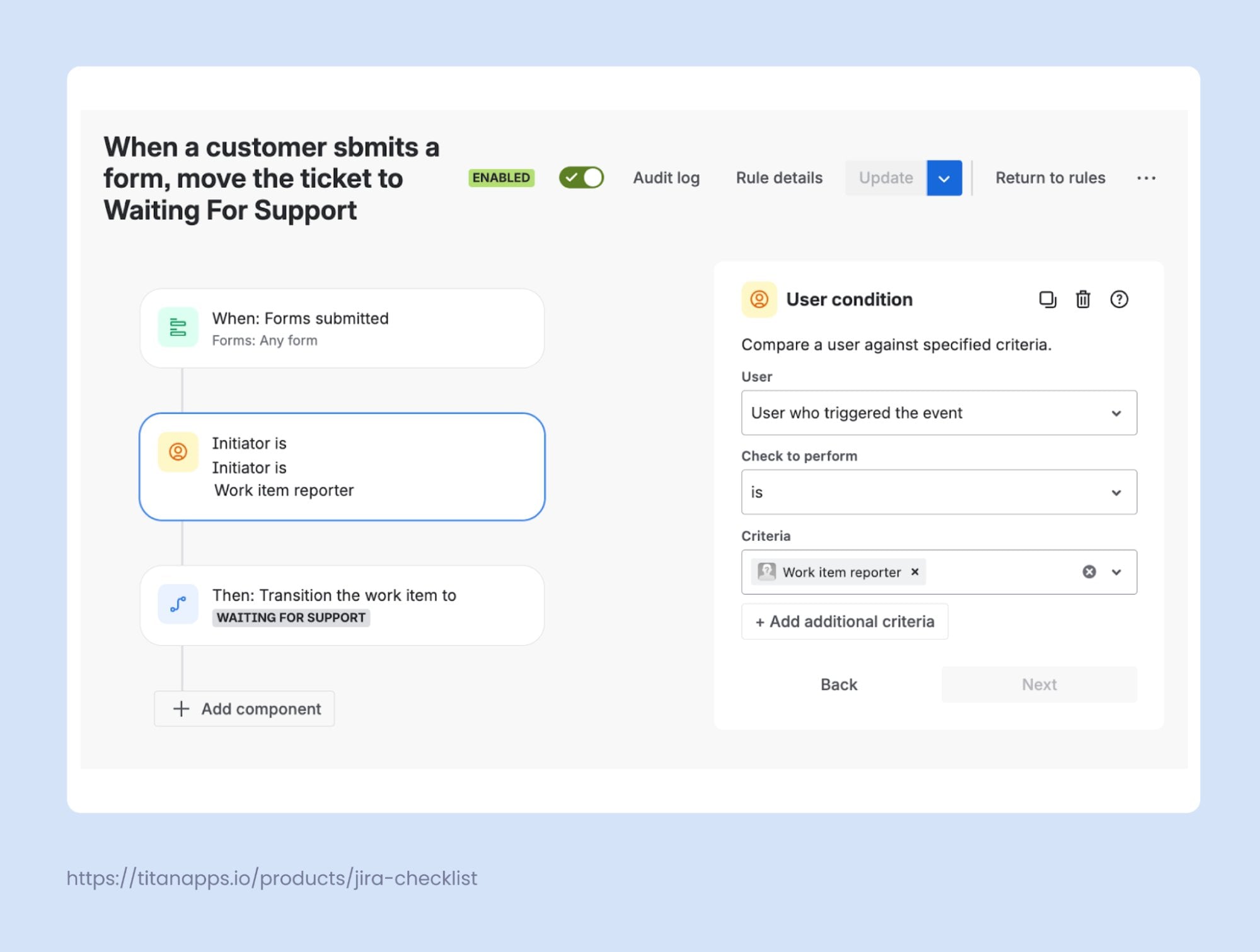
JSM forms give customers a structured, self-service way to submit requests with all the required fields filled in upfront, so agents get complete information from the start. Combined with a knowledge base, forms reduce the number of tickets that need human attention. But once a form is submitted, the ticket still needs to be picked up by an agent. Without automation, that transition is manual.
Add a rule that listens for the “Form submitted” trigger. When it fires, the ticket moves to “Waiting for support,” signaling that the request is complete and ready for an agent to handle. This keeps ticket statuses accurate and removes the need to monitor form submissions manually.
2. Auto-Assign New Tickets by Request Type
Most JSM service projects handle dozens of different request types. Think hardware purchase requests, software access requests, new employee onboarding, or facility bookings. Without automation, agents have to read each Jira ticket and decide who picks it up. That’s slow and inefficient.
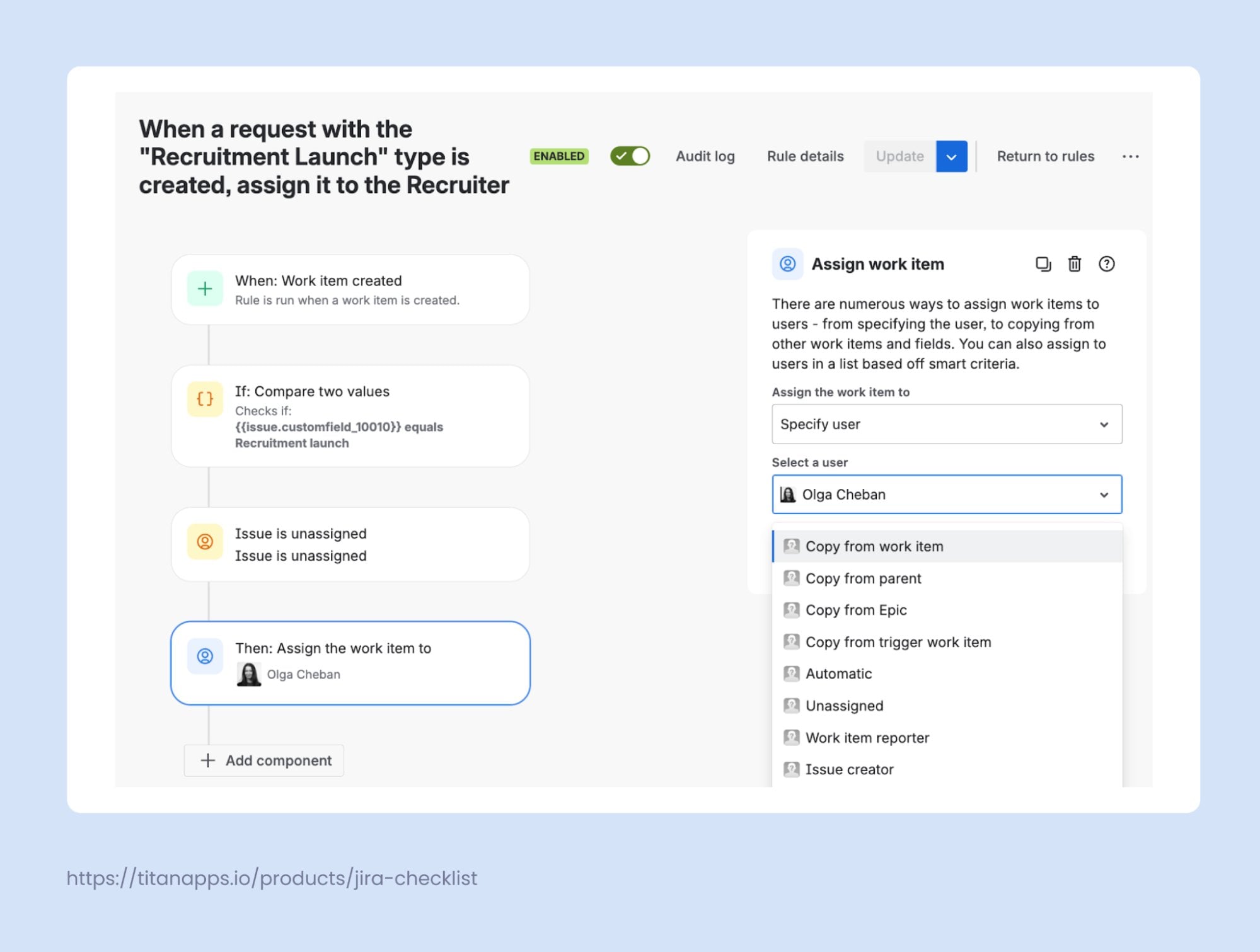
A simple assignment rule fixes this. When a new ticket arrives with a specific request type, Jira Service Management automation can assign issues directly to the right person or team. No triage needed.
For example: when a ticket with the request type “Recruitment launch” is created, it’s automatically assigned to the recruiter responsible for that role. You can also add conditions for more complex routing logic, such as assigning based on keywords in the ticket description.
3. Add a Standardized Checklist to Incoming Tickets
There are requests that are predictable enough that the steps to handle them never really change. A business travel request always needs the same approvals. A hardware procurement request always involves the same vendor checks. For requests like these, your team shouldn’t have to rebuild the same action plan from scratch every time. You can use a Jira Service Management automation rule to attach a pre-built checklist template the moment the ticket is created.
For example: when a ticket with the request type “Business Trip” is created, the rule automatically adds a travel planning checklist. The agent opens the ticket, and the steps to work on are already there.
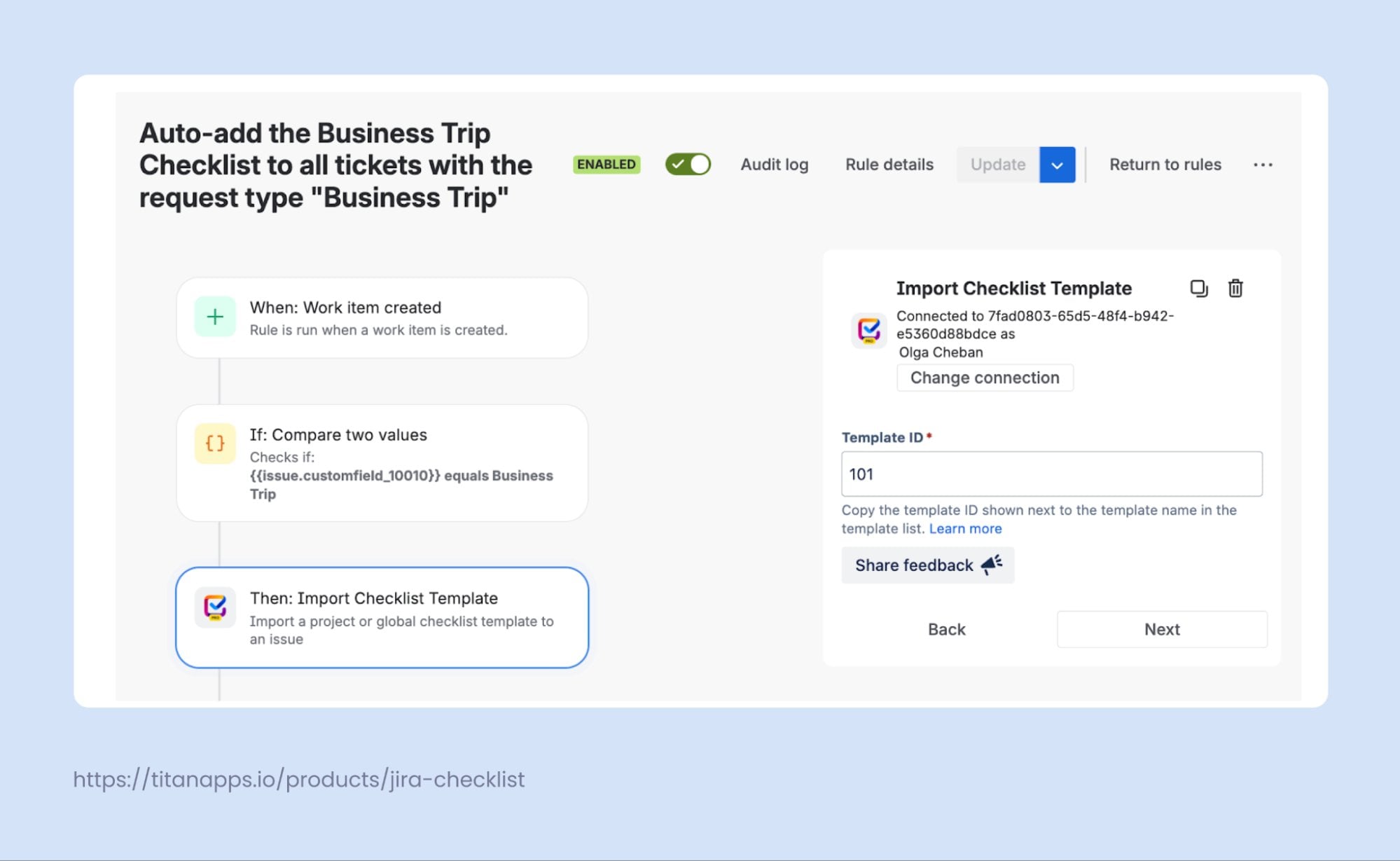
To use this, install Smart Checklist, create a checklist template, then configure the rule with “Import Checklist Template” as the action and link it to your Template ID . Once enabled, the checklist is attached automatically based on the conditions you set.
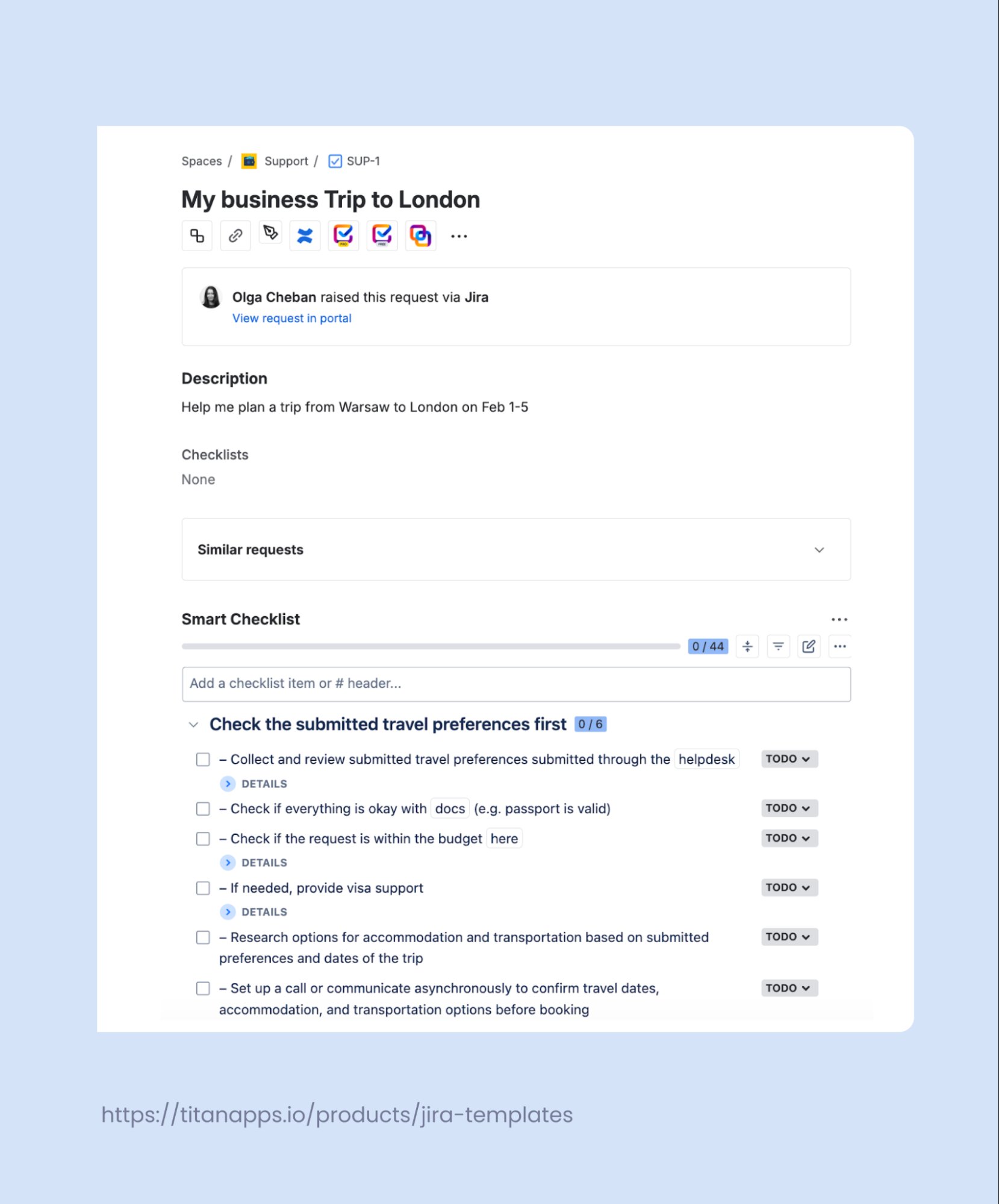
You can also Show Smart Checklists on the Customer Portal , so requesters can see progress on their ticket without being able to edit the list.
Additionally, Smart Checklist offers ready templates that you can use with JSM automation:
- Business Travel Template - covers flight and hotel booking, visa checks, travel insurance, and expense reporting steps
- Ticket Triage and Prioritization Checklist - guides your team through initial assessment: categorization, priority assignment, SLA check, and routing
- Hardware Procurement Template - walks agents through vendor selection and specs approval
- Payroll Template for Jira - structures the monthly payroll cycle: data collection, calculations, and approvals
- Invoice Approval Template - handles invoice receipt, verification, manager approval, and payment scheduling
- Procurement Checklist Template - a generalized procurement flow for any purchase type
- Vendor Due Diligence Checklist - covers background checks, compliance verification, contract review, and risk assessment for new vendors
4. Clone Service Requests Into Your Delivery Project
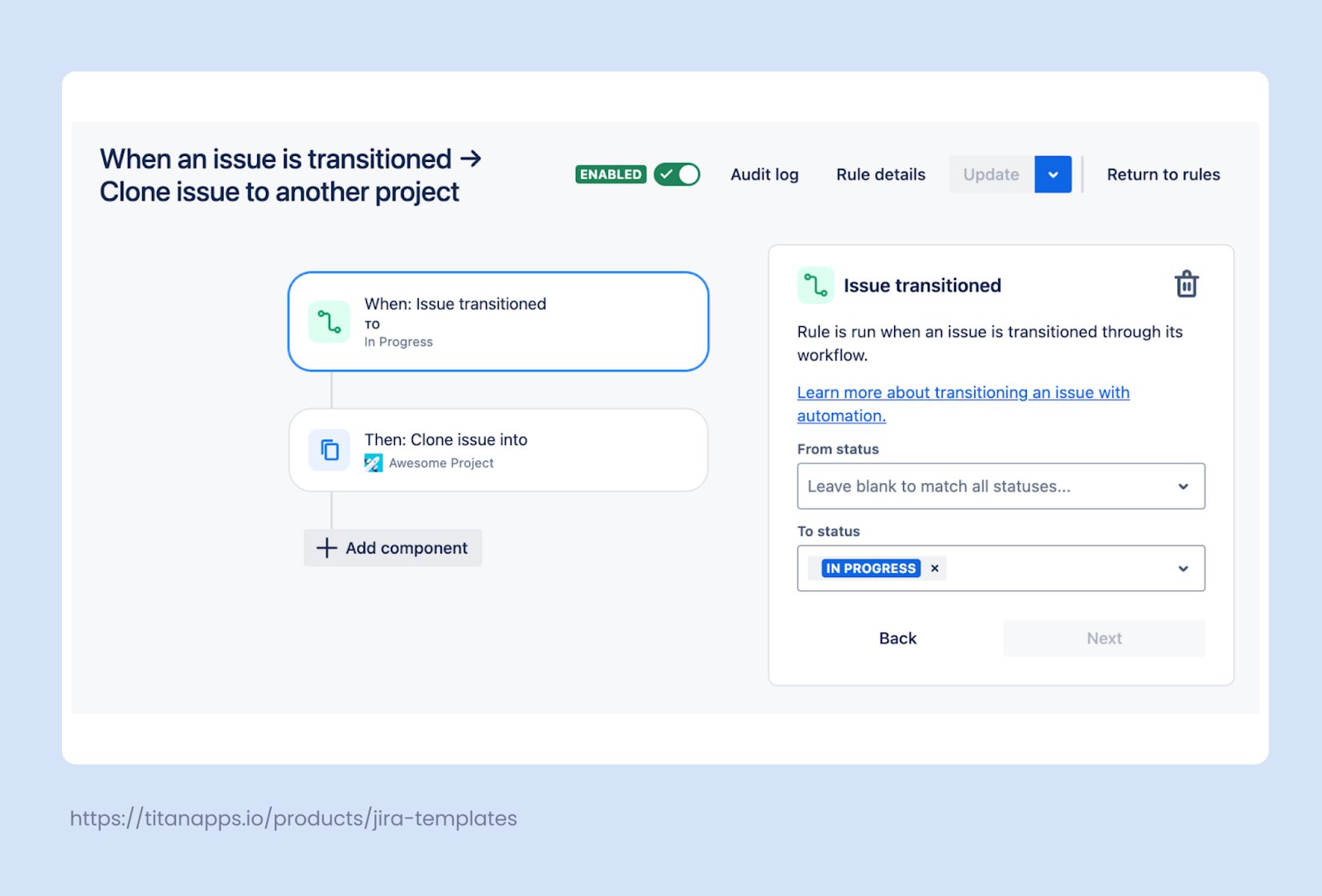
Some teams use JSM to handle incoming requests while doing the actual work in a separate Jira project. For example, a feature request might come in through JSM, but then it needs to be tracked by a dev team in a separate software project. Getting that ticket into both places manually creates extra work and room for error.
You can configure a rule that duplicates the request into your delivery project the moment an agent moves it to In Progress. The JSM ticket remains the source of truth for the service team, while the developers receive their own linked work item populated with the same title, description, and relevant field values.
Add conditions to narrow the scope – for example, only clone tickets of a certain request type, or only when the summary includes a specific keyword.
5. Automatically Re-Open a Ticket When a Customer Replies
It happens more often than teams realize. An agent marks a ticket as resolved, the customer comes back with a follow-up a few days later, and the reply just sits there. No one picks it up because, as far as the queue is concerned, the ticket is closed.
This is one of the most common customer support gaps – and one of the easiest to fix with automation. Set up a rule that watches for new comments on resolved tickets. When the comment comes from a customer and the ticket status is Done, the rule transitions it back to In Progress.
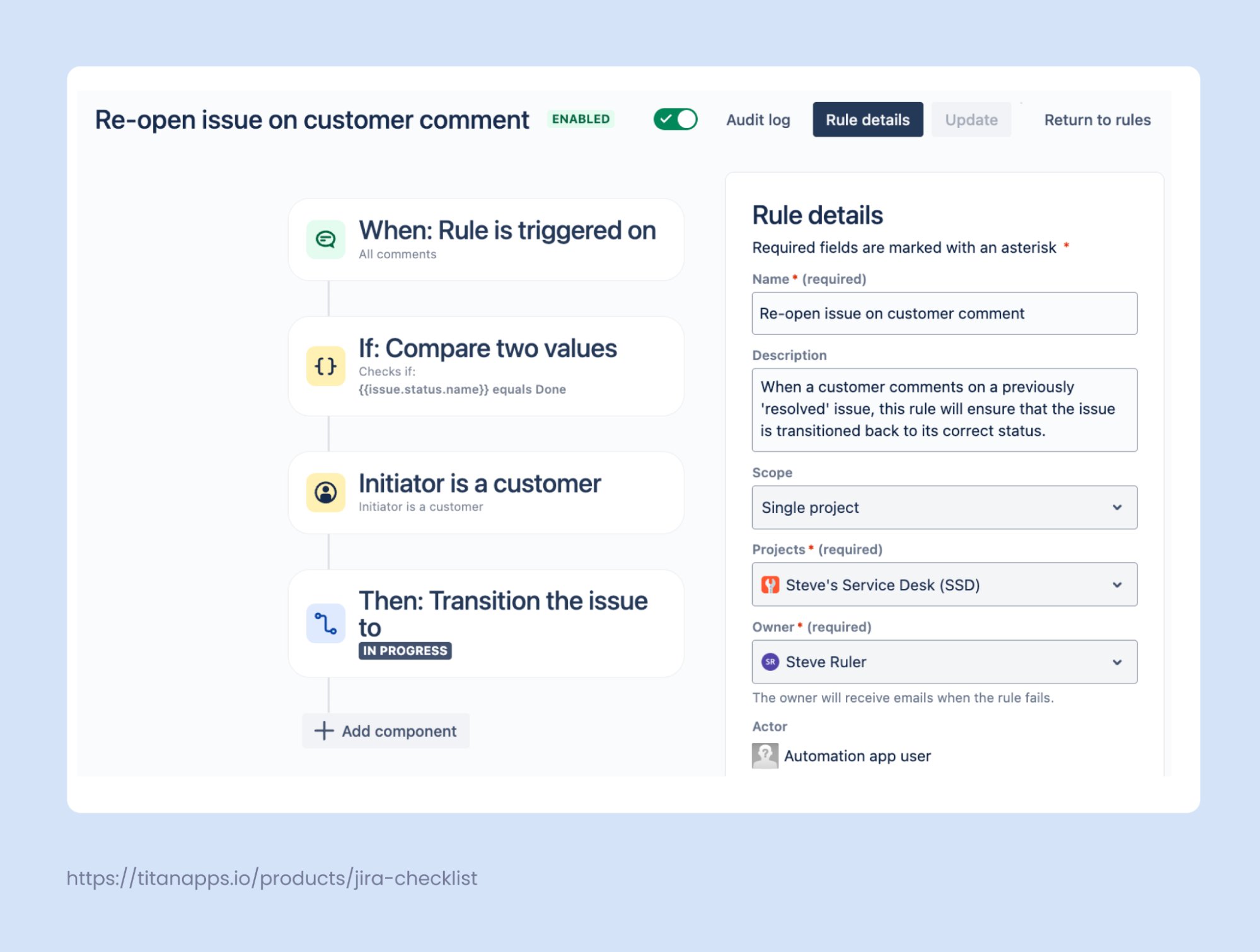
The same logic works for other comment-driven status updates. For instance, when a customer adds new information to an open ticket, an automation rule can transition it to "Waiting for Review." When an agent responds, it switches it to "Waiting for Customer." A ticket’s status can stay in sync with the last added comment automatically, keeping your queue accurate without any manual effort.
6. Close Inactive Tickets After a Set Period of Inactivity
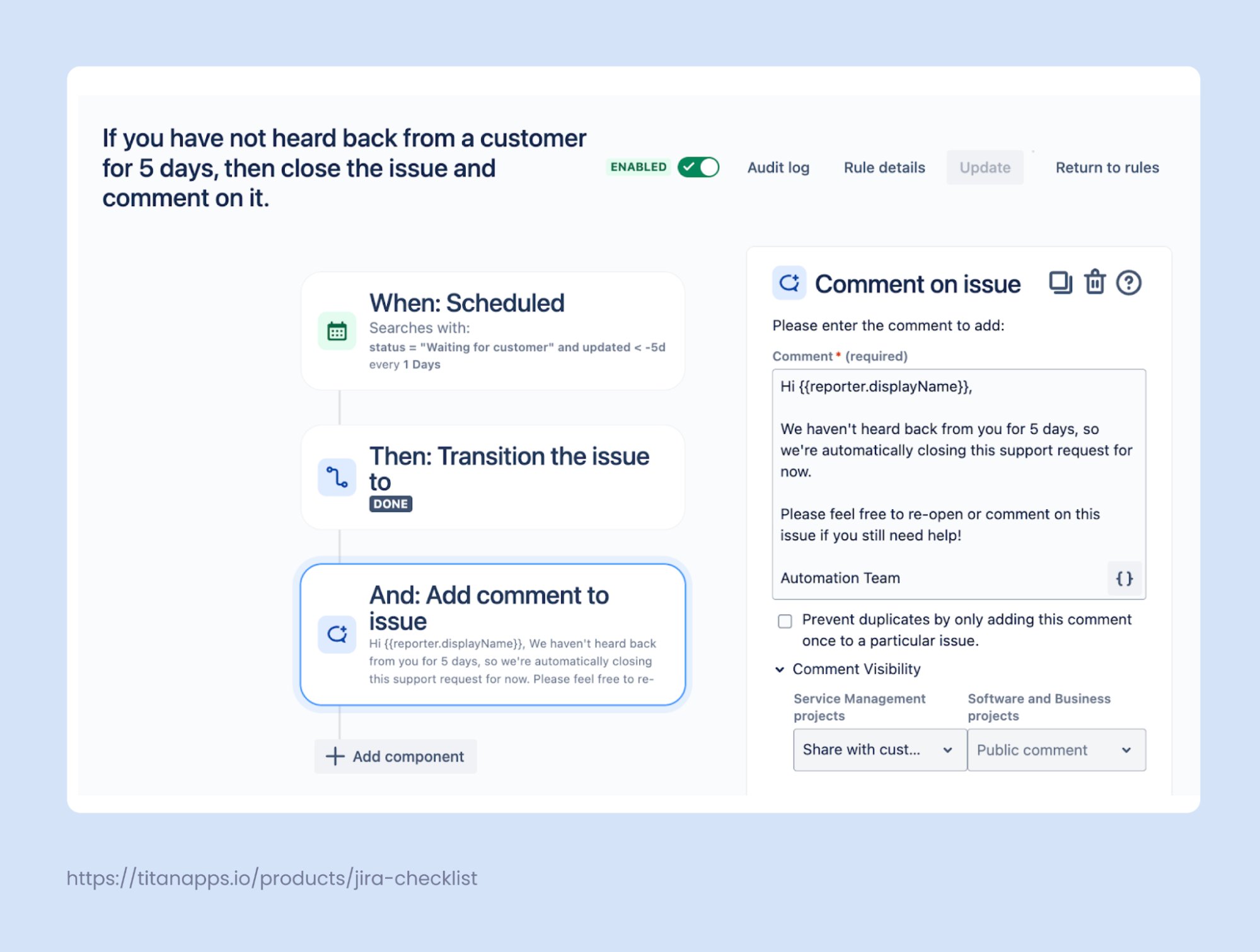
Sometimes, tickets are stuck in “Waiting for Customer” for weeks, when the customer has simply gone quiet because the request is no longer relevant to them. Such tickets inflate your queue and make it harder to see what’s actually active. A scheduled automation rule can clean this up: check for tickets with no customer reply after a defined period (say, five days), then close them and post a message explaining what happened.
The auto-comment tells the customer their request has been closed for inactivity and invites them to reopen it if they still need help. You can adjust the time threshold per queue or priority – critical incidents might stay open longer, while routine questions can close sooner.
Together with the re-opening rule from example #5, you get a self-maintaining cycle. Stale tickets are closed automatically, and a new customer reply brings them right back into the active queue.
7. Alert Your Team in Slack When an SLA is at Risk
High ticket volume makes it easy to lose track of SLA timers, especially in incident management workflows with strict service level agreements. By the time someone notices a breach is imminent, it’s often too late. An automation rule that sends a Slack alert before the deadline gives your team time to act.
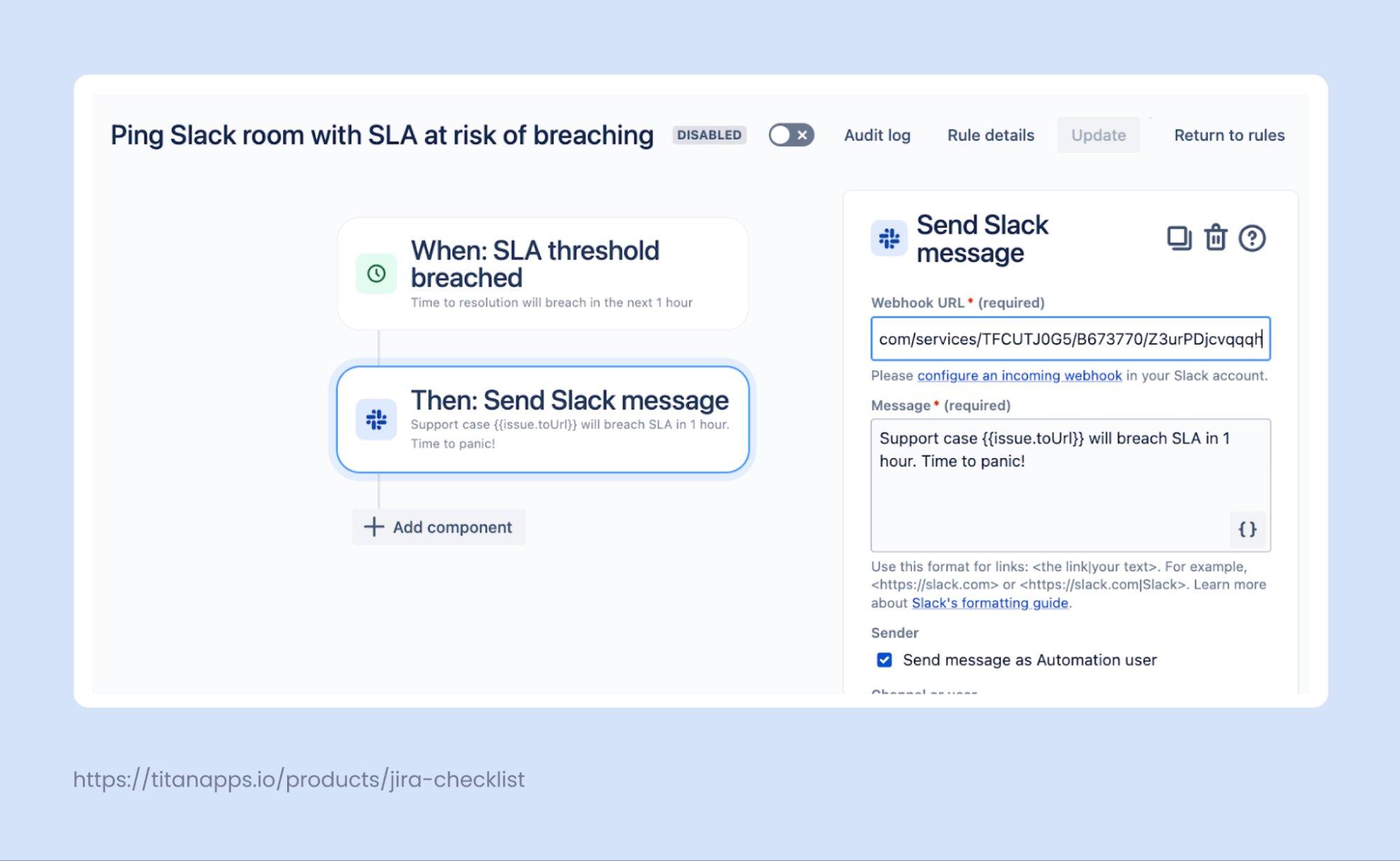
Here's how this might look: a high-priority ticket's Time to Resolution SLA hits the 1-hour mark. The rule fires a Slack notification to your team channel, mentioning the assigned agent. You can configure it to include the ticket key, a summary, the priority level, and a clickable link.
You’ll need to connect Jira to Slack using Atlassian’s native Slack connector first. Once that is in place, you can also use this rule to send time-to-first-response warnings for VIP customers, route security incident alerts to a dedicated channel, or DM the on-call engineer when a P1 ticket is at risk.
8. Auto-Respond to Customers With an Estimated Resolution Time
Customers who submit a request and hear nothing back start wondering if anyone is working on it. A quick acknowledgment with a realistic timeframe makes a difference. You can set up a Jira Service Management automation rule that posts a customer-visible comment immediately after a ticket is created, with the expected resolution time based on its priority.
Here's the example setup:
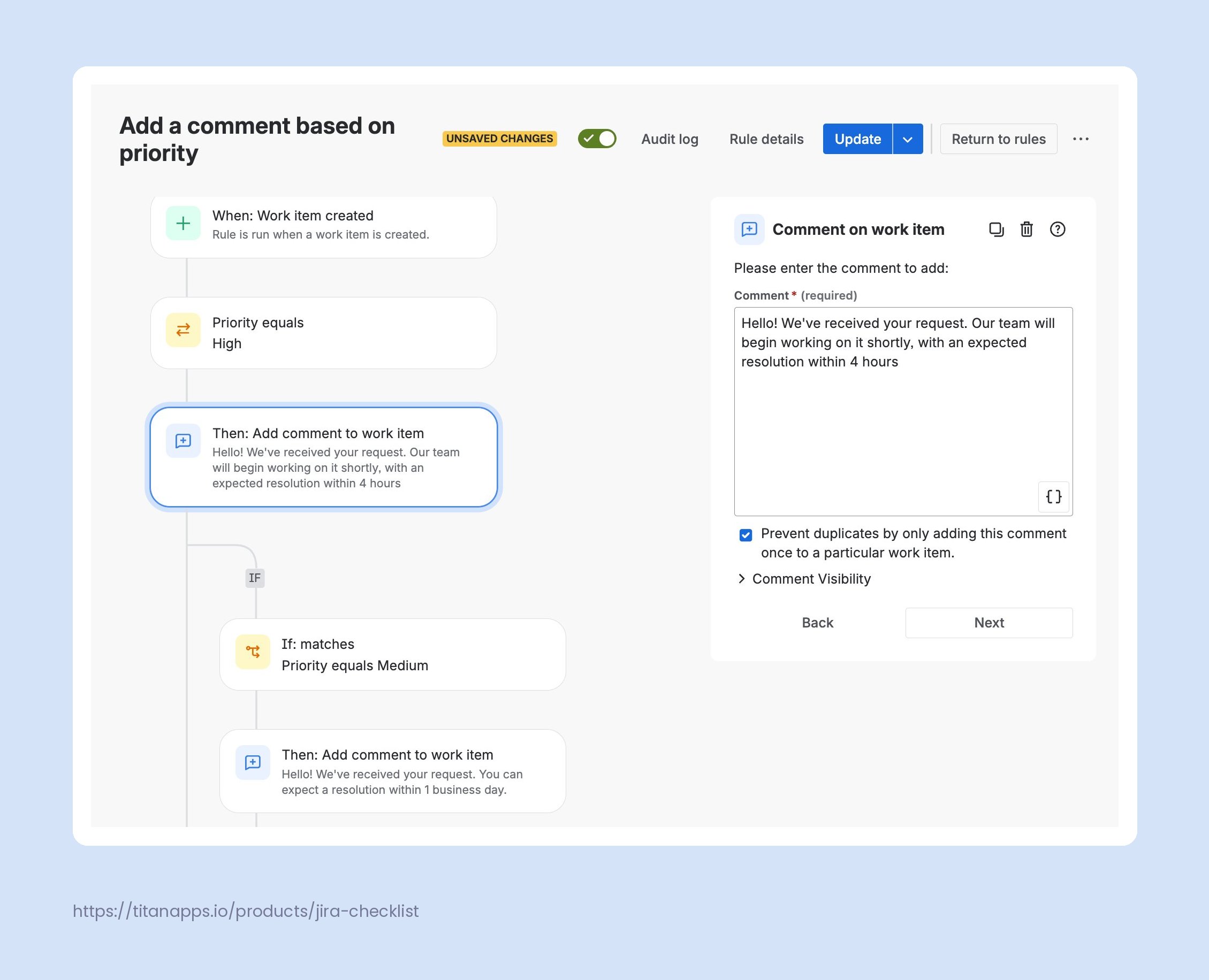
The rule is triggered when a work item is created. It then checks the priority and posts a comment, which exact text depends on the priority level.
Make sure the comment visibility is set to "External" so the customer can see it on the portal. You can adjust the wording and timeframes to match your team's actual SLAs.
This rule pairs well with the SLA breach alert rule we mentioned earlier. The auto-response sets the expectation upfront, and the SLA alert makes sure your team delivers on it.
9. Generate a Full Task Set Automatically With Smart Templates
Some JSM tickets kick off multi-step processes in another Jira project. Take a hiring request: an HR team receives it through the self-service JSM helpdesk, but the actual work – interviews, background checks, onboarding prep – happens in a regular Jira Cloud project. Setting up those tasks by hand every time is slow and easy to get wrong.
Recruitment follows the same steps every time, so there's no reason to rebuild the task structure from zero with each new hire. Smart Templates for Jira solve this. You create a reusable template once, and native Jira Service Management automation handles the rest – generating the full task set automatically whenever your conditions are met.
Here's how it works in practice. A recruitment template might include a parent task with several subtasks and checklists. Variables like {{position}} and {{project}} let you plug in dynamic values, so one template covers multiple roles and use cases.
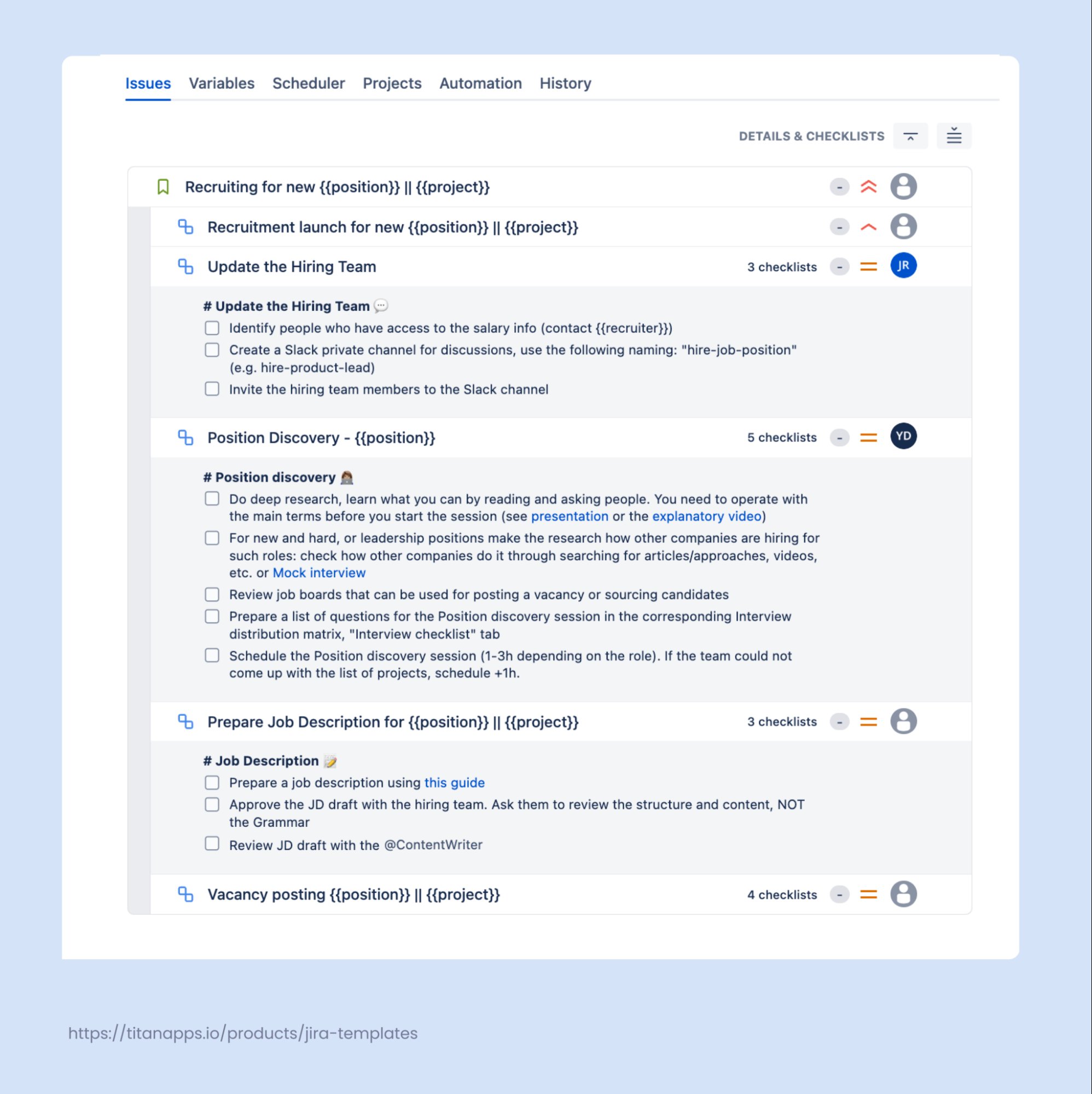
Start by building your template in the Jira project where the work items need to land. Then wire up the automation rule. When a ticket with the request type "Recruitment launch" is created in JSM, the rule fires and spins up the entire task set from your template:
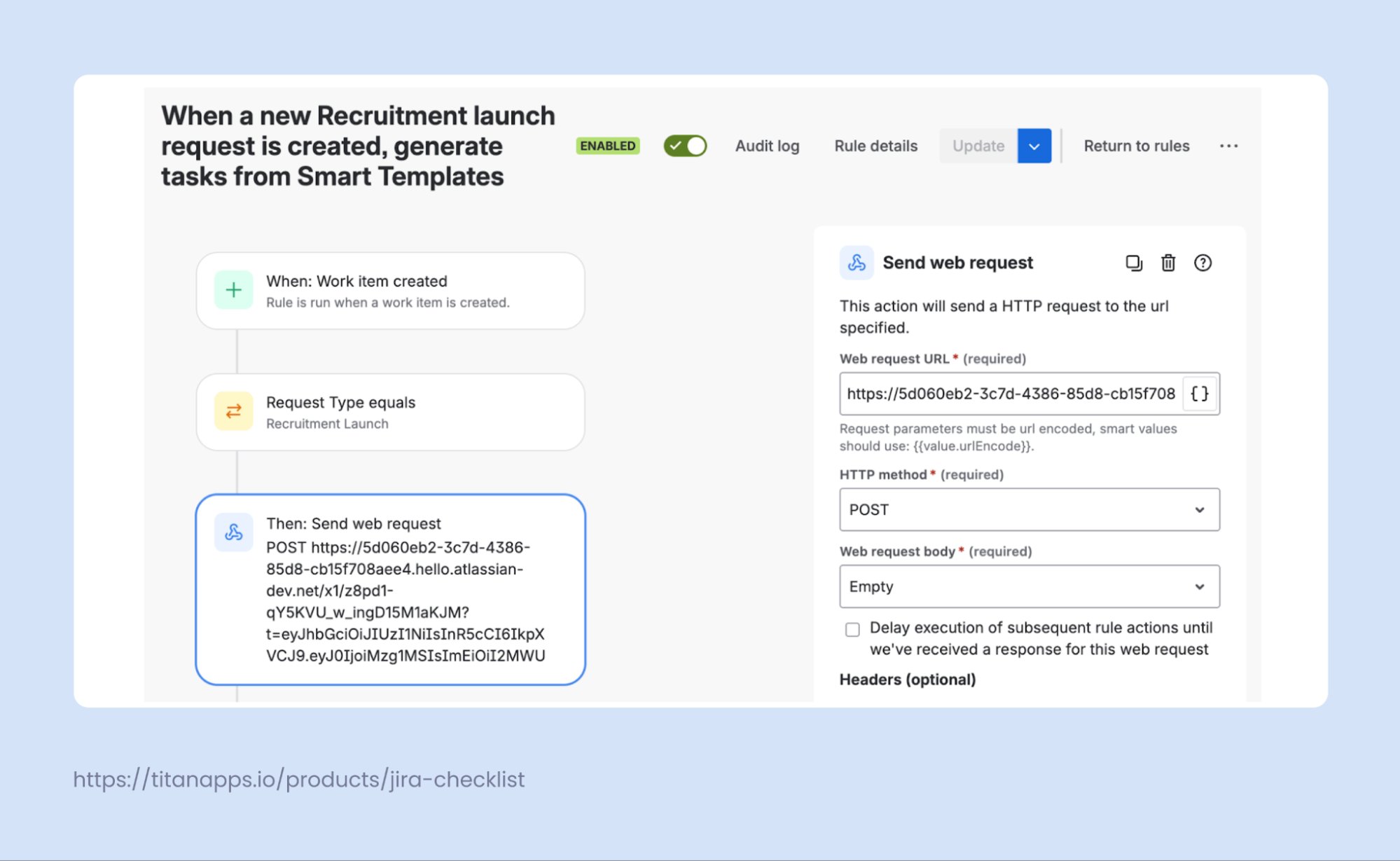
For a detailed walkthrough, see Using Smart Templates with Automation in our Confluence documentation.
With this rule in place, multi-step processes stay consistent and you no longer need to create the same set of Jira tickets by hand.
10. Auto-Escalate Tickets That Haven't Moved
Some tickets sit in "In Progress" for days without meaningful updates. They aren't breaching SLA yet, but they aren't moving either. A Jira Service Management automation rule can catch these before they become a problem.
Set up a scheduled rule that runs daily and checks for tickets that have been in a specific status for longer than your team's threshold - for example, 48 hours in "In Progress" with no update. When the rule finds a match, it can reassign the ticket to a senior agent, bump the priority, and post a comment flagging the stall.
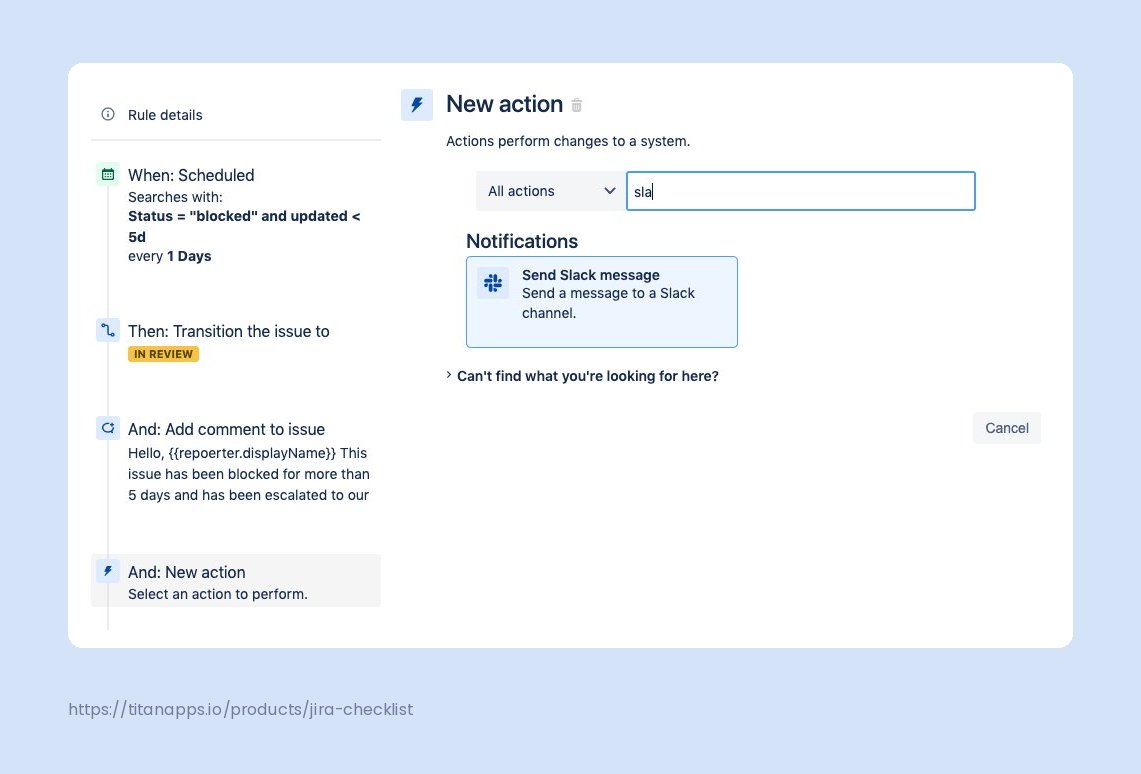
For more details on how to set this up, please see How to escalate overdue issues with Jira automation.
Best Practices for Jira Service Management Automation Rules
A few well-built rules can save hours. A few badly built ones can burn through your execution quota in days. Here are the key things to keep in mind.
- Name your rules descriptively. "Auto-assign - Hardware Requests" is useful. "Rule 17" is not. When a rule breaks six months from now, the name is the first thing you will read in the audit log.
- Start small and validate. Enable one rule at a time and check the audit log (Project Settings → Automation → Audit Log) after the first few runs. Look for THROTTLED statuses or unexpected action counts before adding more rules.
- Avoid overlapping triggers. Two rules that fire on the same event and modify the same field can conflict. If you need both, use conditions to separate their scope - for example, one rule for request type "Hardware" and another for "Software Access."
- Keep JQL queries tight. Scheduled rules that scan broad datasets burn processing time. Add filters like updated >= -7d or status = "Waiting for Customer" to limit results to the tickets you actually need.
- Use the "Only include work items that have changed since the last time this rule executed" option for scheduled rules. This prevents your rule from re-processing the same tickets on every run.
- Group related logic in one rule instead of splitting it across several. A single rule with If/Else conditions costs one execution. Five separate rules for the same trigger cost five.
For more guidance, see Atlassian's best practices for optimizing automation rules.
What Your Team and Customers Gain From JSM Automation
The payoff from Jira Service Management automation shows up on both sides of the support relationship.
How Your Agents Benefit
- Less time spent on admin actions. Agents stop doing repetitive tasks that a rule can handle, and focus on the work that actually needs a human.
- More consistent processes. Steps don’t get skipped and tickets don’t get misrouted because a rule handles them the same way every time.
- Early SLA warnings. Rules can flag tickets before a service level agreement breach happens, giving the team time to step in.
- Workload that scales. Volume can increase without a proportional increase in manual effort, because the rules absorb the repetitive parts.
What Customers Notice
- Faster initial responses. Tickets get picked up sooner because assignment and status changes happen immediately on creation.
- More reliable handling. Fewer things can be missed when a rule enforces the process, as opposed to relying on individual agents to remember every step.
- Visibility into progress. With Smart Checklist enabled in the Customer Portal, requesters and other stakeholders can see where things stand without needing to contact an agent. The checklist will display progress for the ticket with the step-by-step granularity. Paired with a knowledge base for self-service, this reduces back-and-forth significantly.
How to Troubleshoot Jira Service Management Automation Rules
When a rule doesn't fire or produces unexpected results, the automation audit log is the first place to check. Go to Project Settings → Automation, select your rule, and open the Audit Log tab. Each entry shows whether the run succeeded, failed, or was throttled, along with the specific trigger and actions that executed.
Here are the most common issues and how to fix them:
- Rule doesn't trigger. Check that the rule is enabled and its scope matches the project you're testing in. For rules that use "Work item created" as a trigger, make sure the ticket has a valid Request Type set - without it, some triggers won't fire. Also verify that the "Allow rule trigger" option is turned on in the rule details if the triggering event comes from another automation rule.
- Conditions pass when they shouldn't (or vice versa). Open the audit log entry for the specific run and expand the condition step. It shows the actual field values that were evaluated. A frequent culprit is comparing text values with different casing or extra spaces. For JQL-based conditions, test the query in Jira's issue search first to confirm it returns the expected results.
- Actions execute but produce wrong results. This usually comes down to field configuration. For example, transitioning a ticket to a status that doesn't exist in the current workflow, or setting an assignee who doesn't have the right project permissions. The audit log will flag the specific error.
- Rule is throttled. This means it hit a service limit - either too many executions per hour or too many queued items from a single run. Narrow your JQL queries, reduce scheduled rule frequency, and check the "Only include work items that have changed since the last time this rule executed" option for scheduled triggers.
- Rule runs correctly in one project but not another. This happens with company-managed projects that share workflows or field configurations. Confirm that the target project has the same statuses, fields, and request types referenced in the rule.
Jira Service Management Automation vs. Standard Jira Automation
Both versions share the same rule-building interface – triggers, conditions, and actions. The difference is context and intent.
Jira Service Management automation is built around customer-facing service delivery in ITSM service projects: routing requests, tracking SLAs, managing approvals, and communicating with customers. It has service-desk-specific triggers (like “SLA threshold breached”) and fields (like request type) that don’t exist in standard Jira.
Standard Jira automation, on the other hand, focuses on internal delivery work: sprint management, release coordination, and integrating with development tools like GitHub or Bitbucket.
You can also create global rules that bridge both – for example, syncing a JSM support ticket with a linked issue in a development project when its status changes.
A Few Well-Placed Rules Can Transform Your Service Desk
You don’t need to automate everything at once. Start by enabling two or three Jira Service Management automation rules that address your team’s biggest daily friction points – auto-assignment, re-open on customer replies, or checklist attachment for common request types. Once those are running and validated in the audit log, expand from there.
Over time, your service desk will handle more requests with the same team, Jira tickets will move through service projects more predictably, and both agents and customers will have a better experience. It’s a straightforward path to service desk optimization.
FAQ: Jira Service Management Automation
Do I need technical skills to use Jira Service Management automation?
Not at all. Automation for Jira uses a visual, no-code rule builder. Every rule follows a simple structure: if a certain event occurs, take a specific action. You pick a trigger, optionally add conditions, and set an action. No scripting required.
That said, more advanced cases that use smart values or JQL-based conditions can require a steeper learning curve. But for the examples in this guide, you won’t need them.
What permissions do I need to create automation rules in JSM?
You need Administrator permissions for the project / space where you want to create rules. Regular agents and team members can view existing rules but cannot create or edit them. If you want to allow broader access to automation-driven features - like generating tasks from templates - solutions like Smart Templates for Jira let any team member use templates without needing admin rights.
Can I use Jira Service Management automation to connect JSM with another Jira project?
Yes. Global Jira Service Management automation rules let you create logic that spans multiple Jira projects. A common use case is cloning a JSM ticket into a software or business service project when it moves to In Progress - so the service team tracks the original request in JSM while the delivery team works on a linked Jira work item. You can also sync field values or status changes between the two tickets using cross-project rules. For more advanced integrations, the Jira API offers additional flexibility.
How do I automate SLA breach notifications in Jira Service Management?
Use the “SLA threshold breached” trigger in Automation for Jira. Set it to fire when a specific SLA - such as Time to Resolution - drops below your chosen threshold (for example, 1 hour remaining). Then add an action to send a Slack message, post a comment, or reassign the ticket. You can add a condition to limit the rule to high-priority tickets only, or use a JQL query to target specific Jira issues, so lower-priority items don’t generate noise.
Is there a way to auto-close stale tickets in JSM without manual cleanup?
Yes. Use a scheduled automation rule that runs daily and checks for tickets in the “Waiting for Customer” status with no customer comment in the past N days. When found, the rule transitions the ticket to Done and posts an auto-comment explaining the closure. You can set different time thresholds per queue or priority level.
Can Jira Service Management automation add checklists to tickets automatically?
Yes, this can be done with Smart Checklist for Jira. Once it’s installed, you can create a checklist template and then use the “Import Checklist Template” action in any automation rule. Set the rule to trigger on ticket creation, add a condition for the relevant request type, and link the action to your checklist template ID. From that point on, every matching ticket gets the checklist attached automatically - no manual steps needed from agents. Please note that Smart Checklist for Jira also has its own automation feature that allows you to assign checklists automatically based on different conditions. This allows you to save Jira’s limits for native rule runs.
How can I check whether my automation rules are working correctly?
Jira provides an automation audit log in Project Settings → Automation. It shows every rule run, whether it succeeded or failed, and which tickets it affected. If a rule isn’t behaving as expected, the audit log is the first place to check. You can also use the built-in rule validator before enabling a new rule to catch obvious configuration issues before they affect live tickets.
What is the difference between Jira Service Management automation and workflow automation?
Jira Service Management automation - specifically Automation for Jira, which is covered in this guide - is a standalone rule engine that listens for events across your service project and fires actions in response.
Workflow automation is different - it’s embedded directly into Jira’s workflow transitions. For example, you can add a post-function to a transition so that moving a ticket to “In Review” automatically assigns a reviewer. Both tools can complement each other to streamline your processes, but Automation for Jira is more flexible and covers a wider range of scenarios.

