Many Jira users work with several views throughout the day. You may need one view for the product team, another for marketing, and a separate setup for reporting or workload planning.
Previously, switching between these views often meant changing filters and rebuilding the same setup again. With custom tabs, you can now save each view separately and move between them in a single click.
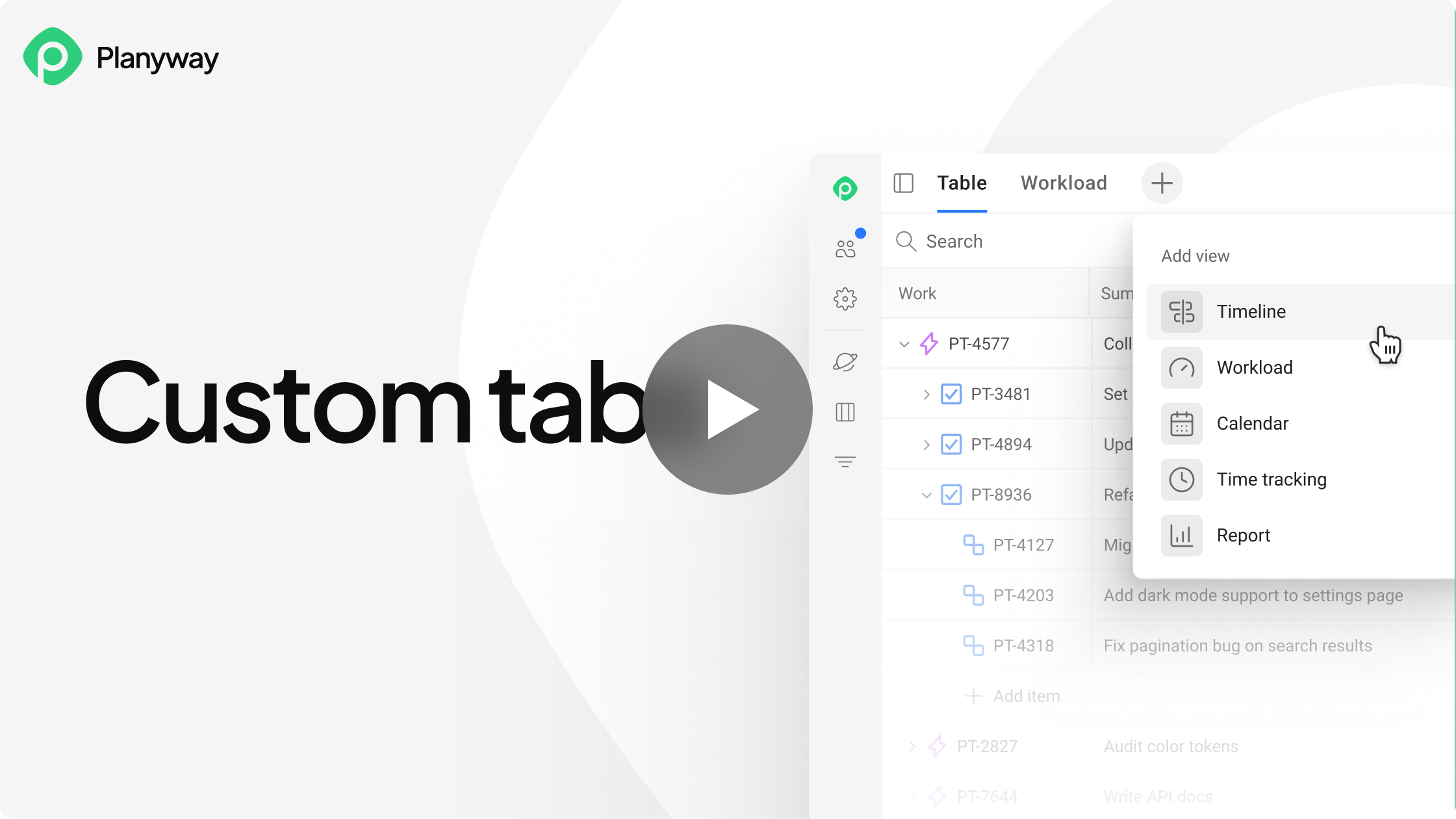
➡️ Watch a demo
What are custom tabs?
Custom tabs let you create multiple Planyway views and give each one a name that reflects its purpose.
Each tab can represent a different team, project, workflow, or report.
For example, you can create:
- A Product Team tab for roadmap and delivery planning
- A Marketing tab for campaigns and deadlines
- A Workload tab for checking team capacity
- A Weekly Report tab for monitoring progress and upcoming work
This helps keep your workspace structured while allowing every view to remain focused on the information that matters.
Name tabs your way
Every custom tab can have its own name, making it easy to understand what each view is for.
You can name tabs by team, project, client, report type, or planning process. This is especially helpful when you work with many views and need to find the right one quickly.
Why it helps
Custom tabs make it easier to:
- Keep different teams and projects organized
- Switch between views without rebuilding filters
- Separate operational planning from reporting
- Reduce clutter in complex Jira workspaces
- Access frequently used views faster
Custom tabs are now available in Planyway for Jira. Give them a try and organize your workspace in the way that works best for your team.
