Hey Automations Community 👋
We’re very excited to announce the release of a brand new Use Rovo AI action in Automations. This is now available in Automations everywhere - Studio, Jira, JSM and Confluence.
What is the Use Rovo action?
This is a simple self-contained AI action that allows you to use AI in your automation to summarise, translate, transform or extract information without requiring a Rovo agent.
It has a simple prompt box where you can provide instructions and any data that you want it to work on and when the automation runs all the output is stored in the {{rovoResponse}} smart value.
When should you use it?
If you want to use AI to process data in an Automation rule and all the data and context the AI needs can be found in smart values, then this step should be the fastest and simplest way to get results.
If instead you need to access other data outside the automation rule - such as another page, space, work item, a JQL or even the internet - then you’ll need the Use agent action which can invoke a fully fledged Rovo agent.
How to use it
You’ll find the Use Rovo action in the Rovo AI category at the top of the action menu.
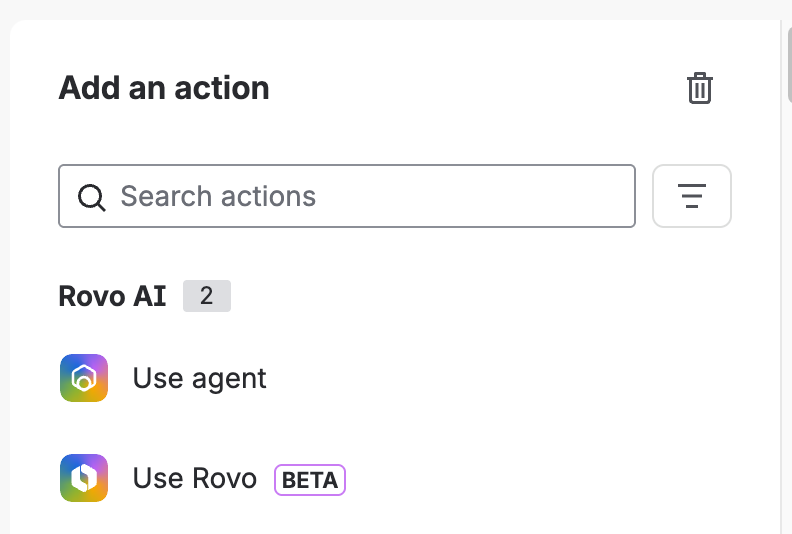
When you add the Use Rovo action you’ll be presented with a simple step with a single prompt box.
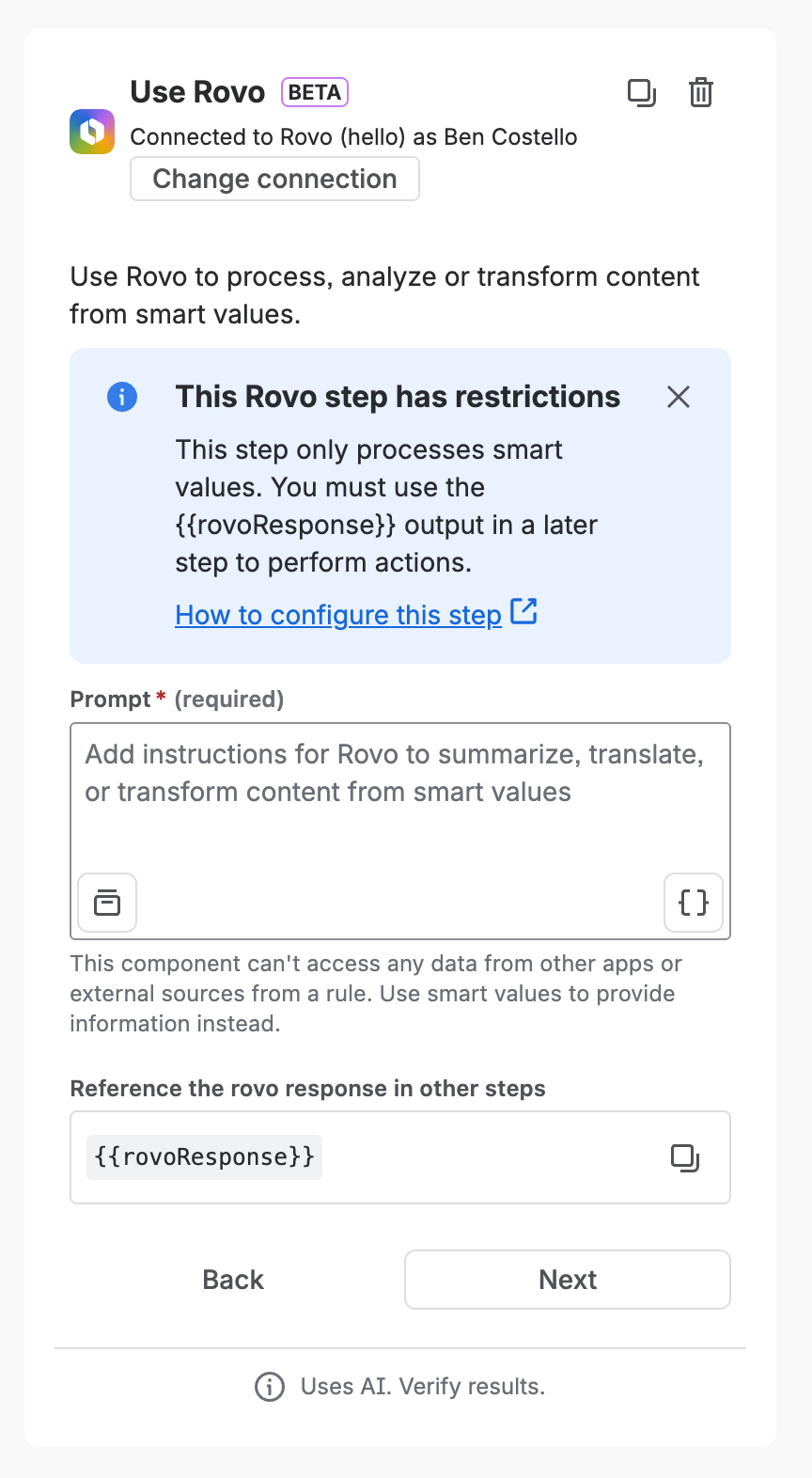
You will then need to:
-
Enter a prompt instruct the AI what to do and make sure you include any smart values with data for the AI to work on
-
Add another action to process the response - the Use Rovo stap can’t perform any actions, it instead produces output in a {{rovoResponse}} smart value, so you’ll need a followup action to do something with the output
How do you pass context into the prompt?
The action is completely locked down and has no access to any data other than what is provided in the prompt.
To pass data (aka “context”) into the prompt, you’ll need to use smart values, there are smart values for just about every component of a work item or page, some popular examples are:
Jira and JSM work items
Confluence Pages
To learn more about smart values, see:
https://support.atlassian.com/cloud-automation/docs/smart-values-in-jira-automation/
How to process output
When the automation runs, all output from the step will be found in the {{rovoResponse}} smart value.
So whatever you ask Rovo to do - summarise, analyse, translate, extract or generate - the results will be found in {{rovoResponse}}.
This means that you will need a step after Use Rovo to do something with the {{rovoResponse}}.
-
add it as a comment
-
update a title, summary, description
-
update some other field on the work item or page
If you have used the Use agent action, you’ll be familiar with using the {{agentResponse}} smart value for the same reason.
What data does this action have access to?
This action is deliberately self-contained and secure, the only data it has access to is the data you pass to it in smart values.
We’re working on ways to open this up in a secure way, but for now, this action:
-
is not the same as “Ask Rovo” chat
-
cannot access the internet
-
cannot access any projects, spaces, pages
-
cannot perform any actions.
If you want to an AI step that can do all of these, you should use the Use agent step.
📣 Coming Soon
- Use Rovo - we’re working on adding more context, tools and skills - targeting mid-year
- Use agent -we’re finishing work on allowing agents to take actions, we’ll post an EAP sign up form here very soon.
Some example prompts
|
Do ✅
|
Don’t ❌
|
Why ❓
|
|---|
|
Summarise {{issue.description}}
|
Summarise this issue
Summarise this ticket
Summarise this work item
|
This action doesn’t have access to work items, you must provide all required data using smart values
|
|
Translate {{page.body}}
|
Translate this page
Extract the key themes from this page
|
This action doesn’t have access to confluence pages, , you must provide all required data using smart values
|
Questions and Feedback?
Can't wait to see what you build. 🚀
— Studio Automations team