Incidents move fast, and your chat tools are often where the action happens. But noisy channels, manual responder wrangling, and “catch me up” questions can slow teams down.
To help, we’re rolling out a new set of ChatOps enhancements for Jira Service Management Cloud customers using Slack and Microsoft Teams. These updates are designed to reduce manual work during incident response, keep chat tools clean and focused, and help responders get up to speed faster with AI-powered context—without leaving their collaboration tools.
What’s new in Jira Service Management ChatOps
- Automatically archive inactive incident Slack channels
-
Automatically add responder teams to incident chat channels (Slack + Teams)
-
Enhanced incident summary card in Slack
-
Automatically set the topic of incident Slack channels with automation
-
Proactive AI incident summaries when joining Slack channels
Read on for how each enhancement helps your teams during incident response.
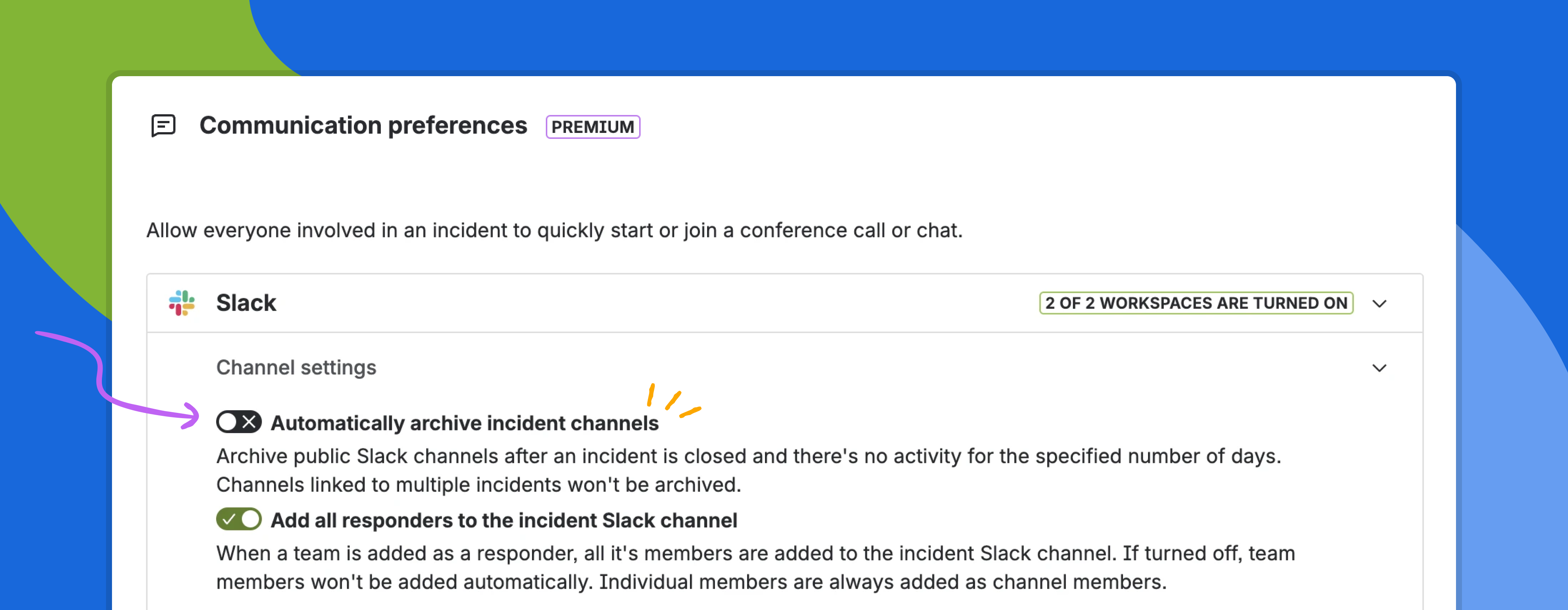
1. Automatically archive inactive incident Slack channels
Incident channels can pile up over time, making Slack workspaces noisy and harder to manage. With automatic archiving, Jira Service Management can now archive incident Slack channels created via the ChatOps app once they’re no longer active.
This helps you:
-
Keep your Slack workspace organized
-
Remove channels that are no longer in use
-
Reduce manual cleanup tasks
-
Ensure only active incident channels stay visible
How it works:
When enabled, Jira Service Management will automatically archive an incident Slack channel when:
-
No messages have been posted for the number of days you specify
-
The linked incident is in Resolved or Closed status
-
The channel is linked to only one incident
If a channel is linked to multiple incidents, it will not be archived automatically—even if it’s inactive.
Note: This feature applies only to incident channels created through the Jira Service Management ChatOps app.
Who can configure it:
Only Jira admins can enable and configure this setting.
How to configure:
-
Go to Space settings → Incident management
-
Under Communication preferences, open Slack → Channel settings
-
Turn on Automatically archive incident channels and set the number of inactive days
2. Automatically add responder teams to incident chat channels
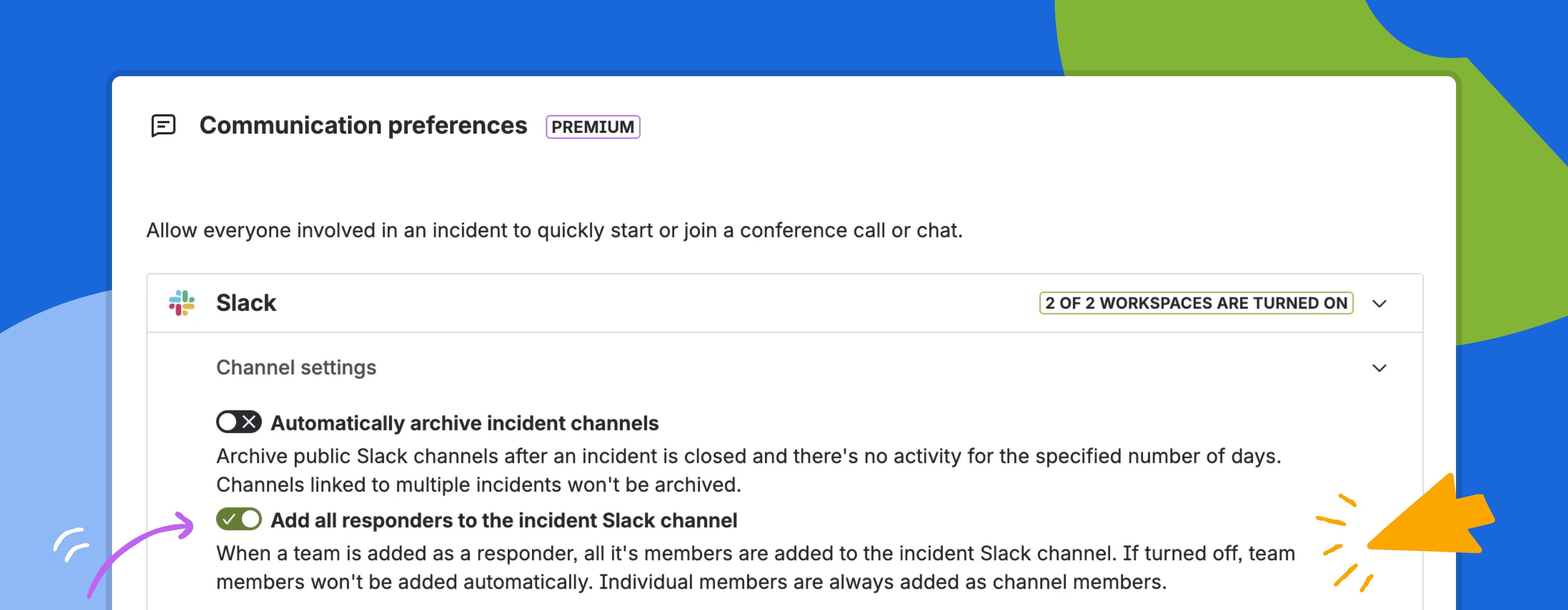
When an incident happens, responders shouldn’t have to be manually added to chat channels one by one. With this enhancement, responder team members are automatically added to incident chat channels in Slack and Microsoft Teams as soon as the team is assigned to the incident.
This helps you:
-
Get the right people into the conversation faster
-
Reduce manual channel membership management
-
Ensure consistent responder participation across incidents
How it works:
-
Adding a responder team to an incident automatically adds all team members to the incident’s Slack channel or Microsoft Teams chat
-
Applies only to channels created via Jira Service Management ChatOps
-
Enabled by default for service spaces
Turning this setting off stops responder team members from being auto-added.
How to configure:
Slack
-
Go to Space settings → Incident management
-
Scroll to Communication preferences
-
Select Slack → Channel settings
-
Turn on Add all responders to the incident Slack channel
Microsoft Teams
-
Go to Space settings → Incident management
-
Under Communication preferences, select Microsoft Teams → Chat settings
-
Turn on Add all responder team members to the incident chat
3. Enhanced incident summary card in Slack
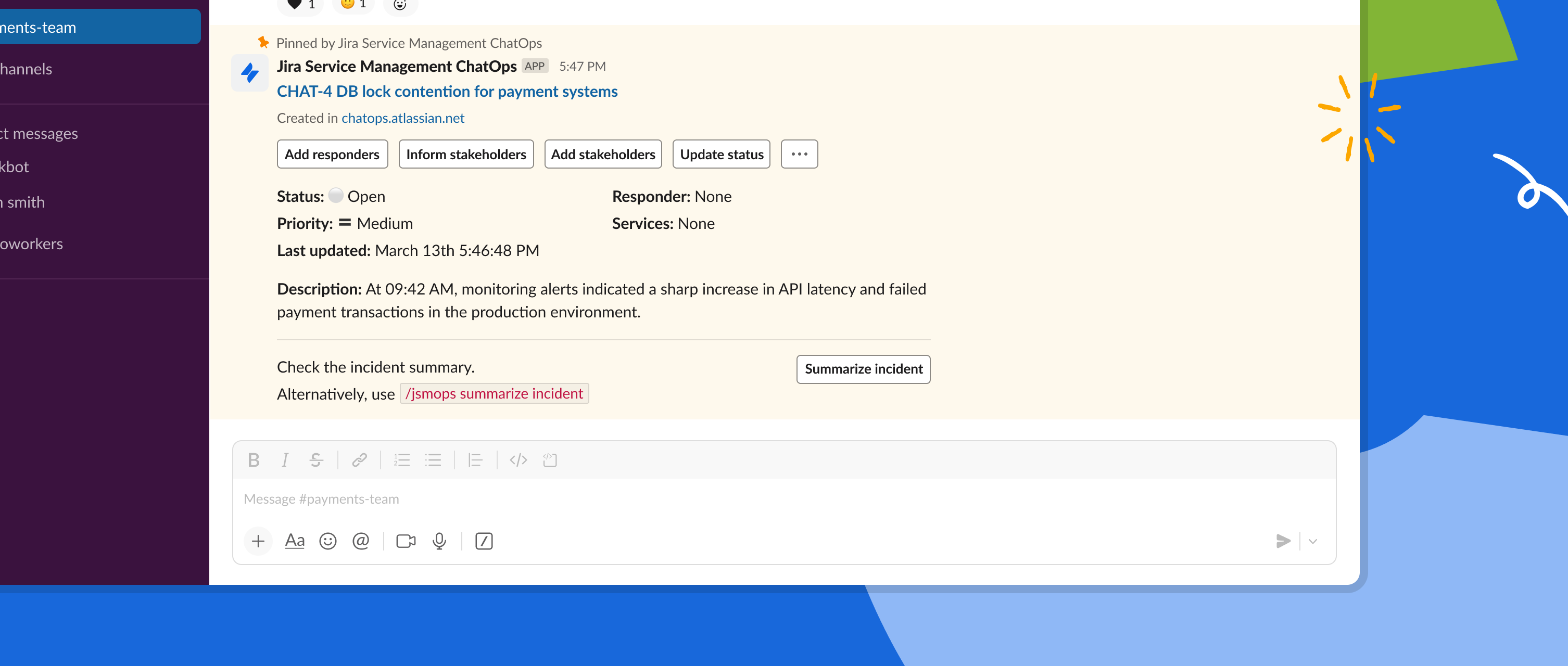
We’ve refreshed the incident summary card that Jira Service Management posts in Slack when an incident channel is created.
The new design provides richer context and more actionable controls, helping responders understand and act on incidents faster—without leaving Slack.
This helps you:
-
Give responders clearer incident context
-
Take key actions directly from Slack
-
Reduce time spent searching for links or fields in Jira
What’s new:
The enhanced incident summary card now:
-
Displays a more detailed incident overview
-
Includes actionable buttons, such as:
-
Keeps a call-to-action so users can generate an updated AI summary at any time
The updated layout makes critical information and actions easier to scan during high-pressure incidents.
4. Automatically set the topic of incident Slack channels
Slack channel topics provide valuable context—but they’re easy to forget to update during fast-moving incidents.
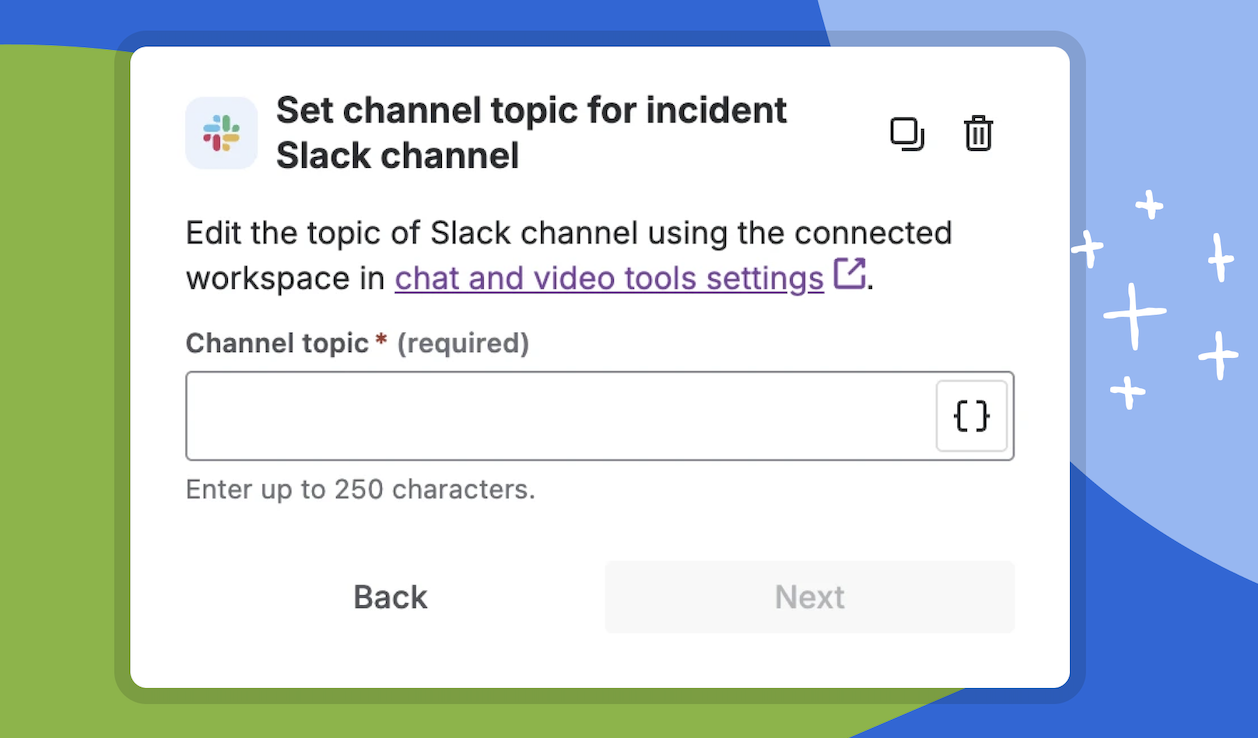
We’re introducing a new automation action: Set channel topic for incident Slack channel, allowing teams to automatically set or update channel topics using Jira smart values.
This helps you:
-
Give responders instant context when they join
-
Keep channel topics consistent and up to date
-
Reduce manual edits during incident response
How it works:
With this automation action, you can:
-
Set the topic of the Slack channel linked to an incident
-
Use smart values like incident key, summary, priority, assignee, or status
-
Update topics when incidents are created or updated
-
Use Slack formatting and emojis (for example, :fire:)
Availability:
-
Supported only for incident issue types
-
Available on Premium and Enterprise editions
-
Applies to channels created via the Jira Service Management ChatOps Slack app
Setup notes:
To use this action, customers must:
5. Proactive AI incident summaries when joining Slack channels
New responders often join an incident channel and ask, “What’s going on?”—interrupting the flow of response.
With proactive AI summaries, Jira Service Management ChatOps now automatically shares an AI-generated incident summary when users join an incident Slack channel.
This helps you:
-
Get up to speed in seconds
-
Reduce repetitive “catch me up” questions
-
Keep everyone aligned on the latest incident state
How it works:
-
When a user joins an incident Slack channel, the ChatOps bot automatically posts an AI incident summary
-
The incident summary card still includes a CTA to generate a fresh summary on demand
-
Users can continue using /jsmops summarize incident
If more than one incident is linked to a Slack channel, AI summaries will not be generated:
Please leave your feedback in the comments below—we’re continuing to improve the ChatOps experience and would love to hear from you. Thank you! 🙏


