Ten minutes into your first week with Jira Software, someone tells you to create a board. You create one. It works fine.
Six months later, you're looking at a specific column with fourteen cards stacked in it, and your VP is asking when the release ships, and the board has absolutely nothing to say about it.
That gap is what this article is about. Creating a new board takes two minutes. Knowing which board to create, and knowing what it will never tell you, takes slightly longer.
What a Jira board actually is
A board doesn't contain your work. It displays it.
Your Jira instance is a database with thousands of tickets sitting in it. A board grabs a slice of that database and lines it up in columns by status. In company managed projects, that slice is a saved JQL query. Nothing more mysterious than a filter with a nice front end, and you can make the underlying JQL queries as complex as you like.
Three things follow from that, and new users should know all three before clicking anything.
- You can delete a board and every work item survives. The board was a lens, not a container.
- You can point several boards at the same space. Your development team gets a board with their own quick filters; the product owner and stakeholders get a board that shows the same tickets grouped their way. Same data, two rooms, nobody arguing about whose view is correct. Access is controlled at the space level, so this costs you nothing in permissions.
- And none of that works in a team managed space. Team managed spaces ship with only one board. It's wired into the space, it isn't filter-driven, you can't repoint it and you can't create a new one next to it. Half the "my board is broken" threads in the community are really someone who built in team managed and now wants company managed behaviour. Check which type you're in first. It's written at the bottom of the space sidebar.
Jira Scrum board vs. Kanban board
Teams agonise over the two board types far more than the decision deserves. One question settles it: does your work arrive in batches you can commit to, or does it just keep arriving?
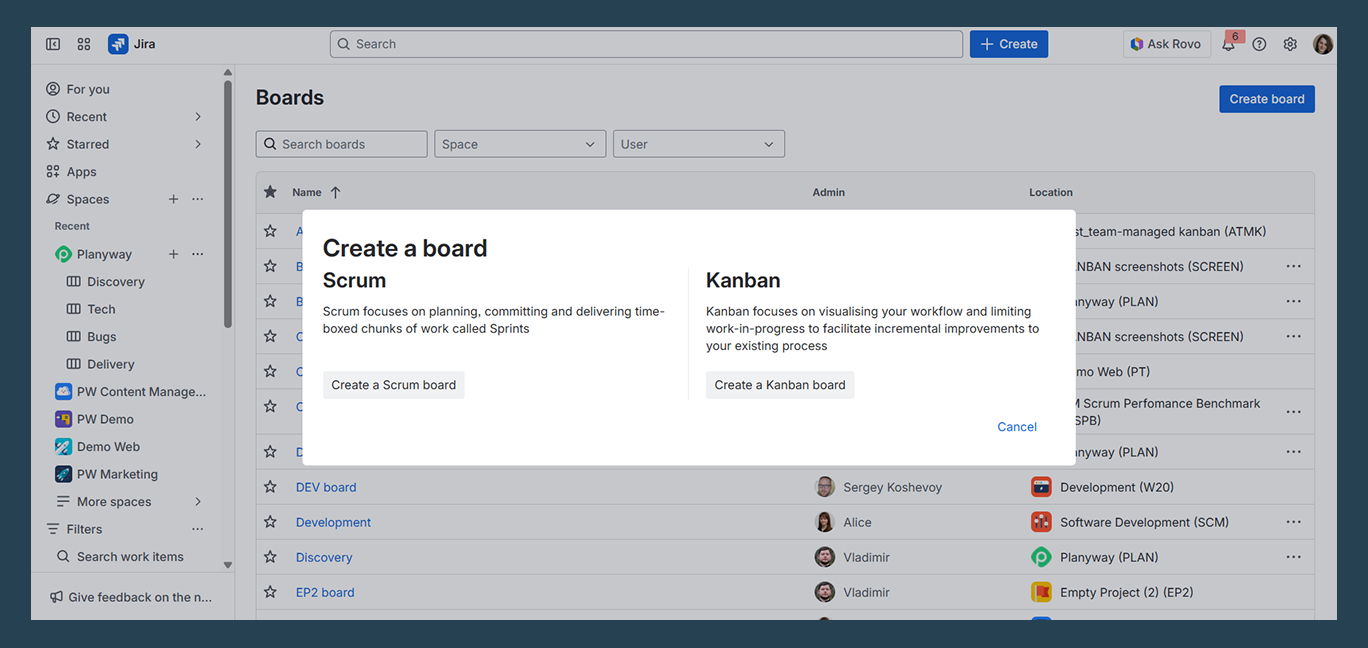
Pick the Jira Scrum board if your team works in sprints, usually two weeks. You commit to a fixed block of user stories, you complete it, you close the sprint. The sprint boundary is a fence around your scope, and its real job is letting the product owner say "no, that goes in the next one."
Development teams building a product live here. So does anyone who needs a velocity number that means something, because story points only become predictive when the team and the time box both hold still.
Kanban board
Pick the Jira Kanban board if work flows continuously and you can't fence it off. Support queues, IT operations, maintenance crews, anyone whose Monday gets decided by whatever landed overnight. No sprint clock, no commitment ceremony, just pull the next thing when a slot opens.
This is also where work in progress limits stop being a nice idea and become the whole point. Cap a specific column, and the board starts telling you where the process is stuck instead of how busy everyone looks. Skip the limits and you've built a to-do list with extra ceremony.
In team managed spaces you don't choose at all
There's no board type dialog. You get one board, and you switch between agile methodologies with a toggle: Space settings → Features → Sprints. On behaves like Scrum. Off behaves like Kanban. That's the whole difference, and it's the most helpful thing to show a new team member on day one.
What if you follow the hybrid approach — Scrumban?
Scrumban, if you must
Create a Kanban board, then switch the Backlog feature on. You get a prioritised queue to pull from without signing up for start and end dates every fortnight. It's how the Planyway team works, and we've written up the messy details separately.
How to create a Kanban board in Jira, and the other agile boards
Company managed space
-
Click Create in the top navigation bar. On most pages the button sits top right; in some Jira Cloud versions the menu item reads Create board, so select Create board there and you land in the same wizard.
-
Choose the board type, Kanban or Scrum. This is the one choice you can't quietly reverse later, so pick the rhythm the team already has rather than the one you wish it had.
-
Point the new board at a space, or at a saved filter if you want work items from many teams and spaces on one screen.
-
Give it a name a stranger could decode. "Board 1" will haunt you by March. "Payments — Dev" won't. Pairing the board name with the space name helps once you have a dozen of them.
-
Click Create.
Then open Board settings, because the defaults are generic. Map statuses to columns properly, set WIP limits, choose which fields show on board cards, and decide whether sub tasks appear as separate cards or stay tucked under their parent.
Team managed space
-
Create in the top navigation bar, then pick a team managed template.
-
Enter the space name and key.
-
Space settings → Features, toggle Sprints and Backlog to taste.
Team managed is the faster road for a small team that owns its own process. Company managed is what you want the moment workflow, permissions or boards need to be shared across many teams. Migrating between them later is a genuine project, so spend thirty seconds on it now.
Create one board per team and resist getting clever
Because a company managed board is only a filter, you can mould it to whatever management style you have. Two setups cover almost everything that works in practice.
The team board
One squad, one board, everything that squad is working on regardless of which project it belongs to. Boring and correct.
It's also the only setup where velocity is real. A stable roster and a stable board give you a number you can plan with. Split one team across two boards and their focus fractures while your reporting becomes fiction: neither board sees the full commitment, both undercount, and everyone quietly stops trusting the charts. Don't do it.
The project board
For temporary, goal-shaped work. A website redesign, for example, pulls in a designer, two developers, and a copywriter who all report elsewhere. Give them a shared board so they're arguing over the same status updates instead of three different ones.
Just don't read capacity or effort off it. Those people have day jobs this board can't see.
Keep your board clean, then read what it tells you
When the board shows everything, it shows nothing. Filter down to what the team actually controls, and keep the cards at the level of user stories and bugs instead of rendering every sub task as its own tile. Daily stand ups are the test: if the board can't be read top to bottom in the time it takes each team member to speak, it's too full.
A clean board also makes Jira's own reports worth opening. The cumulative flow diagram shows work piling up by status over time, and a widening band means a bottleneck forming right now. The control chart and the cycle time report tell you how long work items really take from start to complete, which is the closest thing continuous flow has to velocity.
They're useful. They're also rear-view mirrors. Every one of them describes what already happened.
Where the board runs out
Boards are excellent at "what's the status of this ticket." They have never once answered "when will it be done." People ask them anyway, then guess, and the guess goes into a stakeholder deck.
Look at what your board is hiding.
Bob has five work items in In Progress. Is he working on all five? Blocked on two? On holiday since Tuesday? The column looks like progress either way.
The board counts story points, not days. It doesn't know Alice has Friday off, or that your deadline lands on a national holiday, or that the QA handoff needs someone who's already booked solid.
Ten cards in a column look equally urgent. There's no sequence, so nothing tells you the third one blocks the other seven.
Align your board with reality with Planyway
To get from task tracking to actual delivery management, you have to lay a timeline over your board. That's why we built Planyway. It doesn't replace the board. It syncs with it in real time and adds the views columns can't give you.
Connect your work by space, by board, so the board you just created becomes the plan, or by JQL filter. Then pick the view that matches the question you're being asked:
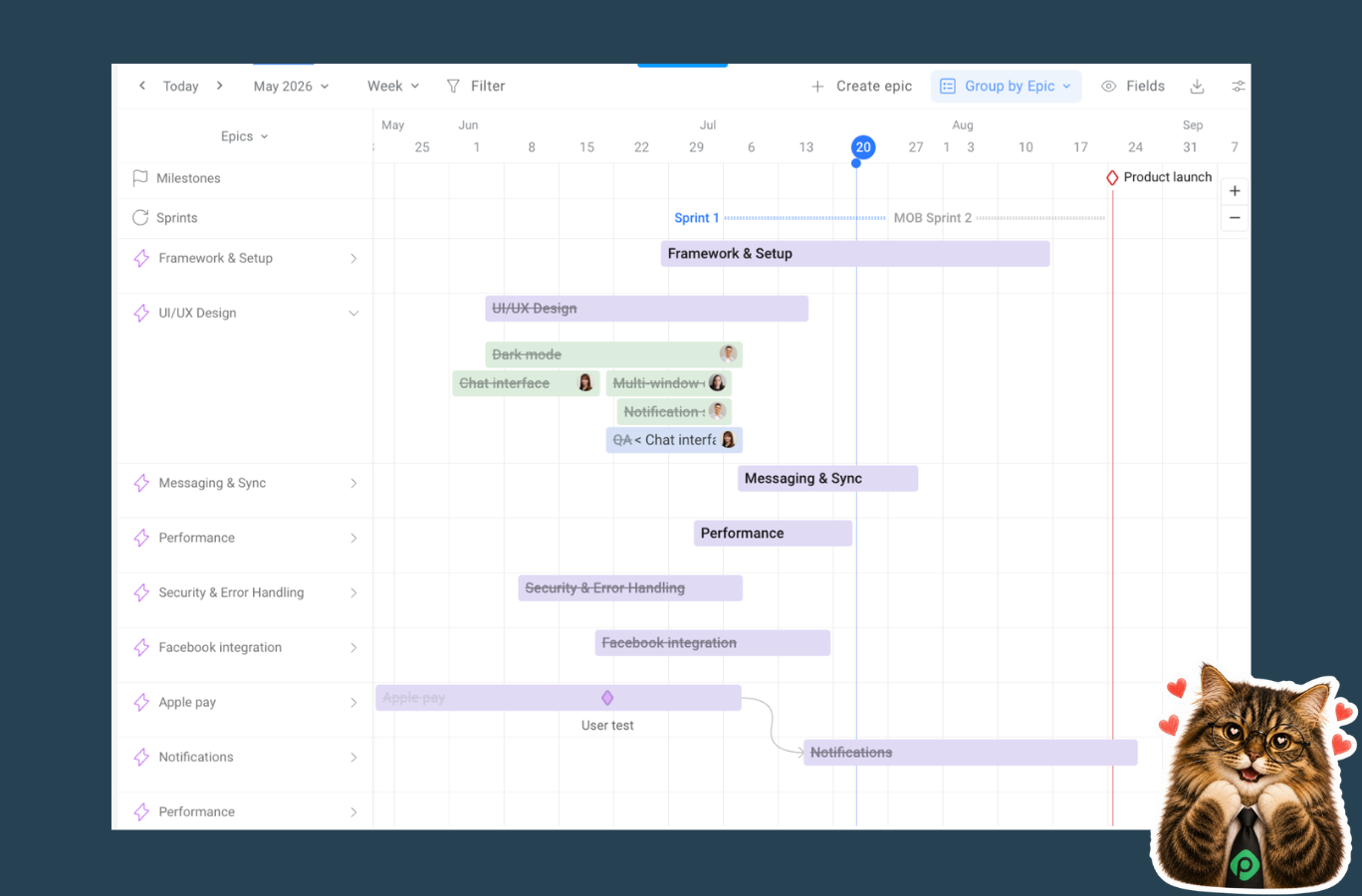
- Roadmap. Your tickets on a timeline, regrouped on the fly by epic, assignee, space, component or label, with sprints, releases, milestones and dependencies drawn on top. This is where you finally see that Task A has to finish before Task B starts.
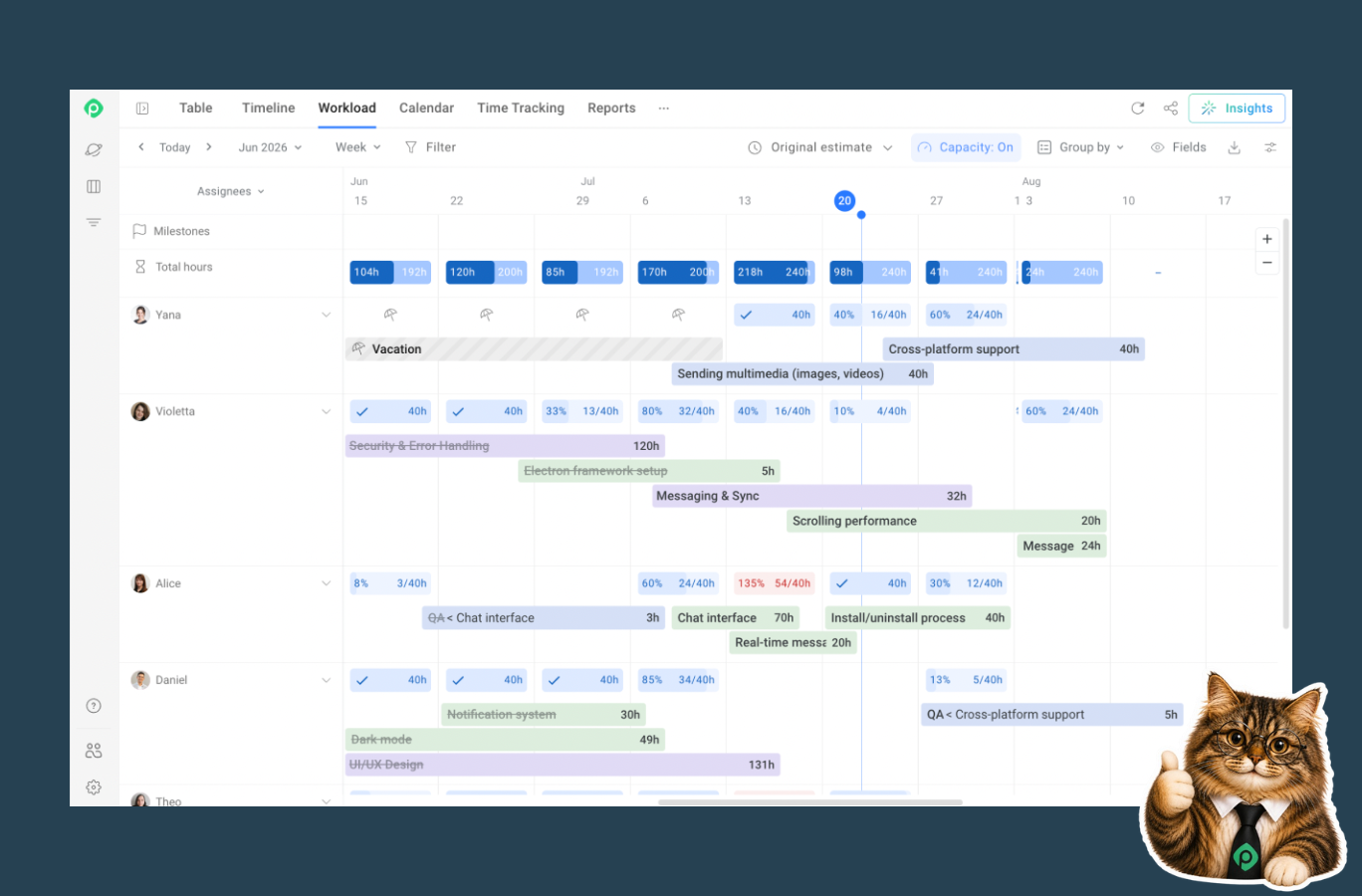
- Workload. The answer to "who is actually available". Colour-coded overload instead of card count, with holidays, vacations and real working hours built into the capacity planning. Drag work items to reassign them, or split one across several people with multi-assign.
- Time tracking. Log hours with a timer or by hand from a list or calendar view, then let the planned vs tracked report put your estimate next to what actually happened.
Share a link to any of it with filters and grouping preserved, or export to PDF, Excel or CSV for the people who live in slide decks.
Your board tells you the column is full. Planyway tells you whether it can be empty by Friday.
Summary
Creating a board is the easy part. The two decisions that matter are company managed versus team managed, and Kanban versus Scrum, and both are far harder to undo than to get right the first time.
After that, the board will organise your chaos into columns and then stop. Columns are a picture of the present. Delivery dates need a picture of time.
Ready to see your board on a timeline? Try Planyway for Jira, free to start.
