
You go to Jira, try to save your data in Excel... and notice something is not there. The export doesn’t present the entire story of each task, just the current state. No timeline. No history. No "who changed what and when”.
And when you are preparing a report, an audit or a retrospective that is a big thing. You must have all modifications, status changes, reassignments, field changes, even deleted tasks. But Jira doesn’t provide a built-in means of exporting that history.
The good news? You can get a full change history in Excel format and in minutes.
So now, we are going to discuss how to export all updates on your projects to a clean Excel file that can be filtered, analyzed, and shared.
Let's break down how it works.
Why Export Jira Data to Excel
The ability to export Jira data to Excel is not only related to convenience, but also it is about visibility. Usage of Excel is the simplest way to analyze and share information when teams have to review progress, prepare reports or meet compliance requirements.
Here are some reasons why teams may need to use Jira Excel export::
- For audits and compliance checks.
- For management reports which need clear, shareable information.
- For sprint reviews and retrospectives.
- For user or project performance analysis.
- For backups and documentation to ensure long-term visibility.
This is easy using Excel: everything can be filtered, sorted, grouped, and charted.
The problem? The native export of Jira has only the latest version of each task - not the complete history of change.
To know who updated a status last week, what tasks have been reopened, which tasks had several reassignments, or what was deleted during the sprint, you can’t rely only on Excel.
You require the entire change timeline, and Jira doesn’t provide such an export that by default.
So, let’s explore what you can do with native Jira export capabilities and what to do if you need the full history of changes.
How to Export One Task and a List of Tasks in Jira (Native Options)
Jira has inbuilt export capabilities, though they are limited. You are able to export the current fields of tasks and not their entire change history. Nevertheless, it can be handy when you require the fast Excel output.
Exporting a Single Jira Issue in Excel
To export a single task in Jira, do the following:
- Open the needed task.
- Click Actions (•••) → Export and choose Excel.
- Select what to export (you can choose fields, comments, history).
You will get such a report 👇:
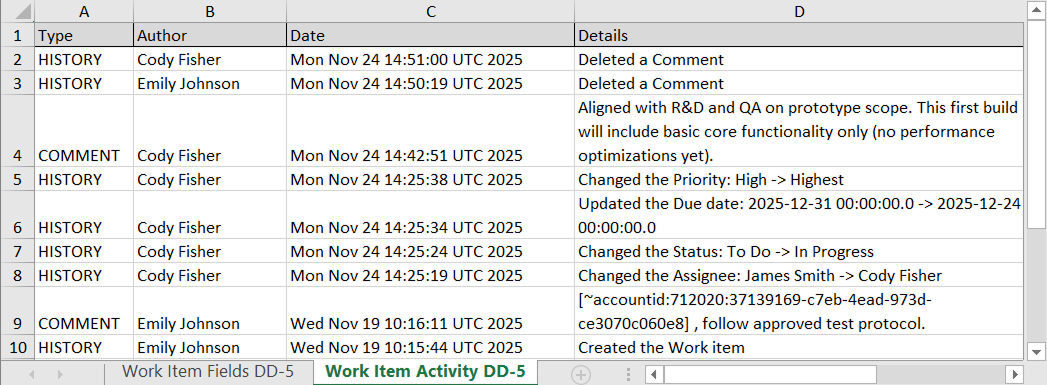
As you can see, this export file is hard to read and doesn’t include details about deleted comments. So, it lacks the data that can be really useful and important for different analyses.
Exporting Multiple Jira Issues in Excel Using JQL
To export a list of tasks, you need to first filter them using JQL. For that, do the following:
- Go to Filters → All work items.
- Switch to JQL and enter your query. For example:
project = "Device Design" AND updated >= -10d
3. Then, click Export → Export Excel CSV (all fields) or Export Excel CSV (my defaults), as using this method, you won’t be able to download true Excel (XLS/XLSX) file.
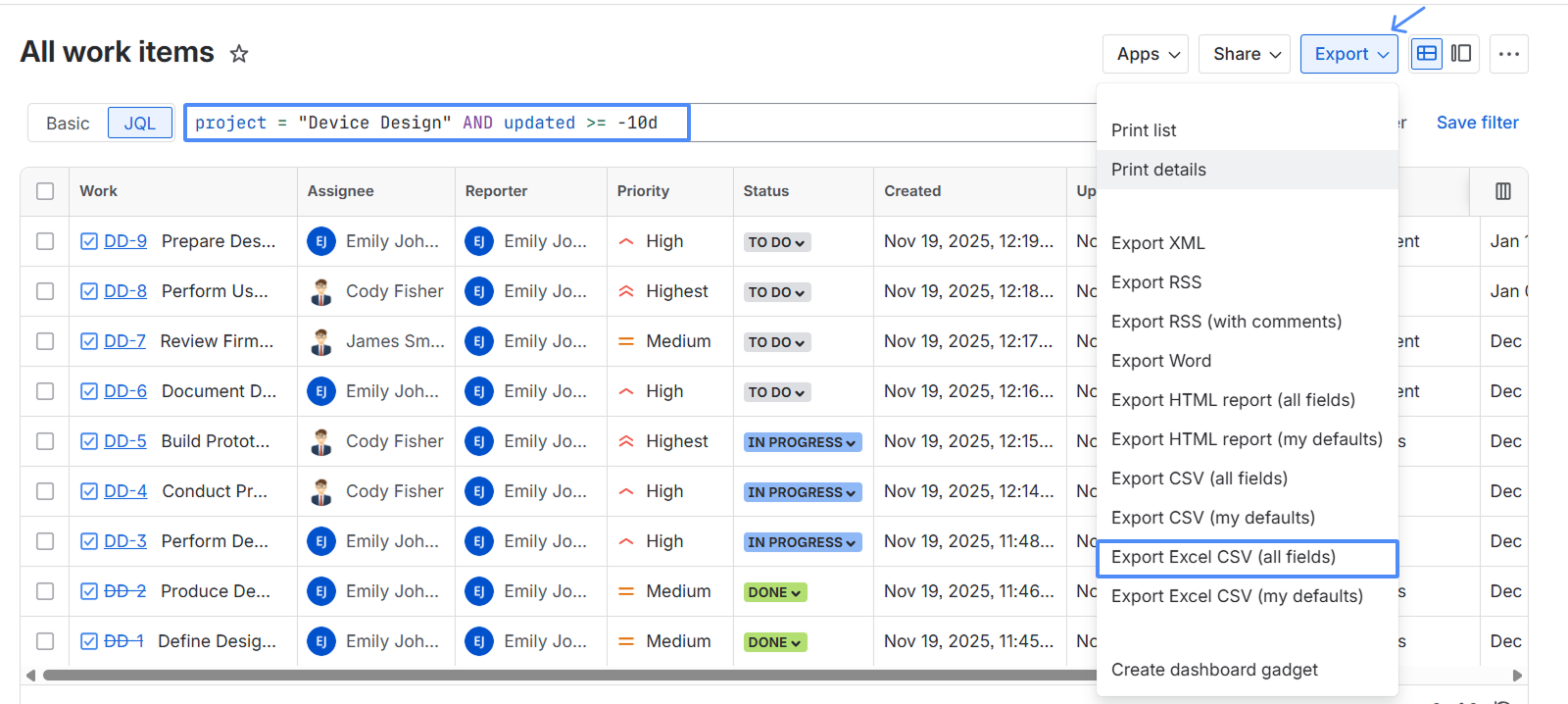
You will get such a report 👇:

So, this method has huge limitations. It allows exporting only the current field values, doesn’t include change history, and provides data in CSV instead of true Excel format.
How to Export Full Jira Change History in Excel with Issue History for Jira
The native exports of Jira show the current state of the tasks. To view every change in detail, you will require an app designed to track history. Issue History for Jira app by SaaSJet makes it easy and quick, regardless of whether you are exporting a single task or hundreds of them at once.
Exporting Full Jira Issue Change History in Excel
To export the full history of one work item in Excel format, do the following:
- Install Issue History for Jira app from Atlassian Marketplace.
- Open the needed work item and go to the Activity section.
- Click More and choose 🕒Issue History.
- Click Export button and choose Excel format.
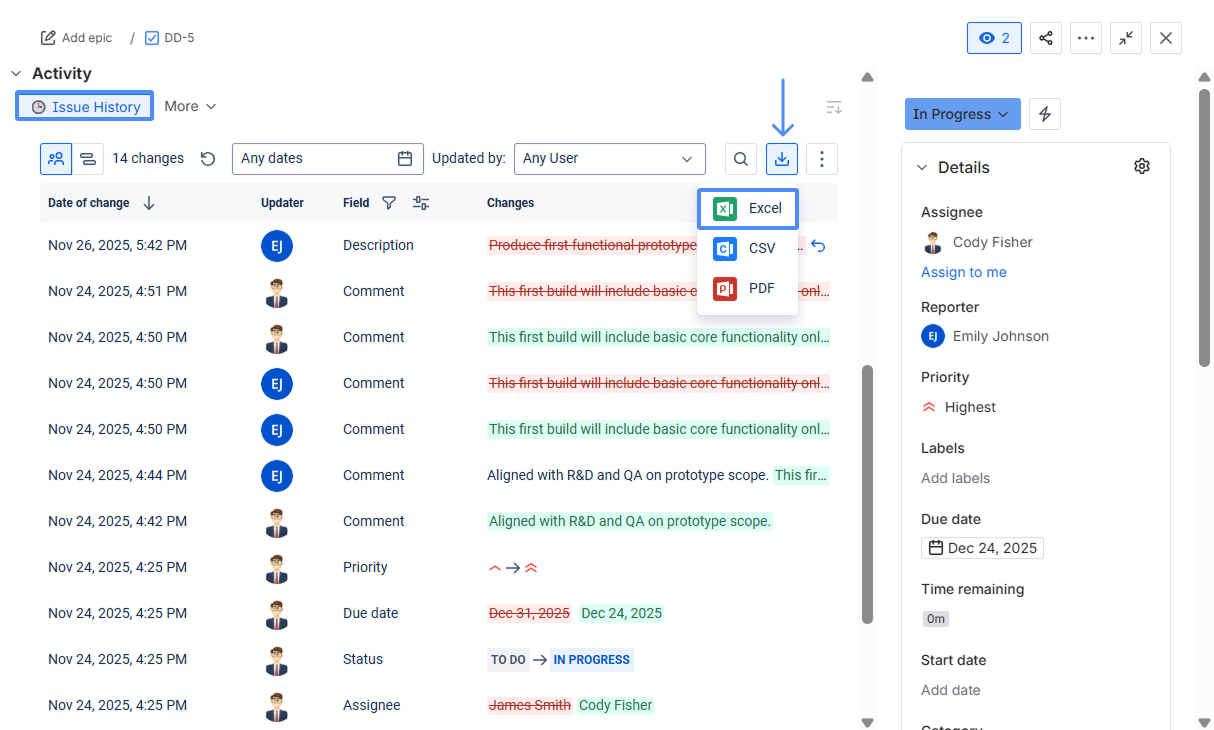
You will get such a report 👇:
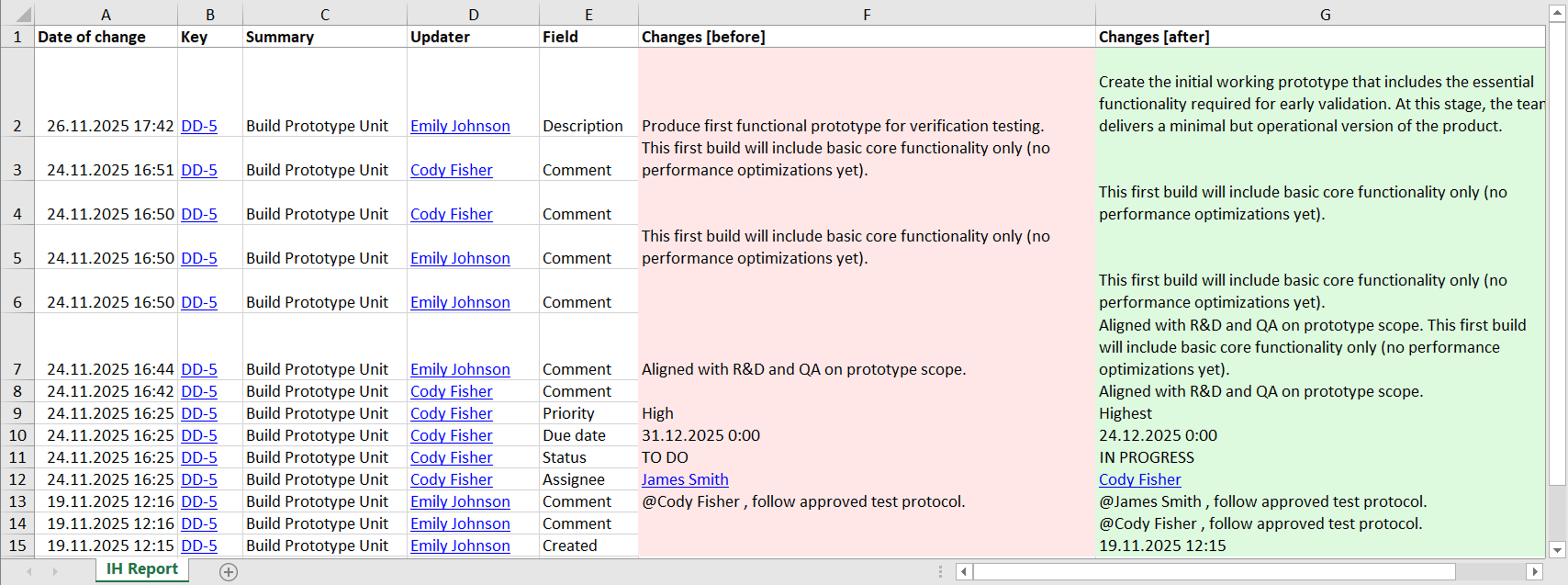
You will be able to see all changes made to Jira tasks: status updates, field edits, comments (added, edited or deleted), reassignments, and more.
Exporting Full Change History in Excel for Multiple Jira Issues
To export the complete history of changes related to multiple issues in Excel format, follow the next steps:
- Open Issue History for Jira app from Apps menu.
- Use filters to select the data you need (by project, sprint, updater, date range, etc.).
- In the Columns menu, choose the field need (e.g., priority, due date, etc.).
- Click Export button and choose Excel.
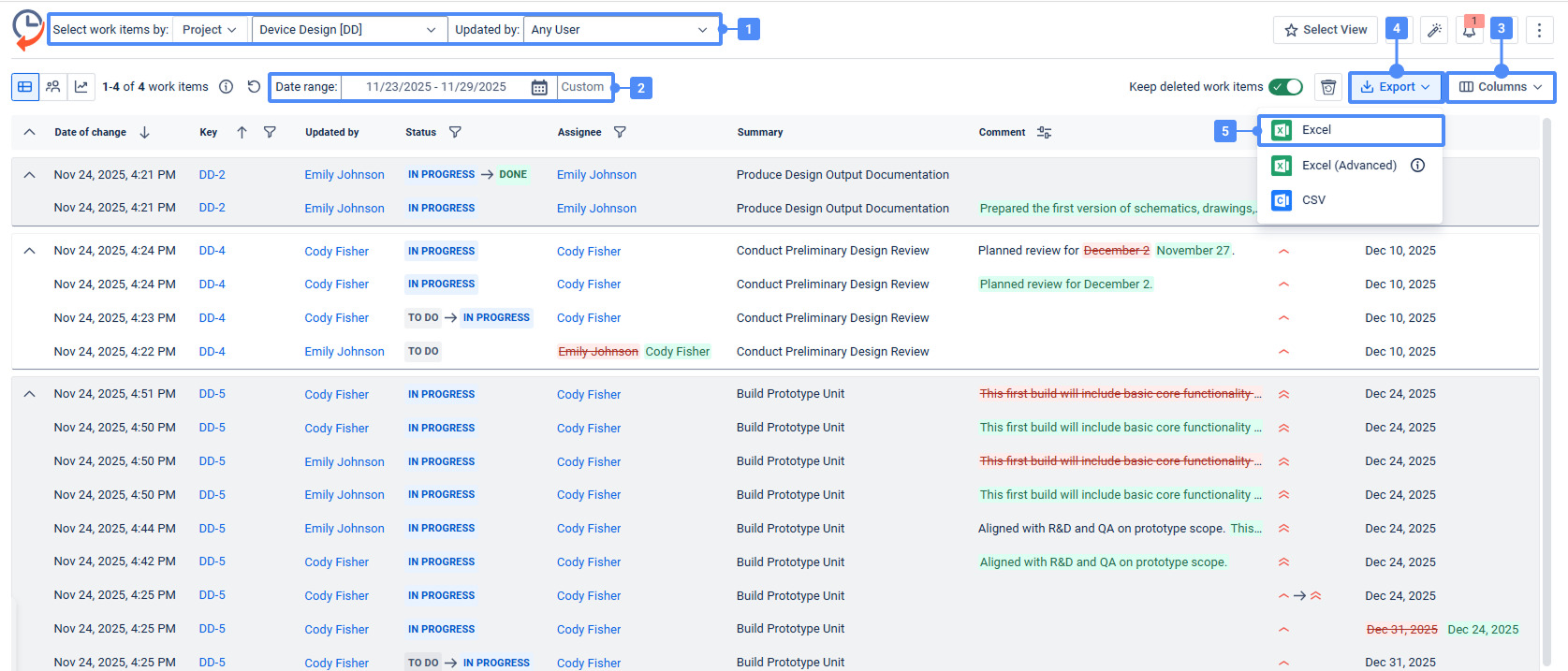
You will get such a report 👇:
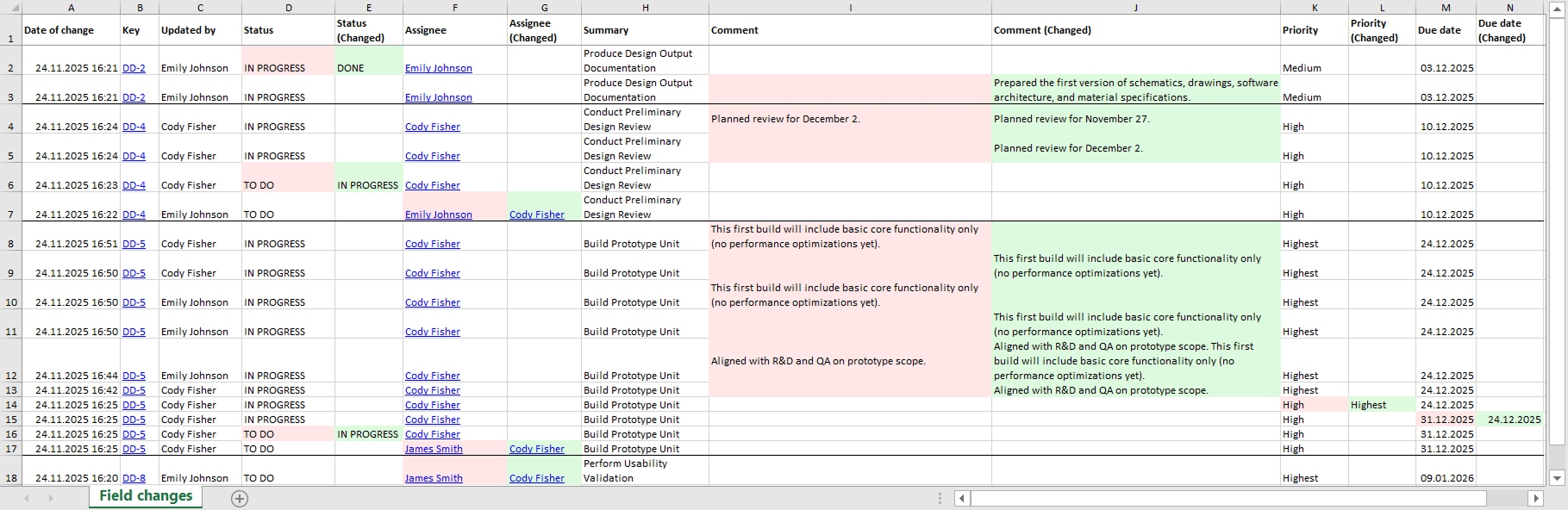
So, you will have every update across all selected issues. It is perfect for audits, retrospectives, compliance reports, and team analysis.
Also, you can try Advanced Excel export, which includes:
- Field changes duration report
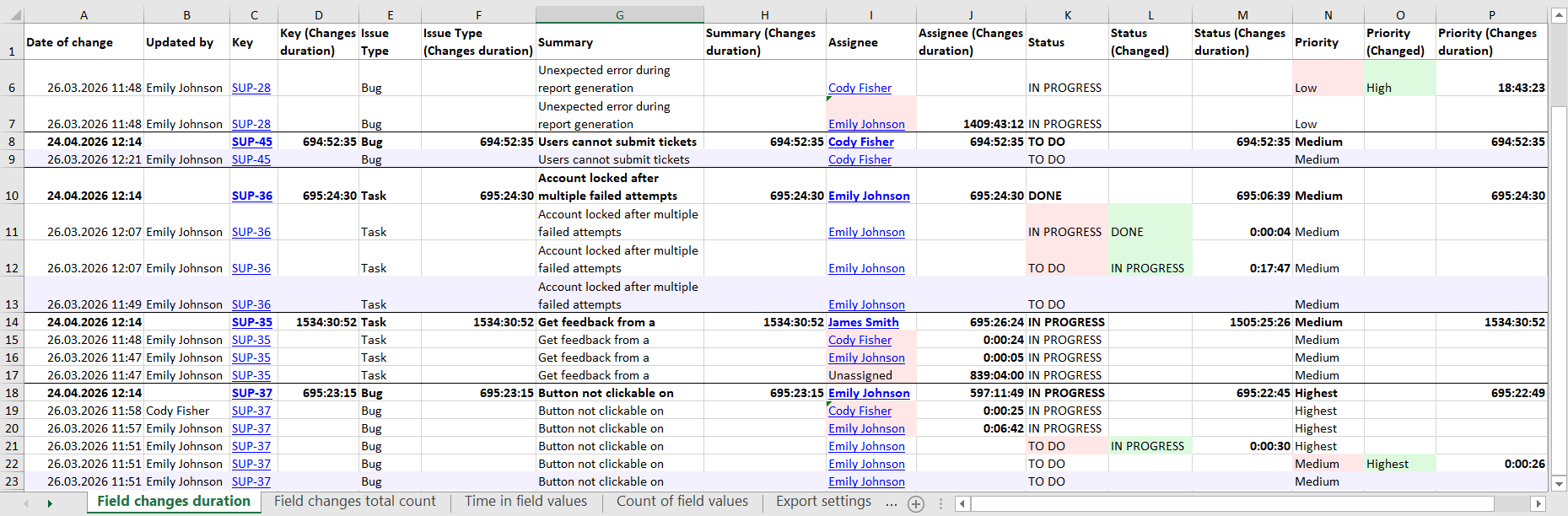
- Field changes total count report

- Time in field values report

- Count of field values report

|
🚀 Want the full Jira change history in Excel?
Try Issue History for Jira by SaaSJet on the Atlassian Marketplace.
Try Issue History for Jira →
|
Summing Up
The export capabilities that Jira has are handy; however, they reflect the current status of your tasks.
When complete task change history is required, Issue History for Jira app provides you with all the details in a single location, and you can export them to Excel within minutes.
| Method |
Includes change history |
True Excel (.xlsx) format |
Works for multiple issues |
Setup effort |
|---|
| Native single-issue export |
❌ No |
❌ No (CSV) |
❌ No |
None |
| JQL + Export Excel CSV |
❌ No |
❌ No (CSV) |
✅ Yes |
Low |
| Issue History for Jira by SaaSJet |
✅ Yes, full changelog |
✅ Yes (.xlsx) |
✅ Yes, with filters |
Low (Marketplace app) |
