SLA fields out of control? You’re not alone
Have you ever opened Jira’s custom fields list and spotted like 20+ “Time to resolution” fields? Yes, it’s possible. Because JSM creates locked SLA custom fields as part of SLA configurations per project.
Over time, these can multiply, especially if you:
- Create SLAs in each project separately.
- Clone/migrate projects without cleanup.
- Use team-managed projects.

Tons of admin work? Some things can be simplified.
From Atlassian Community threads like Duplicate SLA, Duplicate Time to Resolution fields?, and SLA Visibility (duplicate metrics), it’s clear: SLA clutter is a shared admin pain.
“I have over 100 Service Management Projects with two SLAs in place and I need to change one of them for all projects.” [Atlassian Community post]
“Is it possible to duplicate or mass update SLA? I set up a SLA in one project and I want this SLA to be the default SLA for all projects.” [Atlassian Community post]
But there is a fix. From this article you’ll learn how to avoid duplications and config clutter with a 3-step framework. We’ll show you our secret sauce, using native JSM features and an additional plugin.
Why duplication happens
Many admins create SLAs on a project-by-project basis, which means each project gets its own SLA field — even if the SLA logic is identical. This leads to multiple versions of metrics like “Time to resolution” that are technically separate fields.
Jira Service Management has no built-in “global SLA” feature, so you can’t configure an SLA once and apply it across all projects. Without a centralized setup, duplication is almost inevitable.
Project cloning or migration can also cause duplicates. When you copy a project or import issues from another instance, Jira often brings over the SLA fields too, creating yet another set of identical-but-separate fields.
The risks:
- Field clutter makes admin work harder.
- Performance impact as the number of indexed fields grows.
- Confusion in reports and automation when multiple fields have the same display name.
Plan before you start — the global SLA mindset
Before building any SLA, ask:
- Will multiple projects share this SLA?
- Do you need it in non-JSM projects?
- Will it change frequently?
- Should customers or non-agents see it?
If the answer is “yes” to any of these, aim for a configuration that’s reusable across projects and works beyond JSM.
How to avoid duplications: Instantly track SLA metrics across projects
Keeping an eye on SLA compliance across multiple projects is tricky. Without a central setup, each project has its own SLA fields, making cross-project reporting messy.
Here are two ways to do it: using Jira Service Management native capabilities and SLA Time Management app that enables centralized SLA management in JSM and Jira projects.
Native JSM approach:
1. Use company-managed projects (not Team-managed) so that SLA configurations, calendars, and workflows can be reused across projects.
2. Create a calendar for SLA working hours.
- Go to Project settings → SLAs → Calendars.
- Click Add calendar.
- Add name
- Define: time zone, working days, working hours, and holidays
- Save your calendar
3. In Project settings → SLAs, click Create SLA.
- Name your SLA (e.g., Time to first response or Resolution time)
- In Goals filter issues using JQL
- Assign the calendar you created earlier
- Set the Start condition (e.g., Issue created or status changed to Waiting for support)
- Set the Pause condition (e.g., Waiting for customer)
- Set the Stop condition (e.g., status = Done or Resolved)
- Define your goal time duration
- Choose SLA display format
- Save the SLA.
4. Repeat the same SLA setup in each project.
5. Using JQL, create a filter to show issues that meet specific SLA conditions. Go to Filters → Search work items.
- Using JQL, create a filter to show issues that meet specific SLA conditions. Go to Filters → Search work items.
- Save the filter and display it in dashboards.
SLA Time Management approach:
1. In Calendars tab -> Add new calendar
- Add name and choose a time zone
- Set working days, hours and holidays
- Save calendar
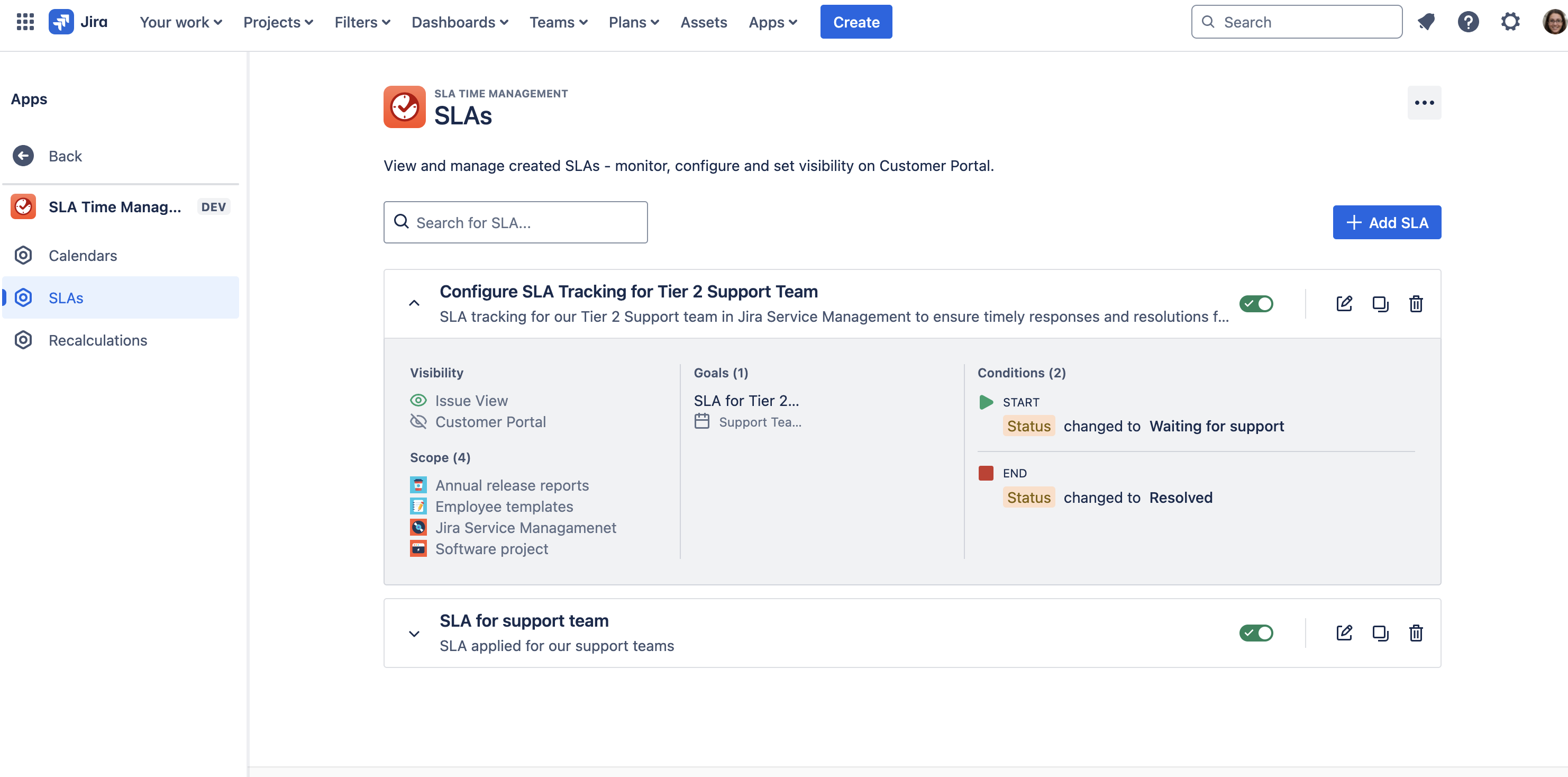
2. In the SLAs tab -> Add SLA
- In settings type a name and description.
- Assign it to multiple projects simultaneously — all share the same field.
- Set up a goal and choose a goal type (duration, business days offset, date, assets-based, unspecified)
- Set up Start/Pause/End conditions (you can also configure multi-field conditions using the AND operator)
- Visibility: if you wish, enable SLA tracking for customers on Customer Portal, choosing this option.
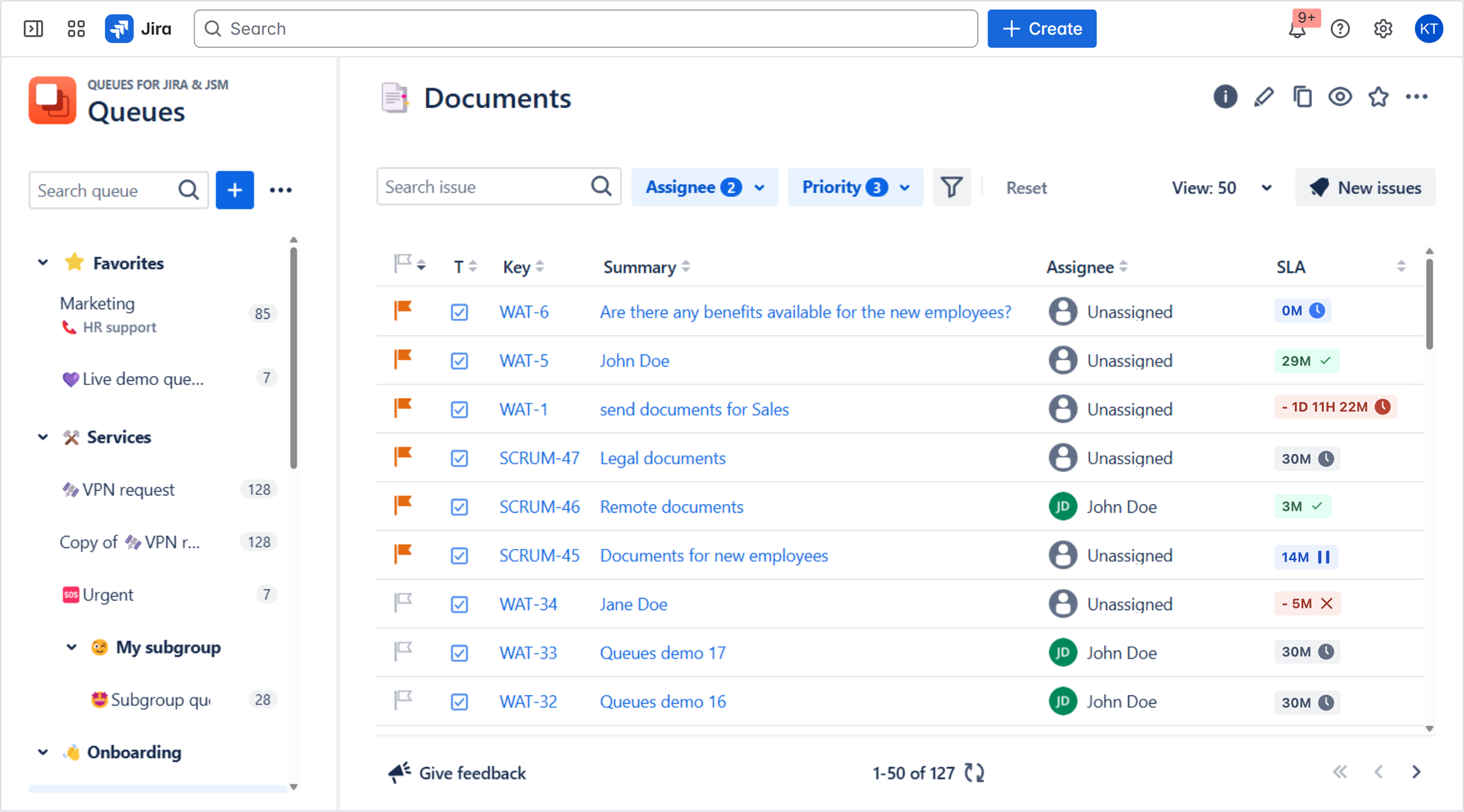
3. Display SLA progress in Queues or the Issue Navigator across projects.
Result: Centralized SLA tracking without duplicate fields, enabling instant visibility into SLA progress across the entire service operation.
Keep configs clean — an easy 3-step framework
It is not only about regular decluttering, organizing SLAs in a clean way and reducing troubleshooting. A clean SLA setup requires a more strategic approach.
Here is what experts at Deviniti recommend for every team:
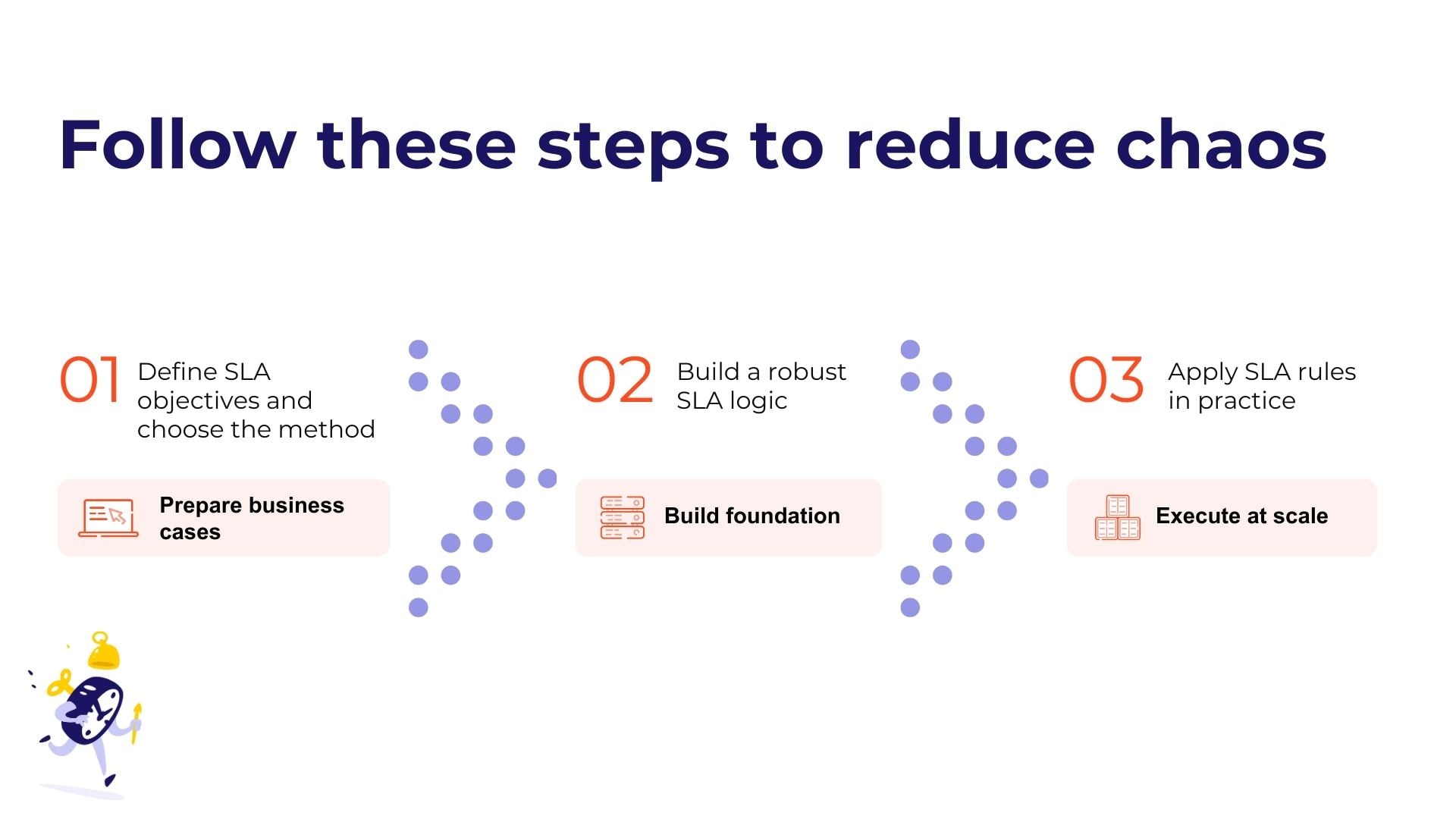
Best practices for configuring SLAs in JSM
|
PLAN
|
BUILD
|
EXECUTE
|
|
Audit your projects and SLAs:
- Review SLA configurations per project
- Identify unused or redundant SLAs
- Check for cross-project inconsistencies
- Assess visibility settings
- Document your SLA inventory
|
Create team-specific calendars with working hours, breaks, and holidays
|
Native JSM: Carefully replicate configs and document them
|
|
Choose visibility (customers, agents, non-agents)
|
Use pause conditions for waiting statuses
|
SLA Time Management: Assign to multiple projects in one click, update rules centrally
|
|
Define if you need SLAs also in Jira Software
|
Reuse fields to avoid creating new custom fields and precisely define SLA goals (using JQL).
|
|
| |
Apply SLAs only where they matter using JQL
|
|
Conclusion
In summary, these 3 steps will help you bring order and clarity into your Jira Service Management SLA configuration.
✅ Plan before creating SLAs.
✅ Run regular configuration audits and maintain clear documentation to make SA management in JSM clutter-free.
✅ For large SLA inventories, frequent changes, or cross-project needs, consider using a dedicated tool to centralize and simplify SLA management.
Global SLA management in JSM takes planning and discipline if you’re sticking to native environment or expanding your Jira stack to a new tool but it’s possible and absolutely worth it.
