Hi members,
As you all know, there are times when we need to update the values of a Custom Field in Jira. While some fields have a few values that can be updated manually, others have a multitude of values, making manual updates impractical.
In this article, I will show you an effective method to bulk update values for a Custom Field of the single drop-down type.
Steps to Bulk Update Custom Field Values
Step 1: Prepare Your CSV File
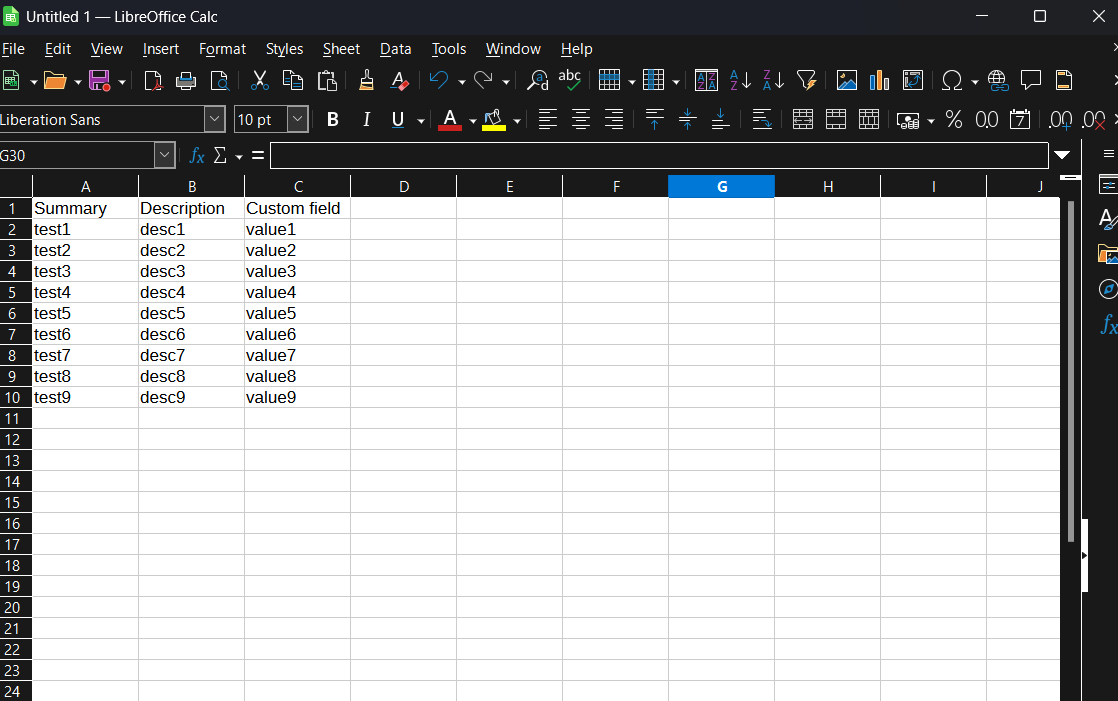
First, create a CSV file with three columns: Summary, Description, and the Custom Field that you want to update. Here’s what to include:
Summary: Add dummy values (e.g., "Dummy Summary 1", "Dummy Summary 2").
Description: Add dummy values (e.g., "Dummy Description 1", "Dummy Description 2").
Custom Field: Add all the values you need to update in Jira.
Ensure the file is saved in CSV UTF-8 format.
Step 2: Import the CSV File into Jira
Create a Dummy Project: Before proceeding with the import, it’s advisable to create a dummy project in Jira. Also, create a context for the custom field within this dummy project to ensure your updates do not affect your live projects.
Navigate to External System Import:
Map the Fields:
Step 3: Validate and Complete the Import
Additional Tips
Back Up Your Data: Before performing bulk updates, ensure you have backed up your data to prevent accidental loss.
Test in a Staging Environment: If possible, test the bulk update process in a staging environment to ensure it works as expected without affecting your production data.
Review and Clean Up: After the import, review the dummy project to ensure all values are correctly updated. You can then apply similar steps to your actual project if needed.
By following these steps, you can efficiently update the values for a custom field drop-down in Jira, saving time and reducing the potential for manual errors.
Feel free to ask any questions or share your experiences with bulk updates in the comments below!
Happy Jira-ing!


